Got a tip for us?

Use Find My to share your location with friends and family, view the location of your Apple devices, locate items you’ve attached an AirTag to, and keep track of Find My network accessories.

Before you can see the locations of people, devices, and items, you need to add them to Find My. If your Apple Watch is paired with your iPhone, it’s set up automatically once Find My iPhone is on.

Add people to Find My

(You see the same people in Find My on Apple Watch as on iPhone.)

To share your location with someone new, do the following:

  1. Open the Find My app on your Apple Watch.
  2. Tap the button at the top left and tap People.
  3. Swipe up from the bottom of the screen, then tap Share Location.
  4. Choose a recipient and a sharing duration and tap OK.

The recipient gets a notification that you’ve shared your location and can choose to share their location with you too. If they agree, their location shows in Find My.

Turn on Find My for your Apple Watch

If your Apple Watch is paired with your iPhone, turning on Find My iPhone gets it set up automatically. Finding your watch also requires the Find My network.

  1. Open the Settings app on your Apple Watch.
  2. Tap your name and scroll down until you see your Apple Watch.
  3. Tap your watch name, then tap Find My Watch.
  4. Turn on Find My network if it isn’t on.

Add your other devices to Find My

Before an Apple device such as iPhone, iPad, Mac, or AirPods is lost, set up Find My on it and turn on location sharing for the device.

Add your AirTag and other items to Find My

When you register an AirTag or Find My network accessory to your Apple Account, the item is added to Find My. (You do this on iPhone or iPad.)

See also

Tag: Find My

Use Find My to locate items you’ve attached an AirTag to, and keep track of Find My network accessories.

You can ping the item, get directions to the item’s location in the Maps app, or locate the item nearby with Precision Finding on AirTag (2nd Generation). You can also receive a notification when you’ve left an item behind. If an item can’t be located, you see its last known location.

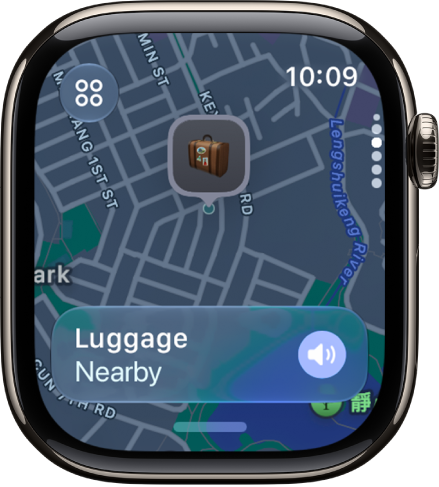
A Find My screen showing the location of a suitcase on a map.

Find the location of an item

  1. Open the Find My app on your Apple Watch.
  2. Tap the button at the top left, then tap Items.
  3. Turn the Digital Crown to scroll through your items and see their locations on a map.

    (If an item can’t be located, its last known location is shown.)

  4. Tap the name of the item you’re looking for and then do any of the following:

    • Ping the item: Tap Play Sound.
    • Get directions to the item’s location: Tap Directions to navigate in the Maps app.
    • Locate the item nearby with Precision Finding: Tap Find, then follow the onscreen instructions.

      Note: Precision Finding is available on AirTag (2nd Generation) and requires Apple Watch Series 9, Apple Watch Ultra 2, or later—excluding Apple Watch SE 3. Precision Finding isn’t available in all countries and regions.

Receive a notification when you’ve left an item behind

To keep from misplacing your items, you can receive a notification when you leave them behind. Setting Trusted Locations lets you leave an item somewhere without receiving a notification.

  1. Open the Find My app on your Apple Watch.
  2. Tap the button at the top left, then tap Items.
  3. Turn the Digital Crown until you see the item. Tap its name.
  4. Scroll down to Notify Me and turn on When Left Behind.
  5. Set a trusted location—such as home.

See also

Tag: Find My

Use Find My to locate Apple devices you’ve lost or misplaced, or get notified if you leave a device behind.

If your device is online, you can see its location, and for supported devices, Find My can locate it even if it’s powered off or in Low Power Mode. You can also get directions to it in the Maps app.

Here’s how to locate devices in Find My on Apple Watch.

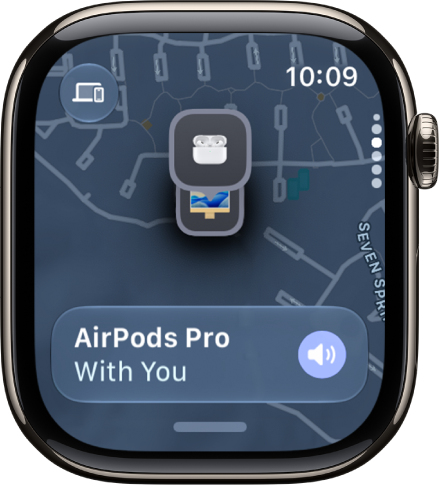
A Find My screen showing the location of AirPods Pro on a map.

Find the location of a device

When your device is online, the Find My app shows its location. Find My can even locate a supported device that’s powered off, in Low Power Mode, or in Airplane Mode.

  1. Start the Find My app on your Apple Watch.
  2. Tap the button at the top left and then tap Devices.
  3. Turn the Digital Crown to scroll through your devices and see their locations on a map.

    (If a device can’t be located, its last known location is shown.)

  4. Tap the name of the device you’re looking for. Do any of the following:

    • Ping the device: Tap Play Sound.
    • Get directions to the device’s location: Tap Directions to navigate in the Maps app.

Receive a notification when you’ve left a device behind

You can receive a notification when you’ve left your device behind, which helps keep you from misplacing it. Trusted Locations, which you can also set, are places where you can leave your device without receiving a notification.

  1. Start the Find My app on your Apple Watch.
  2. Tap the button at the top left and then tap Devices.
  3. Turn the Digital Crown until you see the device. Then tap its name.
  4. Scroll down to Notify Me and turn on When Left Behind.
  5. Set a trusted location—such as home.

See also

Tag: Find My

Apple Watch can help you find your iPhone nearby by playing a sound. With certain Apple Watch models, you can also use Precision Finding and see a general heading and distance to your iPhone.

In the dark? Your iPhone can flash as well as play a sound, so you can track it down. And if your iPhone isn’t in range of Apple Watch, you can try Find My on iCloud.com.

Here’s how to ping your iPhone with Apple Watch.

Ping your iPhone with sound

  1. Press the side button to open Control Center on Apple Watch.
  2. Tap the Ping iPhone button.
  3. Your iPhone plays a sound so you can track it down.

    Tip: In the dark? Touch and hold the Ping iPhone button, and your iPhone flashes as well.

Try Find My from iCloud.com when your iPhone isn’t in range of Apple Watch.

Ping and locate your iPhone with Precision Finding

Precision Finding helps your Apple Watch locate your iPhone, playing sound and showing a heading and distance.

Note: Precision Finding is supported on Apple Watch Series 9, Apple Watch Ultra 2, and iPhone 15 and later, excluding iPhone 16e and iPhone 17e. Precision Finding isn’t available in all countries and regions.

  1. Press the side button to open Control Center on Apple Watch.
  2. Tap the Ping iPhone button.

    Your iPhone plays a sound, and if your iPhone is within range, Apple Watch displays a general heading and distance to your iPhone—50 feet, for example.

  3. To play a sound on your iPhone as you track it down, tap the Ping iPhone button in the bottom-right corner.

    Tip: In the dark? Touch and hold the Ping iPhone button so your iPhone flashes.

  4. Follow the heading shown on the screen, making adjustments as the heading moves.

    When you’re close to your iPhone, the watch screen turns green and iPhone pings twice.

If your iPhone isn’t in range of Apple Watch, use Find Devices on iCloud.com.

See also

Tag: Find My

Use your Apple Watch to control media playback on your other Apple devices such as iPhone, iPad, and HomePod.

You can control playback and adjust the volume. And when HomePod or another AirPlay device is playing, you can switch to or add more AirPlay devices, like the HomePod speakers in the kitchen and bedroom. When more than one device is playing, you’ll see the device’s icon in the top-right corner.

Here’s how to control media playback on other devices using your Apple Watch.

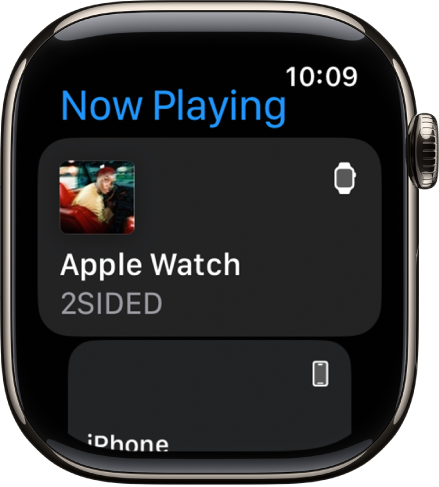
The Now Playing screen showing media on Apple Watch and on iPhone.

Control media on other devices

  1. Open the Now Playing app on your Apple Watch.

    If more than one device is playing, the device’s icon appears in the top-right corner.

  2. Tap the device you want to control.
  3. Do any of the following:

    • Control playback: Tap the play, pause, backward, and forward buttons.
    • Adjust the volume: Turn the Digital Crown.

Switch to or add AirPlay devices

When you’re controlling audio on an AirPlay device such as HomePod, you can also switch to or add additional AirPlay devices. If you’re listening to HomePod in your living room, for example, you can bring in the HomePod speakers in the kitchen and bedroom.

  1. Open the Now Playing app on your Apple Watch.
  2. Tap a device you want to control.
  3. Tap the selector button in the top-right corner, then tap AirPlay.
  4. On the Now Playing screen, tap the More Options button.
  5. Select the devices you want to add or remove.

See music and podcast suggestions when near your HomePod

If nothing is playing on a nearby HomePod or on your Apple Watch, a widget at the top of the Smart Stack shows suggestions from the Music and Podcast apps.

  1. To review the suggestions, turn the Digital Crown upward or swipe up from the bottom of the screen.
  2. Tap a suggestion to play it on HomePod.

Note: Music and podcast suggestions are available on Apple Watch and HomePod models with Ultra Wideband.

See also

Tag: Music

Use the Podcasts app to play content from Apple Podcasts. You can play episodes stored locally on your Apple Watch or stream them from your iPhone.

If your watch is near your iPhone or connected to Wi-Fi or a cellular network, you can stream podcasts, and several Podcasts settings can be changed right on your watch. From the Home screen, you can see the latest episodes of shows you follow.

Here’s how to play podcasts on Apple Watch.

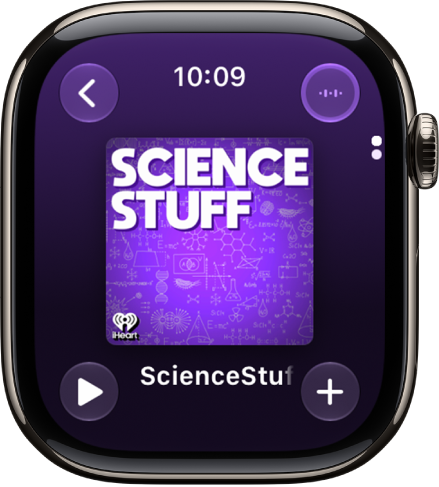
A Podcasts screen showing an episode with the Back, Play, More Options, and Audio Output buttons.

Play a podcast

When your Apple Watch is near your iPhone or connected to a Wi-Fi network, you can stream podcasts to your Apple Watch, and a cellular network works too on Apple Watch models with cellular. Otherwise, Apple Watch can play only downloaded episodes.

  1. Start the Podcasts app on your Apple Watch.
  2. Do any of the following:
    • See what’s up next: Turn the Digital Crown to scroll through the Home screen and see the latest episodes of shows you follow.
    • Browse your library: Tap the Back button and then tap Library to see shows you follow, saved, or downloaded.
    • Search: Tap the Back button, tap Search, and then enter what you’re looking for.
  3. Tap an episode to play it.
  4. Use the playback controls to play, pause, skip forward and backward, adjust the speed, or change the audio destination.

Change Podcasts settings

Right on your Apple Watch, you can change a number of Podcasts settings.

  1. Start the Settings app on your Apple Watch.
  2. Tap Podcasts, where you can adjust these settings:
    • Up Next: Choose the number of episodes downloaded to your Apple Watch from Up Next when your Apple Watch is syncing.
    • Saved: Choose the number of episodes not downloaded from Saved when your Apple Watch is syncing.
    • Cellular Downloads: On an Apple Watch with cellular service, choose to allow downloads on a cellular network.
    • Continuous Playback: Turn on to play another episode after the current episode ends.
    • Skip Buttons: Choose the time interval used when tapping the Skip Forward or Skip Back buttons.
    • External Controls: Tap Next/Previous or Forward/Back to choose the behavior of headphone controls.
    • Reset Identifier: Reset the identifier used to report aggregate app usage statistics to Apple.

See also

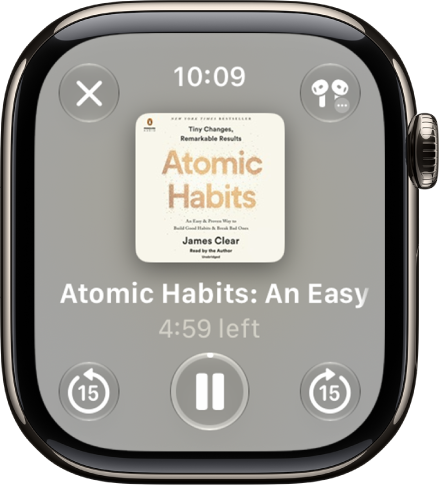
Play audiobooks stored locally on your Apple Watch, or stream them from your Apple Books library on your iPhone.

You can also download an audiobook for offline listening, for when Apple Watch isn’t connected to your iPhone or the internet.

The Play screen for an audiobook. The Close button is at the top left, the More button at the top right, the skip back 15 seconds button at the bottom left, the Play/Pause button at the bottom middle, and the skip ahead 15 seconds button at the bottom right. In the middle is the book art, chapter number, and remaining time in the chapter.

Play an audiobook

  1. Start the Audiobooks app on your Apple Watch.
  2. Go to an audiobook. Tap the cover to start playing it.
  3. Use the playback controls to play, pause, skip forward and backward, adjust the speed, or change the audio destination.

Download an audiobook for offline listening

Any audiobook you add can play even when Apple Watch isn’t connected to your iPhone or the internet.

  1. Start the Apple Watch app on your iPhone.
  2. Tap My Watch and tap Apps. Then tap Audiobooks.
  3. Tap Add Audiobook, then tap a title.

Apple Watch automatically syncs up to five hours of each audiobook you add, plus the one you’re currently listening to and the one in your Want to Read list, whenever it has available storage and is connected to power.

See also

When playing music, podcasts, or other media on Apple Watch, you can hear the audio output on your paired iPhone, paired Bluetooth headphones or speakers, or the Apple Watch speaker.

The AirPlay setting is in Control Center, and it’s also on the play screens in Audiobooks, Music, Now Playing, and Podcasts.

Note: 10 minutes of media playback through the Apple Watch speaker may reduce battery life by 1 hour. Media playback through the Apple Watch speaker isn’t supported when Apple Watch is charging or on Apple Watch Series 9.

Choose an audio output

  1. Press the side button to open Control Center.
  2. Tap the AirPlay button. Then choose one of the following destinations:

You can also tap the More Actions button on the play screens of the Audiobooks, Music, Now Playing, and Podcasts apps to open the AirPlay setting.

For important information about avoiding hearing loss, see Important safety information.

See also

You can use Apple Watch to shine a light on a door lock at night, alert others when you’re out for an evening run, or illuminate nearby objects.

There are three modes: steady white light, flashing white light, or steady red light. You adjust the brightness by turning the Digital Crown.

Here’s how to use the flashlight on Apple Watch.

Turn on the flashlight

  1. Press the side button to open Control Center on Apple Watch.
  2. Tap the Flashlight button.
  3. Do any of the following:
    • Change the light: Swipe left or right to choose a mode—steady white light, flashing white light, or steady red light.
    • Adjust the brightness: Turn the Digital Crown.

Turn off the flashlight

Do any of the following:

  • Press the Digital Crown.
  • Swipe down from the top of the watch face.

See also

You can play audio from Apple Watch on Bluetooth headphones or speakers.

Bluetooth headphones and speakers pair with your watch once they’re in discovery mode, as the instructions that came with them describe. You can also monitor and adjust your headphone volume, reduce loud sounds, and view loud headphone audio notifications, and Apple Watch can even cap your headphone audio at a specific decibel level.

Here’s how to connect Apple Watch to Bluetooth headphones or speakers.

Quick tip: AirPods you set up with your iPhone are ready to use with your Apple Watch, too, so press play and listen.

Pair Bluetooth headphones or speakers

Follow the instructions that came with the headphones or speakers to put them in discovery mode. When the Bluetooth device is ready, follow these steps:

  1. Go to the Settings app on Apple Watch. Tap Bluetooth.
  2. Tap the device when it appears.

You can also tap the More Actions button on the play screens of the Audiobooks, Music, Now Playing, and Podcasts apps to open the AirPlay setting.

Monitor and adjust your headphone volume

  1. Press the side button to open Control Center.
  2. While listening to your headphones, tap the Hearing Devices Switch button.

    A meter shows the current headphone volume.

  3. Tap the volume controls below Headphone Volume or tap the slider. Then turn the Digital Crown to adjust.

Reduce loud sounds

Your Apple Watch can cap the volume of your headphone audio at a specific decibel level.

  1. Open the Settings app on your Apple Watch.
  2. Go to Sounds & Haptics, tap Headphone Safety, and tap Reduce Loud Sounds.
  3. Turn on Reduce Loud Sounds and then set a level.

View loud headphone audio notifications

If loud audio in your headphones goes on long enough that it could affect your hearing, you get a headphone notification, and Apple Watch automatically turns the volume down to a more moderate level to protect your hearing.

To view details about headphone notifications, follow these steps:

  1. Open the Settings app on your Apple Watch.
  2. Go to Sounds & Haptics and tap Headphone Safety. Tap Last 6 Months below Headphone Notifications.

You can also open the Health app on your iPhone, tap the Search button, tap Hearing, tap Headphone Notifications, then tap a notification.

See also