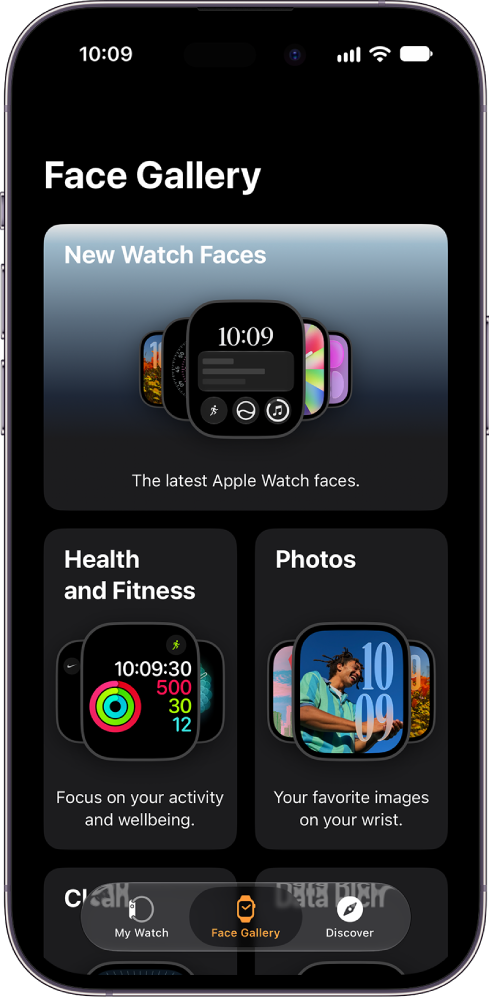
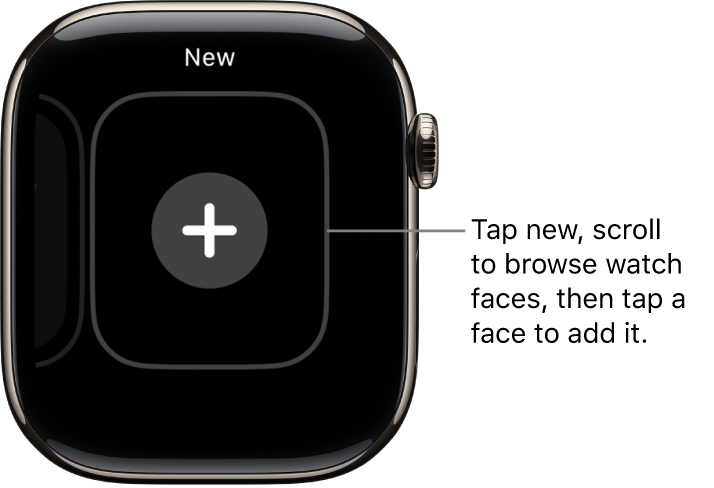
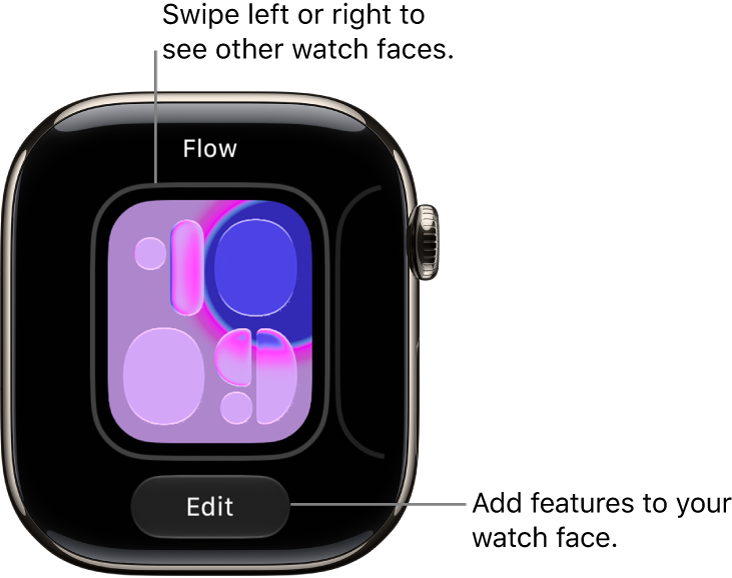
Your Apple Watch comes with a variety of watch faces, most of which you can customize. See Change Apple Watch faces to learn more.
The set that follows might differ from what you see on your Apple Watch, since not all watch faces are available in all countries or regions or on all models. To see the latest set, make sure your software is up to date. Activity Analog, for example, shows your Activity progress over a traditional analog clock.
Activity Analog
Your Activity progress is superimposed over a traditional analog clock. You can see your Activity rings as subdials or in the familiar stacked design.
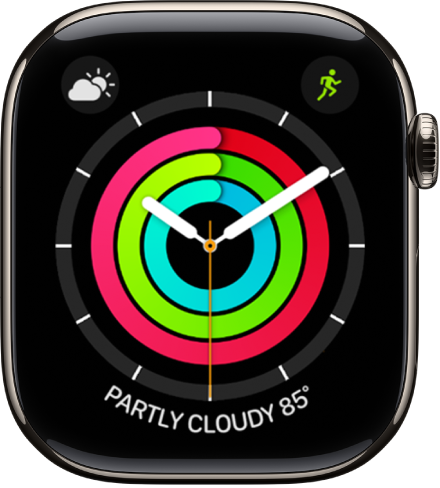
- Customizable features: Color • Style (Rings, Subdials)
- Available complications: Activity • Alarms • Astronomy • Audiobooks • Battery • Blood Oxygen • Calculator • Calendar • Camera Remote • Cellular • Compass • Compass Waypoints • Contacts • Cycle Tracking • Depth • ECG • Find My • Heart Rate • Home • Mail • Maps • Medications • Messages • Mindfulness • Music • Music Recognition • News • Noise • Notes • Phone • Podcasts • Reminders • Remote • Shortcuts • Sleep • Stocks • Stopwatch • Tides • Timers • Tips • Translate • Voice Memos • Wallet • Weather • Workout • World Clock
Activity Digital
This one shows the time in a digital format with large, uniform fonts, along with your Activity progress.
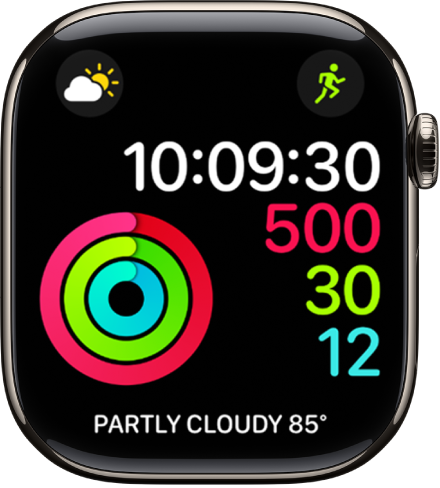
- Customizable features: Color • Seconds time
- Available complications: Activity • Alarms • Astronomy • Audiobooks • Battery • Blood Oxygen • Calculator • Calendar • Camera Remote • Cellular • Compass • Compass Waypoints • Contacts • Cycle Tracking • Depth • ECG • Find My • Heart Rate • Home • Mail • Maps • Medications • Messages • Mindfulness • Music • Music Recognition • News • Noise • Notes • Phone • Podcasts • Reminders • Remote • Shortcuts • Sleep • Stocks • Stopwatch • Tides • Time • Timers • Tips • Translate • Vitals • Voice Memos • Wallet • Weather • Workout • World Clock
Artist
This visually engaging face algorithmically changes every time you tap the display, and there are millions of combinations.
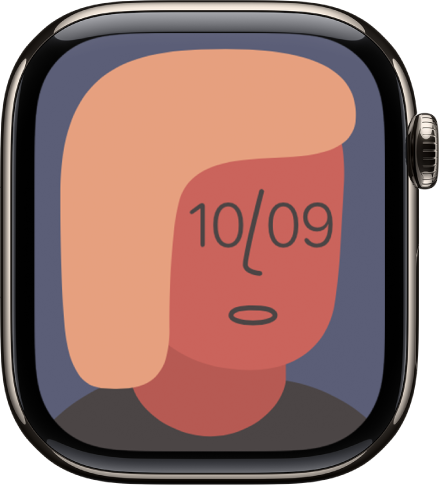
Astronomy
If you pick the earth, moon, or solar system, this face shows a continuously updating 3D model of it.
Quick tip: Tap the watch face and turn the Digital Crown to go forward or back in time on earth, show the moon’s phases, or see where the solar system’s planets are.
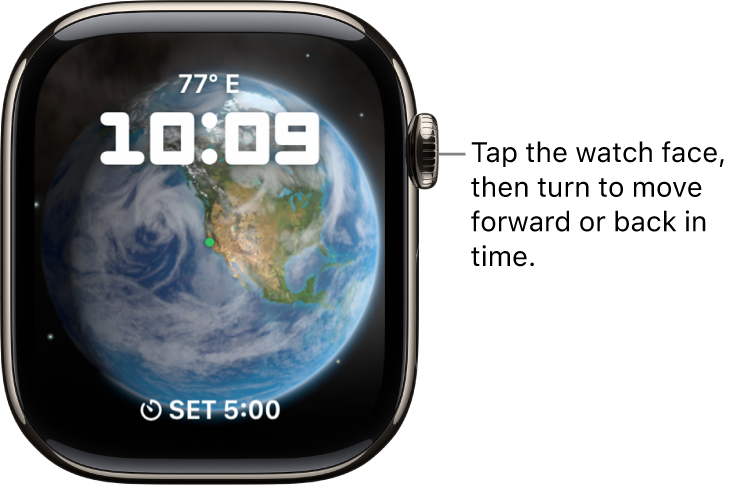
- Customizable features: Font • View (Earth, Moon, Solar System, Random) • Style (Full, Random)
- Available complications: Activity • Alarms • Astronomy • Audiobooks • Battery • Calendar • Compass • Find My • Heart Rate • Medications • Messages • Music • Music Recognition • News • Noise • Notes • Now Playing • Podcasts • Reminders • Shortcuts • Stocks • Stopwatch • Tides • Timers • Translate • Weather • Workout • World Clock
Quick tip: Add the Moon complication to a corner of any watch face that includes it, and you’ll see the time of the next moonrise or moonset. Say it shows 11:44 PM, 12H 4M: That means the moon sets below the horizon at your location at 11:44 in the evening, 12 hours and 4 minutes from the current time.
Breathe
This watch face encourages you to relax and breathe mindfully. Just tap the display to begin.
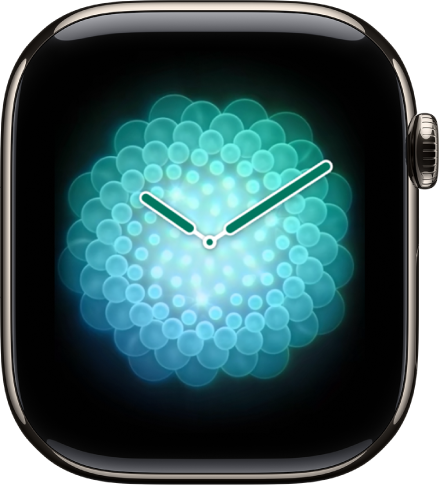
- Customizable features: Style (Classic, Calm, Focus)
- Available complications: Activity • Alarms • Astronomy • Audiobooks • Battery • Blood Oxygen • Calculator • Calendar • Camera Remote • Cellular • Compass • Compass Waypoints • Contacts • Cycle Tracking • Depth • ECG • Find My • Heart Rate • Home • Mail • Maps • Medications • Messages • Mindfulness • Music • Music Recognition • News • Noise • Notes • Phone • Podcasts • Reminders • Remote • Shortcuts • Sleep • Stocks • Stopwatch • Tides • Timers • Tips • Translate • Voice Memos • Weather • Workout • World Clock
California
Roman and Arabic numerals mix together on this face.
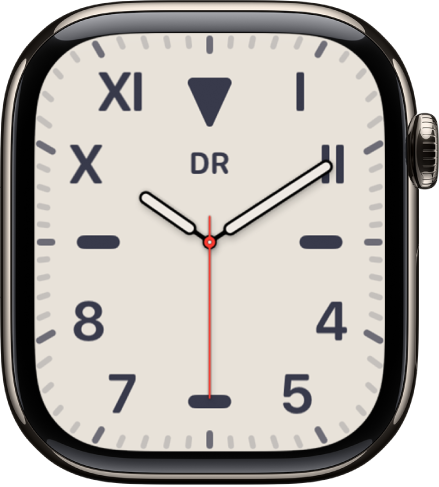
- Customizable features: Color • Numerals (Pills, Roman, California, Arabic, Arabic Indic, Devanagari) • Dial (Full Screen, Circular)
- Available complications: Activity • Alarms • Astronomy • Audiobooks • Battery • Blood Oxygen • Calculator • Calendar • Camera Remote • Cellular • Compass • Compass Waypoints • Contacts • Cycle Tracking • Depth • ECG • Find My • Heart Rate • Home • Mail • Maps • Medications • Messages • Mindfulness • Monogram • Music • Music Recognition • News • Noise • Notes • Now Playing • Phone • Podcasts • Reminders • Remote • Shortcuts • Sleep • Stocks • Stopwatch • Tides • Time • Timers • Tips • Translate • Vitals • Voice Memos • Weather • Workout • World Clock
Chronograph Pro
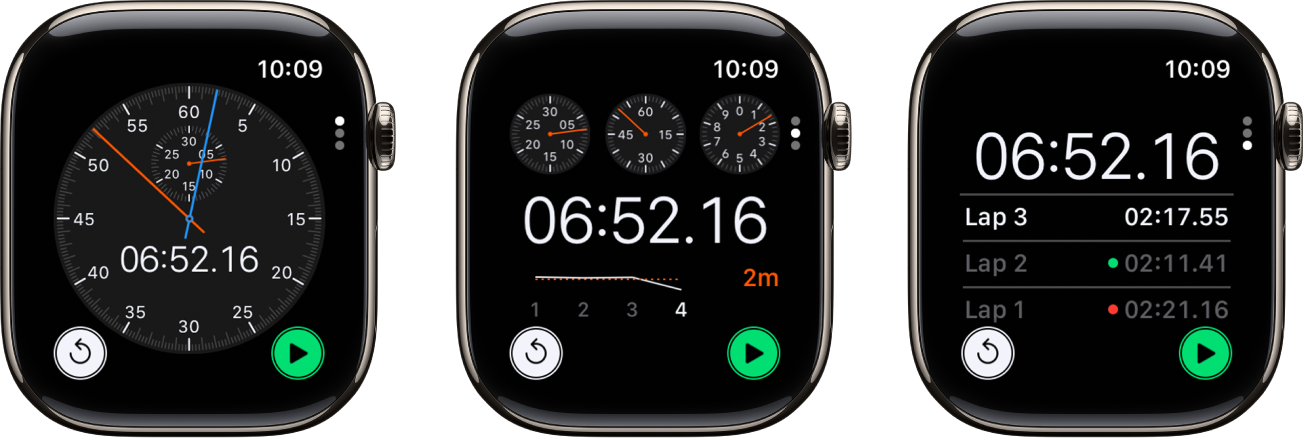
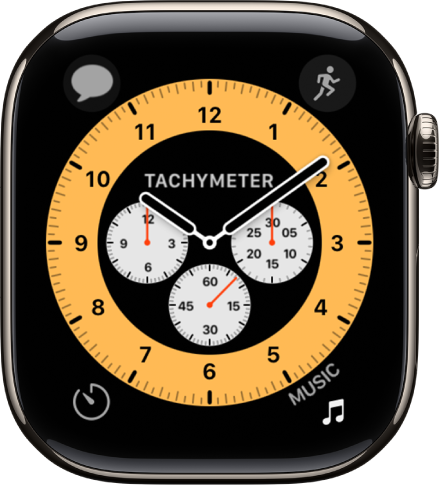
Tap the outer edge surrounding the main 12-hour dial on this watch face, and it transforms into a chronograph. Record time on scales of 60, 30, 6, or 3 seconds. Or select the tachymeter timescale to measure speed based on time travel over a fixed distance.
- Customizable features: Color • Timescale
- Available complications: Activity • Alarms • Astronomy • Audiobooks • Battery • Blood Oxygen • Calculator • Calendar • Camera Remote • Cellular • Compass • Compass Waypoints • Contacts • Cycle Tracking • Depth • ECG • Find My • Heart Rate • Home • Mail • Maps • Medications • Messages • Mindfulness • Music • Music Recognition • News • Noise • Notes • Phone • Podcasts • Reminders • Remote • Shortcuts • Sleep • Stocks • Stopwatch • Tides • Timers • Tips • Translate • Voice Memos • Weather • Workout • World Clock
Color
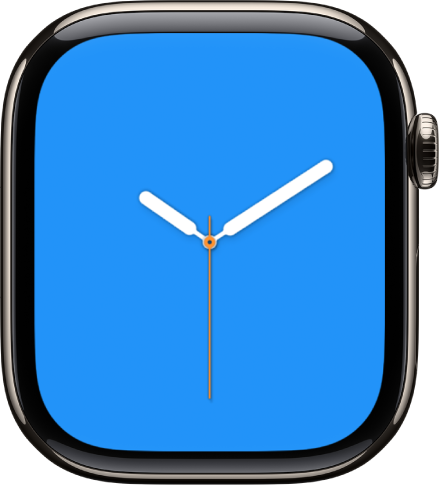
The time, plus any features you add, appears in your choice of bright colors.
- Customizable features: Color • Style (Circular or Dial. Includes a full-screen facet) • Monogram
- Available complications: Activity • Alarms • Astronomy • Audiobooks • Battery • Blood Oxygen • Calculator • Calendar • Camera Remote • Cellular • Compass • Compass Waypoints • Contacts • Cycle Tracking • Depth • ECG • Find My • Heart Rate • Home • Mail • Maps • Medications • Messages • Mindfulness • Music • Music Recognition • News • Noise • Notes • Phone • Podcasts • Reminders • Remote • Shortcuts • Sleep • Stocks • Stopwatch • Tides • Timers • Tips • Translate • Voice Memos • Weather • Workout • World Clock
Contour
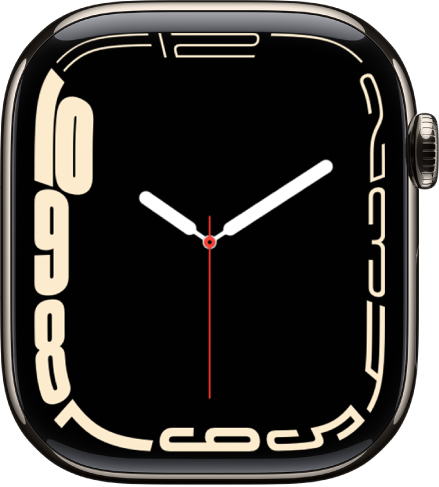
This watch face (not available on Apple Watch SE) gradually changes to highlight the current hour. The numerals are a custom font designed to fit into the edge of the display and move seamlessly from 1 hour to the next. Tap the watch face, then turn the Digital Crown to expand numbers other than the current hour.
- Customizable features: Color • Style (Regular, Rounded) • Dial Color
- Available complications: Activity • Alarms • Astronomy • Audiobooks • Battery • Blood Oxygen • Calculator • Calendar • Camera Remote • Cellular • Compass • Compass Waypoints • Contacts • Cycle Tracking • Depth • ECG • Find My • Heart Rate • Home • Mail • Maps • Medications • Messages • Mindfulness • Monogram • Music • Music Recognition • News • Noise • Notes • Phone • Podcasts • Reminders • Remote • Shortcuts • Sleep • Stocks • Stopwatch • Tides • Time • Timers • Tips • Translate • Vitals • Voice Memos • Weather • Workout • World Clock
Count Up
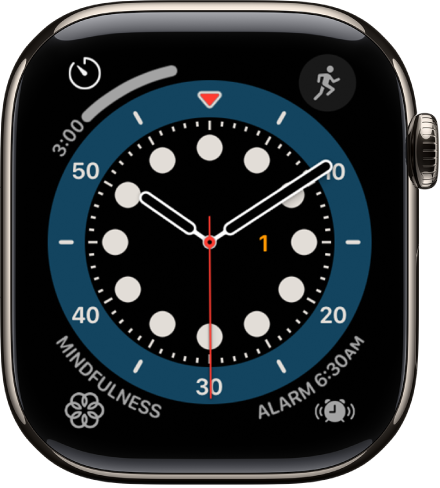
You can use this face to track elapsed time.
- Customizable features: Color
- Available complications: Activity • Alarms • Astronomy • Audiobooks • Battery • Blood Oxygen • Calculator • Calendar • Camera Remote • Cellular • Compass • Compass Waypoints • Contacts • Cycle Tracking • Depth • ECG • Find My • Heart Rate • Home • Mail • Maps • Medications • Messages • Mindfulness • Monogram • Music • Music Recognition • News • Noise • Notes • Phone • Podcasts • Reminders • Remote • Shortcuts • Sleep • Stocks • Stopwatch • Tides • Timers • Tips • Translate • Voice Memos • Weather • Workout • World Clock
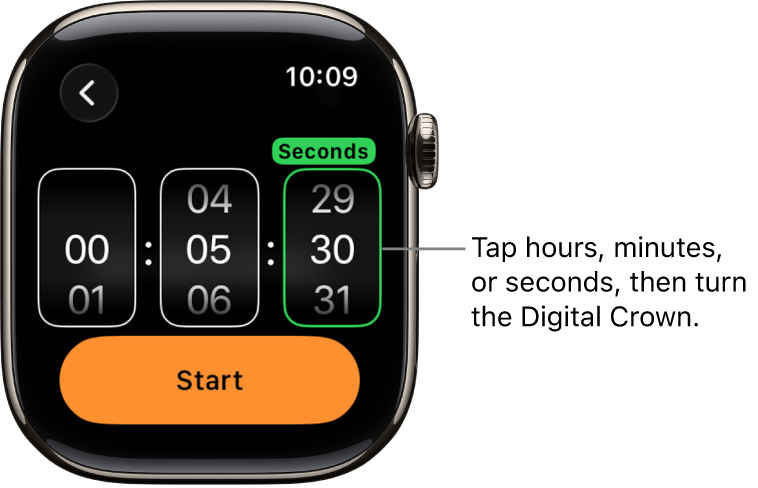
To start timing, tap the main 12-hour dial to align the marker on the outer edge with the minute hand, turn the Digital Crown to set the length of time, then tap Start. To return the face to its default state, tap the red elapsed time button, then tap Stop.
Exactograph
This watch face separates hours, minutes, and seconds onto separate dials for precise timekeeping. Tapping the face expands each dial by 5 times, revealing smaller increments of time for even more precision.
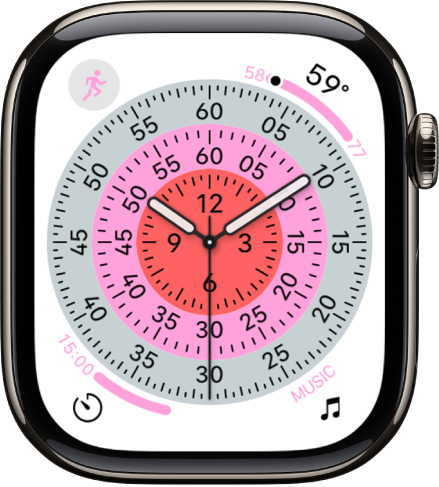
- Customizable features: Color • Background (On, Off) • Style (Closed, Open I, Open II)
- Available complications: Activity • Alarms • Astronomy • Audiobooks • Battery • Blood Oxygen • Calculator • Calendar • Camera Remote • Cellular • Compass • Compass Waypoints • Contacts • Cycle Tracking • Depth • ECG • Find My • Heart Rate • Home • Mail • Maps • Medications • Messages • Mindfulness • Music • Music Recognition • News • Noise • Notes • Phone • Podcasts • Reminders • Remote • Shortcuts • Sleep • Stocks • Stopwatch • Tides • Timers • Tips • Translate • Voice Memos • Weather • Workout • World Clock
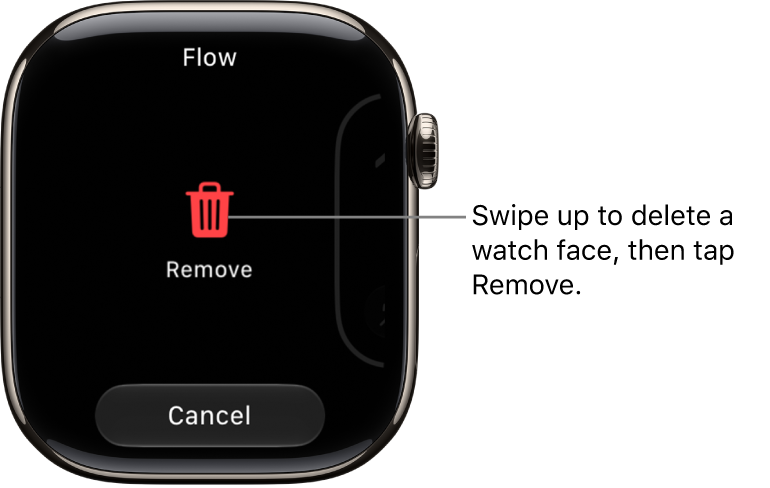
Flow
Liquid Glass comes to your wrist with this face, whose colorful, abstract background swirls in response to movement.
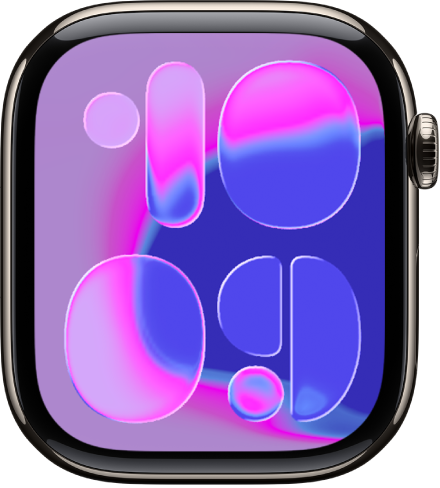
- Customizable features: Color • Typeface (I, II) • Background (On, Off)
Flux
Typography, color, and movement come together to show the passing time. As seconds count up, color fills the face from the bottom, and when the minute changes, the numerals snap into new forms.
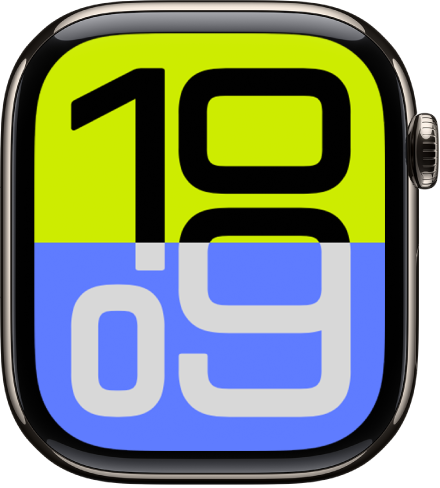
- Customizable features: Color • Numerals (Arabic Western, Arabic Eastern, Devanagari)
GMT
Two dials share this face, with the 12-hour inner dial displaying local time and the 24-hour outer dial letting you track a second time zone.
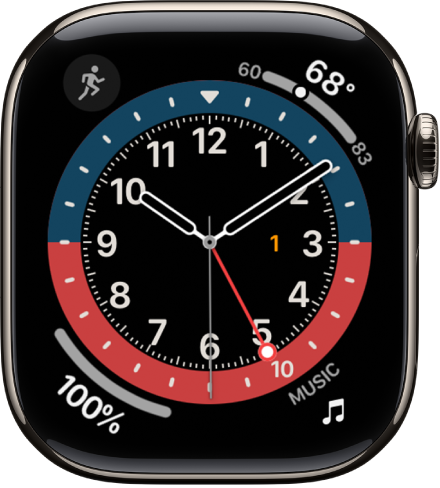
- Customizable features: Color
- Available complications: Activity • Alarms • Astronomy • Audiobooks • Battery • Blood Oxygen • Calculator • Calendar • Camera Remote • Cellular • Compass • Compass Waypoints • Contacts • Cycle Tracking • Depth • ECG • Find My • Heart Rate • Home • Mail • Maps • Medications • Messages • Mindfulness • Music • Music Recognition • News • Noise • Notes • Phone • Podcasts • Reminders • Remote • Shortcuts • Sleep • Stocks • Stopwatch • Tides • Timers • Tips • Translate • Voice Memos • Weather • Workout • World Clock
To set a second time zone, tap the watch face, then turn the Digital Crown to choose a time zone. Tap the Confirm button to confirm your choice and return to the watch face. The red hand shows you the hour in the second time zone.
Infograph
To fit up to eight rich, full-color complications and subdials, choose this face.
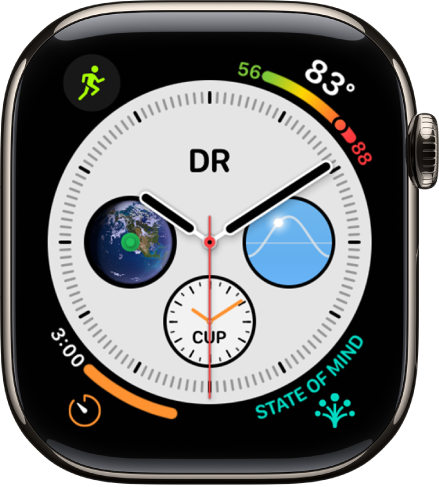
- Customizable features: Color
- Available complications: Activity • Alarms • Astronomy • Audiobooks • Battery • Blood Oxygen • Calculator • Calendar • Camera Remote • Cellular • Compass • Compass Waypoints • Contacts • Cycle Tracking • Depth • ECG • Find My • Heart Rate • Home • Mail • Maps • Medications • Messages • Mindfulness • Monogram • Music • Music Recognition • News • Noise • Notes • Phone • Podcasts • Reminders • Remote • Shortcuts • Sleep • Stocks • Stopwatch • Tides • Timers • Tips • Translate • Voice Memos • Weather • Workout • World Clock
Kaleidoscope
Select a photo to create a watch face with evolving patterns of shapes and colors. Tap the watch face, then turn the Digital Crown to change the pattern.
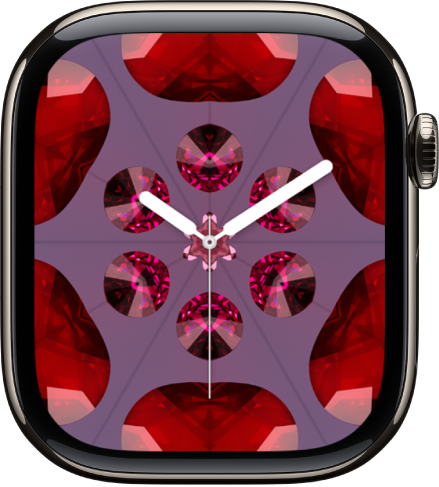
- Customizable features: Image • Style (Includes a full-screen facet)
- Available complications (Facet, Radial, and Rosette styles): Activity • Alarms • Astronomy • Audiobooks • Battery • Blood Oxygen • Calculator • Calendar • Camera Remote • Cellular • Compass • Compass Waypoints • Contacts • Cycle Tracking • Depth • ECG • Find My • Heart Rate • Home • Mail • Maps • Medications • Messages • Mindfulness • Music • Music Recognition • News • Noise • Notes • Phone • Podcasts • Reminders • Remote • Shortcuts • Sleep • Stocks • Stopwatch • Tides • Timers • Tips • Translate • Voice Memos • Weather • Workout • World Clock
Lunar
This watch face depicts the relationship of the date and time to the phases of the moon. Tap the watch face, then turn the Digital Crown to move ahead or back in time.
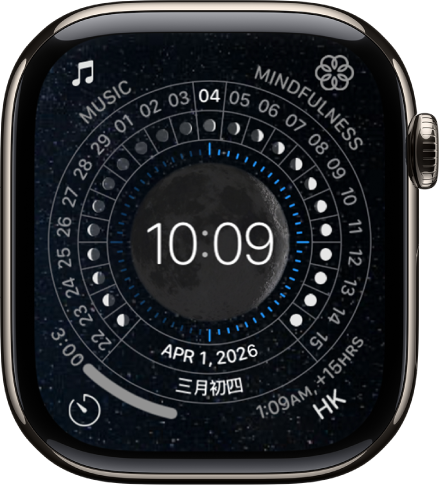
- Customizable features: Color • Calendar (Chinese, Hebrew, Islamic) • Time (Analog, Digital)
- Available complications: Activity • Alarms • Astronomy • Audiobooks • Battery • Blood Oxygen • Calculator • Calendar • Camera Remote • Cellular • Compass • Compass Waypoints • Contacts • Cycle Tracking • Depth • ECG • Find My • Heart Rate • Home • Mail • Maps • Medications • Messages • Mindfulness • Music • Music Recognition • News • Noise • Notes • Phone • Podcasts • Reminders • Remote • Shortcuts • Sleep • Stocks • Stopwatch • Tides • Timers • Tips • Translate • Voice Memos • Weather • Workout • World Clock
Memoji
This face features Memoji you’ve created, plus all the Memoji characters.
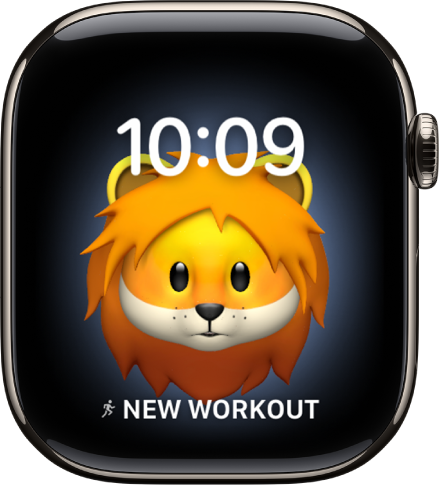
- Customizable features: Character
- Available complications: Activity • Alarms • Astronomy • Audiobooks • Battery • Calendar • Compass • Compass Waypoints • Heart Rate • Medications • Messages • Music • Music Recognition • News • Noise • Notes • Now Playing • Phone • Podcasts • Reminders • Remote • Shortcuts • Stocks • Stopwatch • Tides • Timers • Translate • Weather • Workout • World Clock
Meridian
This full-screen face’s classic look comes with four subdials.
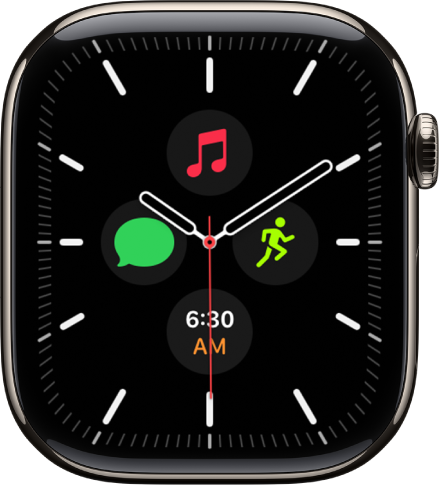
- Customizable features: Color • Dial (Black, White)
- Available complications: Activity • Alarms • Audiobooks • Battery • Blood Oxygen • Calculator • Calendar • Camera Remote • Cellular • Compass • Compass Waypoints • Contacts • Cycle Tracking • Depth • ECG • Find My • Heart Rate • Home • Mail • Maps • Medications • Messages • Mindfulness • Monogram • Music • Music Recognition • News • Noise • Notes • Phone • Podcasts • Reminders • Remote • Shortcuts • Sleep • Stocks • Stopwatch • Tides • Time • Timers • Tips • Translate • Vitals • Voice Memos • Weather • Workout • World Clock
Metropolitan
This classic, type-driven watch face features custom-designed numbers that dynamically change in style and weight when you tap the watch face, then turn the Digital Crown. The numerals rotate to become pills when your wrist is down.
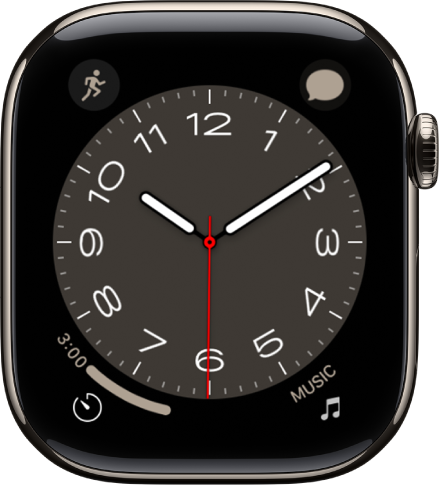
- Customizable features: Color • Style • Dial
- Available complications: Activity • Alarms • Astronomy • Audiobooks • Battery • Blood Oxygen • Calculator • Calendar • Camera Remote • Cellular • Compass • Compass Waypoints • Contacts • Cycle Tracking • Depth • ECG • Find My • Heart Rate • Home • Mail • Maps • Medications • Messages • Mindfulness • Music • Music Recognition • News • Noise • Notes • Phone • Podcasts • Reminders • Remote • Shortcuts • Sleep • Stocks • Stopwatch • Tides • Timers • Tips • Translate • Voice Memos • Weather • Workout • World Clock
Mickey Mouse and Minnie Mouse
Let Mickey Mouse or Minnie Mouse give you a whimsical view of the time—their arms rotate to indicate the hours and minutes, while their feet tap out each second.
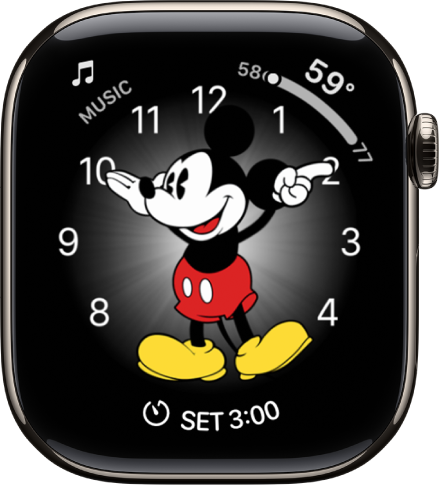
- Customizable features: Color • Character
- Available complications: Activity • Alarms • Astronomy • Audiobooks • Battery • Blood Oxygen • Calculator • Calendar • Camera Remote • Cellular • Compass • Compass Waypoints • Contacts • Depth • ECG • Find My • Heart Rate • Home • Mail • Maps • Medications • Messages • Mindfulness • Music • Music Recognition • News • Noise • Notes • Phone • Podcasts • Reminders • Remote • Shortcuts • Sleep • Stocks • Stopwatch • Tides • Timers • Tips • Translate • Voice Memos • Weather • Workout • World Clock
To hear Mickey Mouse or Minnie Mouse tell you the time, go to the Settings app on your Apple Watch, tap Clock, then turn on Speak Time. Raise your wrist, then place two fingers on the watch face to hear the time.
Modular
There’s an easy-to-read typographic interface with six complication slots.
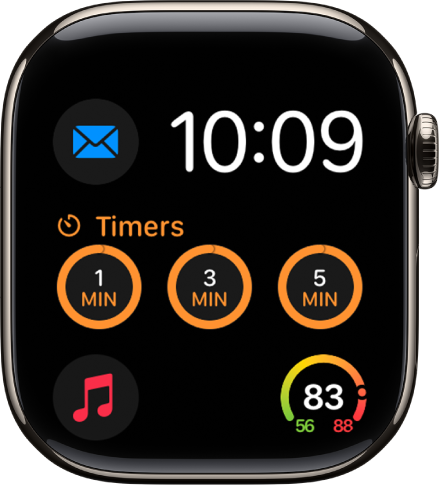
- Customizable features: Color • Background
- Available complications: Activity • Alarms • Astronomy • Audiobooks • Battery • Blood Oxygen • Calculator • Calendar • Camera Remote • Cellular • Compass • Compass Waypoints • Contacts • Cycle Tracking • Depth • ECG • Find My • Heart Rate • Home • Mail • Maps • Medications • Messages • Mindfulness • Music • Music Recognition • News • Noise • Notes • Phone • Podcasts • Reminders • Remote • Shortcuts • Sleep • Stocks • Stopwatch • Tides • Time • Timers • Tips • Translate • Vitals • Voice Memos • Weather • Workout • World Clock
Modular Compact
You can choose a digital or analog dial, plus up to three complications.
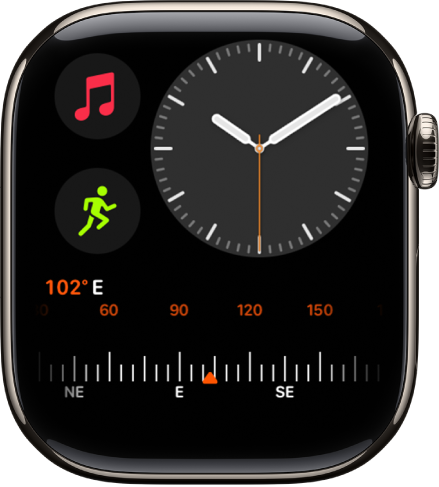
- Customizable features: Color • Dial (Analog, Digital)
- Available complications: Activity • Alarms • Astronomy • Audiobooks • Battery • Blood Oxygen • Calculator • Calendar • Camera Remote • Cellular • Compass • Compass Waypoints • Contacts • Cycle Tracking • Depth • ECG • Find My • Heart Rate • Home • Mail • Maps • Medications • Messages • Mindfulness • Music • Music Recognition • News • Noise • Notes • Phone • Podcasts • Reminders • Remote • Shortcuts • Sleep • Stocks • Stopwatch • Tides • Time • Timers • Tips • Translate • Vitals • Voice Memos • Weather • Workout • World Clock
Modular Duo
Digital time and up to three complications appear on this face, which isn’t available on Apple Watch SE. Two of the complications are large, rectangular options, so you see more details in the ones you care about most.
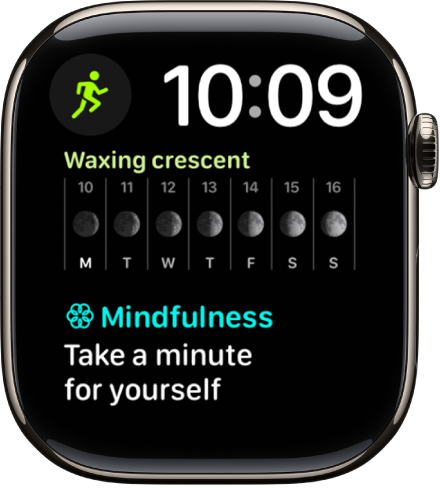
- Customizable features: Color
- Available complications: Activity • Alarms • Astronomy • Audiobooks • Battery • Blood Oxygen • Calculator • Calendar • Camera Remote • Cellular • Compass • Compass Waypoints • Contacts • Cycle Tracking • Depth • ECG • Find My • Heart Rate • Home • Mail • Maps • Medications • Messages • Mindfulness • Music • Music Recognition • News • Noise • Notes • Phone • Podcasts • Reminders • Remote • Shortcuts • Sleep • Stocks • Stopwatch • Tides • Time • Timers • Tips • Translate • Vitals • Voice Memos • Weather • Workout • World Clock
Modular Ultra
If you have an Apple Watch Ultra model, this face offers seven complications and six options for the time’s size and layout. Important information, like your compass heading or a running stopwatch, is easy to see in the large complication in the middle.
The outer edges, or bezel, can show the seconds counting up to a minute, or real-time depth or elevation data. There’s also the Training bezel, with Vitals data on the left outer edge and training load data on the right outer edge.
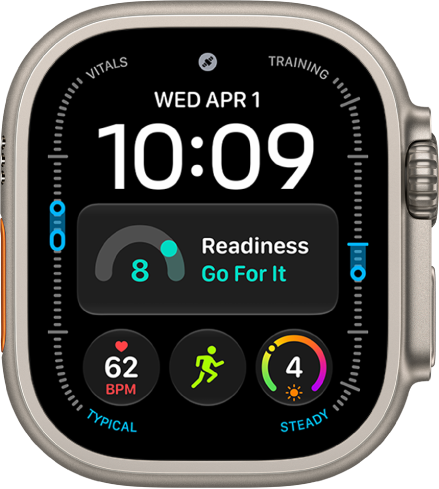
- Customizable features: Color • Bezel (Elevation, Training) • Style • Night Mode
- Available complications: Activity • Alarms • Astronomy • Audiobooks • Battery • Blood Oxygen • Calculator • Calendar • Camera Remote • Cellular • Compass • Compass Waypoints • Contacts • Cycle Tracking • Depth • ECG • Find My • Heart Rate • Home • Mail • Maps • Medications • Messages • Mindfulness • Music • Music Recognition • News • Noise • Notes • Phone • Podcasts • Reminders • Remote • Shortcuts • Sleep • Stocks • Stopwatch • Tides • Time • Timers • Tips • Translate • Vitals • Voice Memos • Weather • Workout • World Clock
The Modular Ultra watch face also includes Night Mode—a feature that turns all elements on the watch face red to help preserve your night vision. Touch and hold the watch face, tap Edit, swipe to Night Mode, then choose Auto.
Motion
A beautiful animated theme fills this face.
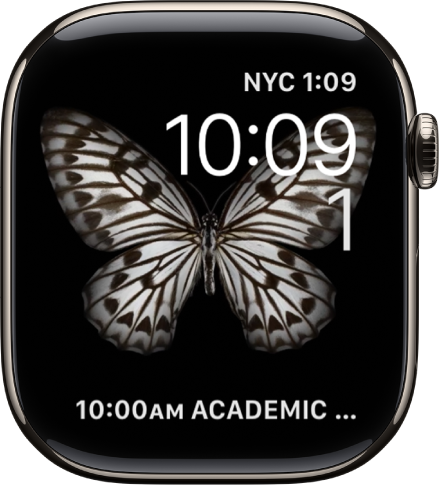
- Customizable features: Animated object (Butterflies, Flowers, Jellyfish)
- Available complications: Activity • Alarms • Astronomy • Audiobooks • Battery • Calendar • Compass • Find My • Heart Rate • Medications • Messages • Music • Music Recognition • News • Noise • Notes • Now Playing • Podcasts • Reminders • Shortcuts • Stocks • Stopwatch • Tides • Timers • Translate • Weather • Workout • World Clock
Nike Analog
Large numerals prominently display the time on this analog-style face, designed in partnership with Nike.
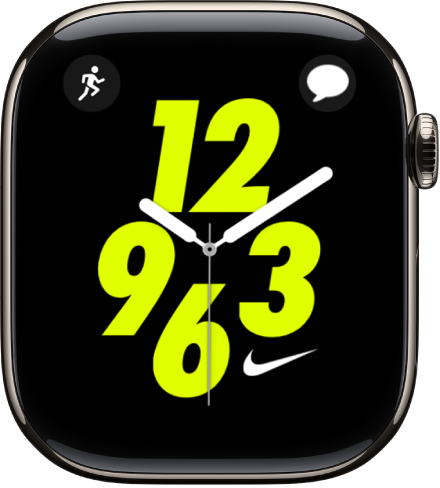
- Customizable features: Color • Style
- Available complications: Activity • Alarms • Astronomy • Audiobooks • Battery • Blood Oxygen • Calculator • Calendar • Camera Remote • Cellular • Compass • Compass Waypoints • Contacts • Cycle Tracking • Depth • ECG • Find My • Heart Rate • Home • Mail • Maps • Medications • Messages • Mindfulness • Music • Music Recognition • News • Noise • Now Playing • Phone • Podcasts • Reminders • Remote • Shortcuts • Sleep • Stocks • Stopwatch • Tides • Timers • Tips • Translate • Voice Memos • Weather • Workout • World Clock
Nike Bounce
This watch face moves with you. The digital numerals react to every step, jump, or move of your wrist. You can tap the display or turn the Digital Crown to also set things in motion.
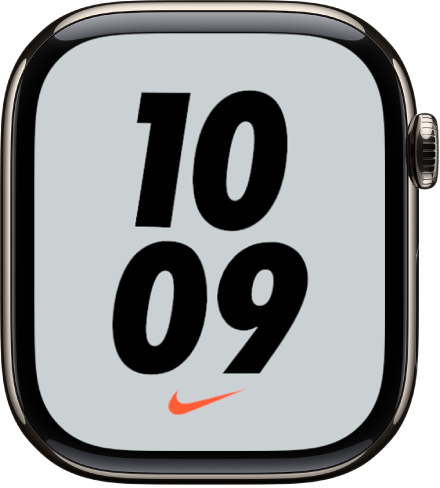
- Customizable features: Color • Background
Nike Compact
Based on Modular Compact, this face has a custom dial with three designs, and each design lets you choose up to three complications.
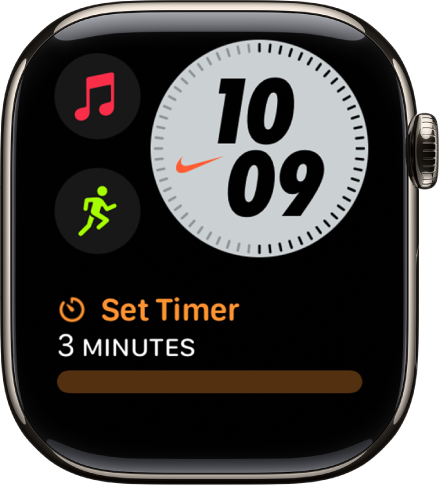
- Customizable features: Color • Style
- Available complications: Activity • Alarms • Astronomy • Audiobooks • Battery • Blood Oxygen • Calculator • Calendar • Camera Remote • Cellular • Compass • Compass Waypoints • Contacts • Cycle Tracking • Depth • ECG • Find My • Heart Rate • Home • Mail • Maps • Medications • Messages • Mindfulness • Music • Music Recognition • News • Noise • Notes • Now Playing • Phone • Podcasts • Reminders • Remote • Shortcuts • Sleep • Stocks • Stopwatch • Tides • Time • Timers • Tips • Translate • Vitals • Voice Memos • Weather • Workout • World Clock
Nike Digital
This digital-style face, another Nike collaboration, prominently displays the time and has a permanent complication for launching the Nike Run Club app.
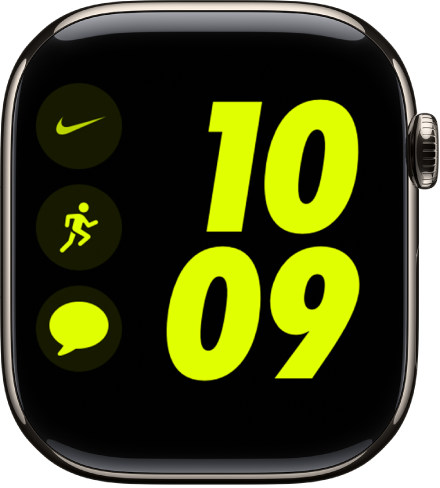
- Customizable features: Color
- Available complications: Activity • Alarms • Astronomy • Audiobooks • Battery • Blood Oxygen • Calculator • Calendar • Camera Remote • Cellular • Compass • Compass Waypoints • Contacts • Cycle Tracking • Depth • ECG • Find My • Heart Rate • Home • Mail • Maps • Medications • Messages • Mindfulness • Music • Music Recognition • News • Noise • Notes • Now Playing • Phone • Podcasts • Reminders • Remote • Shortcuts • Sleep • Stocks • Stopwatch • Tides • Time • Timers • Tips • Translate • Vitals • Voice Memos • Weather • Workout • World Clock
Nike Globe
There’s a retro sci-fi-inspired design here that includes up to four complications.
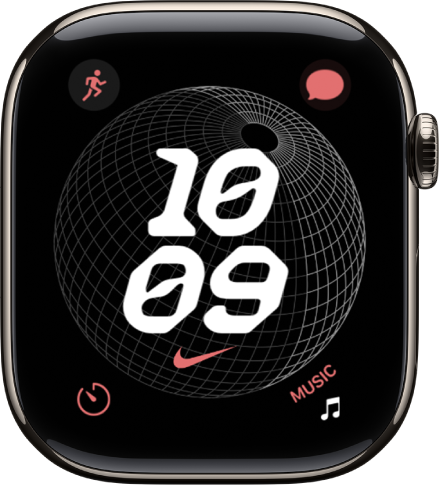
- Customizable features: Color
- Available complications: Activity • Alarms • Astronomy • Audiobooks • Battery • Blood Oxygen • Calculator • Calendar • Camera Remote • Cellular • Compass • Compass Waypoints • Contacts • Cycle Tracking • Depth • ECG • Find My • Heart Rate • Home • Mail • Maps • Medications • Messages • Mindfulness • Music • Music Recognition • News • Noise • Notes • Phone • Podcasts • Reminders • Remote • Shortcuts • Sleep • Stocks • Stopwatch • Tides • Timers • Tips • Translate • Voice Memos • Wallet • Weather • Workout • World Clock
Nike Hybrid
With analog, digital, and Windrunner-inspired designs to choose from, it includes up to five complications and is customizable in a variety of ways.
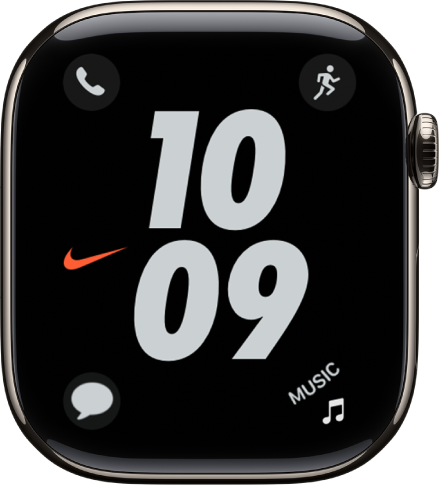
- Customizable features: Color • Time • Dial
- Available complications: Activity • Alarms • Astronomy • Audiobooks • Battery • Blood Oxygen • Calculator • Calendar • Camera Remote • Cellular • Compass • Compass Waypoints • Contacts • Cycle Tracking • Depth • ECG • Find My • Heart Rate • Home • Mail • Maps • Medications • Messages • Mindfulness • Music • Music Recognition • News • Noise • Notes • Now Playing • Phone • Podcasts • Reminders • Remote • Shortcuts • Sleep • Stocks • Stopwatch • Tides • Time • Timers • Tips • Translate • Voice Memos • Weather • Workout • World Clock
Numerals Duo
This face uses large numbers in an Apple-designed font, one made specifically for Apple Watch.
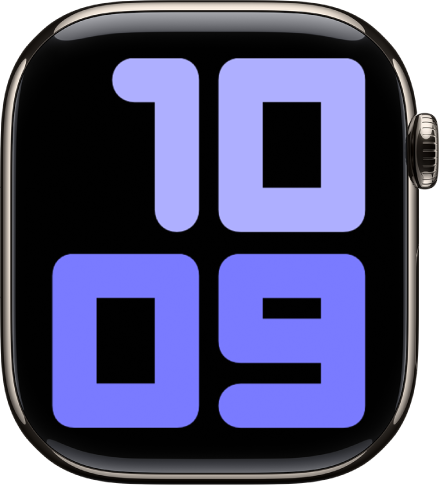
- Customizable features: Colors • Symbols (Arabic, Arabic Indic, Devanagari) • Style (Filled, Hybrid, Outline)
Numerals Mono
Large numbers fill this face in an Apple-designed font made specifically for Apple Watch.
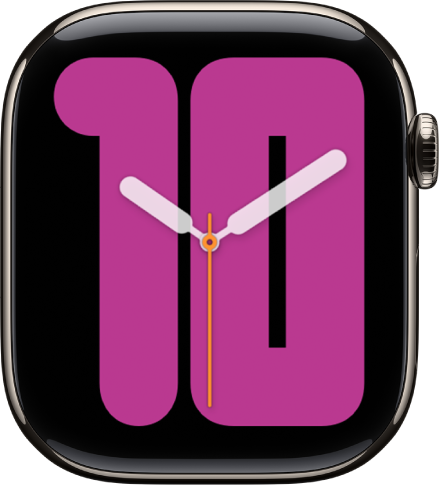
- Customizable features: Color • Symbols (Arabic, Arabic Indic, Devanagari, Roman) • Style (Filled, Outline)
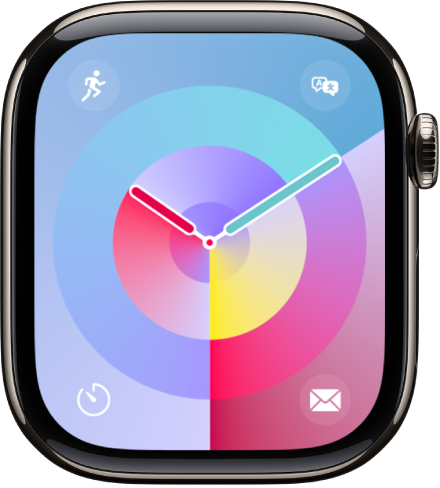
Palette
Dynamic color highlights different elements of Palette, and gradients follow the hands, changing as the second hand sweeps around the face.
- Customizable features: Color
- Available complications: Activity • Alarms • Astronomy • Audiobooks • Battery • Blood Oxygen • Calculator • Calendar • Camera Remote • Cellular • Compass • Compass Waypoints • Contacts • Cycle Tracking • Depth • ECG • Find My • Heart Rate • Home • Mail • Maps • Medications • Messages • Mindfulness • Music • Music Recognition • News • Noise • Notes • Phone • Podcasts • Reminders • Remote • Shortcuts • Sleep • Stocks • Stopwatch • Tides • Timers • Tips • Translate • Voice Memos • Wallet • Weather • Workout • World Clock
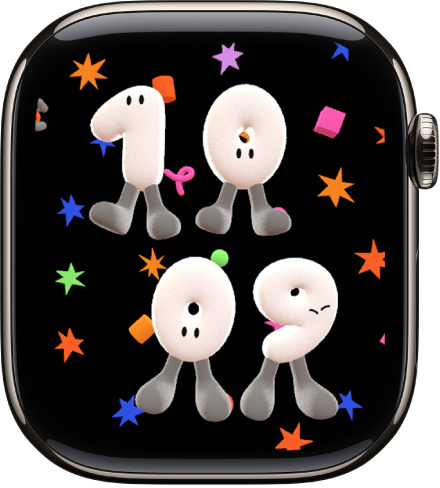
Playtime
This watch face is a dynamic piece of art that’s unique to Apple Watch. Rotating the Digital Crown changes the background, and the characters react when you tap the face.
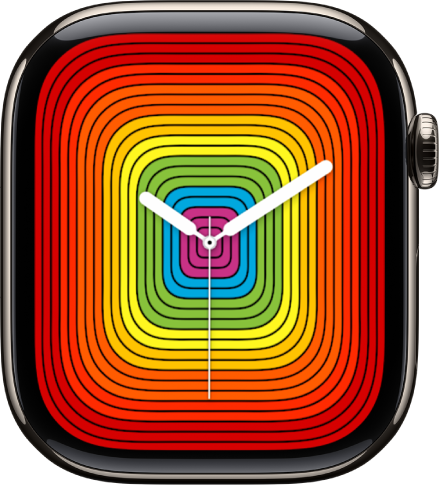
Pride Analog
This face is inspired by the rainbow flag. The threads of color move when you tap the face.
- Customizable features: Style (Includes a full-screen facet)
- Available complications (Circular style only): Activity • Alarms • Astronomy • Audiobooks • Battery • Blood Oxygen • Calculator • Calendar • Camera Remote • Cellular • Compass • Compass Waypoints • Contacts • Cycle Tracking • Depth • ECG • Find My • Heart Rate • Home • Mail • Maps • Medications • Messages • Mindfulness • Music • Music Recognition • News • Noise • Notes • Phone • Podcasts • Reminders • Remote • Shortcuts • Sleep • Stocks • Stopwatch • Tides • Timers • Tips • Translate • Voice Memos • Weather • Workout • World Clock
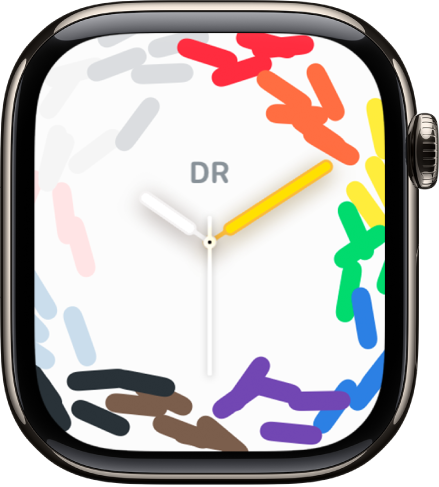
Pride Celebration
The colors of the Pride Flag make their way onto the watch face through three different styles. Tap on the watch face to briefly ripple the pattern.
- Customizable features: Style (Motion, Hour Marks, Numerals)
- Available complications (Hour Marks and Numerals styles only): Activity • Alarms • Astronomy • Audiobooks • Battery • Blood Oxygen • Calculator • Calendar • Camera Remote • Cellular • Compass • Compass Waypoints • Contacts • Cycle Tracking • Depth • ECG • Find My • Heart Rate • Home • Mail • Maps • Medications • Messages • Mindfulness • Monogram • Music • Music Recognition • News • Noise • Notes • Phone • Podcasts • Reminders • Remote • Shortcuts • Sleep • Stocks • Stopwatch • Tides • Timers • Tips • Translate • Voice Memos • Weather • Workout • World Clock
Pride Digital
This face is inspired by the rainbow flag. The threads of color move when you tap the face.
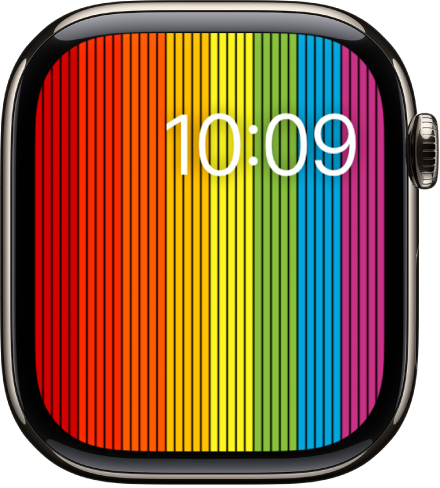
- Customizable features: Style (I, II, III)
- Available complications: Activity • Alarms • Astronomy • Audiobooks • Battery • Calendar • Compass • Find My • Heart Rate • Medications • Messages • Music • Music Recognition • News • Noise • Notes • Now Playing • Podcasts • Reminders • Shortcuts • Stocks • Stopwatch • Tides • Timers • Translate • Weather • Workout • World Clock
Pride Harmony
Inspired by the rainbow flag, this face uses blocks of color that come together as numerals representing the hour. When you lower your wrist, the solid blocks dim into colorful lines.
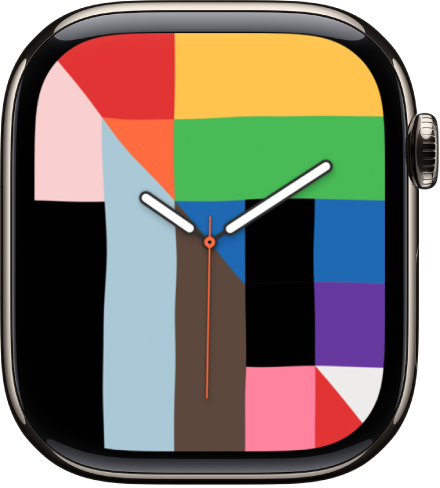
- Available complications: Activity • Alarms • Audiobooks • Battery • Calendar • Compass • Find My • Heart Rate • Home • Medications • Messages • Music Recognition • News • Noise • Notes • Reminders • Shortcuts • Stocks • Stopwatch • Tides • Timers • Translate • Weather • World Clock
Pride Luminance
Celebrating the vibrancy, spirit, and individuality of the LGBTQ+ community, this face lets you choose background colors for various Pride flags and create a unique expression.
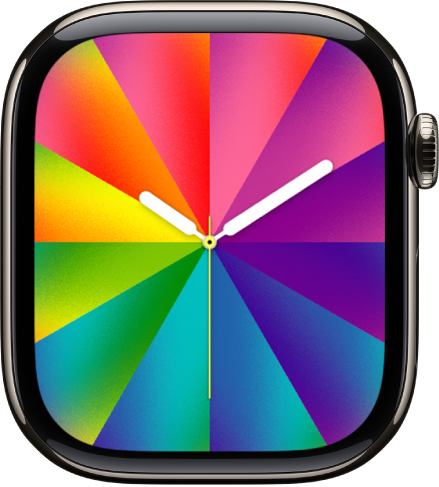
- Customizable features: Style (Rectangle, Circle)
- Available complications (Circular style only): Activity • Alarms • Astronomy • Audiobooks • Battery • Blood Oxygen • Calculator • Calendar • Camera Remote • Cellular • Compass • Compass Waypoints • Contacts • Cycle Tracking • Depth • ECG • Find My • Heart Rate • Home • Mail • Maps • Medications • Messages • Mindfulness • Music • Music Recognition • News • Noise • Notes • Phone • Podcasts • Reminders • Remote • Shortcuts • Sleep • Stocks • Stopwatch • Tides • Timers • Tips • Translate • Voice Memos • Wallet • Weather • Workout • World Clock
Pride Radiance
Another face inspired by the rainbow flag, it stacks beams of light on top of each other to trace each numeral.
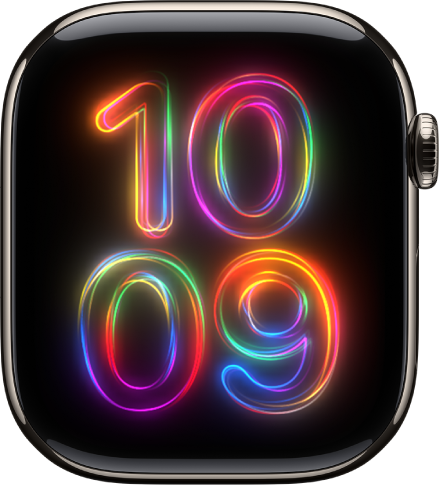
- Customizable features: Color
Pride Threads
This face is inspired by the rainbow flag. The threads of color shimmer when you tap the face.
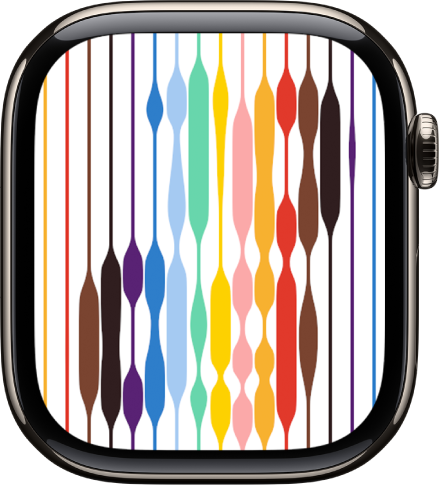
- Customizable features: Background (Light, Dark)
Pride Woven
This face is inspired by the rainbow flag. The threads of color move when you tap the face, then change when you turn the Digital Crown.
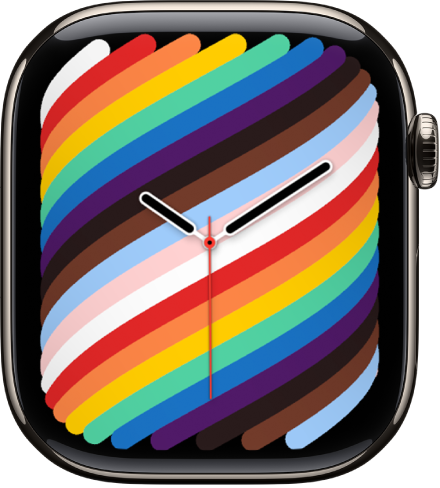
- Customizable features: Style (Full Screen, Circle)
- Available complications (Circular style only): Activity • Alarms • Astronomy • Audiobooks • Battery • Blood Oxygen • Calculator • Calendar • Camera Remote • Cellular • Compass • Compass Waypoints • Contacts • Cycle Tracking • Depth • ECG • Find My • Heart Rate • Home • Mail • Maps • Medications • Messages • Mindfulness • Music • Music Recognition • News • Noise • Notes • Phone • Podcasts • Reminders • Remote • Shortcuts • Sleep • Stocks • Stopwatch • Tides • Timers • Tips • Translate • Voice Memos • Weather • Workout • World Clock
Reflections
Light and a metallic surface interact in digital form on this face, where 3D animated cylinders on the dial respond to light in real time.
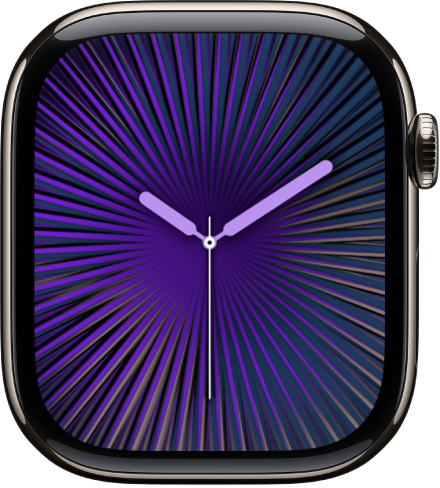
- Customizable features: Color • Dial (Full Screen, Circle)
- Available complications (Circular style only): Activity • Alarms • Astronomy • Audiobooks • Battery • Blood Oxygen • Calculator • Calendar • Camera Remote • Cellular • Compass • Compass Waypoints • Contacts • Cycle Tracking • Depth • ECG • Find My • Heart Rate • Home • Mail • Maps • Medications • Messages • Mindfulness • Music • Music Recognition • News • Noise • Notes • Phone • Podcasts • Reminders • Remote • Shortcuts • Sleep • Stocks • Stopwatch • Tides • Timers • Tips • Translate • Voice Memos • Weather • Workout • World Clock
Simple
On this minimalist and elegant face, you can add detail to the dial and features to the corners.
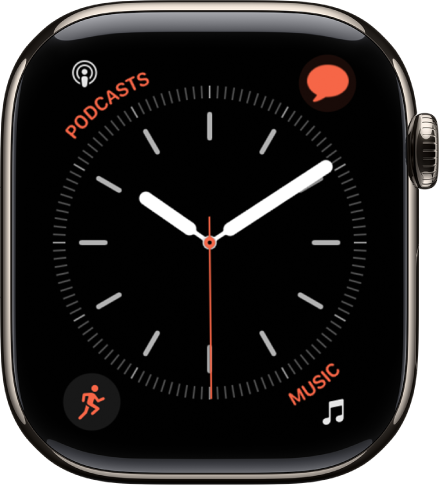
- Customizable features: Color • Style (I, II, III, IV)
- Available complications: Activity • Alarms • Astronomy • Audiobooks • Battery • Blood Oxygen • Calculator • Calendar • Camera Remote • Cellular • Compass • Compass Waypoints • Contacts • Cycle Tracking • Depth • ECG • Find My • Heart Rate • Home • Mail • Maps • Medications • Messages • Mindfulness • Music • Music Recognition • News • Noise • Notes • Phone • Podcasts • Reminders • Remote • Shortcuts • Sleep • Stocks • Stopwatch • Tides • Timers • Tips • Translate • Voice Memos • Weather • Workout • World Clock
Siri Modular
With this watch face, Siri centers information that’s most important to you. It displays the top Smart Stack widget for that moment and surfaces other widgets as you turn the Digital Crown. It also offers a Siri complication that you can use to ask Siri with just a tap.
Note: Siri AI is available in beta on watchOS 27 or later on Apple Watch Series 9 and later, Apple Watch Ultra 2 and later, and Apple Watch SE 3 when paired with an Apple Intelligence-enabled iPhone 15 Pro, iPhone 15 Pro Max, or iPhone 16 model or later with Siri and device language set to a supported language. Available in English to start. Siri AI will not initially be available in the EU on iOS and watchOS. Usage limits may apply.*
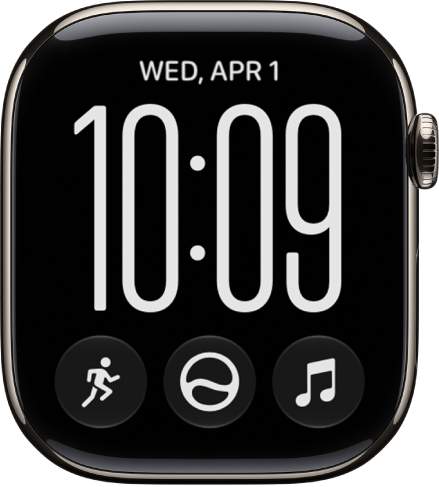
- Customizable features: Style (I, II, III, IV) • Font (Modern, Classic, Rounded)
- Available complications: Activity • Alarms • Astronomy • Audiobooks • Battery • Calculator • Calendar • Camera Remote • Cellular • Compass • Contacts • Cycle Tracking • Depth • ECG • Find My • Hearing Devices • Heart Rate • Home • Mail • Maps • Medications • Messages • Mindfulness • Music • Music Recognition • News • Noise • Notes • Phone • Podcasts • Reminders • Remote • Shortcuts • Siri • Sleep • Stocks • Stopwatch • Tides • Time • Timers • Tips • Translate • Vitals • Voice Memos • Wallet • Weather • Workout • World Clock
Snoopy
The world-famous beagle, Snoopy, shows off the Peanuts canine’s playful spirit here, interacting with Woodstock and the hands of the watch. If you choose the Sunday Surprise color setting, the background cycles through different colors on Sundays as a nod to Sunday comic strips.
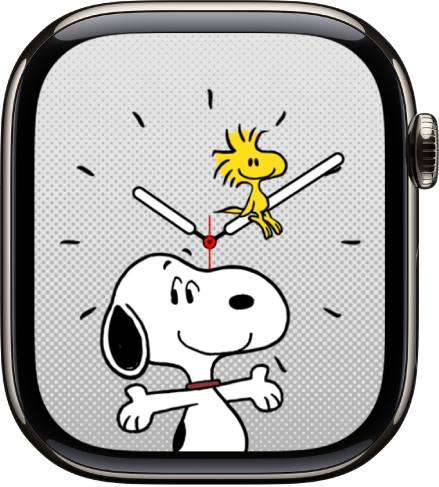
- Customizable features: Color • Style
Solar Analog
Light and shadows on Solar Analog shift throughout the day, responding to the position of the sun.
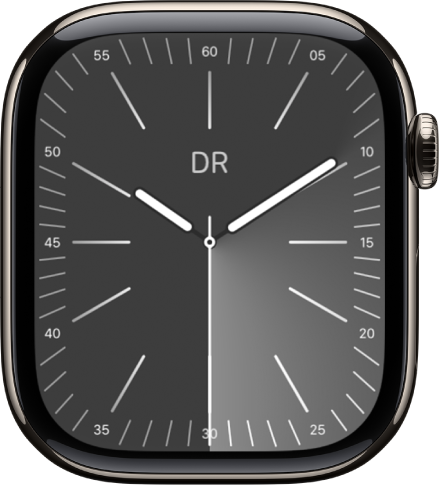
- Customizable features: Color • Style • Light
- Available complications: Activity • Alarms • Astronomy • Audiobooks • Battery • Blood Oxygen • Calculator • Calendar • Camera Remote • Cellular • Compass • Compass Waypoints • Contacts • Cycle Tracking • Depth • ECG • Find My • Heart Rate • Home • Mail • Maps • Medications • Messages • Mindfulness • Monogram • Music • Music Recognition • News • Noise • Notes • Phone • Podcasts • Reminders • Remote • Shortcuts • Sleep • Stocks • Stopwatch • Tides • Time • Timers • Tips • Translate • Vitals • Voice Memos • Wallet • Weather • Workout • World Clock
Solar Dial
A 24-hour circular dial tracks the sun on this face, while an analog or digital dial moves opposite to the sun’s path.
Quick tip: Tap the watch face to see the day’s length, and then turn the Digital Crown to see when sunrise and sunset occur.
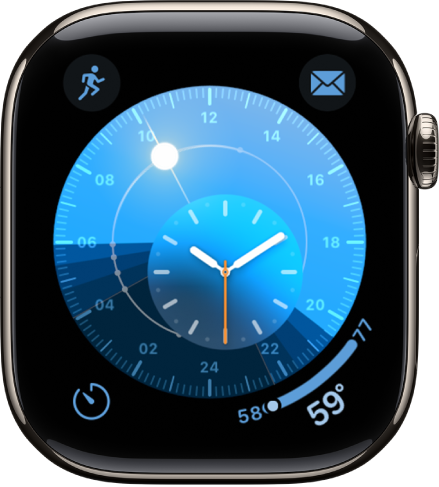
- Customizable features: Dial (Analog, Digital)
- Available complications: Activity • Alarms • Astronomy • Audiobooks • Battery • Blood Oxygen • Calculator • Calendar • Camera Remote • Cellular • Compass • Compass Waypoints • Contacts • Cycle Tracking • Depth • ECG • Find My • Heart Rate • Home • Mail • Maps • Medications • Messages • Mindfulness • Music • Music Recognition • News • Noise • Notes • Phone • Podcasts • Reminders • Remote • Shortcuts • Sleep • Stocks • Stopwatch • Tides • Timers • Tips • Translate • Voice Memos • Weather • Workout • World Clock
Solar Graph
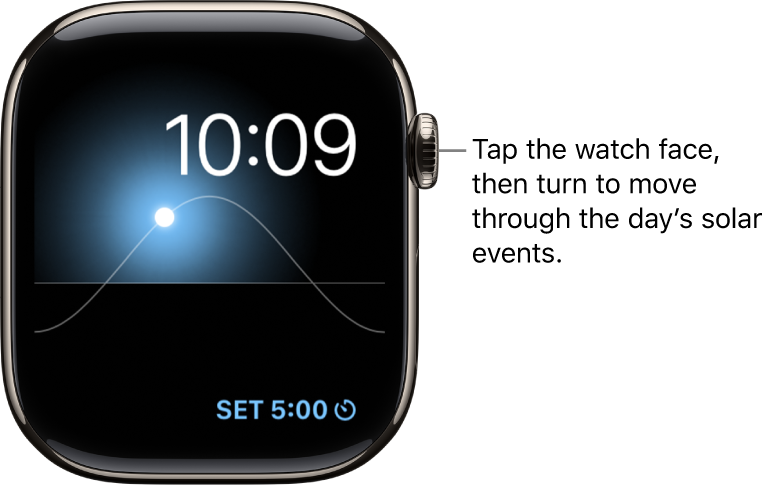
Along with the day, date, and current time, this face displays the sun’s position in the sky based on your current location and time of day.
Quick tip: For the day’s length, tap the watch face, and turn the Digital Crown to find out when sunrise and sunset occur.
- Available complications: Activity • Alarms • Astronomy • Audiobooks • Battery • Calendar • Camera Remote • Compass • Heart Rate • Medications • Messages • Music • Music Recognition • News • Noise • Notes • Now Playing • Podcasts • Reminders • Shortcuts • Stocks • Stopwatch • Tides • Timers • Translate • Weather • Workout • World Clock
Stripes
You can select the number of stripes you want on this face, choose colors, and rotate the angle.
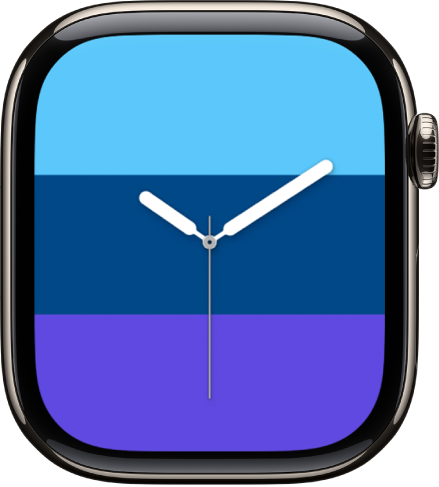
- Customizable features: Style • Number of stripes • Color of stripes
- Available complications (Circular style only): Activity • Alarms • Astronomy • Audiobooks • Battery • Blood Oxygen • Calculator • Calendar • Camera Remote • Cellular • Compass • Compass Waypoints • Contacts • Cycle Tracking • Depth • ECG • Find My • Heart Rate • Home • Mail • Maps • Medications • Messages • Mindfulness • Music • Music Recognition • News • Noise • Notes • Phone • Podcasts • Reminders • Remote • Shortcuts • Sleep • Stocks • Stopwatch • Tides • Timers • Tips • Translate • Voice Memos • Weather • Workout • World Clock
Timelapse
This face shows a timelapse video of a natural setting or cityscape you’d like.
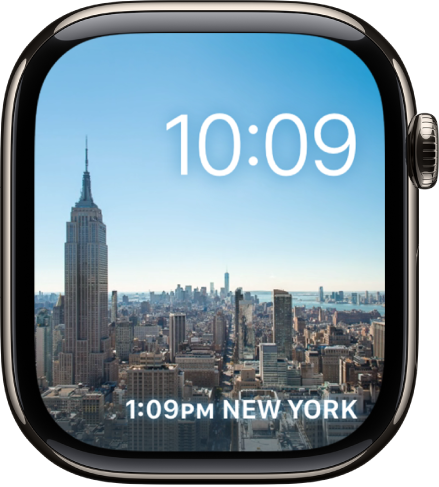
- Customizable features: Location (Mack Lake, New York, Hong Kong, London, Paris, Shanghai)
- Available complications: Activity • Alarms • Astronomy • Audiobooks • Battery • Calendar • Compass • Heart Rate • Medications • Messages • Music • Music Recognition • News • Noise • Notes • Now Playing • Podcasts • Reminders • Shortcuts • Stocks • Stopwatch • Tides • Timers • Translate • Weather • Workout • World Clock
Typograph
This watch face features three custom fonts.
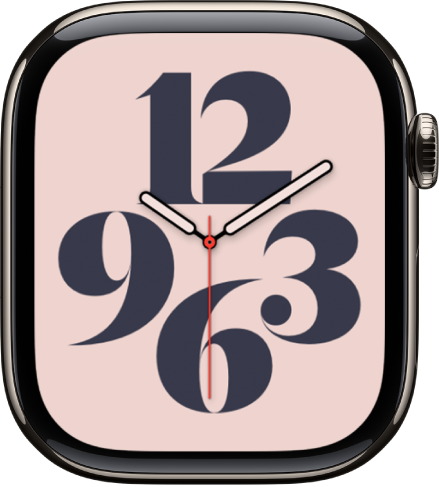
- Customizable features: Color • Dial • Style • Symbols
- Available complications (Dial II only): Date • Monogram • Stopwatch • Digital Time • Timers
Unity
Inspired by the colors of the Pan-African Flag, this face has shapes that change as you move, creating a face that’s unique to you.
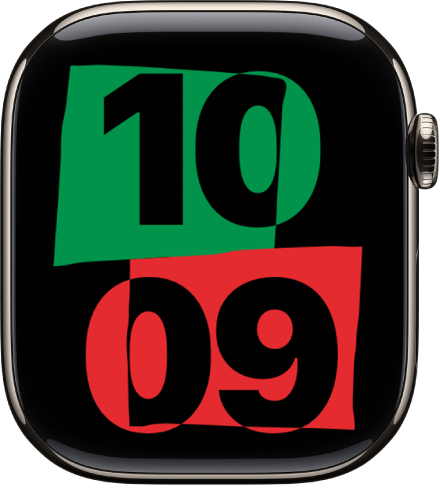
- Customizable features: Color
- Available complications: Activity • Alarms • Astronomy • Audiobooks • Battery • Calendar • Compass • Heart Rate • Medications • Messages • Music • Music Recognition • News • Noise • Notes • Now Playing • Podcasts • Reminders • Shortcuts • Stocks • Stopwatch • Tides • Timers • Translate • Weather • Workout • World Clock
Unity Bloom
This face’s floral design signifies the pursuit of a more equitable world.
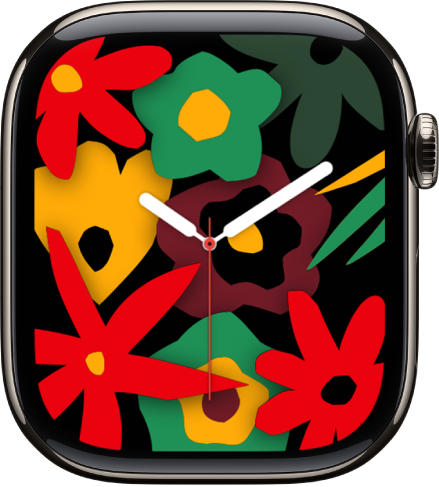
- Customizable features: Color • Style (Single Bloom, Full Bloom)
- Available complications (Single Bloom style only): Activity • Alarms • Astronomy • Audiobooks • Battery • Blood Oxygen • Calculator • Calendar • Camera Remote • Cellular • Compass • Compass Waypoints • Contacts • Cycle Tracking • ECG • Find My • Heart Rate • Home • Mail • Maps • Medications • Messages • Mindfulness • Music • Music Recognition • News • Noise • Notes • Phone • Podcasts • Reminders • Remote • Shortcuts • Sleep • Stocks • Stopwatch • Tides • Timers • Tips • Translate • Voice Memos • Wallet • Weather • Workout • World Clock
Unity Lights
Afrofuturism, a philosophy exploring the experience of the African diaspora through technology, science, and self-empowerment, inspires this face.
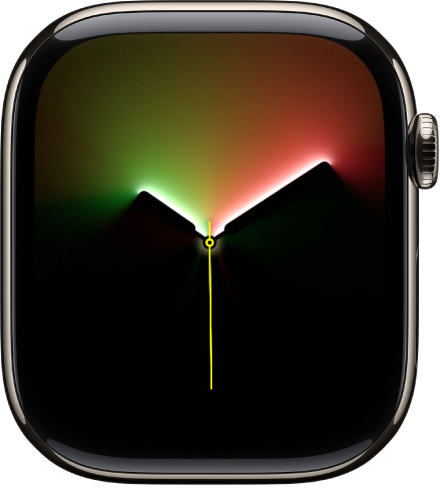
- Customizable features: Color • Dial • Style (Rectangle, Circle)
- Available complications (Circular style only): Activity • Alarms • Astronomy • Audiobooks • Battery • Blood Oxygen • Calculator • Calendar • Camera Remote • Cellular • Compass • Compass Waypoints • Contacts • Cycle Tracking • Depth • ECG • Find My • Heart Rate • Home • Mail • Maps • Medications • Messages • Mindfulness • Music • Music Recognition • News • Noise • Notes • Phone • Podcasts • Reminders • Remote • Shortcuts • Sleep • Stocks • Stopwatch • Tides • Timers • Tips • Translate • Voice Memos • Weather • Workout • World Clock
Unity Mosaic
Inspired by the creative process of mosaic, this face is a symbol of the vibrancy of Black communities and the power of unity.
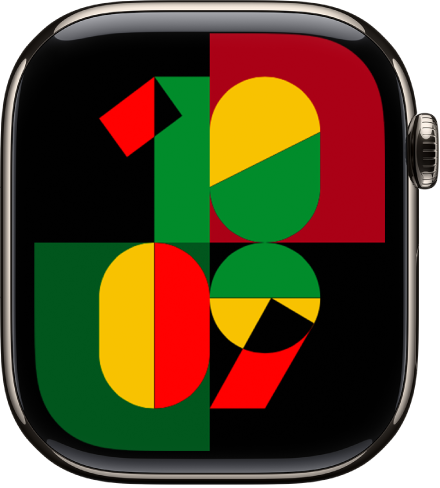
- Customizable features: Color • Background
Unity Rhythm
You’ll see custom numerals formed by intertwined threads of red, green, and yellow.
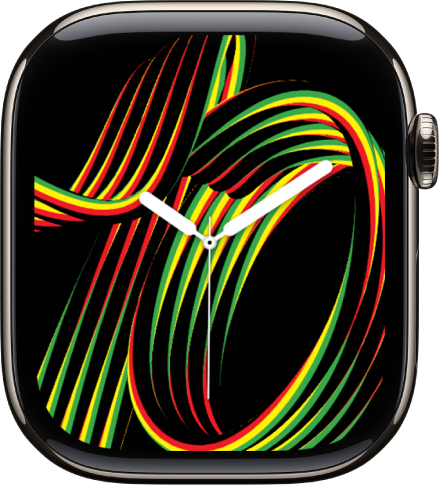
- Customizable features: Color
- Available complications: Activity • Alarms • Astronomy • Audiobooks • Battery • Blood Oxygen • Calculator • Calendar • Camera Remote • Cellular • Compass • Compass Waypoints • Contacts • Cycle Tracking • ECG • Find My • Heart Rate • Home • Mail • Maps • Medications • Messages • Mindfulness • Music • Music Recognition • News • Noise • Notes • Phone • Podcasts • Reminders • Remote • Shortcuts • Sleep • Stocks • Stopwatch • Tides • Time • Timers • Tips • Translate • Vitals • Voice Memos • Wallet • Weather • Workout • World Clock
Utility
You can add up to three complications to this practical and functional face to display what you want to see at a glance.
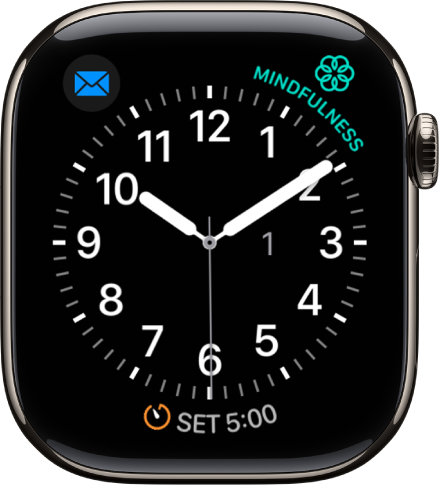
- Customizable features: Color • Style • Typeface
- Available complications: Activity • Alarms • Astronomy • Audiobooks • Battery • Blood Oxygen • Calculator • Calendar • Camera Remote • Cellular • Compass • Compass Waypoints • Contacts • Cycle Tracking • Depth • ECG • Find My • Heart Rate • Home • Mail • Maps • Medications • Messages • Mindfulness • Music • Music Recognition • News • Noise • Notes • Now Playing • Phone • Podcasts • Reminders • Remote • Shortcuts • Sleep • Stocks • Stopwatch • Tides • Timers • Tips • Translate • Voice Memos • Weather • Workout • World Clock
Wayfinder
As a face available on Apple Watch Ultra models, it provides information important to runners, hikers, and underwater enthusiasts.
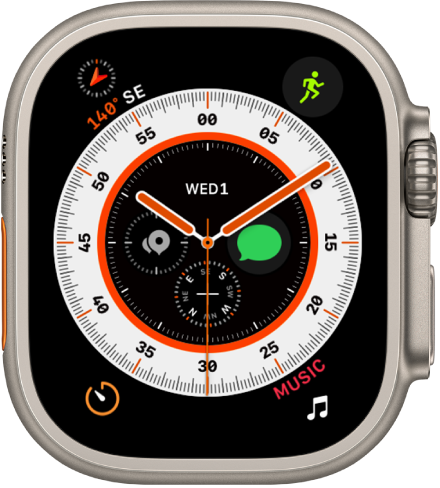
- Customizable features: Color • Style (Hour, Minute) • Bezel (Latitude/Longitude, Elevation/Incline, None)
- Available complications: Activity • Alarms • Astronomy • Audiobooks • Battery • Blood Oxygen • Calculator • Calendar • Camera Remote • Cellular • Compass • Compass Waypoints • Contacts • Cycle Tracking • Depth • ECG • Find My • Heart Rate • Home • Mail • Maps • Medications • Messages • Mindfulness • Music • Music Recognition • News • Noise • Notes • Phone • Podcasts • Reminders • Remote • Satellite • Shortcuts • Sleep • Stocks • Stopwatch • Tides • Timers • Tips • Translate • Voice Memos • Weather • Workout • World Clock
By default, when you tap the outer edges of the Wayfinder watch face (the ring that displays minutes or hours), it becomes a compass and your current latitude and longitude coordinates appear within the ring. To show Elevation/Incline instead, touch and hold the watch face, tap Edit, swipe left to the Bezel screen, turn the Digital Crown up, then choose Elevation/Incline.
Note: Coordinates aren’t available in all countries or regions.
The Wayfinder watch face also includes Night Mode—a feature that turns all elements on the watch face red to help preserve your night vision. Touch and hold the watch face, tap Edit, swipe to Night Mode, then choose Auto.
Quick tip: Multiple versions of the Wayfinder watch face are possible, so you can swipe to the one that fits the activity you’re doing.
Waypoint
When you’re exploring with an Apple Watch Ultra model, this face gives you a sense of direction.
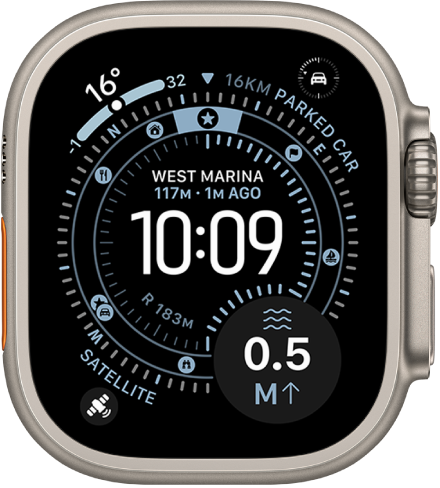
- Customizable features: Color • Time Style (Analog, Digital) • POI Filter • Dial Style (Left, Right, None)
- Available complications: Activity • Alarms • Astronomy • Audiobooks • Battery • Blood Oxygen • Calculator • Calendar • Camera Remote • Cellular • Compass • Compass Waypoints • Contacts • Cycle Tracking • Depth • ECG • Find My • Heart Rate • Home • Mail • Maps • Medications • Messages • Mindfulness • Music • Music Recognition • News • Noise • Notes • Phone • Podcasts • Reminders • Remote • Satellite • Shortcuts • Sleep • Stocks • Stopwatch • Tides • Timers • Tips • Translate • Voice Memos • Weather • Workout • World Clock
The Waypoint watch face also includes Night Mode—a feature that turns all elements on the watch face red to help preserve your night vision. Touch and hold the watch face, tap Edit, swipe to Night Mode, then choose Auto.
World Time
This watch face lets you track the time in 24 time zones at once. The locations around the outer dial represent the different time zones, while the inner dial shows the current time in each location. Tapping the globe centers it to the time zone you’re in, which is also noted by the arrow at 6 o’clock.
As night and day move across the earth, the globe’s light and dark zones reflect them, and the sun and moon icons stand for sunrise and sunset where you are.
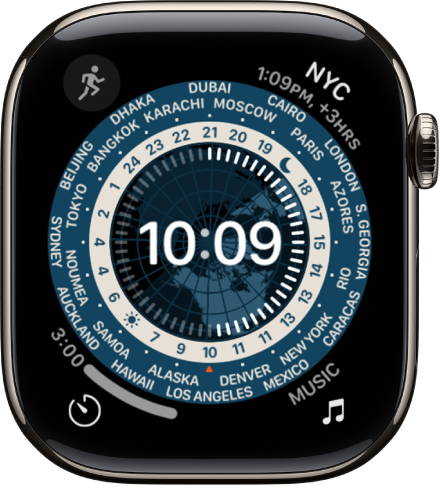
- Customizable features: Analog or digital time
- Available complications: Activity • Alarms • Astronomy • Audiobooks • Battery • Blood Oxygen • Calculator • Calendar • Camera Remote • Cellular • Compass • Compass Waypoints • Contacts • Cycle Tracking • Depth • ECG • Find My • Heart Rate • Home • Mail • Maps • Medications • Messages • Mindfulness • Music • Music Recognition • News • Noise • Notes • Phone • Podcasts • Reminders • Remote • Shortcuts • Sleep • Stocks • Stopwatch • Tides • Timers • Tips • Translate • Voice Memos • Weather • Workout • World Clock
X-Large
When you need the largest available display, use this face, where any complication you add fills the screen.
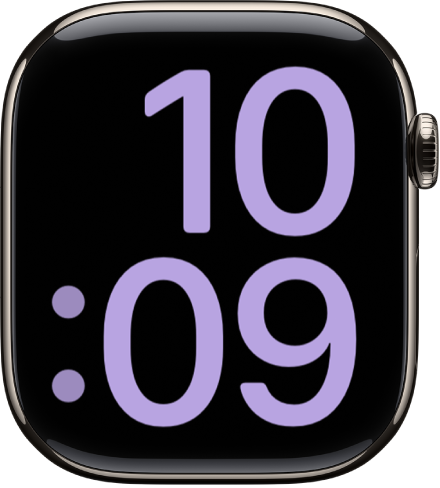
- Customizable features: Color
- Available complications: Activity • Alarms • Astronomy • Audiobooks • Battery • Blood Oxygen • Calculator • Calendar • Camera Remote • Cellular • Compass • Compass Waypoints • Contacts • Cycle Tracking • Depth • ECG • Find My Devices • Find Items • Find People • Heart Rate • Home • Mail • Maps • Messages • Mindfulness • Music • Music Recognition • News • Noise • Notes • Phone • Podcasts • Reminders • Remote • Shortcuts • Sleep • Stocks • Stopwatch • Tides • Timers • Tips • Translate • Voice Memos • Weather • Workout • World Clock
*Apple Intelligence is available with Siri and device language set to Chinese (Simplified), Chinese (Traditional), Danish, Dutch, English, French, German, Italian, Japanese, Korean, Norwegian, Portuguese, Spanish, Swedish, Turkish, or Vietnamese. Some features may not be available in all regions or languages. Some devices may not be available in all regions. Siri AI is available in beta in iOS 27, iPadOS 27, macOS 27, watchOS 27, and visionOS 27 and requires an Apple Intelligence–enabled device set to a supported language. Available in English to start. Siri AI will not be initially available in the EU on iOS, iPadOS, and watchOS. Certain Apple Intelligence features that rely on server-side models are subject to daily usage limits, including but not limited to Siri AI, Intelligent Photo Editing Tools, Image Playground, and AFM 3 Cloud models in Shortcuts. Daily limits may vary by feature, request complexity, system demand, system policies, and other factors. Expanded access to such features will be available for a fee in the future. Use of these features is subject to the Apple Intelligence Terms and Conditions.














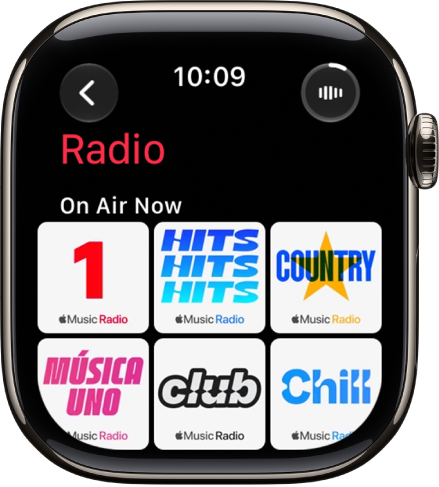
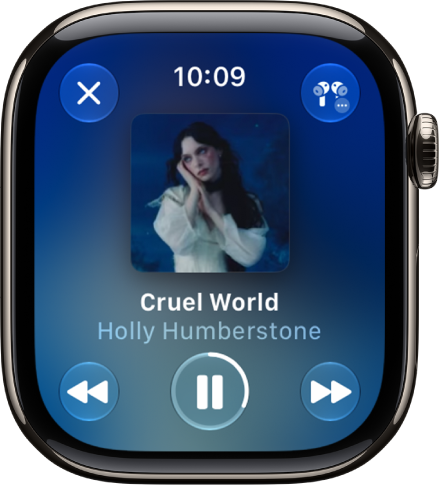
 Play the current song.
 Pause playback.
 Skip to the next song.
 Skip to the beginning of the song; double-tap to skip to the previous song.