Got a tip for us?

You can play audio from Apple Watch on Bluetooth headphones or speakers.

Bluetooth headphones and speakers pair with your watch once they’re in discovery mode, as the instructions that came with them describe. You can also monitor and adjust your headphone volume, reduce loud sounds, and view loud headphone audio notifications, and Apple Watch can even cap your headphone audio at a specific decibel level.

Here’s how to connect Apple Watch to Bluetooth headphones or speakers.

Quick tip: AirPods you set up with your iPhone are ready to use with your Apple Watch, too, so press play and listen.

Pair Bluetooth headphones or speakers

Follow the instructions that came with the headphones or speakers to put them in discovery mode. When the Bluetooth device is ready, follow these steps:

  1. Go to the Settings app on Apple Watch. Tap Bluetooth.
  2. Tap the device when it appears.

You can also tap the More Actions button on the play screens of the Audiobooks, Music, Now Playing, and Podcasts apps to open the AirPlay setting.

Monitor and adjust your headphone volume

  1. Press the side button to open Control Center.
  2. While listening to your headphones, tap the Hearing Devices Switch button.

    A meter shows the current headphone volume.

  3. Tap the volume controls below Headphone Volume or tap the slider. Then turn the Digital Crown to adjust.

Reduce loud sounds

Your Apple Watch can cap the volume of your headphone audio at a specific decibel level.

  1. Open the Settings app on your Apple Watch.
  2. Go to Sounds & Haptics, tap Headphone Safety, and tap Reduce Loud Sounds.
  3. Turn on Reduce Loud Sounds and then set a level.

View loud headphone audio notifications

If loud audio in your headphones goes on long enough that it could affect your hearing, you get a headphone notification, and Apple Watch automatically turns the volume down to a more moderate level to protect your hearing.

To view details about headphone notifications, follow these steps:

  1. Open the Settings app on your Apple Watch.
  2. Go to Sounds & Haptics and tap Headphone Safety. Tap Last 6 Months below Headphone Notifications.

You can also open the Health app on your iPhone, tap the Search button, tap Hearing, tap Headphone Notifications, then tap a notification.

See also
If you have an iPhone with Dual SIM and multiple cellular plans, you can also set up multiple lines on your Apple Watch with cellular. Choose the line your watch uses when connected to cellular networks.

You can add multiple lines, but your watch connects to only one line at a time. When it’s connected to your iPhone, you can receive calls from both lines, and your watch shows a badge for the line.

Note: Each iPhone cellular plan must be provided by a carrier that supports Apple Watch with cellular.

Set up multiple carrier plans

During the initial setup of your Apple Watch, you can add one plan, then set up a second plan later in the Apple Watch app.

  1. Start the Apple Watch app on your iPhone.
  2. Tap My Watch and then tap Cellular.
  3. Tap Set Up Cellular or Add a New Plan and then follow the steps to choose the plan you want to add to your Apple Watch.

Your Apple Watch takes multiple lines. It can connect to only one at a time.

Switch between plans

  1. Start the Settings app on your Apple Watch.
  2. Tap Cellular and then choose the plan you want your watch to use.

You can also go to the Apple Watch app on your iPhone, tap My Watch, then tap Cellular. Your plan should automatically switch. If it doesn’t switch, tap the plan you want to use.

How Apple Watch receives calls when using multiple cellular plans

  • When Apple Watch is connected to your iPhone: You can receive calls from both lines. Your watch shows a badge that tells you which cellular line you received a notification from—H for Home, and W for Work, for example. If you respond to a call, your watch automatically responds from the line that received the call.
  • When Apple Watch is connected to cellular and your iPhone isn’t nearby: You receive calls from the line you’ve chosen in the Apple Watch app. If you respond to a call, your watch automatically calls back from the line you’ve chosen in the Apple Watch app.

    Note: If the line you’ve chosen in the Apple Watch app isn’t available when you try to return a call, your watch asks if you want to respond from another available line that you’ve added.

How Apple Watch receives messages when using multiple plans

  • When Apple Watch is connected to your iPhone: You can get messages from both plans. If you respond to a message, your watch automatically responds from the line that received the message.
  • When your Apple Watch is connected to cellular and away from your iPhone: You can get SMS messages from your active plan. If you respond to an SMS message, your Apple Watch automatically texts back from the line that received the message.
  • When your Apple Watch is connected to cellular or Wi-Fi and your iPhone is turned off: You can send and receive iMessage texts as long as your Apple Watch has an active data connection to a Wi-Fi or cellular network.

See also

On an Apple Watch with cellular, you can set up cellular service with the same carrier used by your iPhone. The cellular connection allows you to make calls, reply to messages, stream music and podcasts, receive notifications, and more—even when Apple Watch isn’t connected to your iPhone or Wi-Fi.

If your Apple Watch has an active cellular plan, it automatically uses the best available network connection: your iPhone when it’s nearby, a Wi-Fi network that you’ve connected to previously on your iPhone, or a cellular network. You can also turn cellular off to save battery power.

Note: Cellular service for Apple Watch isn’t available in all areas or with all carriers.

Add Apple Watch to your cellular plan

You can activate cellular service during the initial setup of your Apple Watch. To activate service later, do the following:

  1. Start the Apple Watch app on your iPhone.
  2. Tap My Watch and then tap Cellular.
  3. Follow the onscreen instructions to learn more about your carrier service plan and activate cellular service.

Transfer an existing cellular plan to a new Apple Watch

You can transfer your existing service from one Apple Watch with cellular to another.

  1. While wearing your old Apple Watch, open the Apple Watch app on your iPhone.
  2. Tap My Watch, tap Cellular, and tap the Info button next to your cellular plan.
  3. Tap Remove [name of carrier] Plan. Then confirm your choice.

    You may need to contact your carrier to remove this Apple Watch from your cellular plan.

  4. Remove the old watch and then put on your new Apple Watch with cellular.
  5. In the Apple Watch app, choose your new watch and tap Cellular.
  6. Follow the onscreen instructions.

Turn cellular off or on

To save battery power, for example, you can turn cellular off.

  1. Press the side button to open Control Center.
  2. Tap the Cellular button to turn cellular off or on.

    • When your iPhone is nearby and connected to Apple Watch, the Cellular button is white.

      Control Center with the Cellular button at the top left.

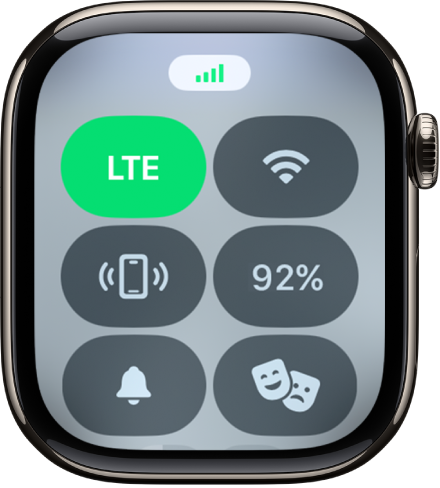
    • When your iPhone isn’t nearby, Apple Watch uses its available cellular connection. The Cellular button is green and indicates the carrier’s network such as LTE or 5G (depending on your carrier and Apple Watch model).

      Control Center with the Cellular button at the top left.

Note: Using cellular for extended periods takes more battery power. Some apps also may not update without a connection to your iPhone.

Check cellular signal strength

While connected to a cellular network, do any of the following:

Check cellular data usage

  1. Start the Settings app on your Apple Watch.
  2. Tap Cellular and then scroll down to see the amount of data you’ve used during the current period.

See also

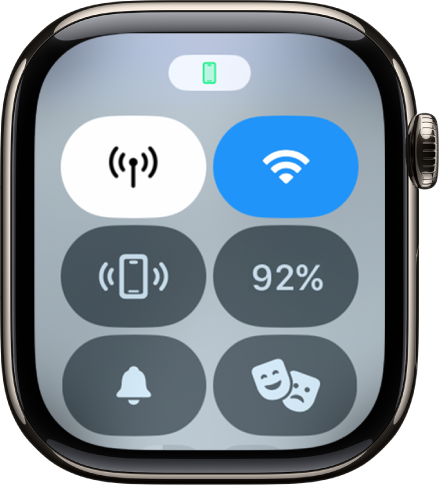
Control Center gives you quick access to essential Apple Watch features and settings. In Control Center, you can check your connection status and battery level, toggle settings like Airplane Mode and Theater Mode, use the flashlight, ping your iPhone, and more.

You can organize Control Center by rearranging, adding, and removing controls, too, and reset it whenever you like. You can quickly access the default controls there, and close Control Center when you’re done.

Here’s how to use Control Center on Apple Watch.

Open Control Center

  1. Press the side button.
  2. Tap any of the controls. (Scroll down to see more controls.)

Use the default controls

In Control Center, you have quick access to any of the following default controls:

Button Description For more information
Cellular Data Switch button Turn cellular on or off (available on Apple Watch models with cellular). See Set up and use cellular service.
Wi-Fi Switch button Connect or disconnect Wi-Fi. See Disconnect from Wi-Fi.
Airplane Mode Switch button Turn on Airplane Mode. See Use Airplane Mode.
Battery Power button Check the battery percentage and turn on Low Power Mode. See Turn on Low Power Mode.
Ping your iPhone. See Ping your iPhone with Apple Watch.
Flashlight Switch button Turn on the flashlight. See Use the flashlight.
Focus Switch button Turn on Do Not Disturb or choose a Focus. See Turn on Do Not Disturb or a Focus.
Silent Mode Switch button Silence Apple Watch. See Turn on Silent Mode.
Water Lock Switch button Turn on Water Lock. See Go for a swim.
Theater Mode Switch button Turn on Theater Mode. See Turn on Theater Mode.
Volume button Change the volume. See Adjust the media volume.
AirPlay Switch button Choose audio output. See Choose an audio destination.
Text Size Switch button Change text size. See Adjust the text size.

Rearrange, add, and remove Control Center buttons

Rearranging, adding, and removing controls is how you organize Control Center. The controls you can add cover accessibility features, Backtrack, Settings, and many apps like Home, Notes, Reminders, Shortcuts, and supported third-party apps.

  1. Press the side button to open Control Center on Apple Watch.
  2. Scroll to the bottom of Control Center and then tap Edit.
  3. Do any of the following:
    • Rearrange controls: Touch and hold a control and drag it to a new location.
    • Add controls: Tap the Add button, tap the controls you want to add, and tap the Close button.
    • Remove controls: Tap the Delete button in the corner of a control you want to remove.
  4. When you’re finished, scroll to the bottom and then tap Done.

Reset Control Center

You can revert Control Center to the original layout with default controls.

  1. Open the Settings app on your Apple Watch.
  2. Tap Control Center and tap Reset Control Center Layout.

You can also revert Control Center on your iPhone—go to the Apple Watch app, tap My Watch, tap Control Center, then tap Reset Control Center.

Close Control Center

Turn your wrist away from you or press the side button again.

See also

Connect Apple Watch to a compatible Wi-Fi network so you can use many of its features even when you don’t have your iPhone with you.

It works with 802.11b/g/n 2.4 GHz or 5 GHz networks, but not captive networks that require logins, subscriptions, or profiles. When it’s on Wi-Fi instead of your iPhone, you’ll see the Wi-Fi icon at the top of Control Center. You can also use a private network address and disconnect from Wi-Fi.

Wi-Fi networks compatible with Apple Watch

  • 802.11b/g/n 2.4 GHz or 5 GHz
  • A network that your iPhone previously used while connected to Apple Watch

Note: Apple Watch won’t connect to public networks that require logins, subscriptions, or profiles, also called captive networks. These can be free or pay networks at places like businesses, schools, dorms, apartments, hotels, and stores.

Connect to a compatible Wi-Fi network

  1. Press the side button to open Control Center.
  2. Touch and hold the Wi-Fi button and tap the name of a compatible Wi-Fi network.
  3. If the network requires a password, enter the password or tap the Password button. Choose a password from the list.
  4. Tap Join.

The Wi-Fi icon at the top of Control Center means Apple Watch is connected to a Wi-Fi network rather than your iPhone.

Use a private network address on Apple Watch

To help protect your privacy, Apple Watch uses a unique private network address, called a media access control (MAC) address, on each Wi-Fi network it joins, Apple says. Using a private address helps reduce tracking of your Apple Watch across different Wi-Fi networks.

  1. Press the side button to open Control Center.
  2. Touch and hold the Wi-Fi button. Then tap the name of the network you joined.
  3. Tap Private Wi-Fi Address and then choose Off, Fixed, or Rotating.

    Important: For better privacy, choose Fixed or Rotating for all networks that support a private address.

Some networks can’t use a private address, like ones that provide parental controls or need to identify Apple Watch as authorized to join. For those, you can stop using a private address.

Disconnect from Wi-Fi

Control Center lets you temporarily disconnect from a Wi-Fi network, and if your Apple Watch has a cellular plan, an available cellular connection can take over.

  1. Press the side button to open Control Center.
  2. Tap the Wi-Fi button.

    “Disconnected” appears at the top of the screen.

Apple Watch temporarily disconnects from the Wi-Fi network. If you have an Apple Watch with cellular, the cellular connection activates if you have coverage. When you leave and later return to the place where you were connected to Wi-Fi, Apple Watch automatically joins that network again unless you’ve forgotten it on your iPhone.

Quick tip: Touch and hold the Wi-Fi button in Control Center for quick access to Wi-Fi settings on Apple Watch.

Forget a network

  1. Press the side button to open Control Center.
  2. Touch and hold the Wi-Fi button, then tap the name of the network.
  3. Tap Forget This Network.

Rejoining that network later means you’ll reenter its password, if it requires one.

See also

Tag: Wi-Fi

Adjust the brightness, text size, wake settings, and Always On display.

You can change the text size from Control Center, set brightness, text size, and bold text in Settings, or make these adjustments on your iPhone in the Apple Watch app. The wake settings decide whether Apple Watch wakes when you raise your wrist or turn the Digital Crown, and Always On keeps the watch face and time displayed even when your wrist is down.

Here’s how to adjust the display settings on Apple Watch.

Adjust the text size in Control Center

  1. Press the side button to open Control Center.
  2. Tap the Text Size Switch button and tap the letters or turn the Digital Crown.

Adjust brightness and text size in Settings

  1. Open the Settings app on your Apple Watch.
  2. Tap Display & Brightness.

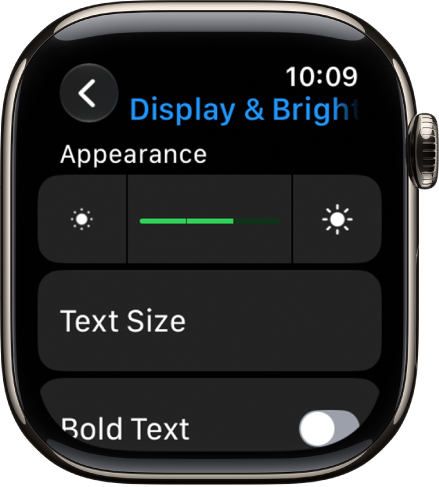
    Display & Brightness settings on Apple Watch, with the Brightness slider at the top, and the Text Size button below.

  3. Set any of the following:

    • Brightness: Tap the brightness buttons or turn the Digital Crown.
    • Text Size: Tap Text Size and then tap the size buttons or turn the Digital Crown.
    • Bold Text: Turn on Bold Text.

You can also make these adjustments on your iPhone—go to the Apple Watch app, tap My Watch, then tap Display & Brightness.

Adjust the wake settings

  1. Open the Settings app on your Apple Watch.
  2. Tap Display & Brightness. Then set any of the following:

    • Wake on Wrist Raise: Allow or prevent Apple Watch from waking when you raise your wrist.

      Tip: To temporarily stop Apple Watch from waking when you raise your wrist, turn on Theater Mode.

    • Wake on Crown Rotation: Allow or prevent Apple Watch from waking when you turn the Digital Crown.
    • Wake Duration: Choose how long the display stays on after Apple Watch wakes.

Keep your watch face visible with Always On

Always On keeps the watch face and time on display even when your wrist is down, and Apple Watch works normally when you raise your wrist.

  1. Open the Settings app on your Apple Watch.
  2. Tap Display & Brightness, then tap Always On.
  3. Turn on Always On and then set any of the following:
    • Show Complication Data: Choose which complications show data.
    • Show Notifications: Choose which notifications are visible.
    • Show Apps: Choose which apps are visible.

Note: If your Apple Watch is in Low Power Mode, Always On isn’t available, so tap the display to see the watch face.

Return to clock face when inactive

You can pick how long Apple Watch waits before it returns to the clock face from an open app.

  1. Open the Settings app on your Apple Watch.
  2. Tap General and tap Return to Clock. Choose when you want your Apple Watch to return to the clock face: Always, After 2 minutes, or After 1 hour.
  3. You can also return to the clock face by pressing the Digital Crown.

By default, the setting you select applies to all apps, but you can choose a custom time for each app. To do so, tap an app on this screen, tap Custom, then choose a setting.

Set Apple Watch to return to your last used app

With some apps, like Workout, Voice Memos, Timers, Stopwatch, Podcasts, Now Playing, Music, Mindfulness, Maps, and Audiobooks, Apple Watch can take you back to where you were before it went to sleep.

  1. Open the Settings app on your Apple Watch.
  2. Tap General, tap Return to Clock, scroll down and tap an app, and then turn on Return to App.

Just stop what you’re doing in the app to return to the clock face. You might cancel a timer, end a route in Maps, or stop a podcast, for example.

You can also go to the Apple Watch app on your iPhone, tap My Watch, tap General, then tap Return to Clock.

See also

You can maximize battery life by turning on Low Power Mode or preventing apps from refreshing in the background.

Low Power Mode turns off certain features, like the Always On Display and background heart rate measurements. Other notifications may be delayed, and certain cellular and Wi-Fi connections are limited. Once the battery drops to 10 percent or lower, your watch even offers to turn it on.

Here’s how to extend the battery life on Apple Watch.

Turn on Low Power Mode

Low Power Mode turns off certain features, such as Always On Display, background heart rate and blood oxygen measurements, and heart rate notifications. Other notifications may be delayed, emergency alerts may not arrive, and certain cellular and Wi-Fi connections are limited. Cellular is turned off until you require it—when you stream music or send a message, for example.

When the battery level drops to 10 percent or lower, your Apple Watch asks if you want to turn on Low Power Mode. To turn it on manually, do the following:

  1. Press the side button to open Control Center.
  2. Tap the battery percentage, tap Low Power Mode.
  3. Tap Turn On or Turn On For. Choose a duration.

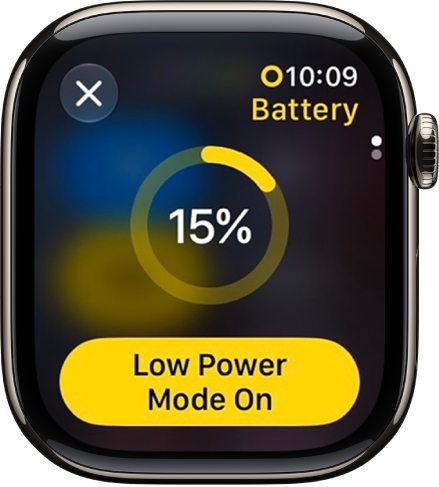
    The Low Power Mode screen with a partial yellow ring indicating the remaining charge. The Low Power Mode On button is at the bottom.

Return to the normal power mode

  1. Press the side button to open Control Center.
  2. Tap the battery percentage, then turn off Low Power Mode.

Prevent apps from refreshing in the background

Switching to a new app means the one you were using doesn’t stay open or take up system resources. It may still “refresh” in the background by checking for updates and new content.

To maximize battery life, you can turn this option off, since refreshing apps in the background can use power.

  1. Start the Settings app on your Apple Watch.
  2. Tap General, then tap Background App Refresh.
  3. Turn off Background App Refresh to prevent all apps from refreshing. Or scroll down and turn off refresh for individual apps.

Note: Even with their background app refresh setting off, apps with complications on the current watch face keep refreshing.

See also

Tag: Battery

You can monitor your Apple Watch battery in several ways: check the current battery level, view usage history and charging patterns, and assess overall battery health.

The quickest check is Control Center, which shows the battery percentage, including for connected accessories like AirPods. You can also add a battery complication to the watch face, or see the time since the last charge. And Apple Watch alerts you when battery capacity is significantly reduced.

Check the battery level of Apple Watch and accessories

  1. Press the side button to open Control Center and see the battery percentage.

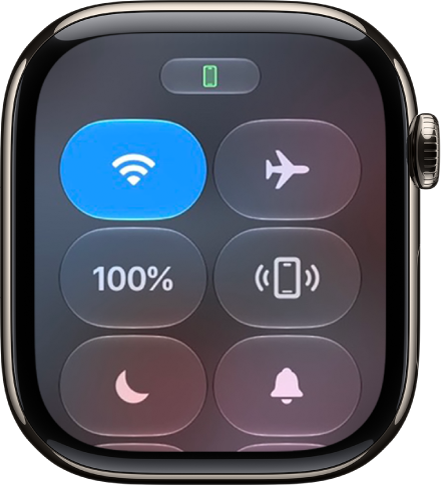
    The battery level in Control Center.

  2. To see the battery levels of any Bluetooth connected accessories, such as AirPods, tap the battery percentage and turn the Digital Crown.

See the battery level on the watch face

If you add a battery complication to the watch face, you can check the battery level at a glance.

The screen for customizing the watch face. The battery percentage complication is in the top-right corner.

Check the time since the last charge

  1. Start the Settings app on your Apple Watch.
  2. Tap Battery.

    The Battery screen shows the remaining battery percentage, a graph that details the recent history of the battery charge, and information about when the battery was last charged.

Check battery health

You can check your Apple Watch battery’s capacity relative to when it was new.

  1. Start the Settings app on your Apple Watch.
  2. Tap Battery, then tap Battery Health.
  3. Scroll down to see the maximum capacity.

When battery capacity is significantly reduced, Apple Watch alerts you so you can check your service options.

See also

Tag: Battery

Apple Watch has an internal lithium-ion rechargeable battery. Compared with traditional battery technology, lithium-ion batteries are lighter, charge faster, and have a higher power density for longer battery life.

For best results, you charge it with the included magnetic charger, though the MagSafe Duo Charger and compatible third-party chargers work, too. When Apple Watch needs to be charged, a low battery symbol appears on the screen. You can also optimize battery charging and use fast charging.

Set up the charger

The included magnetic charger gives the best results when you charge your Apple Watch, though a compatible third-party charger or the MagSafe Duo Charger, sold separately, works too.

  1. In a well-ventilated area, place your charger on a flat surface.
  2. Plug the charger into a power adapter (sold separately).
  3. Plug the adapter into a power outlet.

Begin charging Apple Watch

When Apple Watch needs to be charged, you see the low battery symbol on the screen.

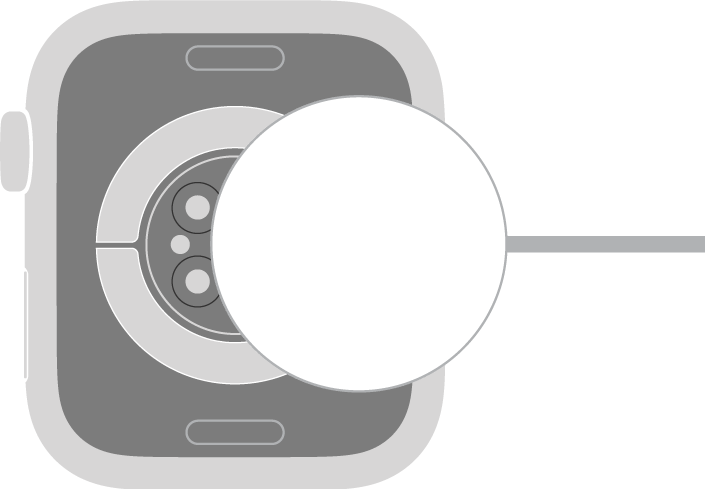
  1. Position the back of your Apple Watch on the charger. The concave end of the charger magnetically snaps to the back of your Apple Watch and aligns it properly.

    The concave end of the charger magnetically snaps to the back of Apple Watch.

  2. When charging begins, a charging symbol appears on the watch face and a chime plays (unless your watch is in Silent Mode).

    Note: If the charging symbol is yellow, Apple Watch is in Low Power Mode. Low Power Mode turns off when the battery is charged to 80 percent.

Optimize battery charging

To reduce battery aging, Apple Watch learns your daily charging routines with on-device machine learning and holds off on charging past 80 percent until you need to use it.

  1. Start the Settings app on your Apple Watch.
  2. Tap Battery, then tap Battery Health.
  3. Turn on Optimized Battery Charging or Optimized Charge Limit.

About fast charging

For fast charging, you need an 18W or greater USB-C Power Adapter and a compatible charger.

Note: Fast charging isn’t available in all countries or regions. The specifications of the included magnetic charger may vary depending on your country or region.

WARNING: For important safety information about the battery and charging Apple Watch, see Important safety information.

See also

Tag: Battery

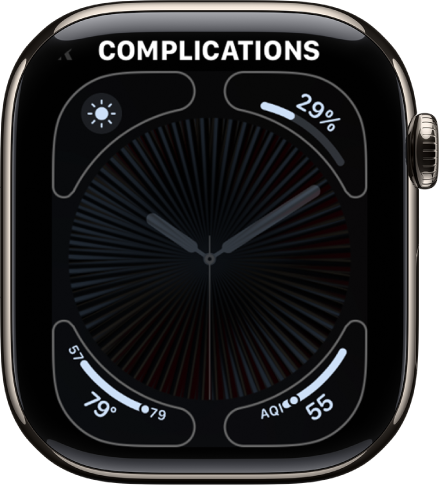
On Apple Watch, you can add special features—called complications—to some watch faces, so you can instantly check things like stock prices, the weather report, or information from other apps you installed.

Most apps open right from their complication, and some show just what you need with a glance. Apps you get from the App Store can include complications, too.

Add complications to the watch face

  1. With the watch face showing, touch and hold the display and then tap Edit.
  2. Swipe left all the way to the end.

    If a face offers complications, they’re shown on the last screen.

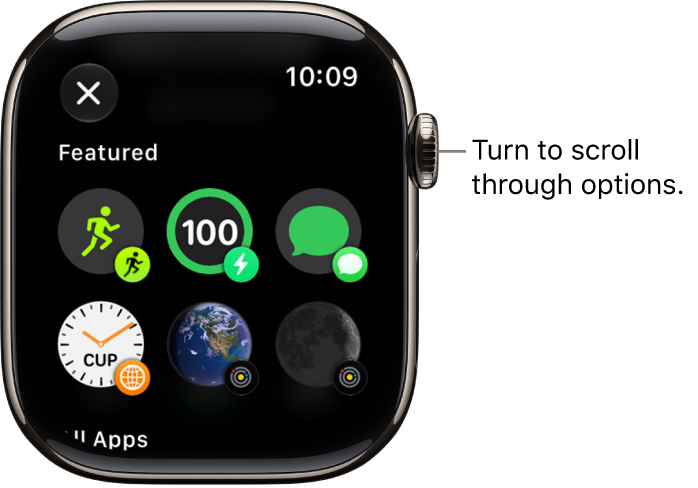
  3. Tap a complication to select it and turn the Digital Crown to choose a new one—Activity or Heart Rate, for example.
  4. When you’re finished, press the Digital Crown to save your changes and tap the face to switch to it.

    The customize screen for a watch face showing featured complications. Turn the Digital Crown to browse complications.

Complications also come with some apps you get from the App Store.

Complication options on Apple Watch

You can open most apps by tapping a complication on the watch face. Some complications show specific information from a particular app so you see just what you need with a glance. Weather, for example, includes complications for air quality, conditions, temperature, and more.

The following apps offer multiple complications.

App Available complications
Activity Rings

Timeline

Astronomy Earth

Moon

Solar

Solar System

Calendar Your Schedule

Lunar Date

Today’s Date

Compass Compass

Elevation

Level

Compass Waypoints Last Viewed Waypoint

Saved Waypoints

Parked Car Waypoint

Depth Depth

Water Temperature

Home Home

Grid Forecast

Maps Nearby Transit

Maps, Get Directions

Mindfulness Mindfulness

State of Mind

Notes Open Notes

Last Edited Note

New Note

Shortcuts Shortcuts

Run Shortcut

Tides Swell

Tides

Time Analog Seconds

Analog Time

Digital Seconds

Digital Time

Timers Added Timers

Timer

Weather Air Quality

Conditions

Humidity

Rain

Temperature

UV Index

Wind

World Clock Sunrise/Sunset

Added Locations

See also