Got a tip for us?

Apple Watch has an internal lithium-ion rechargeable battery. Compared with traditional battery technology, lithium-ion batteries are lighter, charge faster, and have a higher power density for longer battery life.

For best results, you charge it with the included magnetic charger, though the MagSafe Duo Charger and compatible third-party chargers work, too. When Apple Watch needs to be charged, a low battery symbol appears on the screen. You can also optimize battery charging and use fast charging.

Set up the charger

The included magnetic charger gives the best results when you charge your Apple Watch, though a compatible third-party charger or the MagSafe Duo Charger, sold separately, works too.

  1. In a well-ventilated area, place your charger on a flat surface.
  2. Plug the charger into a power adapter (sold separately).
  3. Plug the adapter into a power outlet.

Begin charging Apple Watch

When Apple Watch needs to be charged, you see the low battery symbol on the screen.

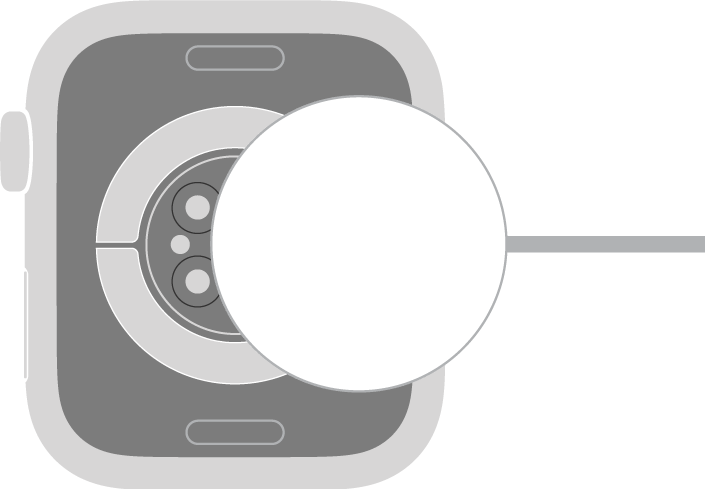
  1. Position the back of your Apple Watch on the charger. The concave end of the charger magnetically snaps to the back of your Apple Watch and aligns it properly.

    The concave end of the charger magnetically snaps to the back of Apple Watch.

  2. When charging begins, a charging symbol appears on the watch face and a chime plays (unless your watch is in Silent Mode).

    Note: If the charging symbol is yellow, Apple Watch is in Low Power Mode. Low Power Mode turns off when the battery is charged to 80 percent.

Optimize battery charging

To reduce battery aging, Apple Watch learns your daily charging routines with on-device machine learning and holds off on charging past 80 percent until you need to use it.

  1. Start the Settings app on your Apple Watch.
  2. Tap Battery, then tap Battery Health.
  3. Turn on Optimized Battery Charging or Optimized Charge Limit.

About fast charging

For fast charging, you need an 18W or greater USB-C Power Adapter and a compatible charger.

Note: Fast charging isn’t available in all countries or regions. The specifications of the included magnetic charger may vary depending on your country or region.

WARNING: For important safety information about the battery and charging Apple Watch, see Important safety information.

See also

Tag: Battery

On Apple Watch, you can add special features—called complications—to some watch faces, so you can instantly check things like stock prices, the weather report, or information from other apps you installed.

Most apps open right from their complication, and some show just what you need with a glance. Apps you get from the App Store can include complications, too.

Add complications to the watch face

  1. With the watch face showing, touch and hold the display and then tap Edit.
  2. Swipe left all the way to the end.

    If a face offers complications, they’re shown on the last screen.

  3. Tap a complication to select it and turn the Digital Crown to choose a new one—Activity or Heart Rate, for example.
  4. When you’re finished, press the Digital Crown to save your changes and tap the face to switch to it.

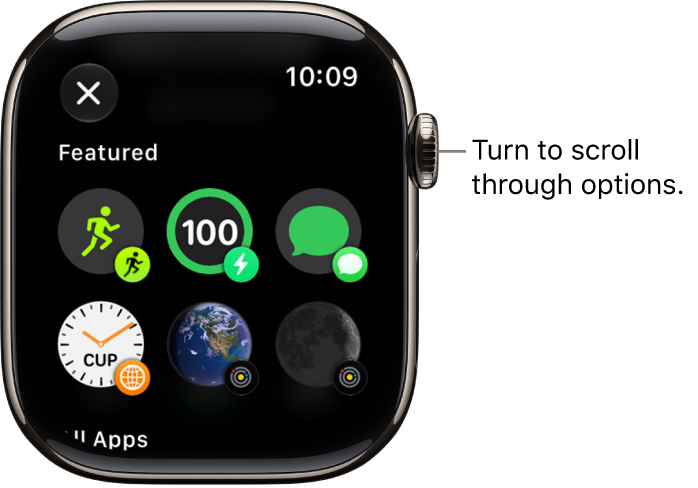
    The customize screen for a watch face showing featured complications. Turn the Digital Crown to browse complications.

Complications also come with some apps you get from the App Store.

Complication options on Apple Watch

You can open most apps by tapping a complication on the watch face. Some complications show specific information from a particular app so you see just what you need with a glance. Weather, for example, includes complications for air quality, conditions, temperature, and more.

The following apps offer multiple complications.

App Available complications
Activity Rings

Timeline

Astronomy Earth

Moon

Solar

Solar System

Calendar Your Schedule

Lunar Date

Today’s Date

Compass Compass

Elevation

Level

Compass Waypoints Last Viewed Waypoint

Saved Waypoints

Parked Car Waypoint

Depth Depth

Water Temperature

Home Home

Grid Forecast

Maps Nearby Transit

Maps, Get Directions

Mindfulness Mindfulness

State of Mind

Notes Open Notes

Last Edited Note

New Note

Shortcuts Shortcuts

Run Shortcut

Tides Swell

Tides

Time Analog Seconds

Analog Time

Digital Seconds

Digital Time

Timers Added Timers

Timer

Weather Air Quality

Conditions

Humidity

Rain

Temperature

UV Index

Wind

World Clock Sunrise/Sunset

Added Locations

See also

Apple Watch has separate volume controls for system sounds (such as alerts, alarms, and timers), Siri, and media playback (such as music and podcasts). Adjust the volume to ensure you receive notifications and hear audio in a way that works best for you.

You can also adjust the strength of haptic feedback—the taps and vibrations Apple Watch uses for notifications, alerts, and interactions. It’s under Sounds & Haptics in the Settings app.

Here’s how to adjust volume and haptics on Apple Watch.

Adjust the volume for alerts, alarms, timers, and system sounds

  1. Start the Settings app on your Apple Watch.
  2. Tap Sounds & Haptics.
  3. Set any of the following:

    • Silent mode: Silence all alerts.
    • Automatically adjust volume: Apple Watch can automatically change the volume for ringtones, notifications, alarms, and timers based on the ambient noise around you (available on Apple Watch SE 3, Apple Watch Series 9, Apple Watch Ultra 2, and later). Turn on Automatically Adjust Volume, tap Level, and then choose Default, Louder, or Quieter.

      Note: When Automatically Adjust Volume is turned on, the volume doesn’t exceed a certain level.

    • Manually adjust volume: Turn off Automatically Adjust Volume and then adjust the volume slider (up to a maximum of 100%).
    • Headphone Safety: Turn on Reduce Loud Sounds. Adjust the maximum audio level.

You can also make these adjustments on your iPhone—go to the Apple Watch app, tap My Watch, then tap Sounds & Haptics.

Adjust the volume of Siri

While Siri is speaking, turn the Digital Crown to control the volume, or change it in Settings.

  1. Start the Settings app on your Apple Watch.
  2. Tap Siri, then scroll down and tap Siri Responses.
  3. Scroll down to Voice Volume. Set any of the following:

    • Automatically adjust volume: Apple Watch can automatically change the volume for Siri based on the ambient noise around you (available on Apple Watch SE 3, Apple Watch Series 9, Apple Watch Ultra 2, and later). Turn on Automatically Adjust Volume and tap Level and choose Default, Louder, or Quieter.

      Note: When Automatically Adjust Volume is turned on, the volume doesn’t exceed a certain level.

    • Manually adjust volume: Turn off Automatically Adjust Volume and then adjust the volume slider (up to a maximum of 100%).

You can also make these adjustments on your iPhone—go to the Apple Watch app, tap My Watch, tap Siri, then tap Siri Responses.

Adjust the volume for music and media

Turning the Digital Crown controls the volume while audio media is playing. You can change the volume in Control Center, too.

  1. Press the side button to open Control Center.
  2. Tap the Volume button.
  3. Drag the slider to adjust the volume level.

Adjust haptic intensity

  1. Start the Settings app on your Apple Watch.
  2. Tap Sounds & Haptics.
  3. Adjust any of the following:
    • Haptics: Set the intensity of wrist taps to Default, Prominent, or Off.
    • Crown Haptics: Turn on or off haptic feedback when you rotate the Digital Crown to scroll.
    • System Haptics: Turn on or off the haptics for system controls and interactions.

You can also make these adjustments on your iPhone—go to the Apple Watch app, tap My Watch, then tap Sounds & Haptics.

See also

Use the Tides app on your Apple Watch to plan and enjoy coastal location activities and stay informed of changing tidal conditions over a 7-day period.

You can add and remove locations, view location details, and check tides, including the current tide level and future high and low tides. You can see swell height and water temperature, too, and nearby locations show up in the Maps view.

Here’s how to use Tides on Apple Watch.

Note: The availability of Tides features may vary depending on your country or region.

WARNING: The Tides app displays or uses information from third parties, which may be unavailable, inaccurate, or incomplete, and is not intended to be relied upon in situations where imprecise information may lead to death, personal injury, or severe environmental damage.

Add and remove locations

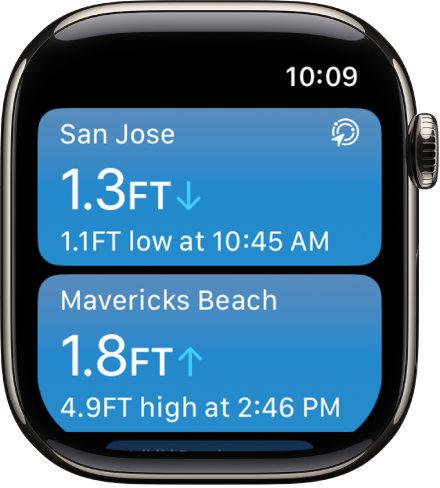
A screen in the Tides app showing a list of locations with tide info.

  1. Open the Tides app on your Apple Watch.
  2. Tap the List button, then tap the Add button.
  3. Enter what you’re looking for and then tap Search.

    Note: You can also view nearby locations in the Maps view.

  4. Tap a location to add it.

To remove a location, swipe left on its name in the location list, then tap the Delete button.

View location details

Tides shows a summary of changing tidal conditions.

  1. Open the Tides app on your Apple Watch.
  2. Tap a location and tap the tide summary at the bottom of the screen to view the following coastal weather metrics:

    • Tides: Shows the current tide level and future high and low tides.
    • Swell: Shows the swell height, direction, period, and water temperature.

      Note: Swell and water temperature aren’t available in all locations.

    • Weather: Shows the current temperature, UV index, and visibility.
    • Wind: Shows the wind speed and direction.
    • Sunrise and Sunset: Shows the sunrise and sunset time, and the time for First Light and Last Light.
    • Severe Alert: Shows details for a severe weather alert

      Note: Severe weather alerts aren’t available in all locations.

To view the location in the Maps app, tap Open in Maps.

To view the location in the Weather app, tap Open in Weather.

Check tides

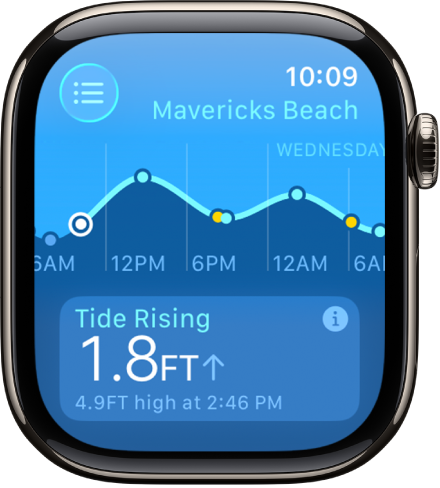
When you tap a location, you can scroll through 7 days of tidal information. You can view tidal extrema, estimations of rising and falling tides, sunrise and sunset, and more.

A screen in the Tides app showing tide information for a location.

  1. Open the Tides app on your Apple Watch.
  2. Tap the List button and tap a location.
  3. Turn the Digital Crown to see estimations for the next high tide, rising tide, sunset, and more.
  4. When you’re finished, tap the Close button.
Tag: Tides

You can enter text by dictating, scribbling with your finger, or typing on the onscreen keyboard. You can also use emoji and switch to typing on your paired iPhone.

You can switch input methods anytime you’re entering text, like when composing a message. With Scribble, you draw letters on the screen with your finger, and dictation has your speech transcribed to text. The onscreen keyboard isn’t available on Apple Watch SE 3, though.

Here’s how to enter text on Apple Watch.

Change the input method while entering text on Apple Watch

Whenever you enter text, such as when you’re composing a message, you can change the input method.

  1. Tap a text field—such as a new message or a search field.
  2. The button at the bottom right indicates the current input method. To change the input method, tap the button. Then choose one of the following:
    • Onscreen keyboard: Tap the Keyboard button. (Not available in all languages; not available on Apple Watch SE 3.)
    • Scribble: Tap the Scribble button to draw letters on the screen with your finger. (Not available in all languages.)
    • Dictation: Tap the Dictate button to have your speech transcribed to text. (Not available in all languages.)

Dictate text

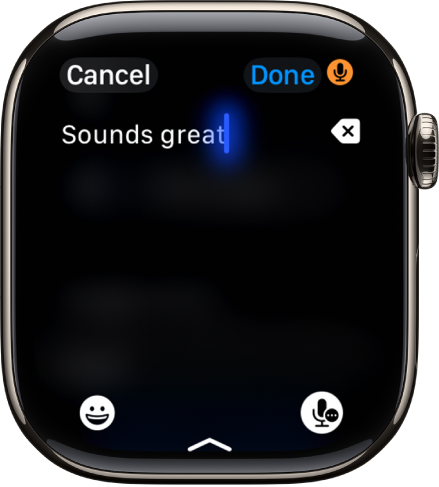
The text field screen showing a message created with dictation. The Emoji and Dictation buttons are at the bottom of the screen.

When the input method is set to dictation (not available in all languages), you can do the following:

  • Speak punctuation: For example, say something like “Did it arrive question mark.”
  • Speak emoji: For example, say something like “Thumbs up emoji.”
  • Move the cursor: Turn the Digital Crown.
  • Replace a word: Tap the word, then say a different word.
  • Select all: Double-tap the screen.
  • Erase: Tap the Erase button.

Scribble with your finger

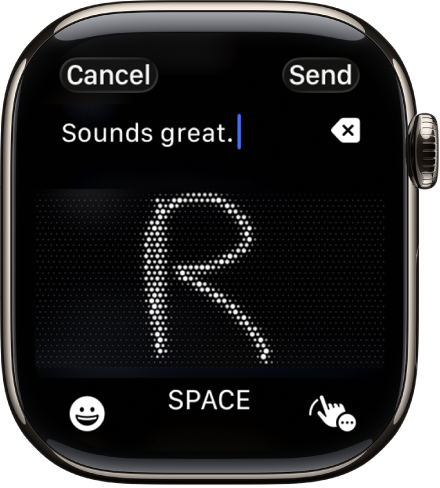
The text field screen showing a letter written with Scribble. The Emoji and Scribble buttons are at the bottom of the screen.

When the input method is set to Scribble (not available in all languages), you can do the following:

  • Write: Use your finger to write letters, numbers, and punctuation on the screen.
  • Add a space: Tap Space.
  • Move the cursor: Turn the Digital Crown.
  • Use predictive text: Turn the Digital Crown to see suggested words, then stop turning the Digital Crown to enter the highlighted suggestion.
  • Replace a word with a suggestion: Tap the word, then turn the Digital Crown.
  • Select all: Double-tap the text.
  • Erase: Tap the Erase button.

Type with the onscreen keyboard

Note: The onscreen keyboard is not available in all languages or on Apple Watch SE 3.

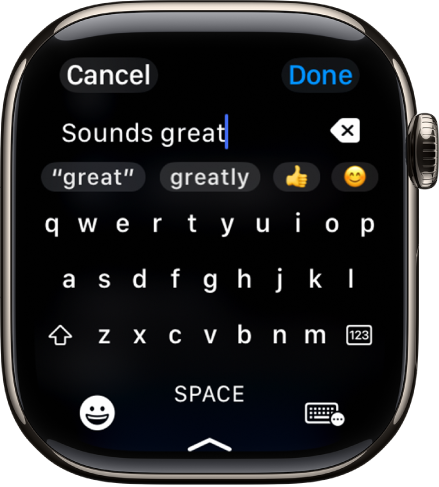
The text field screen showing a message created with the onscreen keyboard. The Emoji and Onscreen Keyboard buttons are at the bottom of the screen.

When you set the input method to the onscreen keyboard, you can do the following:

  • Type: Tap characters to enter them.
  • Use QuickPath: Slide from one letter to the next without lifting your finger. To end a word, lift your finger.
  • Use predictive text: Suggested words appear as you type. Tap a finished or unfinished word to highlight it, then turn the Digital Crown to see suggested words. Stop turning the Digital Crown to enter the highlighted suggestion.
  • Move the cursor: Turn the Digital Crown.
  • Switch to a different keyboard: If you’ve set up your Apple Watch to use more than one language, you can swipe up from the bottom of the screen, then choose a different language keyboard.

Add emoji

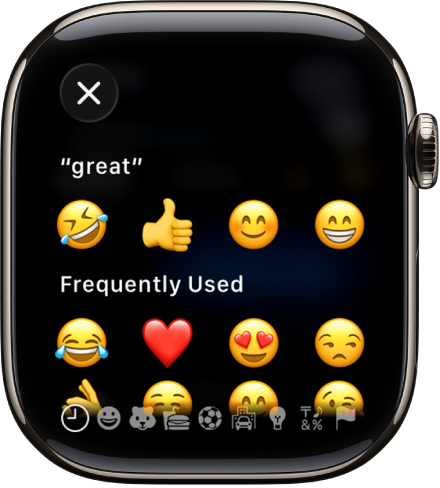
  1. When entering text using dictation, Scribble, or the onscreen keyboard, tap the Emoji Picker button.

    The text field screen showing emoji.

  2. To browse, touch and hold the categories at the bottom and drag left and right.
  3. When you find the right emoji, tap it.

Type on your iPhone

With your paired iPhone nearby, you can enter text from it instead.

  1. On Apple Watch, start dictating or entering text.
  2. On iPhone, tap the notification for Apple Watch Keyboard Input and then continue dictating or typing.

See also

You can update your Apple Watch software directly on your Apple Watch, or by checking for updates in the Apple Watch app on your iPhone.

On your watch, it’s in the Settings app, under General and then Software Update.

Here’s how to update Apple Watch software.

Check for and install software updates

  1. Open the Apple Watch app on your iPhone.
  2. Tap My Watch, go to General, tap Software Update, then, if an update is available, tap Download and Install.

You can also go to the Settings app on your Apple Watch, tap General, then tap Software Update.

See also

Apple Watch includes apps for a variety of communication, health, fitness, and timekeeping tasks. You can install apps you have on your iPhone and get new apps from the App Store.

In the App Store, you can get details about an app including screenshots, ratings, reviews, accessibility support, privacy information, file size, age ratings, and more. You pay with the payment method associated with your Apple Account, and you can get automatic downloads and updates.

Note: When you use Apple Watch with cellular service, cellular data charges may apply.

Discover and find apps

  1. Start the App Store app on your Apple Watch.
  2. Do any of the following:
    • Browse apps and collections: Scroll down or turn the Digital Crown.
    • Search: Tap the Search button, enter what you’re looking for and tap Search. You can search by app name, category, developer, and more.
  3. Tap an app to see the details.

Buy and download an app

  1. Start the App Store app on your Apple Watch.
  2. Go to the app you want and tap Get (if the app is free) or the price.

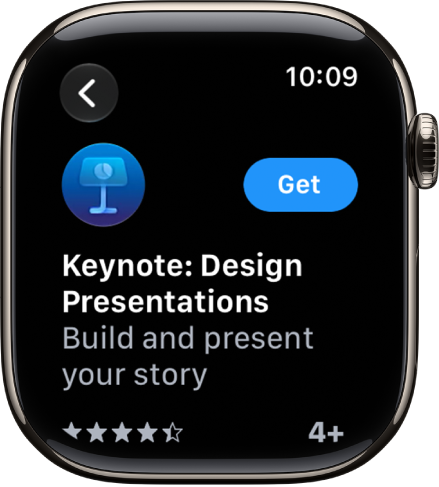
    An App Store screen showing the product page of an app with a short description of the app, its ratings, and the Get button on the right.

    If you see the Download button, you’ve already purchased the app. You can download it again without a charge.

  3. Double-click the side button to complete your purchase.

    Purchases are made with the payment method associated with your Apple Account.

Get automatic downloads and updates

  1. Start the Settings app on your Apple Watch.
  2. Tap App Store. Adjust any of the following settings:
    • Automatic Downloads: Automatically install the watchOS version of free and paid apps purchased on other devices.
    • Automatic Updates: Automatically download new versions of your apps when they’re available.

You can also go to the Apple Watch app on your iPhone, tap My Watch, then go to App Store.

Install apps you already have on iPhone

When they’re available, the watch-compatible versions of your iPhone apps install on Apple Watch automatically by default. You can also pick specific apps to install.

  1. Start the Apple Watch app on your iPhone.
  2. Tap My Watch and tap Apps. Then scroll down to Available Apps.
  3. Tap Install next to the apps you want to install.

See your purchase history

  1. Start the App Store app on your Apple Watch.
  2. Scroll to the bottom and tap Account. Tap Purchased.

See also

The Activity app on your Apple Watch helps you keep track of your movement throughout the day and encourages you to meet your fitness goals. It tracks how often you stand, how much you move, and how many minutes of exercise you do, and three rings in different colors summarize your progress. The goal is to sit less, move more, and get some exercise by completing each ring every day.

The Fitness app on your iPhone keeps a record of your activity. If you’ve tracked at least 6 months of activity, it displays daily trend data, from active calories and exercise minutes to stand hours, walking pace, and cardio fitness, so you can see how you’re doing compared with your average activity.

Note: Your Apple Watch is not a medical device. For important information about using the wellness apps safely, see Important safety information for Apple Watch.

Get started

You’re asked if you’d like to configure the Activity app when you set up your Apple Watch. If you choose not to, you can do it the first time you open the Activity app.

  1. Start the Activity app on your Apple Watch.
  2. Use the Digital Crown to read the Move, Exercise, and Stand descriptions. Tap Get Started.

Check your progress

Go to the Activity app on your Apple Watch at any time to see how you’re doing. The Activity app displays three rings:

  • The red Move ring shows how many active calories you’ve burned.
  • The green Exercise ring shows how many minutes of brisk activity you’ve done.
  • The blue Stand ring shows how many times in the day you’ve stood and moved for at least 1 minute per hour.
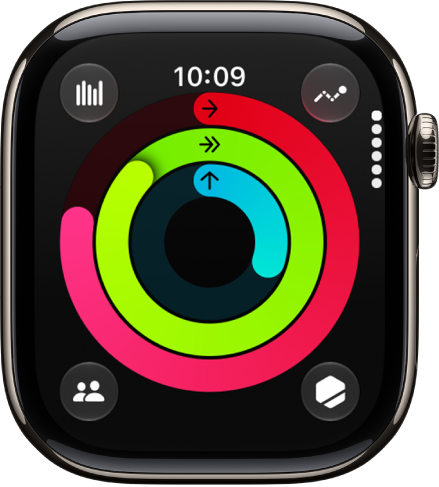
The Activity screen, showing the Move, Exercise, and Stand rings.

When you’ve specified that you use a wheelchair, the blue Stand ring turns into the Roll ring, showing how many times you’ve rolled for at least one minute per hour during the day.

When you turn the Digital Crown, your current totals appear, and if you keep scrolling, you’ll see your progress for each of your rings, plus your total steps, total distance, flights climbed, and activity history.

An overlapping ring means you exceeded your goal. Tap the Weekly Summary button to see how you’re doing for the week.

See your weekly summary

  1. Start the Activity app on your Apple Watch.
  2. Tap the Weekly Summary button.

You’ll find a daily average and weekly total of your progress toward closing your rings in the summary.

Check your activity history

  1. Start the Fitness app on your iPhone and then tap Summary.
  2. Tap the Activity rings, tap the Calendar button, and then tap a date.

Check your trends

The Trends area in the Fitness app on iPhone shows daily trend data for active calories, exercise minutes, stand hours, and walking distance, along with stand minutes, cardio fitness, walking pace, and running pace. Trends weighs your last 90 days of activity against the last 365.

To see more detail, follow these steps:

  1. Start the Fitness app on your iPhone.
  2. In the Trends area, tap a trend to see the history.

A Trend arrow pointing up for a particular metric means you’re maintaining or improving your fitness levels. When an arrow points down, it means your 90 day average for that metric has started to decline, and you’ll receive coaching, like “Walk an extra quarter of a mile a day,” to help motivate you to turn the trend around.

See your awards

You can earn awards for personal records, streaks, and major milestones using your Apple Watch. To see all your awards, including Activity Competition awards and awards you’re making progress towards, follow these steps:

  1. Start the Activity app on your Apple Watch.
  2. Tap the Awards button.
  3. Tap an award category (like Monthly Challenges). Then tap an award to learn more about it.

You can also open the Fitness app on your iPhone, then tap Awards.

See Compete with your friends for more information about competitions.
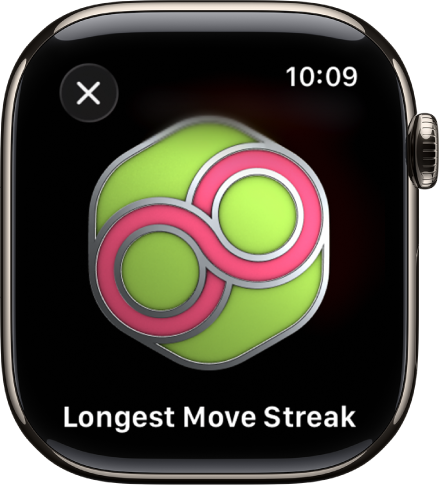
An award achievement showing on Apple Watch. Below the award is a description of the award. You can drag to rotate the award.

See your workout, meditation, and dive history

For workouts, dives, and meditations you’ve completed in Apple Fitness+, the Workout app, the Depth app, and compatible third-party apps, you can see data like your average heart rate, how long you worked out, total calories burned, and more.

  1. Start the Activity app on your Apple Watch.
  2. Scroll to the bottom of the screen.
  3. To review a workout, meditation, or dive, tap it.

Control activity reminders

Reminders can help when it comes to meeting goals. Your Apple Watch lets you know if you’re on track or falling behind your Activity goals. To choose which reminders and alerts you’d like to see, follow these steps:

  1. Start the Settings app on your Apple Watch.
  2. Tap Activity and then configure the notifications.

You can also open the Apple Watch app on your iPhone, tap My Watch, tap Apps, then tap Activity.

Suspend daily coaching

To turn off activity reminders, follow these steps:

  1. Start the Settings app on your Apple Watch.
  2. Tap Activity, then turn off Daily Coaching.

You can also open the Apple Watch app on your iPhone, tap My Watch, tap Activity, then turn off Daily Coaching.

See also

Tag: Fitness

You can change your Activity goals and customize your Activity ring goals by the day of the week. You can also pause your Activity rings and resume them at any time.

It helps if you find your goals either too challenging or not challenging enough. And every Monday, you’re notified about the previous week’s achievements, so you can adjust your goals for the next week. Apple Watch even suggests goals based on your previous performance.

Change your goals

If your Activity goals feel either too challenging or not challenging enough, you can change them.

  1. Go to the Activity app on your Apple Watch.
  2. Turn the Digital Crown to a ring. Then tap the Change Goals button.
  3. Tap one of the following:

    • Change for Today: Set a temporary goal for your Activity ring for today.
    • Change Daily Goal: Customize your Activity ring goal by the day of the week.

      To customize your goal by the day of the week, tap the Goal Type button in the top-right corner, then tap Schedule.

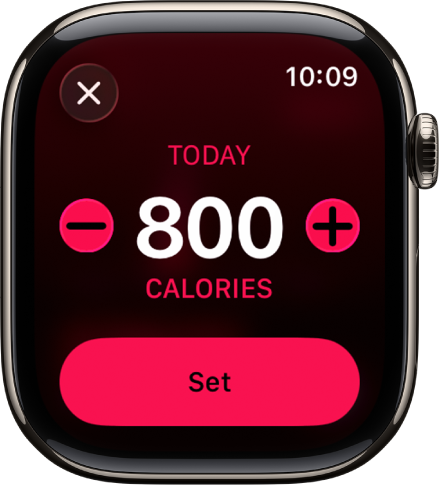
  4. Tap the Minus button or the Plus button to adjust a goal and tap Set or Set Schedule.

You’re notified every Monday about the previous week’s achievements, and that’s when you can adjust your goals for the next week, with your Apple Watch suggesting goals based on your previous performance.

The Change Goals screen showing buttons to increase or decrease the Move goal.

Pause your rings

Need a break? Pause your Activity rings for up to 90 days, and your award streak won’t break. You can resume at any time.

  1. Open the Activity app on your Apple Watch.
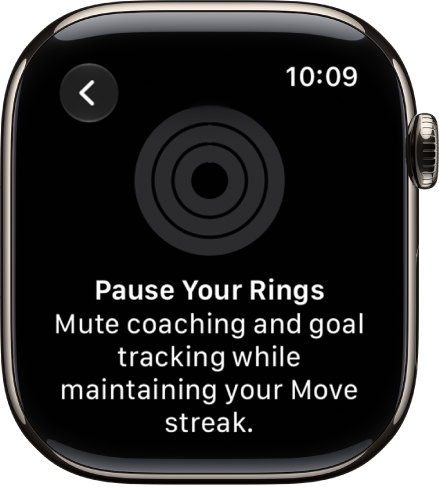
  2. Tap the Activity rings, then tap Pause Rings.
  3. Tap a duration, or tap Custom to set a custom duration.

To resume your rings, tap the Activity rings, then tap Resume Rings. To edit the duration of your pause, tap Edit Pause, turn the Digital Crown to set a custom duration, then tap Set.

The Pause Your Rings screen.

See also

Tag: Fitness

Keep your fitness routine on track by sharing your activity with family and friends—you can even share with a trainer or coach. You can get notifications when your friends meet their goals, finish workouts, and earn achievements.

You can check your friends’ progress, and even challenge a friend to a competition, earning points as you close your Activity rings. You can also mute a friend’s notifications or hide your activity from them.

Here’s how to share your activity from Apple Watch.

Add or remove a friend

  1. Go to the Activity app on your Apple Watch.
  2. Tap the Sharing button.
  3. Tap Invite a Friend, turn the Digital Crown to scroll through your contacts, and tap a name.

Check your friends’ progress

  1. Start the Activity app on your Apple Watch.
  2. Tap the Sharing button.
  3. Turn the Digital Crown to scroll through your friends list.
  4. Tap a friend’s name to see their stats for the day.

Compete with your friends

A little healthy competition can keep you motivated. Challenge a friend to a competition, and you earn points based on the percentage of your Activity Rings you close, with a point for each percent you add to your rings every day. Over the 7 days a competition lasts, you can earn up to 600 points a day, or a maximum of 4,200 for the week. Whoever has the most points at the end wins. Along the way, alerts show the score and tell you if you’re ahead of your competitor or falling behind.

  1. Start the Activity app on your Apple Watch.
  2. Tap the Sharing button, then tap a friend’s name.
  3. Scroll down and tap Compete.
  4. Tap Invite [your friend’s name]. Then wait for your friend to accept.

Or, when you receive an Activity sharing notification—your friend just closed their rings or doubled their move goal, for example—you can scroll down and tap Compete.

You can also open the Fitness app on your iPhone, tap Sharing, tap a friend, tap Compete, then tap Invite [your friend’s name].

Change your friend settings

  1. Start the Activity app on your Apple Watch.
  2. Tap the Sharing button, tap a friend, scroll down, and do any of the following:
    • Mute notifications for the friend: Tap Mute Notifications.
    • Hide your activity from the friend: Tap Hide my Activity.
    • Remove the friend: Tap Remove Friend.

See also

Tag: Fitness