Got a tip for us?

You can personalize the Magnifier app to show your most frequently used controls for easy access. You can also create custom activities for recurring tasks and customize settings of live scene descriptions.

Up to two of your controls can be primary controls, which appear on the main screen when Magnifier opens. You can also set your preferred controls for an activity.

Here’s how to customize controls in Magnifier on iPad.

Add or remove controls

  1. Start the Magnifier app on your iPad.
  2. Tap the Settings button and then do any of the following:

    • Add or remove Activities, Capture, or Detection Mode: Tap Ask Magnifier, Capture, or Detect and then turn Show in Control Panel on or off.
    • Add or remove other controls: Tap the Insert button or the Remove button next to a control.

      You can choose up to two primary controls. Primary controls appear on the main screen when you open Magnifier. If you add more than two controls, you can swipe up on the control panel at the bottom of the screen to access secondary controls.

    • Reorder other controls: Drag the Reorder button next to a control to move it up or down.
Control Description
Brightness Adjust the brightness.
Contrast Adjust the contrast.
Filters Apply a color filter.

When you add the Filters control, you can select just the filters you use most often.

Flashlight Turn on the flashlight.

Note: This option is available on iPad models with True Tone Flash.

Focus Lock Lock the magnifier focus.
Cameras Switch between the front and rear cameras.
Capture mode Switch between modes for taking single photos, multiple photos, or for taking photos of documents.

Set your preferred controls for an activity

If you save the controls you use for recurring tasks or situations as activities, you can switch between them as needed. You might create one for reading a menu at a restaurant, for example.

  1. Start the Magnifier app on your iPad.
  2. Tap the Activities button. Tap Save Current Settings As New Activity to create a new activity using the current controls.
  3. Enter a name for the activity and then tap the Done button.

Customize settings for Ask Magnifier

Ask Magnifier is available only on devices with Apple Intelligence.

Note: Apple Intelligence on iPadOS 27 or later is available on an Apple Intelligence-enabled iPad mini (A17 Pro) and iPad models with M1 or later. Apple Intelligence is not available in all languages or regions. Usage limits may apply.*

  1. Start the Magnifier app on your iPad.
  2. Tap the Settings button and tap Ask Magnifier.
  3. Do one of the following:
    • Input: Choose whether to speak or type your questions by default.
    • Default Question: Turn on to ask the same question automatically each time you open Ask Magnifier. You can use the default question (“What is this?”) or enter your own.

Customize settings for live scene descriptions

  1. Start the Magnifier app on your iPad.
  2. Tap the Settings button and then tap Detect.
  3. Tap Scenes and then turn on any combination of Labels or Speech feedback.
  4. To return to the live Magnifier lens, tap the Back button, tap it again, and then tap the Done button.

*Apple Intelligence is available with Siri and device language set to Chinese (Simplified), Chinese (Traditional), Danish, Dutch, English, French, German, Italian, Japanese, Korean, Norwegian, Portuguese, Spanish, Swedish, Turkish, or Vietnamese. Some features may not be available in all regions or languages. Some devices may not be available in all regions. Siri AI is available in beta in iOS 27, iPadOS 27, macOS 27, watchOS 27, and visionOS 27 and requires an Apple Intelligence–enabled device set to a supported language. Available in English to start. Siri AI will not be initially available in the EU on iOS, iPadOS, and watchOS. Certain Apple Intelligence features that rely on server-side models are subject to daily usage limits, including but not limited to Siri AI, Intelligent Photo Editing Tools, Image Playground, and AFM 3 Cloud models in Shortcuts. Daily limits may vary by feature, request complexity, system demand, system policies, and other factors. Expanded access to such features will be available for a fee in the future. Use of these features is subject to the Apple Intelligence Terms and Conditions.

See also

When you’re on a phone call on iPad, you can switch the audio to the speaker or a Bluetooth® device. With Apple Intelligence, you can also get a wait time prediction and view relevant information during a call.

During a call, a Call Context card with related information, like tickets, orders, confirmation numbers, or reservations, may appear, and you can use another app while you’re on the call. Hold Assist can notify you when a live agent is available.

Adjust the audio during a call

To change the volume, press the volume buttons on the side of iPad. Or swipe down on the call banner, then do any of the following:

  • Mute: Tap the Mute button.
  • Put the call on hold: Touch and hold the Mute button.
  • Talk handsfree: Tap the Audio button, then choose an audio destination.

Use another app while on a call

  1. Go to the Home Screen, then open the app.
  2. To return to the call, tap the green call indicator at the top of the screen.

View relevant information during a call

With Apple Intelligence,* a Call Context card with related information may appear during a call—like tickets, orders, confirmation numbers, or reservations.

To turn Call Context cards on or off, do the following:

  1. Open Settings, then tap Apps.
  2. Tap Phone, then tap Siri.
  3. Turn Show When Calling on or off.

Note: Apple Intelligence on iPadOS 27 or later is available on an Apple Intelligence-enabled iPad mini (A17 Pro) and iPad models with M1 or later. Apple Intelligence is not available in all languages or regions. Usage limits may apply.*

Get a wait time prediction (U.S. only)

With Apple Intelligence,* you can get predictions of how long you’re estimated to wait before your call is answered, based on average wait times in the past.

Note: Apple Intelligence on iPadOS 27 or later is available on an Apple Intelligence-enabled iPad mini (A17 Pro) and iPad models with M1 or later. Apple Intelligence is not available in all languages or regions. Usage limits may apply.*

Receive a notification when you’re no longer on hold

Placed on hold during a call? Hold Assist can tell you when a live agent is available. That way, you don’t have to stay on the line.

Note: Available on iPad Pro 12.9-inch (5th generation or later), iPad Pro 11-inch (3rd generation or later), iPad Air (4th generation or later), iPad (10th generation or later), and iPad mini (6th generation or later). Hold Assist isn’t available in all countries or regions.

  1. Open the Phone app on your iPad.
  2. When you’re in a call and put on hold, tap the More button. Then tap Hold Assist.

    Important: Check your ring settings before you step away from the call. If your iPad is on silent or Do Not Disturb is turned on, you won’t hear the incoming call when an agent is available. See Change iPad sounds.

  3. Hold Assist will notify you when an agent is available and transcribe the part of the call you missed. Tap the Answer Call button to rejoin the call.

Note: Phone can also detect hold music automatically and prompt you to start Hold Assist. To turn this on, go to Settings > Apps > Phone, then turn on Hold Assist Detection.

Respond to a second call on the same line

If a second call comes in while you’re on a call, do one of the following:

  • Ignore the call and send it to voicemail: Tap Ignore.
  • End the first call and answer the new one: When using a GSM network, tap End & Accept. With a CDMA network, tap End; when the second call rings back, tap Accept, or drag the slider if iPad is locked.
  • Put the first call on hold and answer the new one: Tap Hold & Accept.

    To switch between calls when you have a call on hold, tap Swap to switch between calls, or tap Merge Calls to talk with both parties at once. See Start a conference or three-way call.

Note: With CDMA, you can’t switch between calls if the second call was outgoing, but you can merge the calls. You can’t merge calls if the second call was incoming. If you end the second call or the merged call, both calls end.

*Apple Intelligence is available with Siri and device language set to Chinese (Simplified), Chinese (Traditional), Danish, Dutch, English, French, German, Italian, Japanese, Korean, Norwegian, Portuguese, Spanish, Swedish, Turkish, or Vietnamese. Some features may not be available in all regions or languages. Some devices may not be available in all regions. Siri AI is available in beta in iOS 27, iPadOS 27, macOS 27, watchOS 27, and visionOS 27 and requires an Apple Intelligence–enabled device set to a supported language. Available in English to start. Siri AI will not be initially available in the EU on iOS, iPadOS, and watchOS. Certain Apple Intelligence features that rely on server-side models are subject to daily usage limits, including but not limited to Siri AI, Intelligent Photo Editing Tools, Image Playground, and AFM 3 Cloud models in Shortcuts. Daily limits may vary by feature, request complexity, system demand, system policies, and other factors. Expanded access to such features will be available for a fee in the future. Use of these features is subject to the Apple Intelligence Terms and Conditions.

See also

Tag: Phone

With a HomeKit Secure Video camera or doorbell, you can use the Home app to receive notifications when people you’ve tagged in the Photos app come to your door.

It identifies people by their faces in your photo library or in pictures of recent visitors your camera or doorbell captures. You choose who can access your photo library, and you can add a name for a recent visitor who isn’t in it, like Mom or Mail Carrier. You can even let members of your household see the names of visitors.

Set up Face Recognition

Faces in your photo library, or in pictures of recent visitors captured by your camera or doorbell, are how Face Recognition identifies people.

If you’re setting up a camera or doorbell for the first time, do the following:

  1. Start the Home app on your iPad.
  2. Add the accessory to the Home app.
  3. In the Recognize Familiar Faces card, turn on Face Recognition. Then tap Continue.
  4. Choose who can access your photo library:
    • Never: Only faces you’ve added from clips in the Home app are recognized.
    • Only Me: Only the notifications you receive have the names of people in your photo library.
    • Everyone in this Home: The notifications for everyone in your home have the names of people in your photo library.
  5. Tap Continue. Then finish setting up the camera or doorbell.

If you have an existing doorbell or camera and want to use it to identify visitors, tap it on the Home app, tap the Settings button, tap Face Recognition, then turn on Face Recognition. Tap your photo library, then choose who can access it.

Note: Notifications can appear on any device that’s associated with your Apple Account.

Identify recent visitors

If someone isn’t in your photo library, a picture captured by your camera or doorbell can help Face Recognition identify them.

  1. Start the Home app on your iPad.
  2. With Face Recognition turned on, tap Home in the sidebar.
  3. On the Home tab, tap the camera or doorbell. Tap the Settings button.
  4. Tap Face Recognition and tap an unidentified person listed below Recent. Then tap Add Name.
  5. Add the person’s name or their relationship to you—Mom or Mail Carrier, for example.
  6. Choose whether to be notified when they’re seen by your camera or doorbell.

Note: People with a face mask don’t appear in this list.

Share faces with your household

It’s your choice whether the members of your household see the names of visitors identified in your photo library.

  1. Start the Home app on your iPad.
  2. With Face Recognition turned on, tap the More button. Then tap Home Settings.
  3. Tap Cameras & Doorbells and tap Face Recognition.
  4. Tap your photo library and tap Everyone in this Home.

See also

Tag: Home

The first time you use the Home app, the setup assistant helps you create a home, where you can add accessories and define rooms. If you’ve already created a home while setting up a different accessory, you won’t need to create one again.

Before you add an accessory, like a light or camera, make sure it’s connected to power and turned on. You can also show accessories in a room and change an accessory’s room assignment.

Add an accessory to Home

An accessory such as a light or camera should be connected to a power source, turned on, and have network connectivity before you add it.

  1. Start the Home app on your iPad.
  2. Tap Home in the sidebar, then tap Add Accessory.

    You can also tap the Add button at the top of the screen, then choose Add Accessory.

  3. If you’re pairing a Matter accessory that was previously paired to another app, tap More options and then select your accessory.
  4. Follow the onscreen instructions.

Note: For Matter-enabled accessories, you need a home hub like a HomePod speaker or an Apple TV 4K. Thread accessories need a Thread-enabled home hub instead, like an Apple TV 4K (3rd generation) Wi-Fi + Ethernet, a HomePod mini, a supported third-party border router, or any device that supports Thread pairing.

You may need to scan a QR code, enter the 8-digit Apple Home setup code that’s on the accessory itself or on its box or documentation, or, for Matter-enabled accessories, enter an 11 or 21-digit code. If it’s an Apple Home-smart TV, it shows a QR code for you to scan. Give the accessory a name and assign it to a room, and you can use that name when controlling the accessory with Siri. During setup, you can also add suggested automations.

When you set up Apple TV 4K in tvOS, whatever room you assign it to is where it’ll automatically appear in the Home app on iPad.

Paired Matter accessories are synced across devices and stored in the Settings app using iCloud Keychain, regardless of which app you used to set them up. You can easily add a previously paired accessory that’s stored in Keychain to another Matter ecosystem app. To manage these accessories, go to Settings > General, then tap Matter accessories.

Show accessories in a room

The Home app can show individual rooms, the scenes assigned to them, and a room’s accessories organized by category.

To see a room and its accessories, do one of the following:

  • Go to the Home app on your iPad.
  • Tap the room in the sidebar.
  • Tap > next to the room’s name.

Change an accessory’s room assignment

  1. Start the Home app on your iPad.
  2. Touch and hold an accessory tile and tap Accessory Settings.
  3. Tap Room and choose a room.

Edit a room

Along with changing a room’s name and wallpaper, you can remove the room and more. Remove it, and its accessories move to Default Room.

  1. Start the Home app on your iPad.
  2. Tap a room in the sidebar.
  3. On the Home tab, tap > next to a room, or tap the More button and choose a room.

Organize rooms into zones

To control different areas of your home with Siri, group rooms together into a zone. In a two-story home, for instance, you’d assign the rooms on the first floor to a downstairs zone.

  1. Start the Home app on your iPad.
  2. Tap > next to a room on the Home tab or tap the More button and choose a room.
  3. Tap the More button and tap Room Settings.
  4. Tap Zone and then tap an existing zone, or tap Create New to add the room to a new zone.

See also

Tag: Home

You can relay phone calls and text messages through your iPhone to your iPad, so it’s easy to stay in touch no matter which device you’re on. Both devices need Wi-Fi on and the same Apple Account, and they need to be within 30 feet (10 meters) of each other. You can send and receive both iMessage and SMS messages.

Note: Cellular charges may apply. Wi-Fi Calling isn’t available from all carriers.

Before you begin

Before you begin, check that each of the following is true:

  • Both devices have Wi-Fi turned on and are connected to the same Wi-Fi network.
  • You’re signed in to the same Apple Account on both devices.

If you use a VPN, its configuration shouldn’t prevent local networking, since that may interfere with some Continuity features.

Set up your iPhone to allow phone calls on your iPad

  1. On your iPhone, open the Settings app.
  2. Tap Apps, then tap Phone.
  3. Tap Calls on Other Devices, turn on Allow Calls on Other Devices, and choose the devices you want to allow to make and receive calls.

    The devices you choose can make and receive calls when they’re near your iPhone, connected to the same Wi-Fi network, and signed in to the same Apple Account.

    Note: If you don’t have the Phone app on your iPad, you can download it from the App Store.

Make or receive phone calls on your iPad

Set up your iPhone to allow calls on your other devices, and your iPad can make and receive phone calls.

  • Make a call: Tap a phone number in Contacts, Calendar, FaceTime, Messages, or Safari. Or open the Phone app, then tap the Keypad button and type a number, or search for a contact.

    If you make a call from another device by relaying it through your iPad with Dual SIM, the call is made using your default voice line.

  • Receive a call: Swipe or tap the notification to answer or ignore the call.

Send and receive messages on your iPad

You can send and receive both iMessage and SMS/RCS/MMS messages on your iPad.

For sending and receiving iMessages on iPad, read our article, Get started with Messages on iPad.

If phone calls and text messages on your iPad aren’t working

  • Make sure that you’re signed in to the same Apple Account on both devices.
  • Make sure that your iPhone and iPad have Wi-Fi turned on.
  • Your devices must be within 30 feet (10 meters) of one another.

Besides making and receiving phone calls on your iPad, you can use Handoff to move a FaceTime call from one device to another. See our guide, Hand off a FaceTime call from your iPad to your other Apple devices.

See also

You can highlight, underline, and take notes as you read books in the Books app, and then share your annotations with others.

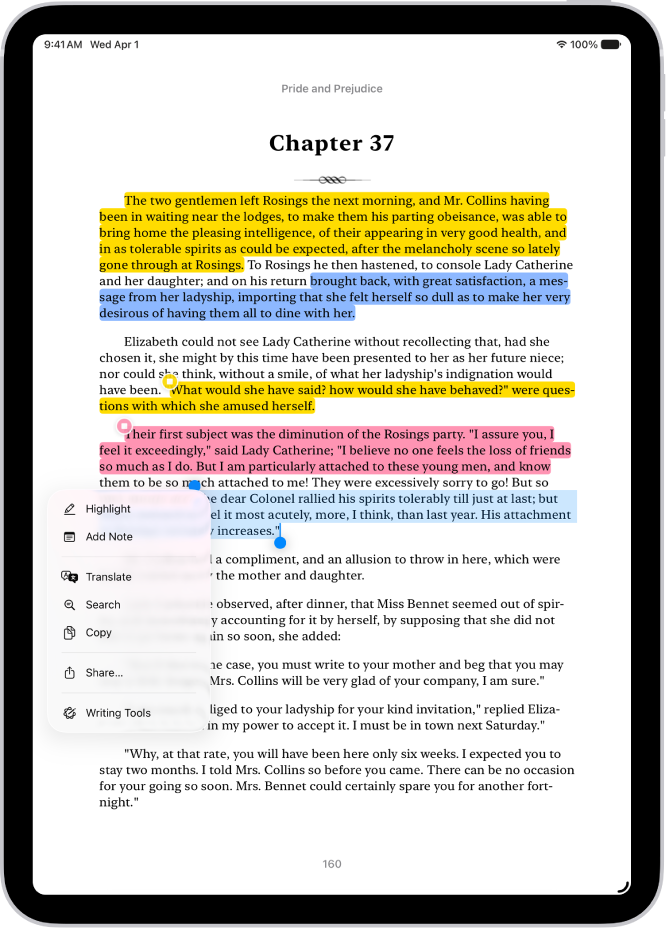
You can see all of your highlights and notes in one place, go to that location in the book, change the highlight color, or switch to underline. You can also translate, search, or copy text, and remove a highlight or a note.

Here’s how to annotate books in the Books app on iPad.

A page of a book in the Books app, with a portion of the page’s text selected. The Highlight, Add Note, Translate, Search, Copy, and Share buttons are above the selected text.

Note: Apple Books isn’t available in all countries or regions.

Highlight or underline text

  1. Start the Books app on your iPad.
  2. Tap a book cover to open it.
  3. Touch and hold a word, move the grab points to adjust the selection. Then tap Highlight.

    To remove a highlight or underline, tap the text, then tap Remove Highlight.

  4. To change the highlight color or switch to underline, tap the text, tap Highlight, and tap an option.

To see all of your highlights, tap the page, tap the Menu button, tap Bookmarks & Highlights, then tap Highlights. Tap a highlight to go to that location in the book.

Add a note

  1. Start the Books app on your iPad.
  2. Tap a book cover to open it.
  3. Touch and hold a word and then move the grab points to adjust the text selection.
  4. Tap Add Note, enter text, and then tap the Done button.

    To remove a note, tap the highlighted text, tap Remove, then tap Remove Note.

To see all of your notes, tap the page, tap the Menu button, tap Bookmarks & Highlights, then tap Highlights. Tap a note to go to that location in the book.

Share highlights and notes

  1. Start the Books app on your iPad.
  2. Tap a book cover to open it.
  3. Tap a highlight or note and tap the Forward button. Then tap Share.

    Tip: To share multiple highlights or notes at the same time, tap the Menu button, tap Bookmarks & Highlights, then tap Highlights. Tap the Checklist button, tap the items you want to share, then tap the Share button.

Delete a note

  1. Start the Books app on your iPad.
  2. Tap a book cover to open it.
  3. Tap a note and tap Remove. Then choose Remove Note or Remove Highlight & Note.

    Tip: To delete multiple notes or highlights at the same time, tap the Menu button, tap Bookmarks & Highlights, then tap Highlights. Tap the Checklist button, tap the items you want to delete, then tap the Delete button.

Translate, search, or copy text

As you read, select text and translate or copy it, or search the book for that text.

  1. Start the Books app on your iPad.
  2. Tap a book cover to open it.
  3. Touch and hold a word and then move the grab points to adjust the text selection.
  4. Tap the Forward button and then tap Translate, Search, or Copy.

See also

You can personalize your Lock Screen by choosing a wallpaper, showcasing a favorite photo, changing the font of the time, adding widgets, and more.

You can also create more than one Lock Screen and switch between them, and even link a Lock Screen to a Focus—so you could set one for when you’re working. You can even try a spatial scene for a 3D effect on supported models, and the time can dynamically adapt to your photo wallpaper and notifications.

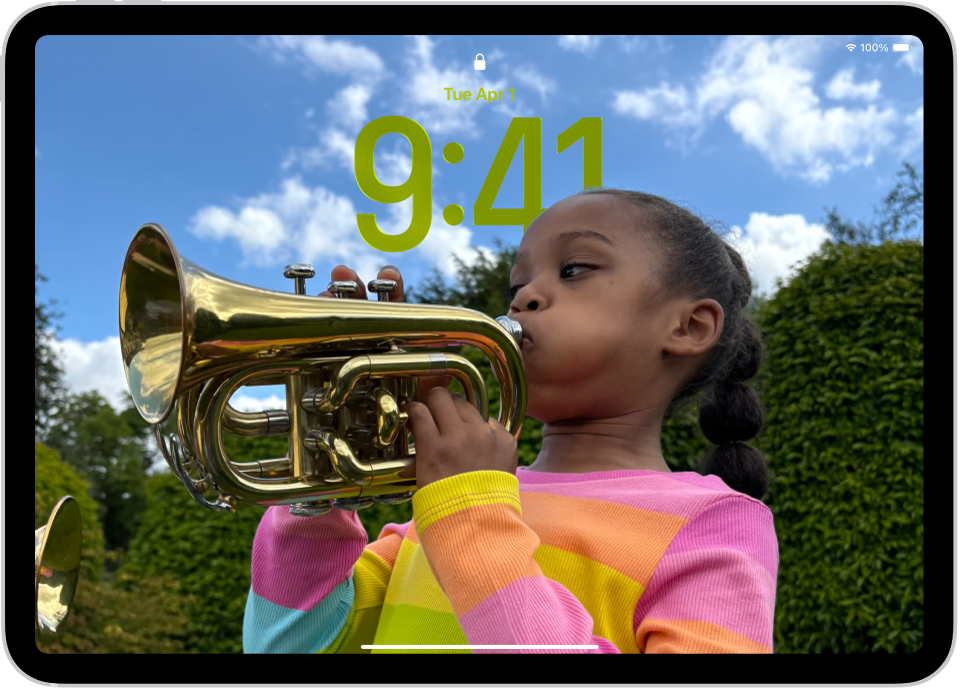
The iPad Lock Screen with a custom photo that fills the screen.

Edit your Lock Screen or create a new one

  1. Press the top button on your iPad.
  2. Touch and hold the Lock Screen and then tap the Add New Lock Screen wallpaper button to create a new Lock Screen. (If the Add New Lock Screen wallpaper button doesn’t appear, touch and hold your Lock Screen again, then enter your passcode.)

    To make changes to an existing Lock Screen, swipe to the screen you want to change, then tap Customize.

  3. If you’re creating a new Lock Screen, choose your wallpaper. On supported models, you can try a spatial scene for a 3D effect and try options where the time dynamically adapts to your photo wallpaper and notifications.

    Note: If you don’t see a wallpaper option you want to use (for example, Weather or Astronomy), scroll down to see more options, then tap Get below the one you like.

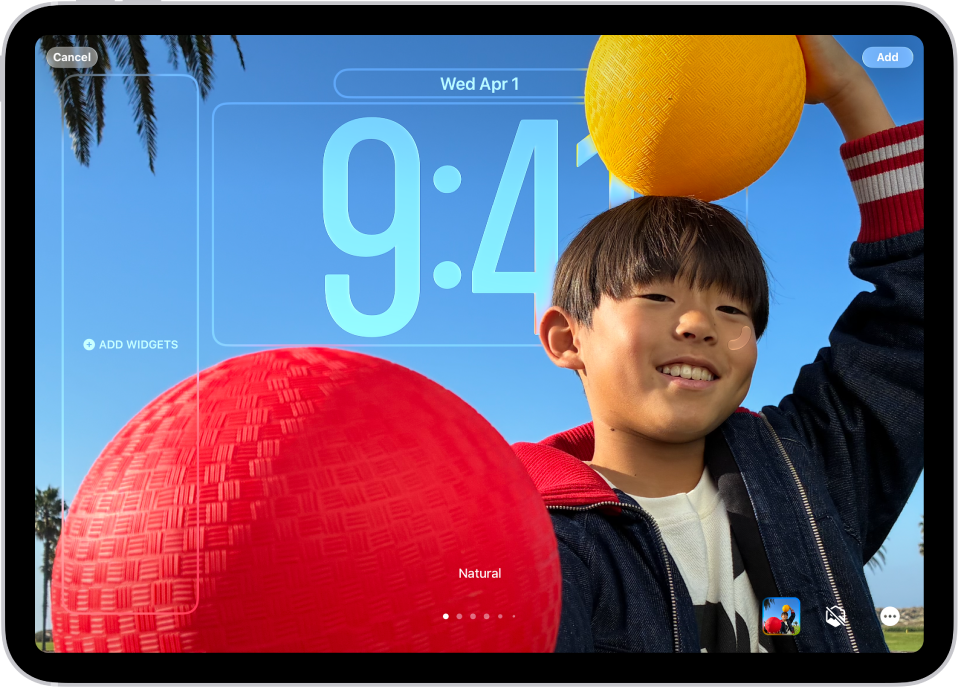
    A custom Lock Screen in the process of being edited. Elements available for customization are selected—the date, the time, and a button for adding widgets.

  4. Here are some ways to customize your Lock Screen (options depend on the wallpaper you choose):

    • Change the look of the clock: Drag the bottom right corner to increase the height and tap the time to change the font, switch to a more transparent look, and more.
    • Add a 3D effect: On supported models, if you’ve added a photo that supports spatial effects, tap the Spatial Capture button.
    • Add or change the widgets: Tap your existing widgets or tap Add Widgets.
    • Reposition your photo: Pinch open to zoom in and drag the image with two fingers to move it. Pinch closed to zoom out.
    • Create a multilayered effect: Tap the Depth Effect button. Or if you have a photo that supports layering, tap the More button and choose Depth Effect.
    • Change the style: Swipe left or right to try different color filters.
    • Create a motion effect with a Live Photo: If you select a Live Photo that can be translated into slow motion, tap the Live Photo button to play the Live Photo when the device wakes up.
    • Set the shuffle frequency: If you chose Photo Shuffle, tap the photo thumbnail to change the photo selection or change the shuffle frequency by tapping the More button.
    • Switch between a light and dark appearance: If the background you chose has a light mode and dark mode option, tap the Appearance button.
  5. Tap Add, then do one of the following:

    • Choose to use the wallpaper on both the Lock Screen and Home Screen: Tap Set as Wallpaper Pair.
    • Make changes to the Home Screen: Tap Customize Home Screen. Tap a color to change the wallpaper color, tap the Select a photo button to use a custom photo, or select Blur to blur the wallpaper so the apps stand out.

Link a Focus to your Lock Screen

A Focus minimizes distractions so you can concentrate on a task. Once you set up a Focus, link it to your Lock Screen, and your Focus settings apply whenever you use that Lock Screen, and that Lock Screen shows up whenever that Focus is on.

  1. Press the top button on iPad.
  2. Touch and hold the Lock Screen until the Customize button appears at the bottom of the screen.
  3. Tap Focus near the bottom of the wallpaper to see the Focus options—for example, Do Not Disturb, Personal, and Work.
  4. Select a Focus and then tap the Close button.

Switch between Lock Screens

You can create multiple custom Lock Screens and switch between them throughout the day.

  1. Press the top button on iPad.
  2. Touch and hold the Lock Screen until the Customize button appears at the bottom of the screen.
  3. Swipe to the Lock Screen you want to use, then tap it.

Note: If you switch from a Lock Screen that’s linked to a specific Focus to another Lock Screen, your Focus switches, too.

Delete a Lock Screen

You can delete Lock Screens you no longer need.

  1. Press the top button on iPad.
  2. Touch and hold the Lock Screen until the Customize button appears at the bottom of the screen.
  3. Swipe to go to the Lock Screen you want to delete, swipe up on the screen, tap the Trash button, and tap Delete This Wallpaper.

See also

Any recording can be exported from Voice Memos to the Files app on your iPad. By default, recordings are exported in .m4a format, so layered recordings are flattened and Spatial Audio becomes stereo.

You can keep them, though. When you share, you can adjust your sharing options to retain any layers or recording effects, and from the Files app, you can import your recording into Logic Pro, where you’ll edit or enhance it with professional audio editing tools.

Export a recording to Files

  1. Go to the Voice Memos app on your iPad.
  2. Tap the recording you want to export and then tap the Share button.
  3. To export a file where the effects and layers can be adjusted later (QuickTime Audio format), tap Options. Then tap Editable. Choose if you want your layers merged or separated. Then tap the Done button.
  4. Scroll down and tap Save to Files, go to the location where you want to save the recording. Then tap Save.

You can import your recording from the Files app into Logic Pro, then edit or enhance it with professional audio editing tools.

See also

You can catch up on text messages you missed, mark messages as unread, and pin and unpin conversations to prioritize messages in the conversation list.

If messages arrive while notifications are paused or you’re away from your iPad, you can jump straight to the first one you haven’t read. And when you don’t have time to respond, marking a conversation as unread lets you come back to it later. You can also see a list of your unread messages.

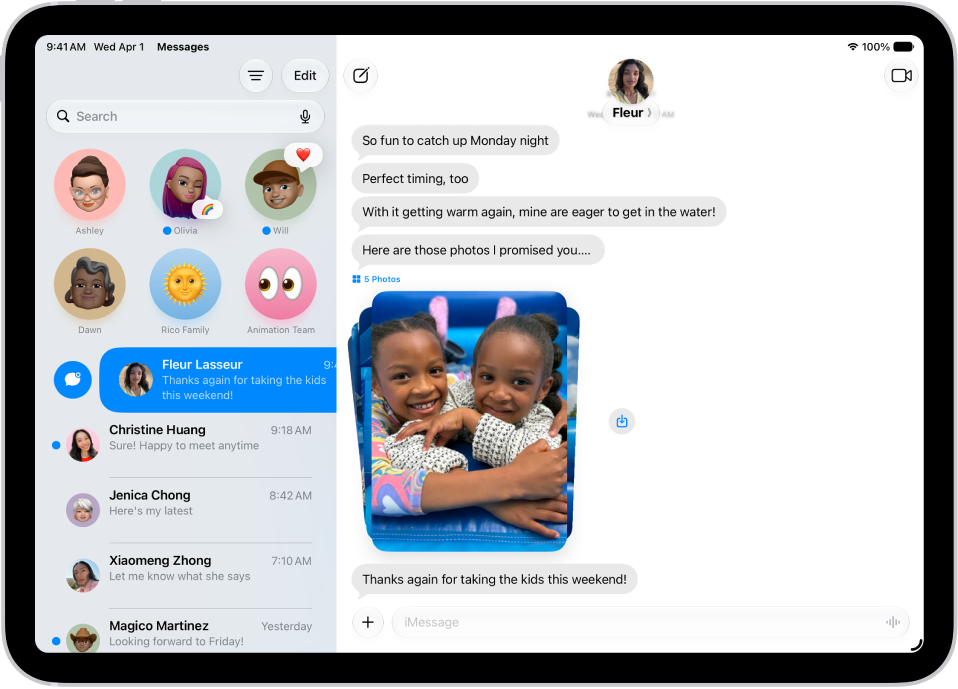
A Messages conversation list with an unread message and another being marked as unread.

Catch up on messages you missed

If messages came in while notifications were paused or you were away from your iPad, you can jump to the first one you haven’t seen in a conversation.

  1. Go to the Messages app on your iPad.
  2. Open an unread conversation and then tap the Catch up button.

    Your view of the conversation moves up to the first unread message.

Mark messages as unread

When you don’t have time to respond, you can mark conversations as unread so you can return to them later.

  1. Start the Messages app on your iPad.
  2. In the conversation list, do one of the following:
    • Swipe right on a conversation to mark it as unread.
    • Drag right and tap the Mark as Unread button.

Quick tip: It’s possible to mark several messages as unread at the same time, too. From the conversation list, tap Edit, tap Select Messages, and select the conversations to mark as unread. When you’re done selecting, tap Unread in the bottom-left corner.

See a list of your unread messages

  1. Start the Messages app on your iPad.
  2. In the conversation list, tap the Filter button and then tap Unread.

    A checkmark appears next to Unread, and the icon turns blue to indicate that filtering is on.

  3. To see both your read and unread messages again, tap the Filter button. Then tap to deselect Unread.

Quick tip: You can mark all your unread messages as read at once: Tap Edit, tap Select Messages, then tap Read All.

Pin a conversation

Pinning specific conversations to the top of the conversation list keeps the people you contact most at the front. Pinned conversations show up as larger icons at the top of your conversation list.

  1. Start the Messages app on your iPad.
  2. Touch and hold a conversation, then tap Pin.

Unpin a conversation

You can unpin pinned conversations so that they no longer appear at the top of the conversation list.

  1. Start the Messages app on your iPad.
  2. Touch and hold a pinned conversation and then do one of the following:
    • Drag the message to the bottom of the list, and let go.
    • Tap Unpin.

Pin shared items

You can pin certain shared items—such as links or collaboration invitations—within a conversation.

  1. Start the Messages app on your iPad.
  2. Touch and hold a message and then tap Pin.
  3. To find pinned items, tap the contact or group icon at the top of the conversation and then tap a category (such as Links). Pinned items appear at the top.

To unpin a pinned item, touch and hold it in the message, then tap Unpin. If you’re in the Links or Documents tab, touch and hold it, tap Show in Conversation, touch and hold it in the message, then tap Unpin.

Turn message summaries on or off

Apple Intelligence can summarize the key points of your conversations, with those summaries automatically replacing your message previews. If you’d rather see the most recent message in each conversation, turn off summaries.

Note: Apple Intelligence on iPadOS 27 or later is available on an Apple Intelligence-enabled iPad mini (A17 Pro) and iPad models with M1 or later. Apple Intelligence is not available in all languages or regions. Usage limits may apply.*

  1. Start the Settings app on your iPad.
  2. Tap Apps, then tap Messages.
  3. Turn Summarize Messages on or off.
  4. To view message summaries, open the Messages app. Then look for the Summary icon below a name in the conversation list. The text following the symbol is a summary of unread messages in that conversation.

*Apple Intelligence is available with Siri and device language set to Chinese (Simplified), Chinese (Traditional), Danish, Dutch, English, French, German, Italian, Japanese, Korean, Norwegian, Portuguese, Spanish, Swedish, Turkish, or Vietnamese. Some features may not be available in all regions or languages. Some devices may not be available in all regions. Siri AI is available in beta in iOS 27, iPadOS 27, macOS 27, watchOS 27, and visionOS 27 and requires an Apple Intelligence–enabled device set to a supported language. Available in English to start. Siri AI will not be initially available in the EU on iOS, iPadOS, and watchOS. Certain Apple Intelligence features that rely on server-side models are subject to daily usage limits, including but not limited to Siri AI, Intelligent Photo Editing Tools, Image Playground, and AFM 3 Cloud models in Shortcuts. Daily limits may vary by feature, request complexity, system demand, system policies, and other factors. Expanded access to such features will be available for a fee in the future. Use of these features is subject to the Apple Intelligence Terms and Conditions.

See also

In the Notes app, you can add photos, videos, and information from other apps, such as maps, links, and documents.

That could be a location from Maps, a webpage from Safari, or a PDF from Files. You can change the preview size of attachments, and even draw on a photo. Photos and videos you take in Notes can be saved to the Photos app, too.

Here’s how to add photos, video, and more to notes on iPad.

Add a photo or video

  1. Start the Notes app on your iPad.
  2. In a note, tap the Attachments button and choose an option.

Quick tip: Tap the photo, then tap the Handwriting Tools button, and you can draw on a photo.

To save photos and videos taken in Notes to the Photos app, go to Settings > Apps > Notes, then turn on Save to Photos.

Add info from another app to a note

You can attach information from another app to a note, such as a webpage in Safari, a screenshot, a location in Maps, or a PDF in Files.

  1. In the app you’re using, open the item you want to share (for example, a map or webpage).
  2. Tap Share or the Share button. Then tap Notes or Add to Quick Note.
  3. Save the item to a new note or choose an existing note.

Change the preview size of attachments

  1. Start the Notes app on your iPad.
  2. In a note, you can change the preview size of the following:
    • A single attachment: Touch and hold the attachment or tap the More button, tap View As, and choose an option.
    • All attachments in a note: Tap the More button, tap Attachment View, and then choose Set All to Small or Set All to Large.

View all attachments in Notes

  1. Start the Notes app on your iPad.
  2. Above the notes list, tap the Folder Actions button. Tap View Attachments to see thumbnails of photos, links, documents, and other attachments. (Attachments in locked notes aren’t shown.)
  3. To go to a note with a specific attachment, tap the attachment thumbnail. Then tap Show in Note.

See also

Tag: Notes