Got a tip for us?

On Apple Watch Ultra models, the customizable Action button gives you quick, physical control over a variety of functions. It can do things like start a workout, mark a Compass Waypoint, or begin a dive.

During setup, you choose a function for the Action button, and you can change it any time, with Quick Switch making it even faster. Some actions offer additional options, too, and third-party apps may support the Action button.
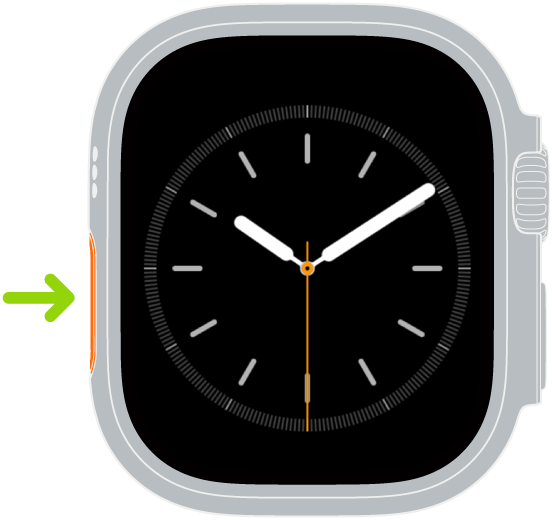
Illustration of Apple Watch with an arrow pointing to the Action button on the left side.

Available functions for the Action button

Some actions offer additional options when you press the Action and side buttons simultaneously. The following list isn’t exhaustive; third-party apps may support the Action button.

Action What it does
Workout Press once: Go to the Workout app or start a selected workout.

Press again: Perform a secondary action based on the selected workout.

Press the Action button and side button together: Pause.

Stopwatch Press once: Start.

Press again: Mark a lap.

Press the Action button and side button together: Pause.

Waypoint Drop a Compass Waypoint
Backtrack Press once: Record your route.

Press the Action button and side button together: Toggle between Record and Retrace.

Dive Press once: Start a dive.

Press the Action button and side button together: Perform a secondary action based on the selected diving app.

Flashlight Press once: On

Press again: Off

Shortcut Start the selected shortcut.
Voice Memo Press once: Start a voice memo.

Press again: Stop recording.

Translate Press once: Start translating.

Press again: Stop translating.

Accessibility Press once: Turn on the selected Accessibility feature.

Press again: Turn off the selected Accessibility feature.

Recognize Music Press once: Listen and identify music.

Press again: Stop.

Customize the Action button

On Apple Watch Ultra models, you’re asked to choose a function for the Action button during setup. You can change the function any time.

  1. Go to the Settings app on Apple Watch Ultra.
  2. Tap Action Button and then do any of the following:

    • Change the action: Tap Action and choose an action, such as Workout, Backtrack, or Dive.

      Tip: You can change the action later using Quick Switch.

    • Choose an app: If the selected action is supported by more than one app, tap the app shown. Choose a different app.
    • Change the actions available in Quick Switch: Tap Quick Switch and turn on or off any of the available actions. You can also turn off Quick Switch.
    • Deactivate Siren: If you don’t want to activate Siren by pressing and holding the Action button, turn off Hold to Turn On.

Quickly switch the function of the Action button

On Apple Watch Ultra models, you can do the following:

  1. Press and hold the Action button.
  2. Choose an action.

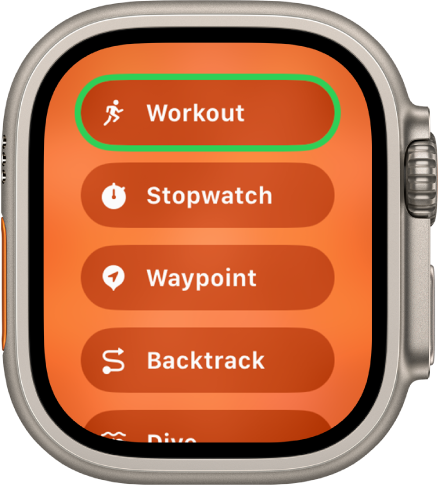
    The Quick Switch screen showing the actions that can be assigned to the Action button, such as Workout, Stopwatch, and Waypoint.

To customize Quick Switch, go to the Settings app, tap Action Button, tap Quick Switch, then choose the actions you want to be included in Quick Switch. You can also turn off Quick Switch.

Turn off the Action button

  1. Go to the Settings app on Apple Watch Ultra.
  2. Tap Action Button, tap Action, and tap None.

See also
People with physical and motor disabilities may find it easier to control their Apple Watch from the larger screen on their paired iPhone. With Apple Watch Mirroring, you can control Apple Watch using iPhone’s assistive features like Voice Control and Switch Control.

You can use inputs including voice commands, sound actions, head tracking, or external Made for iPhone switches as alternatives to tapping the Apple Watch display. An image that mirrors your Apple Watch display appears on your iPhone, and you use gestures on that mirrored image.

Note: Apple Watch Mirroring isn’t available on Apple Watch SE.

  1. Go to the Settings app on the paired iPhone.
  2. Go to Accessibility and tap Apple Watch Mirroring. Then turn on Apple Watch Mirroring.
  • Scroll: Swipe the display up or down.
  • Swipe between screens: Swipe the display left or right.
  • Press the Digital Crown: Tap the Digital Crown on the display.
  • Press the side button: Tap the side button on the display.
  • Press the Action button: (Apple Watch Ultra models) Tap the Action button on the left side of the display.
  • Use Siri: Touch and hold the Digital Crown on the display.

See also

Just as you can control your Apple Watch with your iPhone, you can also control nearby devices, like your iPhone or iPad, with your Apple Watch. It’s handy. Your watch shows buttons that replicate the controls on your device, like the Home button, App Switcher, and Control Center, as long as both are signed in with the same Apple Account.

  1. Start the Settings app on your Apple Watch.
  2. Go to Accessibility and tap Control Nearby Devices.

    Your iPhone or iPad must be signed in to iCloud with the same Apple Account and be on the same network.

  3. Choose a device if more than one is nearby and tap a button.

    Buttons replicate the controls on your device and include the following:

    • Home button
    • App Switcher
    • Notifications Center
    • Control Center
    • Siri
    • Options (includes media play controls and customizable hand gestures)

With VoiceOver enabled on your Apple Watch, controlling a nearby device turns VoiceOver on there too, and the VoiceOver gestures you use on your Apple Watch are performed on that device.

Similarly, when you enable Switch Control on your nearby device, Switch Control buttons, such as Move, Next, and Select, appear on your watch.

See also

With Live Speech, you can type and have your words spoken aloud, both in person and on phone and FaceTime audio calls.

On a call, people hear your words in the conversation; otherwise, they come out of the speaker on your Apple Watch. You can even use your Personal Voice, a synthesized voice that sounds like your own.

Here’s how to type to speak using Live Speech on Apple Watch.

Set up Live Speech

  1. Start the Settings app on your Apple Watch.
  2. Go to Accessibility and tap Live Speech. Turn on Live Speech.
  3. Tap Voices, choose a voice, and tap Speak Sample to hear it.

    To use the voice, tap Download [name of voice], then tap Use Voice.

  4. To set up the Accessibility Shortcut to turn on Live Speech, open Settings, tap Accessibility, tap Accessibility Shortcut, and choose Live Speech.

Type to speak

  1. Triple-click the Digital Crown and choose Live Speech if you have more than one accessibility shortcut enabled. Then type what you’d like to have spoken or choose a favorite phrase.

    Tip: Add your most frequently used phrases so you can quickly access them. Go to Settings > Accessibility > Live Speech, then tap Favorite Phrases.

  2. Tap Send to have your phrase spoken.

On a phone or FaceTime audio call, people hear your words spoken in the conversation. Otherwise, your words come out of the speaker on your Apple Watch.

Use your Personal Voice with Live Speech

With Personal Voice, you can create a synthesized voice that sounds like your own to communicate with family and friends. Use your Personal Voice to type to speak in FaceTime and phone calls, assistive communication apps, and in-person conversations. (Available in select languages.)

After you create a Personal Voice, you can use it on Apple Watch:

  1. Start the Settings app on your Apple Watch.
  2. Go to Accessibility and tap Live Speech.
  3. Tap English (US), then choose your Personal Voice.

Important: You may only use Personal Voice to create a voice on your iPhone, iPad, or Mac that sounds like you using your own personal voice for your personal, noncommercial use.

See also

Siri is often the easiest way to start using accessibility features with your Apple Watch. Use Siri to open apps, turn many settings on or off, or act as your intelligent personal assistant.

You can set how long Siri waits for you to finish speaking. And you can use Siri without speaking at all, by typing your requests instead.

Here’s how to use accessibility features with Siri on Apple Watch.

Siri: Ask Siri something like, “Turn on VoiceOver.” See Control your Apple Watch and smart home accessories with Siri.

Set how long Siri waits for you to finish speaking

  1. Start the Settings app on your Apple Watch.
  2. Go to Accessibility, tap Siri, scroll down, and tap Default, Longer, or Longest below Siri Pause Time.

Type instead of speaking to Siri

You can use Siri without speaking. Follow these steps to type rather than speak Siri requests.

  1. Start the Settings app on your Apple Watch.
  2. Go to Accessibility, tap Siri, and turn on Type to Siri.

See also

You can see information on the stocks you follow on your iPhone. You can also add, remove, or reorder stocks right from your wrist.

It’s the same list. Your watch shows the stocks found in the Stocks app on your iPhone, and when you change the order on one device, the other changes to match. You can also choose which data metrics appear, like Price Change, Percentage Change, or Market Cap.

Here’s how to track stocks on Apple Watch.

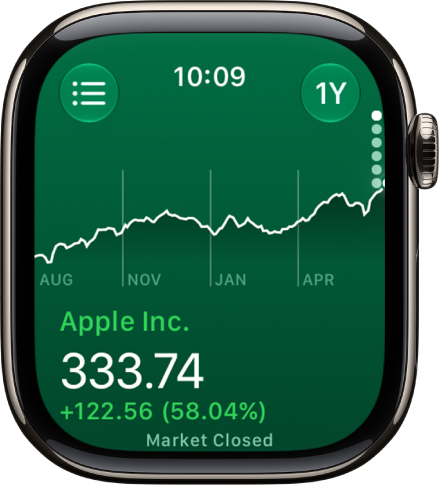
Information about a stock in the Stocks app. A large graph showing the stock’s price over a year appears in the center.

See stock data on Apple Watch

  1. Start the Stocks app on your Apple Watch.
  2. Turn the Digital Crown to browse the stocks in the list.

Add and remove stocks

The stocks in the Stocks app on your iPhone show up on your Apple Watch, and you can add and remove stocks right on your Apple Watch too.

  1. Start the Stocks app on your Apple Watch.
  2. Tap the List button. Do any of the following:
    • Add a stock: Tap the Add button and then enter the stock name. Tap the name of the stock in the list.
    • Remove a stock: Swipe left on the stock you want to remove, then tap the Delete button.
    • Reorder stocks: Touch and hold a stock and drag it to a different position.

You can also open the Stocks app on your iPhone, tap the More Options button, tap Edit Watchlist, drag a stock into your preferred position, then tap Done.

Change the order on one device, and the other changes to match.

Choose data metrics

Do the following to choose the metrics that show up in the Stocks app and in Stocks complications:

  • Change the data metric in the Stocks app: Go to the Stocks app on your Apple Watch, tap the List button, tap the View Options button, then choose Price Change, Percentage Change, or Market Cap.
  • Change the data metric for Stocks complications: Go to the Settings app on your Apple Watch, tap Stocks, tap Data Metric, then choose a metric.

    You can also go to the Apple Watch app on your iPhone, tap My Watch, tap Stocks, then choose a metric.

See also

Tag: Stocks

Use the Mail app to read and reply to messages, write new ones, and archive, flag, or delete the ones you don’t need. You can also adjust Mail settings to match how you work.

You can send a smart reply from a list of suggested phrases, or compose your own by dictating or typing. Swiping left on a message lets you flag or delete it, and swiping right archives it.

WARNING: For important information about avoiding distractions that could lead to dangerous situations, see Important safety information for Apple Watch.

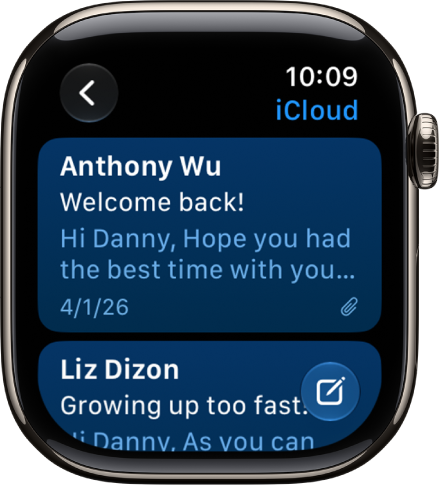
An inbox in the Mail app showing two emails. The back button is at the top-left and the compose button is at the bottom-right.

Read an email message

  1. Open the Mail app on your Apple Watch.
  2. Turn the Digital Crown to scroll through the message list.
  3. Tap a message to read it.
  4. To jump to the top of a long message, tap the top of the screen.

Send a quick reply

  1. Open the Mail app on your Apple Watch.
  2. Scroll to the bottom of a message you’ve received and tap Reply. Then do either of the following:
    • Send a smart reply: Scroll to see a list of suggested phrases and tap a phrase.
    • Compose a reply: Tap the Add Message field. Then dictate or type a reply.

Archive, flag, or delete a message

  1. Open the Mail app on your Apple Watch.
  2. In the list of messages, do any of the following:
    • Archive: Swipe right on a message. Then tap the Archive button.
    • Flag: Swipe left on a message and then tap the Flag button.
    • Delete: Swipe left on a message and tap the Trash button.

Write a new email

  1. Open the Mail app on your Apple Watch.
  2. Tap the New Message button and then do the following:
    • Add a recipient: Tap Add Contact. Tap the Add Member button to choose a recipient from your contacts, or tap the Dictation button to dictate a name.
    • Choose an account to send the email from: Tap From and then tap an account.
    • Add a subject: Tap Add Subject, then enter a subject.
  3. Tap Create Message, then dictate or type your message.

Change Mail settings

Choose which mailboxes appear, customize alerts, organize by thread, turn remote images on or off, change your signature, and more.

  1. Open the Apple Watch app on your iPhone.
  2. Tap My Watch, tap Apps, and tap Mail.

See also

Tag: Mail

Handoff lets you move from one device to another without losing focus on what you’re doing. For example, even though you can reply to email using the Mail app on Apple Watch, you might want to switch to your iPhone so you can reply using the onscreen keyboard.

Handoff is on by default, and you pick up the task from the App Switcher on your iPhone. You can turn it off, too.

Note: Handoff is available on an Apple Watch you set up for yourself, but not on an Apple Watch you set up for a family member.

Continue a task on your iPhone

  1. Unlock your iPhone.
  2. Do one of the following:
    • On an iPhone with Face ID: Swipe up from the bottom edge and pause to show the App Switcher.
    • On an iPhone with a Home button: Double-click the Home button to show the App Switcher.
  3. Tap the button that appears at the bottom of the screen to open the same item on your iPhone.

Quick tip: No button in App Switcher? Check that Handoff is on for your iPhone in Settings > General > AirPlay & Handoff.

Handoff is on by default. To disable it, go to the Apple Watch app on your iPhone, tap My Watch, tap General, then turn off Enable Handoff.

Handoff works with Activity, Alarm, Calendar, Home, Mail, and Maps, along with Messages, Music, News, Phone, Podcasts, and Reminders. Settings, Siri, Stocks, Stopwatch, Timers, Wallet, Weather, and World Clock work with it too. Handoff needs Apple Watch connected to your paired iPhone.

With OS X 10.10 or later installed on your Mac, you can also hand off from Apple Watch to your Mac.

See also

Use the Notes app to create, view, pin, and delete notes, and keep them up to date on all your devices with iCloud.

With iCloud, your notes and any changes you make appear on your paired iPhone and other devices. Pinned notes stay at the top, and the rest are sorted by date. Editing existing notes happens on your iPhone, iPad, or Mac, though.

Here’s how to take notes on Apple Watch.

Note: Use your iPhone, iPad, or Mac to edit existing notes; your changes sync with iCloud.

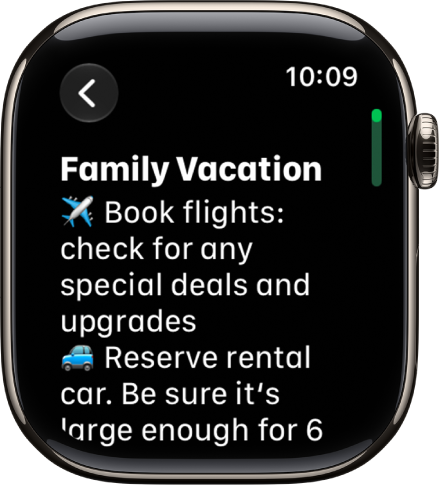
A note for a family vacation.

Keep your notes up to date on all your devices with iCloud

Through iCloud, your notes appear on your paired iPhone, along with any changes you make to them, and on other devices where you’re signed in to your Apple Account.

Create a new note

  1. Start the Notes app on your Apple Watch.
  2. Tap the New Note button.

View a note

Note: Notes on Apple Watch don’t show some formatting and certain attachments, like tables and audio recordings.

  1. Start the Notes app on your Apple Watch.
  2. Turn the Digital Crown to scroll through your notes list.

    Pinned notes appear at the top, followed by notes sorted by date.

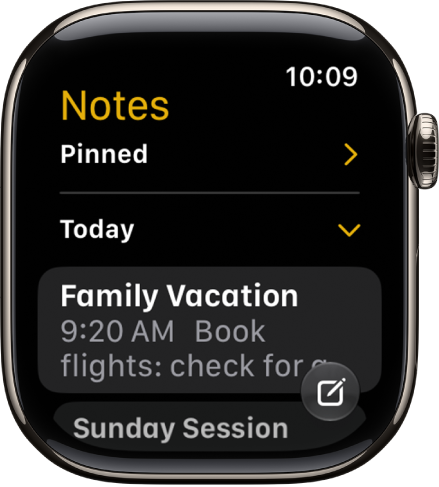
    A list of notes with pinned notes at the top.

  3. Tap a note to open it.

Pin a note

Notes you access often can stay at the top of the list for convenience.

  1. Start the Notes app on your Apple Watch.
  2. Swipe right on the note and tap the Pin button.

Delete a note

  1. Start the Notes app on your Apple Watch.
  2. Swipe left on the note you want to remove and tap the Delete button.

If you change your mind, you can recover the note. Deleted notes remain in Recently Deleted for 30 days. On your iPhone, open the Notes app, go to the Recently Deleted list, swipe left on the note, then tap Move and choose a folder.

See also

Tag: Notes

In the Reminders app, you can set reminders, make grocery lists, create checklists, and organize to-do lists. With iCloud, you can keep your reminders up to date on all your devices.

Any changes you make appear on your paired iPhone and other devices signed in to your Apple Account. You can mark an item as complete with a tap, and hide or show completed reminders.

Here’s how to use reminders on Apple Watch.

Keep your reminders up to date on all your devices with iCloud

Your iCloud reminders appear on your paired iPhone, plus any other devices where you’re signed in to your Apple Account, and so do any changes you make to them.

View a list

  1. Open the Reminders app on your Apple Watch.
  2. Tap a list to open it.

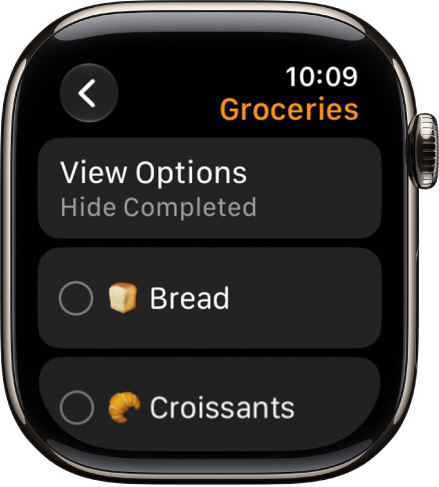
    The Reminders app showing a grocery list.

  3. Do any of the following:

    • Mark an item as complete: Tap the Reminder Completed button next to the item. Or tap the reminder and then tap Mark as Completed.
    • Hide or show the completed reminders: Tap View Options, then choose an option.
    • Return to the list view: Tap the Back button in the top-left corner.

Add an item to a list

  1. Open the Reminders app on your Apple Watch.
  2. Scroll to the bottom of a list, then tap Add Reminder.

Edit an item

To edit details, you can add a date, time, note, location, flag, tag, and priority, or move the item to a different list instead.

  1. Open the Reminders app on your Apple Watch.
  2. Tap the reminder you want to edit and tap Edit.

Delete an item

  1. Open the Reminders app on your Apple Watch.
  2. Swipe left on the item you want to remove and then tap the Delete button.

If you change your mind, you can recover the item. On your iPhone, open the Reminders app, go to the Recently Deleted list, swipe left on the item, then tap Move and choose a folder.

See also