Got a tip for us?

With Crash Detection turned on, Apple Watch can help alert emergency services when a severe car crash has been detected and notify your emergency contacts.

When it detects a severe crash, your watch displays an alert and initiates an emergency call unless you cancel.

Here’s how to manage Crash Detection on Apple Watch.

What is Crash Detection?

If your Apple Watch detects a severe car crash, Crash Detection can help connect you to emergency services and notify your emergency contacts.

Note: Apple Watch cannot detect all car crashes.

How Crash Detection works

When your Apple Watch detects a severe car crash, it displays an alert and initiates an emergency call unless you cancel. Crash Detection doesn’t override any existing emergency calls that were placed by other means.

  • If you’re able to respond: To call emergency services, drag the Emergency Call slider to the right. Your Apple Watch makes the call to emergency services and you can speak to a responder.

    If you don’t need emergency services and the call has been made, don’t hang up. Wait until a responder answers, then explain that you don’t need help.

  • If you’re unresponsive: When you haven’t initiated a call or canceled the alert after 10 seconds, your Apple Watch begins a 30-second countdown. During this countdown, Apple Watch sounds an alarm and taps your wrist to get your attention.

    If you still don’t respond, your device automatically calls emergency services at the end of the countdown. It plays an audio message for emergency services, which informs them that you’ve been in a severe car crash and shares your current location as latitude and longitude coordinates with an approximate search radius. If you’ve added emergency contacts, your device sends a message to share your location and tell them you’ve been in a severe car crash.

Note: To contact emergency services, your Apple Watch or nearby iPhone needs a cellular connection or Wi-Fi calling with an internet connection.

If you’re off the grid without cellular and Wi-Fi coverage, Apple Watch can try to contact emergency services via satellite. (Available on supported Apple Watch Ultra models* or other Apple Watch models paired with iPhone 14 or later.)

Turn Crash Detection on or off

Crash Detection is on by default. To turn Crash Detection on or off, do the following:

  1. Start the Settings app on your Apple Watch.
  2. Tap SOS, tap Crash Detection, and tap Call After Severe Crash.

*Satellite features aren’t available on Apple Watch Ultra 2 and earlier models, aren’t available in all countries and regions, and aren’t offered on models sold in certain countries and regions. Satellite features are free for 2 years after the activation of your Apple Watch Ultra. Messages and location sharing via satellite require an active carrier plan.

See also

On supported Apple Watch Ultra models, you can connect to a satellite to text emergency services, message friends and family, and share your location—all while you’re off the grid without cellular and Wi-Fi coverage.

Look for the satellite icon at the top of the screen, which indicates the availability of satellite features at your location. If your iPhone is nearby and in Airplane mode, though, satellite features aren’t available on your watch.

Note: Satellite features aren’t available on Apple Watch Ultra 2 and earlier models, aren’t available in all countries and regions, and aren’t offered on models sold in certain countries and regions. Satellite features are free for 2 years after the activation of your Apple Watch Ultra. Messages and location sharing via satellite require an active carrier plan.

According to Apple, connection and response times may vary based on location, environmental conditions, and other factors. Wi-Fi, cellular, and Bluetooth connectivity may be impacted when connected to a satellite. Satellite features aren’t available on Apple Watch Ultra if your iPhone is nearby and in Airplane mode.

Connect to Emergency SOS via satellite

After you’ve set up Emergency SOS via satellite on Apple Watch Ultra, you can contact emergency services even when you’re outside of cellular and Wi-Fi coverage.

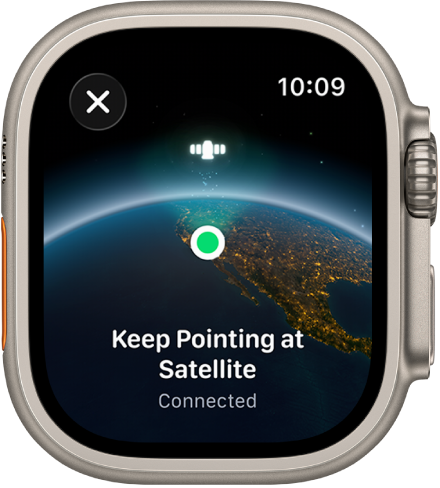
A screen showing a satellite icon over a curved view of Earth, a green connection indicator, and “Keep Pointing at Satellite” text.

  1. Wear Apple Watch Ultra naturally on your wrist. Then ensure it has a clear line of sight to the sky. If you’re under heavy foliage, surrounded by other obstructions, or indoors, you might not be able to connect to a satellite.
  2. Try calling your local emergency number (such as 911, 112, or 999), even if you’re outside of cellular and Wi-Fi coverage.

    If your carrier’s cellular network isn’t available, Apple Watch Ultra displays the satellite icon and attempts to route any emergency calls through other networks, if available.

    You can also go to the Messages app, then text your local emergency number (such as 911, 112, or 999).

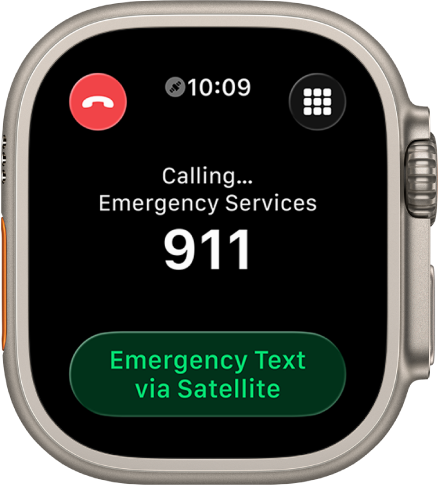
  3. If the call or message doesn’t go through, tap Emergency Text via Satellite.

    A screen showing “No Connection” after an attempted call to emergency services. The Emergency Text button is at the bottom.

    Note: While off-grid, satellite features aren’t available on Apple Watch Ultra if your iPhone is nearby and in Airplane mode.

  4. Tap Report Emergency and follow the onscreen instructions, which include an emergency questionnaire.

    After you’ve completed the questionnaire, Apple Watch Ultra starts a text conversation by sharing important information including your Medical ID and emergency contact details (if you’ve already set them up). It also shares your answers to the emergency questionnaire, your location (including elevation), and the battery level of Apple Watch Ultra. You can also choose to share the information you send to emergency services with your emergency contacts.

Important: If an Emergency SOS via satellite session has started and you don’t need emergency services, don’t disconnect the satellite session. Exchange messages with the responder to tell them you don’t need help.

Other satellite-enabled services may also become available, including Messages via satellite and location sharing via satellite.

Send and receive messages via satellite

If you’ve set up Messages via satellite on Apple Watch Ultra, you can swap texts, Tapbacks, and emoji with friends and family over iMessage and SMS, even outside of cellular and Wi-Fi coverage. Before they’re sent, messages are encrypted end-to-end.

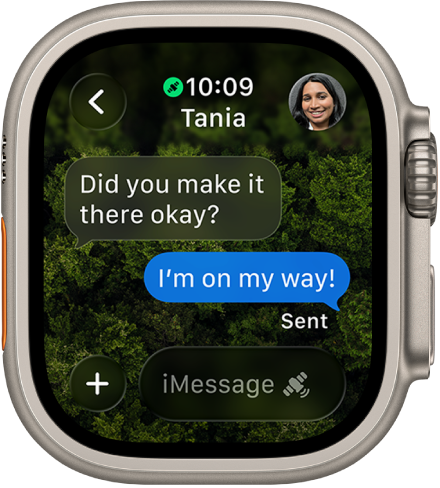
A screen showing a Messages conversation with the latest reply in a blue bubble marked as ‘Sent’. At the bottom is the compose field with a satellite icon, indicating satellite messaging capability.

Note: Messages via satellite is designed for casual communication with family and friends, not for emergency situations. To connect with emergency services, use Connect to Emergency SOS via satellite. SMS messages via satellite require your paired iPhone to be connected to a cellular or Wi-Fi network.

  1. Wear Apple Watch Ultra naturally on your wrist. Then ensure it has a clear line of sight to the sky. If you’re under heavy foliage or surrounded by other obstructions, you might not be able to connect to a satellite.
  2. On the watch face or in Control Center, tap the satellite icon and then tap Messages.

    You can also go to the Messages app. If you see an alert that you’re outside of cellular and Wi-Fi coverage, tap Use Messages via Satellite.

  3. Follow the instructions to connect to a satellite, while remaining aware of your surroundings. You may be instructed to adjust your position.
  4. Enter your message and tap Send.

Important: It might take a few minutes to send your message via satellite; continue to follow the onscreen instructions until the message is sent.

Send your location via satellite

Sending your location works even outside of cellular and Wi-Fi coverage, as long as you’ve set up location sharing via satellite on Apple Watch Ultra.

  1. Wear Apple Watch Ultra naturally on your wrist. Then ensure it has a clear line of sight to the sky. If you’re under heavy foliage or surrounded by other obstructions, you might not be able to connect to a satellite.
  2. On the watch face or in Control Center, tap the satellite icon and then tap Send Location.

    You can also go to the Find My app.

  3. Tap Update Location (available only when you’re outside of cellular and Wi-Fi coverage).

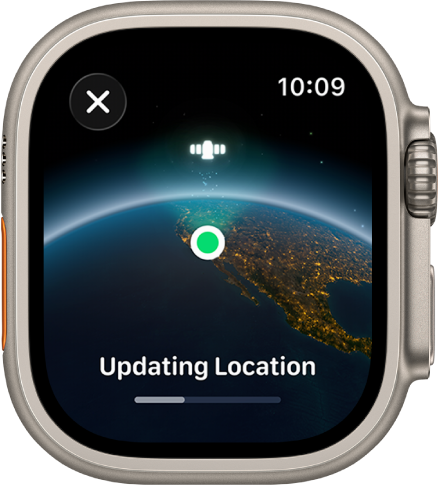
    A screen showing ‘Updating Location’ with a progress bar and a view of Earth from space with a green location indicator dot.

  4. Follow the instructions to connect to a satellite, while remaining aware of your surroundings. You may be instructed to adjust your position.

Important: It might take a few minutes to send your location via satellite; continue to follow the onscreen instructions until the location is sent. You can send your location once every 15 minutes. When you send your location via satellite, you don’t see your friend’s location in the Find My app.

See a friend’s location sent via satellite

In the Find My app, a satellite icon appears next to the picture and location of any contact who sends you their location via satellite, and their most recent location stays viewable for up to 7 days.

See also

In case of an emergency, use your Apple Watch to quickly call for help, share your Medical ID, and alert your emergency contacts.

How your watch reaches emergency services depends on your device model, location, and network availability. You can also keep your Medical ID and emergency contacts up to date, and update your emergency address if it’s changed.

Requirements

Your Apple Watch attempts to contact emergency services in the following ways, depending on your device model, location, and network availability:

  • Standard emergency calls: Your Apple Watch or nearby iPhone needs a cellular connection or Wi-Fi calling with an internet connection.
  • International emergency calls: Requires Apple Watch SE, Apple Watch Series 5, Apple Watch Ultra, or later models. When you start an Emergency SOS call while abroad, your watch connects to local emergency services, but it may not be able to send your location or a text message to your emergency contacts. In certain areas, international emergency calling works even if you haven’t set up cellular service on the watch.
  • Emergency SOS via satellite: On supported Apple Watch Ultra models*, you can contact emergency services even when you’re off the grid without cellular and Wi-Fi coverage. See Use Emergency SOS via satellite.

Contact emergency services

Do one of the following:

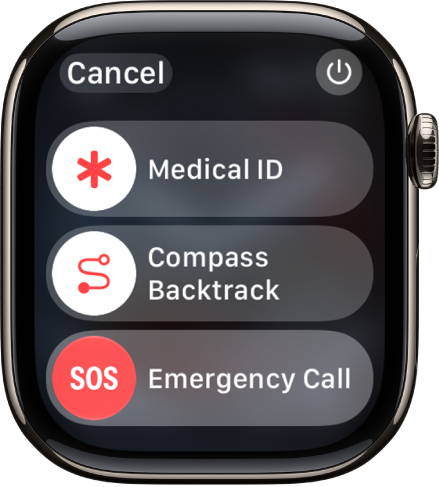
  • Start an emergency call: Press and hold the side button until the sliders appear, then drag the Emergency Call slider to the right.

    The emergency services screen. Near the top is the Medical ID slider, in the middle is the Compass Backtrack slider, and at the bottom is the Emergency Call slider.

    Your Apple Watch calls the emergency services in your region—for example, 911. (In some regions, you may be required to press a keypad number to complete the call.)

  • Use only the side button: Press and keep holding the side button until your Apple Watch issues a warning sound and starts a countdown. When the countdown ends, your Apple Watch calls emergency services. The Apple Watch makes the warning sound even if it’s in Silent Mode. So if you’re in an emergency situation where you don’t want to make noise, use the Emergency Call slider to call emergency services without a countdown.

    If you don’t want your Apple Watch to automatically start the emergency countdown when you press and hold the side button, turn off Automatic Dialing. Go to the Settings app on your Apple Watch, tap SOS, tap Hold Side Button, then turn off Hold Side Button. (Or go to the Apple Watch app on your iPhone, tap My Watch, tap Emergency SOS, then turn off Hold Side Button to Dial.) You can still make an emergency call with the Emergency Call slider.

  • Make a voice call: Ask Siri to call your local emergency number (such as 911, 112, or 999). Or go to the Phone app, tap the Dialer button, then dial your local emergency number.
  • Send a text message: Ask Siri to text your local emergency number (such as 911, 112, or 999). Or go to the Messages app, tap the New Message button, then text your local emergency number.

Apple Watch may automatically contact emergency services in the following situations:

  • When a hard fall is detected: If Fall Detection is turned on and you have been immobile for about a minute, Apple Watch automatically attempts to call emergency services. See Manage Fall Detection.
  • When a severe car crash is detected: If Crash Detection is turned on, Apple Watch displays an alert and can initiate an emergency phone call after 30 seconds. See Manage Crash Detection.

Important: If an emergency call has been made, but you don’t need emergency services, don’t hang up. Wait until a responder answers, then explain that you don’t need help.

Keep your Medical ID and emergency contacts up to date

After an emergency call ends, your Apple Watch alerts your emergency contacts and active Check In contact with a text message, unless you choose to cancel. Your Apple Watch sends your current location, and for a period of time after you enter SOS mode, your emergency contacts and active Check In contact receive updates when your location changes.

Note: If you use Emergency SOS, your emergency contacts won’t be automatically notified if the Messages app isn’t the selected text messaging app or is deleted.

To update emergency contacts, go to the Health app on your paired iPhone.

Update your emergency address

If emergency services can’t locate you, they go to your emergency address.

  1. Open the Settings app on your iPhone.
  2. Tap Apps, tap Phone, tap Wi-Fi Calling, and then tap Update Emergency Address.
  3. Enter your emergency address.

*Satellite features aren’t available on Apple Watch Ultra 2 and earlier models, aren’t available in all countries and regions, and aren’t offered on models sold in certain countries and regions. Satellite features are free for 2 years after the activation of your Apple Watch Ultra. Messages and location sharing via satellite require an active carrier plan.

See also

Use Check In to automatically notify a friend when your Apple Watch has arrived at a destination, when a workout session is completed, or after a specific period of time has passed. You can choose what details they can see if you don’t complete your Check In as expected.

You can start a Check In from Messages or from Workout. And if you’re running late, you can add extra time, or cancel the Check In.

Note: Check In requires the following:

  • Apple Watch must be near its paired iPhone or connected to the internet using Wi-Fi or cellular.
  • Both the sender and recipient must have an Apple Watch with watchOS 11 or later or an iPhone with iOS 17 or later.

Start a Check In from Messages

  1. Start the Messages app on your Apple Watch.
  2. Start a new message or select an existing conversation, tap the Apps button, and then tap Check In.
  3. Tap Edit, tap Check In, and then choose one of the following:

    • When I arrive: Specify your destination, how you’re traveling (driving, transit, or walking), and add extra time if needed.

      Check In monitors your journey and notifies your friend if your Apple Watch isn’t progressing for an extended period of time or if it doesn’t reach your destination as expected. When your Apple Watch arrives at the destination successfully, Check In automatically completes and notifies your friend.

    • After a timer: Specify a period of time—for example, if you’re meeting someone new.

      If you don’t end the Check In before the time you set, Check In notifies your friend.

  4. Tap Send.

Start a Check In from Workout

  1. Go to the Workout app on your Apple Watch.
  2. Turn the Digital Crown to the workout you want to do.

    Tap Add Workout at the bottom of the screen for sessions like kickboxing or surfing.

  3. Tap the workout to begin.
  4. Swipe right and then tap Check In.

Check In notifies your friend if the workout completes.

Add extra time for the Check In

  1. Open the Smart Stack. (From the watch face, swipe up from the bottom of the screen or turn the Digital Crown.)
  2. Tap the Check In widget.
  3. Scroll down, then tap Add Time.

Cancel a Check In

To let your friend know you’ve completed your journey, or that you want to end your session for whatever reason, you can cancel your Check In.

  1. From the watch face, turn the Digital Crown to open the Smart Stack.
  2. Tap the Check In widget.
  3. Scroll down and then tap Cancel Check In.

Choose what details you share

Your iPhone is where you can adjust the details you share with your friend during a Check In.

See also

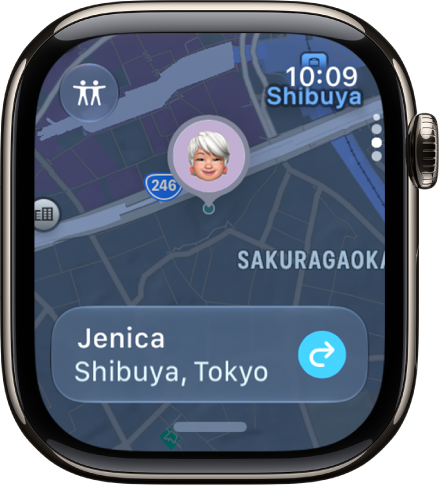
When someone shares their location with you, you can use Find My to locate them on a map.

You can get directions to their location, call or message them, and send notifications when you leave your current location or arrive at their location. You can also receive notifications when your friend leaves or arrives, and see a list of all your friends.

Here’s how to locate people in Find My on Apple Watch.

A Find My screen showing a friend's location on a map.

Find a friend’s location

  1. Start the Find My app on your Apple Watch.
  2. Tap the button at the top left and tap People.
  3. Turn the Digital Crown to scroll through your friends and see their locations on a map.

    Note: If your friend is wearing an Apple Watch with cellular service and is sharing their location, but they don’t have their iPhone or iPad with them, Find My shares the location of their Apple Watch.

  4. Tap the name of the person you’re looking for and then do any of the following:

    • Get directions to their location: Tap Directions to navigate in the Maps app.
    • Call or message your friend: Tap their name, then tap Contact.

Send and receive location alerts

When you leave your current location or arrive at a friend’s location, you can send notifications to that friend. Notifications can also come to you when your friend leaves their current location or arrives at yours.

  1. Start the Find My app on your Apple Watch.
  2. Tap the button at the top left and tap People.
  3. Turn the Digital Crown until you see your friend. Then tap their name.
  4. Scroll down to Notify Me or Notify [friend’s name] and then tap Add Location Alert.

See a list of all your friends in Find My

  1. Start the Find My app on your Apple Watch.
  2. Tap the button at the top left and tap People.
  3. Swipe up from the bottom of the screen to see the list of friends.

See also

Tag: Find My

The Workout app offers a variety of fitness options—from cardio-focused workouts such as High Intensity Interval Training (HIIT), Outdoor Run, and Outdoor Cycle, to strength-based workouts like Functional Strength Training, Core Training, and Kickboxing. During your workout, you can pause and resume, mark segments, start a Check-In, and more.

The order of workouts reflects your preferences as you use the app. And for wheelchair users, there’s an outdoor push workout that tracks pushes instead of steps, at a walking pace or running pace.

Siri: Ask Siri something like, “Start a 30-minute outdoor run.”

Start a workout

The Workout screen with the Outdoor Run workout highlighted.

  1. Open the Workout app on your Apple Watch.
  2. Turn the Digital Crown to the workout you want to do.

    To view all workouts, scroll down, then tap the Add button at the bottom of the workout list.

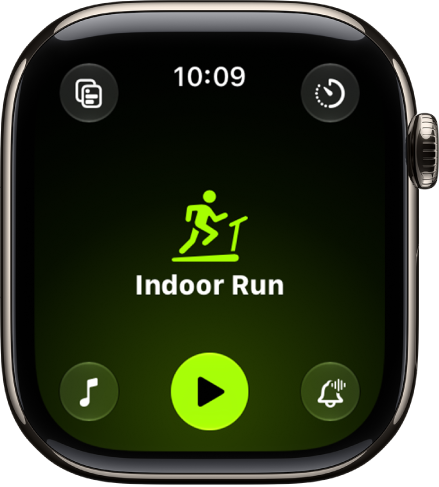
  3. When you’re ready to start your workout, tap the Play button.

    Tip: You can also tap the center of the screen to quickly start your workout. And on Apple Watch Ultra models, you can start a workout with the Action button. See Customize the Action button.

As you use the app and choose workouts, the order of workouts reflects your preferences.

Quick tip: A workout widget in your Smart Stack can show your three most recent workout types. See our article, Use the Smart Stack to show timely widgets.

Start an outdoor push workout

If you’ve specified that you use a wheelchair, the Workout app can start an outdoor push workout, with your Apple Watch tracking pushes instead of steps. You can choose walking pace or running pace, too. Read our guide, Track daily activity with Apple Watch.

  1. Open the Workout app on your Apple Watch.
  2. Turn the Digital Crown to Outdoor Push Running Pace or Outdoor Push Walking Pace.
  3. When you’re ready to start your workout, tap the Start button.

Conserve power during workouts

Starting an Extended Workout turns on Low Power Mode, and certain workout metrics are unavailable depending on the workout type. For Outdoor Walk, Outdoor Run, and Hiking workouts, you can also start a Max Extended Workout, where certain metrics and splits aren’t available.

  1. Open the Workout app on your Apple Watch.
  2. Turn the Digital Crown to the workout you want to do.
  3. Tap the Goals button, tap Extended, and tap Extended Workout or Max Extended Workout (if available).

You can also automatically turn on Low Power Mode for all workouts. Go to the Settings app, tap Workout, then turn on Low Power Mode.

During workouts, Low Power Mode turns off certain features, such as Always On Display, background heart rate and blood oxygen measurements, and heart rate notifications. Other notifications may be delayed, emergency alerts may not arrive, and certain cellular and Wi-Fi connections are limited. Cellular is turned off until you require it—when you stream music or send a message, for example.

Use the workout controls

  1. Open the Workout app on your Apple Watch.
  2. Start a workout.
  3. Swipe right, then do any of the following:

    • Pause the workout: Tap Pause.

      Tip: To pause the workout at any time, press the side button and the Digital Crown at the same time.

    • Add a workout: Tap New and tap a workout type. Tap Quick Start, or select a custom workout.
    • Mark a segment: Tap Segment. You can also double-tap the display.
    • Stop viewing the workout on your iPhone: Tap Stop. To resume viewing on iPhone, tap View.
    • Mute Workout Buddy*: Tap Mute. To learn more, see Set Up Workout Buddy.
    • Start a Check In: Tap Check In and then follow the onscreen instructions. To learn more, see Start a Check In from Workout.
    • End the workout: Tap End. Turn the Digital Crown to rate your effort and view the workout summary and tap the End button at the top.

Check your progress during a workout

  1. Open the Workout app on your Apple Watch.
  2. Start a workout.
  3. Do any of the following:

    • See your workout stats: Raise your wrist to see your workout stats, including your goal completion ring, elapsed time, average pace, distance covered, calories burned, and heart rate.

      Note: There’s no goal ring if you haven’t set a goal.

    • Switch workout views: Turn the Digital Crown.

      To change the workout views you want to see during a workout, see Customize workout views.

You can also receive voice feedback for key alerts and progress against your Activity rings. To turn Voice Feedback on or off, go to the Settings app on your Apple Watch, tap Workout, then tap Voice Feedback.

Rate your effort

You can adjust estimated ratings of how hard you exercised after completing a cardio-focused workout. Each rating factors in your VO2 max, heart rate, and personal data like age, height, and weight.

  1. Open the Workout app on your Apple Watch.
  2. Start a workout.
  3. When you’re finished with your workout, swipe right, then tap End.
  4. Turn the Digital Crown to indicate your effort. Then tap the Done button.

    Note: To change your rating, turn the Digital Crown to scroll through the workout summary, tap Effort, then make a change.

  5. When you’re finished, tap the End button at the top.

To edit your effort rating on iPhone, go to the Fitness app on your iPhone, tap Sessions, tap a workout, tap Effort, drag the slider to change your rating, then tap Update.

*Apple Intelligence is available with Siri and device language set to Chinese (Simplified), Chinese (Traditional), Danish, Dutch, English, French, German, Italian, Japanese, Korean, Norwegian, Portuguese, Spanish, Swedish, Turkish, or Vietnamese. Some features may not be available in all regions or languages. Some devices may not be available in all regions. Siri AI is available in beta in iOS 27, iPadOS 27, macOS 27, watchOS 27, and visionOS 27 and requires an Apple Intelligence–enabled device set to a supported language. Available in English to start. Siri AI will not be initially available in the EU on iOS, iPadOS, and watchOS. Certain Apple Intelligence features that rely on server-side models are subject to daily usage limits, including but not limited to Siri AI, Intelligent Photo Editing Tools, Image Playground, and AFM 3 Cloud models in Shortcuts. Daily limits may vary by feature, request complexity, system demand, system policies, and other factors. Expanded access to such features will be available for a fee in the future. Use of these features is subject to the Apple Intelligence Terms and Conditions.

See also

Tag: Fitness

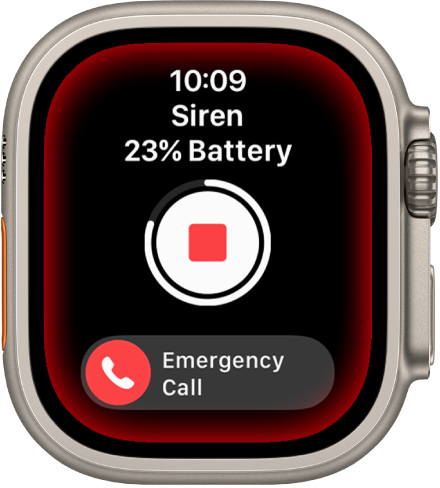
Apple Watch Ultra models have a built-in siren that emits high-intensity sound patterns to attract help in case of emergency. Your watch also taps your wrist as the siren sounds.

You can activate the siren with the Action button, the side button, the Siren app, or Siri. It keeps sounding, and your watch keeps tapping your wrist, until you stop it or the battery on Apple Watch Ultra runs out of power.

WARNING: If possible, do not turn on the siren close to your ears or in enclosed environments.

Siren counting down. Near the top is the battery charge, in the middle is a Play button, and at the bottom is the Emergency Call slider.

Activate the siren with the Action button on Apple Watch Ultra models

  1. Press and hold the Action button and then wait for the countdown to finish.
  2. Apple Watch Ultra continues to emit the sound and tap your wrist until you stop the siren by tapping the Stop button or until the battery on Apple Watch Ultra runs out of power.

Note: To prevent the siren from sounding when you hold down the Action button, go to the Settings app, tap Action button, then turn off Hold to Turn On (below Siren).

Other ways to activate the siren on Apple Watch Ultra models

In addition to using the Action button, you can activate the siren with any of the following methods:

  • Side button: Press and hold the side button, then drag the Siren slider to the right.
  • Siren app: Go to the Siren app on your Apple Watch, then tap the Play button.
  • Siri: Say “Start the siren,” then tap the Play button.

See also

You can create waypoints to mark locations in Compass, then display them on your watch. It’s handy. Cellular waypoints need an Apple Watch with a cellular plan, while emergency call waypoints work only in the U.S., Canada, and Australia. Apple Watch automatically generates waypoints for the following:

  • Where you parked your car.
  • The last location where your Apple Watch or iPhone could make a cellular connection.
  • Where Emergency SOS was last available (not supported in all countries or regions).

About cellular and emergency call waypoints

When available, cellular waypoints mark the most recent or closest approximate location where either your Apple Watch or iPhone connected to your carrier’s cellular network. When available, emergency call waypoints mark the most recent or closest approximate location where either your Apple Watch or iPhone detected that service from a carrier might be available to make an emergency call. Your surroundings, environmental conditions, and other factors may impact call connectivity or waypoint availability. Reconnecting may not be possible near these waypoints depending on these conditions.

To use the cellular waypoints feature, you need an iPhone using iOS 17 or later and an Apple Watch with a cellular plan.

Note: Emergency call waypoints are available only in the U.S., Canada, and Australia.

Create a waypoint

  1. Go to the Compass app on your Apple Watch.
  2. Tap the Waypoint button to add a waypoint.
  3. Do any of the following:
    • Create a waypoint of your current location: Enter waypoint information such as label, color, or symbol (car or home, for example). Then tap the Checkmark button.
    • Create a waypoint of another location: Turn the Digital Crown to scroll to the bottom of the screen. Tap Coordinates. Tap Latitude or Longitude, enter the coordinates, and tap Done. Tap the Back button, then tap the Checkmark button

Quick tip: Pressing the Action button on Apple Watch Ultra models is a quick way to drop a waypoint. Read our article, Use the Action button on Apple Watch Ultra models.

Display waypoints

  1. Open the Compass app on your Apple Watch.
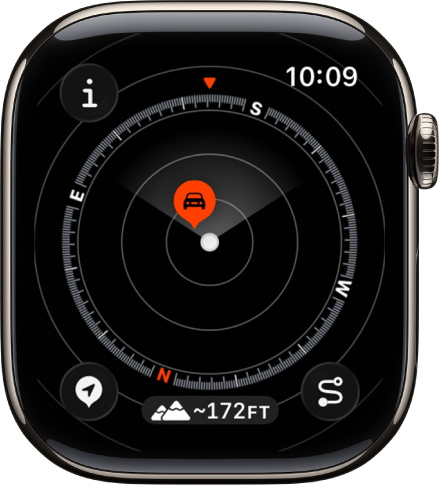
  2. Turn the Digital Crown down to see the waypoints near you. Keep turning the Digital Crown to expand the range up to 50 miles.

    The Compass app showing a waypoint within a dial. The Info button is at the top left, the Waypoints button is at the bottom left, the Elevation button is at the middle bottom, and the Backtrack button is at the bottom right.

  3. Do any of the following:

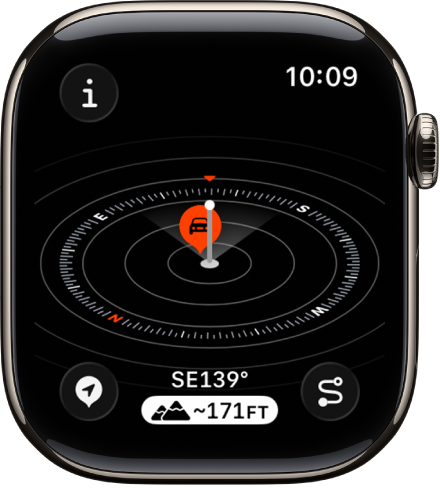
    • View waypoints relative to your current elevation: Tap the Elevation button.

      The Compass app showing the Elevation view. A waypoint is on a tilted dial. A white post indicates the current elevation, which is taller than the other waypoints on the dial. The Info button is at the top left, the Waypoints button is at the bottom left, the Elevation button is at the middle bottom, and the Backtrack button is at the bottom right.

    • See the distance, direction, and relative elevation of a waypoint: Tap a waypoint, turn the Digital Crown to select a waypoint, and tap Select.
    • Browse waypoints: Tap the Info button, then tap Waypoints.

See also

Tag: Compass

The Compass app shows the direction your Apple Watch is facing, as well as your current location and elevation. You can create waypoints and then find the distance and direction between them, or be alerted when you’ve exceeded a particular elevation.

It can even estimate the point where your Apple Watch was last able to establish a cellular connection or make an SOS call. And you can use Backtrack to retrace your steps, or use true north rather than magnetic north. You can see your bearing, elevation, and coordinates, too.

Note: Your coordinates and elevation may not be available in certain countries or regions. If you remove the Compass app from your iPhone, it’s also removed from Apple Watch.

View your bearing, elevation, and coordinates

  1. Open the Compass app on your Apple Watch.
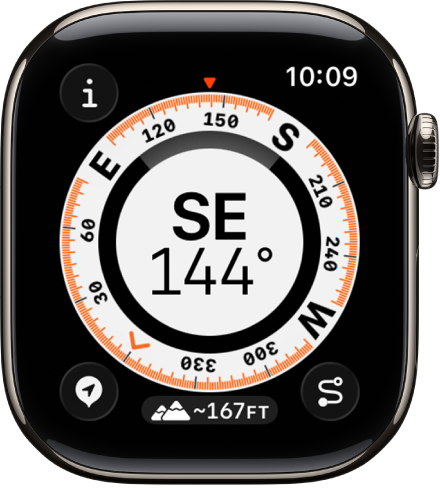
  2. See your bearing in the center and your elevation at the bottom.

    The Compass app showing a dial with the compass heading in the middle, a dot representing a waypoint in the inner ring, and compass points on the outer ring. The Info button is at the top left, the Waypoints button is at the lower left, the Elevation button is at the middle bottom, and the Backtrack button is at the lower right.

  3. Do any of the following:

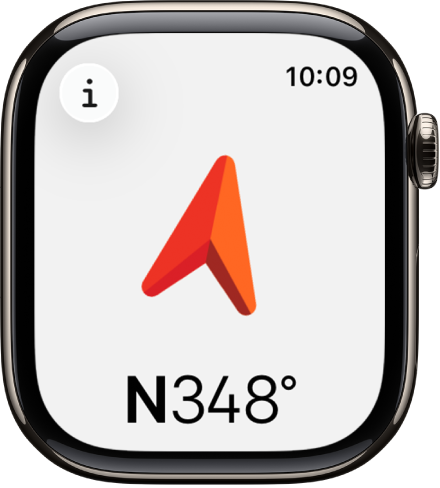
    • See your heading: Turn the Digital Crown up.

      The Compass app showing a large arrow pointing in the direction of the heading that appears below. The Info button is at the top left.

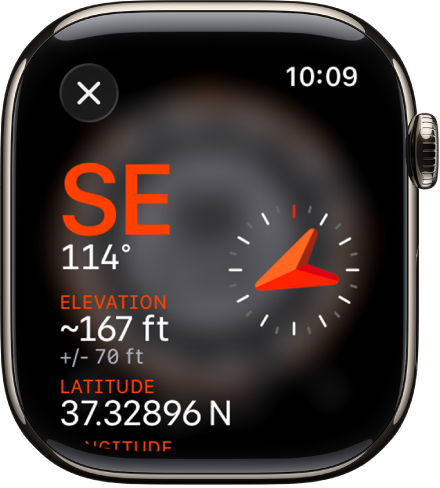
    • See the latitude and longitude: Tap the Info button.

      The Compass app showing the Info screen. The bearing appears at the middle left with compass direction (southeast) and degrees (114 degrees). Current incline and elevation are shown below. A compass indicator is on the right. A close button is at the top left.

Set a bearing and target elevation alert

  1. Open the Compass app on your Apple Watch.
  2. Tap the Info button.
  3. Set any of the following:

    • Bearing: Tap Bearing, turn the Digital Crown to the intended bearing, and then tap the Checkmark button.
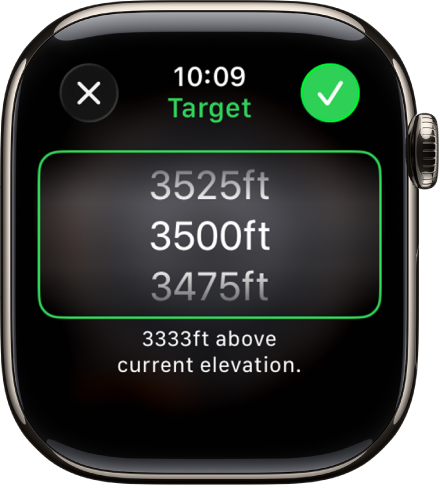
    • Target elevation alert: Tap Set Target Alert, turn the Digital Crown to the target elevation, and then tap the Checkmark button.

      The Compass app showing the Target Elevation screen. A scrolling list of elevations appears in the middle of the screen. Below the list is an indication of how far the selected elevation is above or below your current elevation. At the top are Close and Check buttons.

Use true north

To use true north rather than magnetic north, do the following:

  1. Open the Settings app on your Apple Watch.
  2. Tap Compass, then turn on Use True North.

On the Compass settings screen, you can also choose a grid system, such as DMS, decimal degrees, MGRS/USNG, or UTM.

If you see a red spinning radar screen

A red spinning radar screen that appears when you open the Compass app may be caused by any of the following:

  • Apple Watch may be in a poor magnetic environment: Compass can be affected by magnetic materials in some watch bands.
  • Location Services is turned off: To turn Location Services on or off, go to the Settings app on your Apple Watch, tap Privacy, then tap Location Services.
  • Compass Calibration is disabled: To turn Compass Calibration on or off, go to the Settings app on your iPhone, go to Privacy & Security > Location Services, then tap System Services.

See also

Tag: Compass

You can use Backtrack in the Compass app to track your route and then help you retrace your steps in case you get lost.

On Apple Watch Ultra models, you can even start Backtrack with the Action button.

Here’s how to use Backtrack to retrace your steps on Apple Watch.

Note: Backtrack is for use in remote settings—away from familiar places like your home or workplace—and outside densely populated areas with Wi-Fi. Backtrack does not account for external conditions, such as changes in elevation or objects in the environment.

Record and retrace your path

  1. Open the Compass app on your Apple Watch.
  2. To begin recording your route, tap the Backtrack button. Then tap Record Path.
  3. To retrace your steps, tap the Record Steps button. Tap Retrace Path.

    The path back to the location where you first tapped the Backtrack button appears on the screen. The initial location appears as a white dot at the beginning of the path.

  4. Follow the path back to return to where you first turned on Backtrack.
  5. When you’re finished, tap the Retrace Steps button, then tap Delete Path.

Quick tip: On Apple Watch Ultra models, pressing the Action button starts Backtrack quickly. See our guide, Use the Action button on Apple Watch Ultra models.

See also

Tag: Compass