Got a tip for us?

Apple Watch turns on and off with the side button, and the watch face appears when it’s on. If it won’t turn on, it may need to be charged, and sometimes you need to force it to restart. You can also learn how to wake and unlock Apple Watch.

Turn on Apple Watch

  1. Press and hold the side button until the Apple logo appears.
  2. The watch face appears when Apple Watch is on.

An Apple Watch that won’t turn on may need to be charged, or you may need to force it to restart.

Turn off Apple Watch

  1. If Apple Watch is charging, disconnect it from the charger.
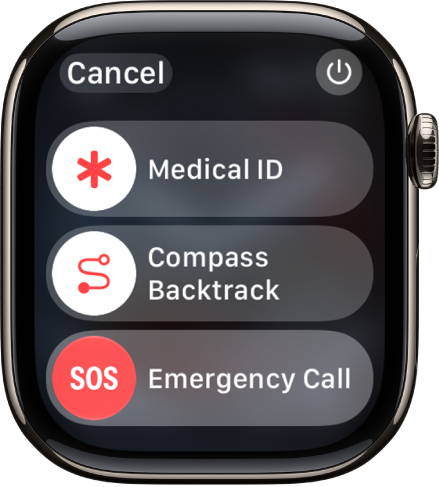
  2. Press and hold the side button until the sliders appear.

    The Apple Watch screen showing the sliders for Medical ID, Compass Backtrack, and Emergency Call. The Power button is at the top right.

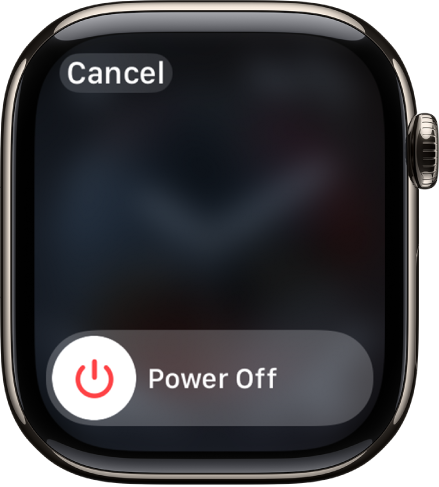
  3. Tap the Power button at the top right. Drag the Power Off slider to the right.

    The Apple Watch screen showing the Power Off slider. Drag the slider to turn off Apple Watch.

See also

Tag: Setup

Wake the Apple Watch display, then customize how long it stays active before automatically locking. Apple Watch uses a passcode to keep your personal information secure. You can unlock Apple Watch manually or set it to unlock automatically when you unlock your iPhone.

It’s simple. By default, the display wakes when you raise your wrist, and your watch sleeps again when you lower it, and you can lock it manually, too.

Wake the Apple Watch display

The Apple Watch display wakes up by default when you do the following:

  • Raise your wrist. Your Apple Watch sleeps again when you lower your wrist.

    If your Apple Watch doesn’t wake when you raise your wrist, make sure you selected the proper wrist and watch orientation.

  • Tap the display.
  • Press or turn the Digital Crown.

If your Apple Watch doesn’t wake when you tap the display or press or turn the Digital Crown, it may need charging.

Unlock Apple Watch

  • Enter the passcode: Wake Apple Watch, then enter the watch passcode.
  • Unlock Apple Watch when you unlock your iPhone: Go to the Apple Watch app on your iPhone, tap My Watch, tap Passcode, then turn on Unlock with iPhone.

    Your iPhone must be within normal Bluetooth range (about 33 feet or 10 meters) of your Apple Watch to unlock it. If Bluetooth is off on Apple Watch, enter the passcode on your watch to unlock it.

Change when Apple Watch automatically locks

Wrist Detection is on by default. It locks your Apple Watch automatically when you’re not wearing it.

  1. Open the Settings app on your Apple Watch.
  2. Tap Passcode, then turn Wrist Detection on or off.

Turning off Wrist Detection affects these Apple Watch features:

  • When you use Apple Pay on your Apple Watch, you’re prompted to enter your passcode when you double-click the side button to authorize the payment.
  • Some Activity measurements are unavailable.
  • Heart rate tracking and notifications are turned off.
  • Apple Watch no longer automatically locks and unlocks.
  • Apple Watch doesn’t automatically make an emergency call even after it has detected a hard impact fall.

Lock manually

  1. Press the side button to open Control Center.
  2. Tap the Lock button.

The next time you try to use your Apple Watch, you need to enter your passcode.

See also

In the Translate app, you can translate text and voice into any supported language. You can also download languages to translate entirely on a device, even without an internet connection.

When you travel to a location with a language that’s different from your Apple Watch, Translate appears as a suggested widget in the Smart Stack. Your words translate as you type or speak, and you can play the audio translation and save translations as favorites, too.

Note: Translation is available for supported languages.

Translate text or your voice

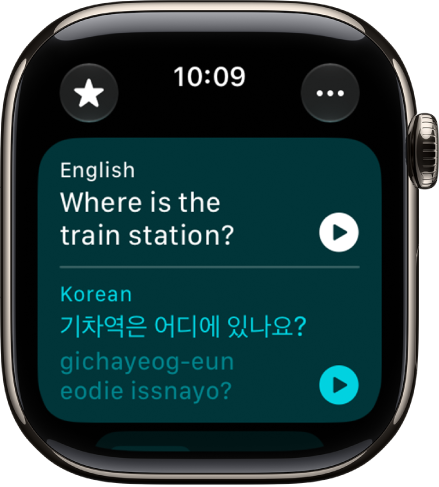
A screen in the Translate app showing an English phrase at the top translated to Spanish at the bottom.

  1. Open the Translate app on your Apple Watch.
  2. Tap the language you want to translate your selected text to.

    To swap languages, tap the Swap button.

  3. Tap the Microphone button, then say a phrase.

    To translate with the keyboard, tap the More button, scroll down to Mode of Input, then tap Keyboard.

    Note: Words are translated as you type or speak.

  4. When the translation is shown, do any of the following:

    • Play the audio translation: Tap the Play button.

      To automatically hear the translation, tap the More button, then tap Play Translations.

    • Save the translation as a favorite: Swipe left and tap the Favorite button.
    • Delete the translation: Swipe right and tap the Delete button.

View your favorite translations

  1. Open the Translate app on your Apple Watch.
  2. Tap the Favorites button and then turn the Digital Crown to view your saved translations.

    To remove a translation from your favorites, swipe left, then tap the Unfavorite button.

Note: Your favorite translations show up in the Translate app on any iPhone, iPad, or Apple Watch that’s signed in to your Apple Account.

Review words with multiple meanings

If a word you’re translating has several meanings, you can choose the one you want, and for words with grammatical gender variations, you can select feminine or masculine translations.

Note: Translations automatically default to the gender-neutral form of a word when gender hasn’t been specified.

  1. Start the Translate app on your Apple Watch.
  2. Tap the Microphone button, then say a phrase.

    To translate with the keyboard, tap the More button, scroll down, tap Preferred Input, then tap Text.

    Note: Words are translated as you type or speak.

  3. When available, do any of the following:

    • Choose a different meaning: When available, tap the light-colored word to select the intended meaning.
    • Choose grammatical gender translations: When available, tap the light-colored word to select a feminine or masculine translation.

Download languages

You need to download both the input and output languages to enable offline translation.

Note: When using Apple Watch with cellular service, cellular data charges may apply.

  1. Start the Translate app on your Apple Watch.
  2. Tap the More button and tap Downloaded Languages.
  3. Tap a language you want to download.

Change Translate settings

  1. Open the Translate app on your Apple Watch.
  2. Tap the More button and then do any of the following:
    • Automatically play translations: Tap Auto-Play Translations.
    • Change the playback speed: Tap a speed.
    • Change the mode of input: Tap Preferred Input and tap Voice or Text.

See also

You can compose, edit, and unsend messages, send stickers, GIFs, and other rich content, and share your location.

To start a conversation, you can choose a recent contact, speak the name of a contact or dictate a phone number, or choose from your full list of contacts. You can even send stickers, GIF images, audio clips, Digital Touch effects, and more in a conversation.

Here’s how to write messages on Apple Watch.

Start a conversation on Apple Watch

  1. Open the Messages app on your Apple Watch.
  2. Tap the New Message button at the top of the screen.
  3. Tap Add Contact and then do one of the following:
    • Choose a recent contact: Tap a contact from the list of recent conversations.
    • Speak the name of a contact or dictate a phone number: Tap the Microphone button.
    • Choose from your full list of contacts: Tap the Add Contact button.
    • Enter a phone number: Tap the Keypad button.
  4. Tap Create Message. Dictate, type, or scribble your message.
  5. Tap Done and tap Send.

Send stickers, GIF images, audio clips, Digital Touch effects, and more

  1. Open the Messages app on your Apple Watch.
  2. In a message conversation, tap the Apps button. Choose an option.

Send your location

Along with sending a pin to your current location, you can share your location as it updates automatically, for one hour, until the end of the day, or indefinitely.

  1. Open the Messages app on your Apple Watch.
  2. In a message conversation, tap the Apps button and tap Location.
  3. Tap Share, then choose an option.

For the steps, read our guide, Set up Find My on Apple Watch.

Edit a sent message

Within 15 minutes of sending a message, you can edit it up to five times.

  1. Open the Messages app on your Apple Watch.
  2. Select a conversation with the message you want to edit.
  3. Touch and hold the message bubble, then tap Edit.
  4. Make any changes. Then tap Done to resend with edits.

    Note: The message is marked as Edited in the conversation transcript.

The message bubble is updated to reflect your edits on your recipient’s device, and both of you can tap Edited to see previous versions of your message.

If you’re messaging someone on a device with watchOS 9, iOS 15.7, iPadOS 15.7, macOS 12.6, or earlier, they receive follow-up messages instead, each with your new message in quotation marks and the preface “Edited to”. And if a message was sent with SMS, it can’t be edited.

Unsend a message

You have up to 2 minutes after sending a message to undo it.

  1. Open the Messages app on your Apple Watch.
  2. Touch and hold the message bubble and tap Undo Send.

    A note confirming that you unsent the message appears in both conversation transcripts: yours and your recipient’s.

Unsending a message removes it from your recipient’s device.

If the person you’re messaging is on a device with macOS 12.6, iOS 15.7, iPadOS 15.7, watchOS 9, or earlier, the original message stays in the conversation. When you unsend one, a notification tells you the recipient may still see the original in the message transcript.

See also

With Apple Intelligence on your paired iPhone, you can use Live Translation for text messages on Apple Watch. Live Translation is integrated into the Messages app and uses Apple-built models that run entirely on device, so your personal conversations stay private.

First, you download the input and output languages. Then translations automatically appear inline when you receive a text in another language. If Live Translation isn’t on yet, you’re prompted to turn it on.
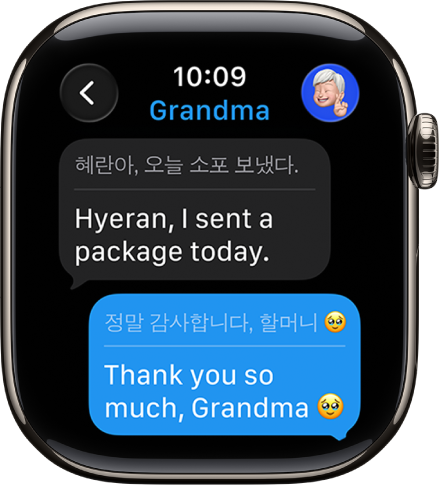
Apple Watch showing a conversation translated in the Messages app.

Note: Live Translation in Messages is available in Apple Intelligence-supported languages when your Apple Watch is paired with an Apple Intelligence-enabled iPhone. Apple Intelligence is not available on all iPhone models or in all languages or regions.*

Download languages

To use Live Translation features in the Messages app, you’ll first need to download the input and output languages.

Note: When using Apple Watch with cellular service, cellular data charges may apply.

Translate messages

When you’ve turned on Apple Intelligence on your paired iPhone and you receive a text in another language, translations appear inline automatically.

  1. Open the Messages app on your Apple Watch.
  2. In a Messages conversation, tap the contact icon at the top right.
  3. Turn on Auto-translate. Select the languages you want to translate.

    Note: When you receive a message in a different language, you receive a prompt to turn on Live Translation.

  4. To view the original text, tap the language at the bottom of the conversation. Then choose to see the original text in addition to the translated text.

Choose a different language

  1. Open the Messages app on your Apple Watch.
  2. Tap a conversation. Tap the contact icon at the top right.
  3. Scroll down, tap Translate From or Translate To, and then choose a language.

Turn off Live Translation for the conversation

  1. Open the Messages app on your Apple Watch.
  2. Tap a conversation. Then tap the language at the bottom of the conversation.
  3. Tap Stop Translating.

To start translating again, tap the contact icon at the top right, scroll down, then turn on Auto-translate.

*Apple Intelligence is available with Siri and device language set to Chinese (Simplified), Chinese (Traditional), Danish, Dutch, English, French, German, Italian, Japanese, Korean, Norwegian, Portuguese, Spanish, Swedish, Turkish, or Vietnamese. Some features may not be available in all regions or languages. Some devices may not be available in all regions. Siri AI is available in beta in iOS 27, iPadOS 27, macOS 27, watchOS 27, and visionOS 27 and requires an Apple Intelligence–enabled device set to a supported language. Available in English to start. Siri AI will not be initially available in the EU on iOS, iPadOS, and watchOS. Certain Apple Intelligence features that rely on server-side models are subject to daily usage limits, including but not limited to Siri AI, Intelligent Photo Editing Tools, Image Playground, and AFM 3 Cloud models in Shortcuts. Daily limits may vary by feature, request complexity, system demand, system policies, and other factors. Expanded access to such features will be available for a fee in the future. Use of these features is subject to the Apple Intelligence Terms and Conditions.


In the Messages app, you can read incoming text messages, then reply with a quick reaction or suggested response.

You can also send a reply by dictating, typing, or scribbling, mute or delete a conversation, and choose how to be notified of new messages. You can see when a message was sent, and use information in a message, like dates, flight numbers, and package tracking codes.

Here’s how to read and respond to messages on Apple Watch.

WARNING: For important information about avoiding distractions that could lead to dangerous situations, see Important safety information for Apple Watch.

Read a message on Apple Watch

  1. When you feel a tap or hear an alert sound telling you that a message has arrived, raise your Apple Watch to read it. If the message arrived a while ago, swipe down from the top of the screen to see the notification. Then tap it.
  2. Turn the Digital Crown to read more of the message. To return to the beginning, tap the top of the screen.

    Tip: Swipe left on a message to see when it was sent. You can also tap information within a message—like dates, flight numbers, package tracking codes, and currency amounts—to see relevant actions, such as creating a calendar event or tracking a package.

Send a reply

A message conversation. The Apps button and message field are at the bottom.

When you’re in a message conversation, do any of the following:

  • Send a reaction: Double-tap the message bubble, then choose a tapback—such as a thumbs up or heart.
  • Send a suggested reply: Scroll down to see the suggestions, then tap one to send it.
  • Compose a reply: Tap the text field, then dictate, type, or scribble your response.
  • Reply to a specific message: Double-tap the message bubble, scroll down, then tap Reply.

Mute or delete a conversation

  1. Start the Messages app on your Apple Watch.
  2. In the Messages conversation list, swipe left on a conversation. Do any of the following:
    • Mute the conversation: Tap the Notifications Off button.
    • Delete the conversation: Tap Trash button.

Choose how to be notified of new messages

  1. Start the Apple Watch app on your iPhone.
  2. Tap My Watch, tap Apps, and tap Messages.
  3. Tap Custom to set options for how you want to be notified when you receive a message.

If you’re using a Focus that doesn’t allow Messages notifications, you won’t receive a notification.

Detect sensitive content

If you choose, your Apple Watch can detect and blur sensitive photos and videos before you view them.

  1. Start the Settings app on your iPhone.
  2. Tap Privacy & Security, then tap Sensitive Content Warning.
  3. Turn on Sensitive Content Warning and then make sure AirDrop and Messages are turned on.
  4. To view the content after being warned, tap Show and tap I’m Sure.

    To learn how to deal with sensitive content, tap Ways to Get Help.

Turn on this setting, and it affects images and videos on your Apple Watch as well as on iPhone.

Note: Apple doesn’t have access to the photos or videos.

See also

With Fall Detection turned on, Apple Watch can help alert emergency services when a hard fall has been detected and notify your emergency contacts.

When it detects a hard fall, your watch taps your wrist, sounds an alarm, and displays an alert. You can have Fall Detection on at all times or only during workouts.

Note: Apple Watch cannot detect all falls. Your watch might detect high-impact activity as a fall and trigger Fall Detection.

If you use Emergency SOS, your emergency contacts won’t be automatically notified if the Messages app isn’t the selected text messaging app or is deleted.

How Fall Detection works

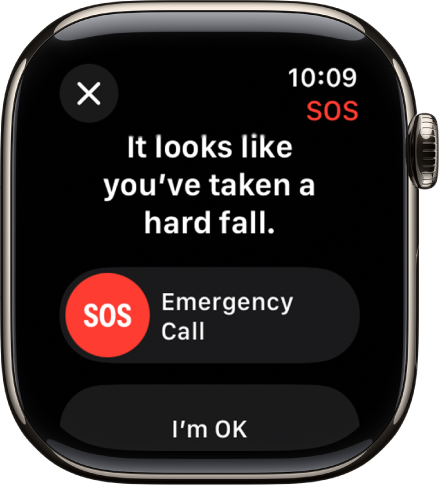
When your Apple Watch detects a hard fall, it taps your wrist, sounds an alarm, and displays an alert.

The Fall Detection screen showing the SOS slider to start an emergency call and the I’m OK button.

  • If you’re able to respond: If you don’t need help, tap I’m OK. If you need emergency services, drag the Emergency Call slider to the right. Your Apple Watch makes the call to emergency services and you can speak to a responder.

    If you don’t need emergency services and the call has been made, don’t hang up. Wait until a responder answers, then explain that you don’t need help.

  • If you’re unresponsive: When Apple Watch detects that you’re immobile for about a minute, it begins a 30-second countdown, while tapping you on the wrist and sounding an alert. The alert gets louder, so that you or someone nearby can hear it. If you don’t want to call emergency services, tap Cancel.

    When the countdown ends, your Apple Watch automatically tries to contact emergency services. When the call connects, Apple Watch plays an audio message that informs emergency services that your watch detected a hard fall, and shares your current location as latitude and longitude coordinates. Your Medical ID is also shared with emergency services (if you turned on Share During Emergency Call for your Medical ID). The first time the message plays, the audio is at full volume, but then the volume is reduced so that you, or someone nearby, can talk to the responder. The message continues to play until you tap Stop Recorded Message or the call ends.

Note: To contact emergency services, your Apple Watch or nearby iPhone needs a cellular connection or Wi-Fi calling with an internet connection.

If you’re off the grid without cellular and Wi-Fi coverage, Apple Watch can try to contact emergency services via satellite. (Available on supported Apple Watch Ultra models* or other Apple Watch models paired with iPhone 14 or later.)

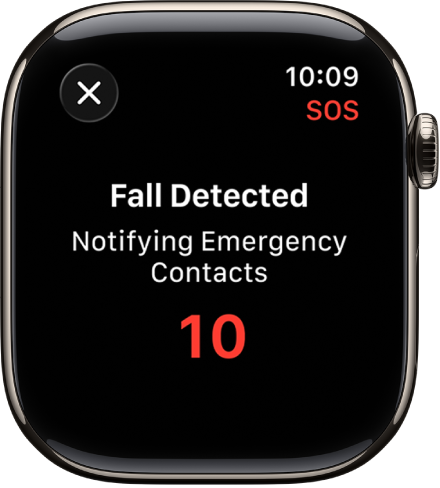
After the call ends, Apple Watch sends a message to your emergency contacts to tell them your location, and that your watch detected a hard fall and contacted emergency services.

A screen showing “Fall Detected” and a countdown to notify emergency contacts.

Set up Fall Detection

  1. Open the Settings app on your Apple Watch.
  2. Tap SOS, tap Fall Detection, and turn on Fall Detection.

    You can also go to the Apple Watch app on your iPhone, tap My Watch, tap Emergency SOS, then turn on Fall Detection.

    Note: If you turn off wrist detection, Apple Watch won’t automatically attempt to call emergency services even after it has detected a hard impact fall.

  3. Choose Always on to have Fall Detection on at all times, or Only on during workouts to have Fall Detection on only when you’ve started a workout.

    If you’re between age 18 and 55, and setting up a new Apple Watch with watchOS 8.1 or later, Fall Detection only during workouts is turned on automatically. If you upgrade your existing Apple Watch from an earlier version of watchOS, you must manually turn on the “Only on during workouts” feature.

  4. On your paired iPhone, open the Health app, set up your Medical ID with important health information and your emergency contacts. Then turn on Share During Emergency Call.

*Satellite features aren’t available on Apple Watch Ultra 2 and earlier models, aren’t available in all countries and regions, and aren’t offered on models sold in certain countries and regions. Satellite features are free for 2 years after the activation of your Apple Watch Ultra. Messages and location sharing via satellite require an active carrier plan.

See also

Apple Watch provides several features that can help keep you safe and assist in a variety of emergency situations.

Check In can automatically notify a friend when you’ve arrived at a destination, and a Medical ID shows important medical information on your Lock Screen. There’s also Fall Detection, Crash Detection, the siren on Apple Watch Ultra, and satellite communication.

Check In

Check In can automatically notify a friend when your Apple Watch arrives at a destination, when a workout session ends, or after a specific period of time has passed. If you don’t successfully complete your check in, you choose what details they can see.

Use Check In to let friends know you’ve arrived

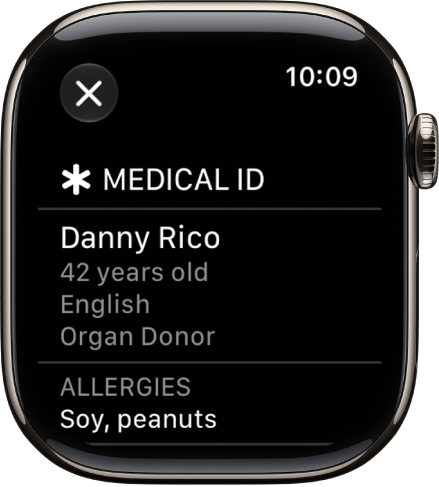
The Medical ID screen showing the person’s name, age, language, organ donor status, and emergency contacts.

Medical ID

You can create a Medical ID that shows important medical information on the Lock Screen of your Apple Watch. In an emergency, those attending to you can see such details as your age, blood type, medical conditions, and any allergies you may have.

Set up and view Medical ID

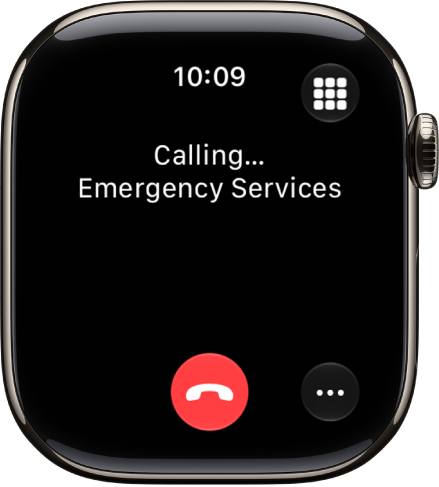
A screen showing a call to emergency services in progress.

Contact emergency services

Press and hold the side button on Apple Watch to call emergency services or use Siri or Messages to make contact. Add emergency contacts to alert your friends and family to an emergency.

Contact emergency services

The Fall Detection screen showing the SOS slider to start an emergency call.

Fall Detection

With Fall Detection turned on, Apple Watch can help alert emergency services when a hard fall has been detected and notify your emergency contacts.

Manage Fall Detection

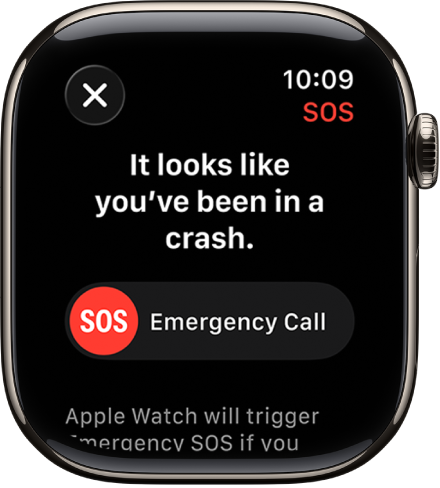
The Crash Detection screen showing the SOS slider to start an emergency call.

Crash Detection

With Crash Detection turned on, Apple Watch can help alert emergency services when a severe car crash has been detected and notify your emergency contacts.

Manage Crash Detection

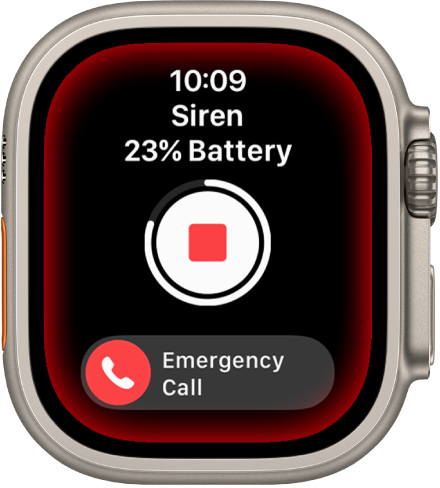
Siren counting down. Near the top is the battery charge, in the middle is a Play button, and at the bottom is the Emergency Call slider.

Siren

To try to attract help, Apple Watch Ultra models include a built-in siren that emits high-intensity sound patterns across a wide range of frequencies.

Activate the siren

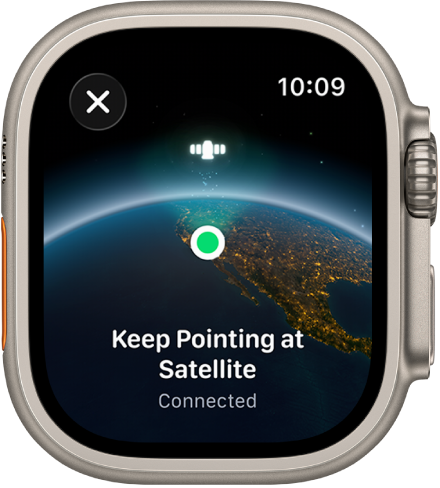
A screen showing a satellite icon over a curved view of Earth, a green connection indicator, and “Keep Pointing at Satellite” text.

Communicate via satellite

On supported Apple Watch Ultra models*, you can connect to a satellite to text emergency services, message friends and family, and share your location—all while you’re off the grid without cellular and Wi-Fi coverage.

Set up satellite communications

Per Apple, not all features are available in all areas and on all models.

*Satellite features aren’t available on Apple Watch Ultra 2 and earlier models, aren’t available in all countries and regions, and aren’t offered on models sold in certain countries and regions. Satellite features are free for 2 years after the activation of your Apple Watch Ultra. Messages and location sharing via satellite require an active carrier plan.

See also

A Medical ID provides information about you that may be important in an emergency, like allergies and medical conditions. When you set up your Medical ID in the Health app on your iPhone, that information is also available on your Apple Watch.

If you share your Medical ID, your Apple Watch can send your medical information to emergency services when you call or text 911 or use Emergency SOS (U.S. and Canada only). Your Apple Watch can also display your Medical ID so that it’s available to someone attending to you in an emergency.

The Medical ID screen showing the person’s name, age, language, organ donor status, and emergency contacts.

Set up your Medical ID on iPhone

On your paired iPhone, go to the Health app, then set up your Medical ID with important health information and your emergency contacts. You may also want to turn on Share During Emergency Call.

View your Medical ID on Apple Watch

  1. Press and hold the side button until the sliders appear.

    The emergency services screen. Near the top is the Medical ID slider, in the middle is the Compass Backtrack slider, and at the bottom is the Emergency Call slider.

  2. Slide the Medical ID slider to the right.
  3. Tap Done when you’re finished.

You can also go to the Settings app on your Apple Watch, tap SOS, then tap Medical ID.

See also

Tag: Health

On supported Apple Watch Ultra models, you can set up satellite features to text emergency services, message friends and family, and share your location—all while you’re off the grid without cellular and Wi-Fi coverage.

It’s best to do it before you go outside of cellular or Wi-Fi coverage. You set up Emergency SOS via satellite and try the demo, then set up Messages and location sharing via satellite. Satellite features are free for 2 years after you activate your watch.

Note: Satellite features aren’t available on Apple Watch Ultra 2 and earlier models, aren’t available in all countries and regions, and aren’t offered on models sold in certain countries and regions. Satellite features are free for 2 years after the activation of your Apple Watch Ultra. Messages and location sharing via satellite require an active carrier plan.

Before you begin

To set up your Apple Watch Ultra to use Emergency SOS, Messages, and location sharing via satellite, do the following before you go outside of cellular or Wi-Fi coverage:

  • Set up and pair Apple Watch Ultra (if you haven’t done so already).

    Note: Satellite features may take some time to become active after you first set up Apple Watch Ultra.

  • Add the following shortcuts:

  • Set up Emergency SOS via satellite and try the demo.
  • Set up Messages via satellite.
  • Set up location sharing via satellite.

Set up Emergency SOS via satellite and try the demo

Note: The Emergency SOS demo doesn’t start a call to emergency services.

  1. Create your Medical ID.
  2. Add emergency contacts.
  3. Make sure you have the Messages app on Apple Watch Ultra. (Required for sharing information with emergency contacts.)
  4. Practice using Emergency SOS via satellite with the demo before you head off-grid:
    • In Control Center: Tap the satellite icon and tap Try Demo.
    • On the watch face: Tap the satellite icon and tap Try Demo.
    • In the Settings app: Tap SOS, scroll down, and tap Try Demo.

Set up Messages via satellite

  1. Make sure iMessage is turned on—open the Settings app on your iPhone and tap Apps. Tap Messages.
  2. Verify that the SIM on your Apple Watch Ultra is active. SMS availability depends on your carrier. Carrier fees may apply; check with your carrier for details. See Set up and use cellular service on Apple Watch.
  3. Make sure you’ve exchanged messages within 30 days with the people you want to contact via satellite. If not, send them a message on your Apple Watch Ultra before you go outside of cellular and Wi-Fi coverage.

Set up location sharing via satellite

  1. Go to the Find My app on your Apple Watch Ultra.
  2. Tap the button at the top left and scroll down. Tap Me.
  3. Below My Location, check the following:
    • Your location is being shared from your paired iPhone and Apple Watch Ultra.
    • Share My Location is turned on.
  4. Tap the button at the top left, tap People, and then add the people you want to share your location with.

See also