Got a tip for us?

You can set media to automatically play when you begin a workout type—either media selected for you by Apple Music based on the workout type and the music you love (Apple Music subscription required), or media you choose yourself. You’ll set it up separately for each workout type.

Note: To automatically play audio during a workout, you need Bluetooth® headphones or speakers, since audio won’t play automatically through the Apple Watch speaker (supported models). For more, see our guide, Choose an audio destination.

Choose audio for a workout

  1. Go to the Workout app on your Apple Watch.
  2. Turn the Digital Crown to the workout you want to do.

    To view all workouts, tap the Add button at the bottom of the screen.

  3. Tap the Media Playback button. Then turn on Autoplay Media.
  4. Pick what media is played:

    • To have media play automatically based on what you listen to and the type of workout, tap Picked for You (Apple Music subscription required).
    • To choose a suggested option, tap Choose Media, tap Add Media, then tap an option below Suggestions.

      Note: Suggestion for a workout type are based on what you’ve recently listened to. To view more options, tap Music or Podcasts below Sources.

    • To choose a playlist, tap Choose Media, tap Add Media, tap Music, tap Playlist, then choose a playlist.
  5. When you’re finished, tap the Back button.
  6. When you’re ready start your workout, tap the Start button.

Note: If you’re already listening to music or other audio before you begin your workout, it continues to play.

See also

Tags: Fitness, Music

When you add music to your Apple Watch, you can listen to it wherever you go, even when you don’t have your iPhone with you.

You can add specific playlists and albums using the Apple Watch app on your iPhone. If you’re an Apple Music subscriber, you can also add music with the Music app directly on your Apple Watch.

And subscribers don’t have to choose specific music at all. Music you’ve recently listened to is added automatically, and if you haven’t listened to anything, music recommended by Apple Music is added. Music is added when your watch is near your iPhone, and music you want to listen to on your Apple Watch, like music that motivates you during a workout, can go in its own playlist.

Add music using your iPhone

  1. Start the Apple Watch app on your iPhone.
  2. Tap My Watch, tap Apps, and then tap Music.
  3. Below Playlists & Albums, tap Add Music.
  4. Go to albums and playlists you want to sync to your Apple Watch and then tap the Add List button to add them to the Playlists & Albums queue.

Apple Watch adds music when it’s near your iPhone.

Quick tip: In the Music app on your iPhone, you can create playlists specifically for the music you want on your Apple Watch, like songs that motivate you during a workout.

Add music using your Apple Watch

As an Apple Music subscriber, you can add music right from your Apple Watch.

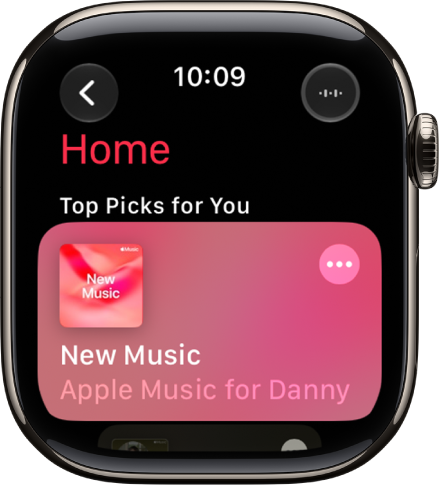
A screen in the Music app showing the Home tab.

  1. Start the Music app on your Apple Watch.
  2. On the Home screen, go to the music you want to add.

    Or, from the Home screen, tap the Back button, tap Search, then enter what you’re looking for.

  3. Tap a playlist or album and tap the More Options button. Tap Add to Library.

    A message confirms that the item was added.

    Note: You can stream music you add to Apple Watch when you have an internet connection. To play music when you’re not connected to the internet, you must first download it.

  4. To download the music to Apple Watch, tap the More Options button again and tap Download.

Note: Downloading music uses more of your Apple Watch’s charge than normal when it isn’t connected to power.

See also

Tag: Music

In the Tips app, see collections of tips that help you get the most from your Apple Watch. You can discover new features in watchOS, learn how to customize your watch, and more.

You can quickly access the latest tips with the Tips widget in the Smart Stack or the Tips complication on the watch face. You can also find more resources for Apple Watch software and service.

Here’s how to use the Tips app on Apple Watch.

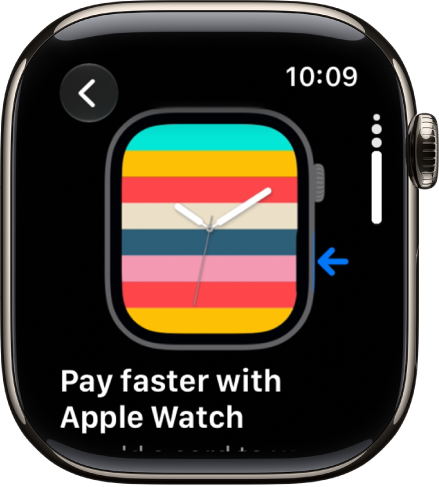
A tip showing in the Tips app.

View tips on Apple Watch

  1. Open the Tips app on your Apple Watch.
  2. Tap a tips collection. Scroll down to read the tip.
  3. To replay an animated tip, tap the Replay button.
  4. Tap the Try It button (if available), to see how the tip works on your Apple Watch.

Quickly access the latest tips

See also

Tag: Tips

Settings on Apple Watch stay in sync, so a change you make in one place updates in the others. For quick access to common settings like volume, Wi-Fi, Bluetooth, and Focus modes, there’s Control Center. You can adjust Apple Watch settings in these places:

  • On your iPhone using the Apple Watch app
  • Directly on your watch using the Settings app
  • In Control Center for commonly used settings—like Wi-Fi, Bluetooth, and Focus modes

Note: You can find some settings only in the Apple Watch app on iPhone.

All these places keep settings in sync, so a change in one updates the others.

Find and change settings in the Apple Watch app

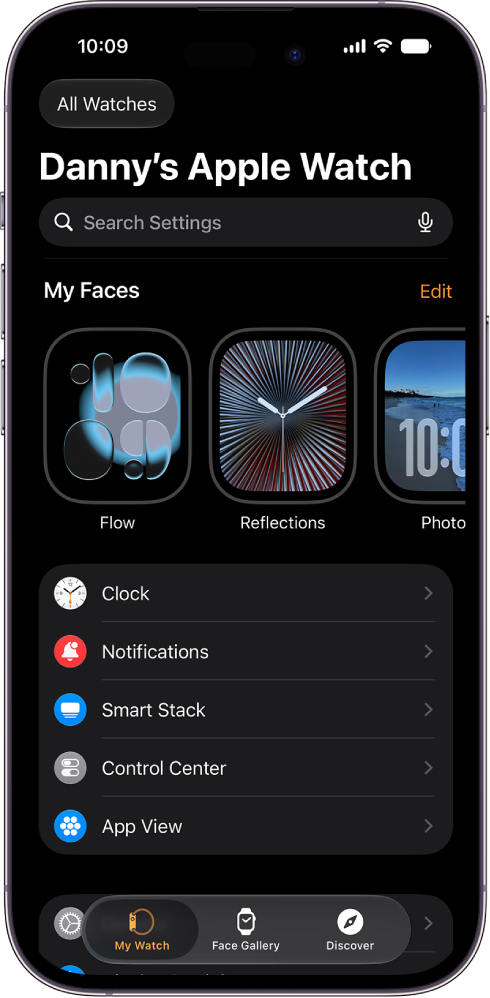
  1. Open the Apple Watch app on your iPhone.
  2. Tap My Watch to see the settings for your Apple Watch.

    If you have more than one Apple Watch paired with your iPhone, you see the settings for your active Apple Watch.

    The Apple Watch app on iPhone open to the My Watch screen, which shows your watch faces near the top and settings below. There are three tabs at the bottom of the Apple Watch app screen: the left tab is My Watch, where you go for Apple Watch settings; next is the Face Gallery, where you can explore available watch faces and complications; then Discover, where you can learn more about Apple Watch.

  3. To find a setting, tap the search field. Then enter what you’re looking for.

Adjust preferences in the Settings app on Apple Watch

  1. Open the Settings app on your Apple Watch.
  2. To browse the settings, swipe up or down or turn the Digital Crown.
  3. Tap a setting and make adjustments.

Make quick adjustments in Control Center on Apple Watch

Common settings, such as Wi-Fi, volume, Bluetooth, and Focus modes, are conveniently accessible.

  1. Press the side button to open Control Center.
  2. Adjust any of the controls.

See also

You can use the double tap gesture to do common actions such as answer a call, reply to a message, scroll through supported apps, and open and scroll through the Smart Stack. In the Smart Stack, the single tap gesture selects a widget.

Both gestures use your index finger and thumb. And when the double tap icon shakes, double tap isn’t available for that screen. The double tap gesture isn’t supported in some situations, too.

Perform the single tap gesture

Tap your index finger and thumb together.

Perform the double tap gesture

Tap your index finger and thumb together twice.

When double tap isn’t available

If the double tap icon shakes from side to side, double tap isn’t available for that screen or third-party app.

Note: The double tap gesture isn’t supported in the following situations:

  • Low Power Mode is turned on.
  • Sleep Focus is active.
  • The display is inactive because your wrist is down.
  • Apple Watch is locked.
  • Accessibility features that use hand gestures are turned on.
  • Apple Watch is set up for a family member.

Customize the tap gestures

Choose what a double tap does when playing media:

  1. Start the Settings app on your Apple Watch.
  2. Tap Tap Gestures and then set any of the following:
    • Playback: Choose Play/Pause or Skip.
    • Ignore Tap Gestures: Temporarily ignore tap gestures while using Apple Vision Pro.
    • Off: Turn Tap Gestures off if you don’t want to use them.

You can also go to the Apple Watch app on your iPhone, tap My Watch, tap Gestures, then tap Double Tap.

See also

Tag: Setup

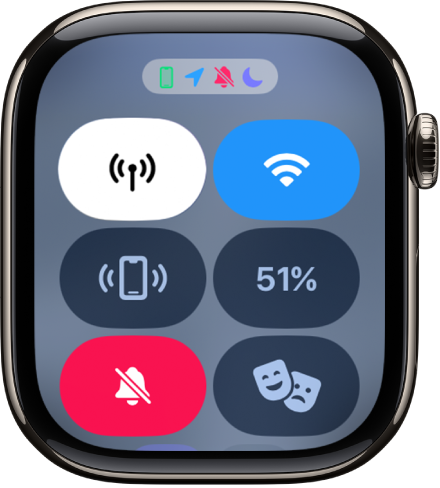
The icons at the top of the Apple Watch face and Control Center provide status information such as unread notifications and Low Power Mode. It’s a lot to decode. Icons at the top of Control Center provide even more, like the connection to iPhone via Bluetooth and the Wi-Fi or cellular connection.

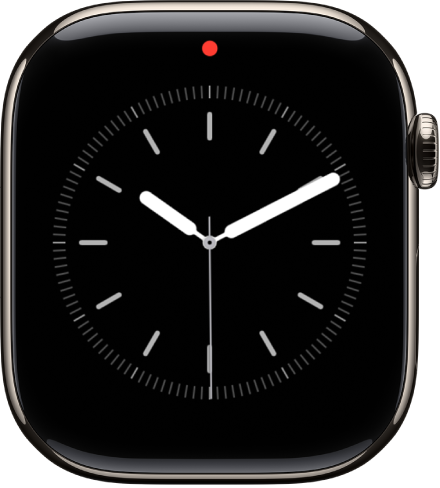
A red dot at the top center of the watch face, indicating unread notifications.

What do the status icons mean?

Status icon What it means
Notification icon You have an unread notification. Swipe down on the watch face to read it.
Charging icon Apple Watch is charging.
Low battery icon Apple Watch battery is low.
Low Power Mode icon Low Power Mode is on.
Lock icon Apple Watch is locked. Tap to enter the passcode and unlock.
Water Lock icon Water Lock is on, and the screen doesn’t respond to taps. Press and hold the Digital Crown to unlock.
Do Not Disturb icon Do Not Disturb is turned on. Calls and alerts won’t sound or light up the screen, but alarms are still in effect.
Personal Focus icon Personal Focus is turned on.
Work Focus icon Work Focus is turned on.
Sleep Focus icon Sleep Focus is turned on.
Airplane Mode icon Airplane Mode is turned on. Wireless is turned off, but nonwireless features are still available.
Theater Mode icon Theater Mode is turned on. Apple Watch is silenced and its display won’t light up when you raise your wrist.
Workout icon You have a workout in progress. To end the workout, see Use the workout controls.
No cellular icon—Apple Watch with cellular only Apple Watch has lost the connection to a cellular network (on models that support cellular). See Set up and use cellular service.
Disconnected iPhone icon Apple Watch has lost the connection with its paired iPhone. This happens when Apple Watch isn’t close enough to iPhone, or when Airplane Mode is enabled on iPhone.
Connected iPhone icon Apple Watch is connected to its paired iPhone.
Location indicator icon An app on Apple Watch is using location services.
Wi-Fi icon Apple Watch is connected to a known Wi-Fi network.
Wireless activity icon There’s wireless activity or an active process happening.
Microphone icon The microphone is on.
Cellular signal icon Apple Watch is connected to a cellular network. The number of green bars indicates signal strength.

Check the status in Control Center

For additional status information, check the icons at the top of Control Center. They show things like apps using your location, the Wi-Fi or cellular connection, the connection to iPhone via Bluetooth, and features such as Airplane Mode or Do Not Disturb.

  1. Press the side button to open Control Center and then see the status icons at the top.

    Status icons in Control Center showing iPhone connected, Location Services, Silent Mode, and Do Not Disturb.

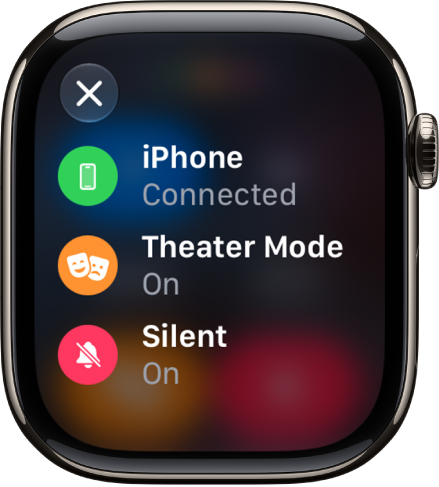
  2. To see more details, tap the icons.

    The status details showing iPhone connected, Location being used by Messages, Silent Mode turned on, and Do Not Disturb turned on.

See also

Tag: watchOS

If your iPhone is set up to use more than one language, you can choose which one appears on your Apple Watch. And if you’d like to move your Apple Watch to your other wrist, or you’d rather have the Digital Crown on the other side, your orientation settings make the Digital Crown move things in the direction you expect.

Choose the language or region

With your iPhone set up to use more than one language, you can pick which one appears on your Apple Watch.

  1. Start the Apple Watch app on your iPhone.
  2. Tap My Watch and tap General.
  3. Tap Language & Region, then tap Custom.
  4. Choose a language on your iPhone or tap Add Language to choose a different one.

    For languages that use grammatical gender, you can choose your term of address to specify how you would like to be addressed throughout the system (feminine, masculine, or neutral).

Switch wrists or Digital Crown orientation

When you move your Apple Watch to your other wrist or want the Digital Crown on the other side, adjust your orientation settings. That way, your Apple Watch wakes when you raise your wrist, and the Digital Crown moves things in the direction you expect when you turn it.

  1. Start the Settings app on your Apple Watch.
  2. Tap General, then tap Orientation.

You can also adjust the orientation settings on your iPhone—go to the Apple Watch app, tap My Watch, tap General, then tap Watch Orientation.

See also

Some airlines let you fly with Apple Watch (and iPhone) turned on if you put them in Airplane Mode. In Control Center on Apple Watch, Airplane Mode disables Wi-Fi and cellular while keeping Bluetooth active.

You can also mirror this setting with iPhone, so turning on Airplane Mode on one device turns it on for the other. And you can change the defaults, choosing whether Wi-Fi and Bluetooth turn off. Both devices must be within normal Bluetooth range to mirror.

Turn Airplane Mode on or off

  1. Press the side button to open Control Center on Apple Watch.
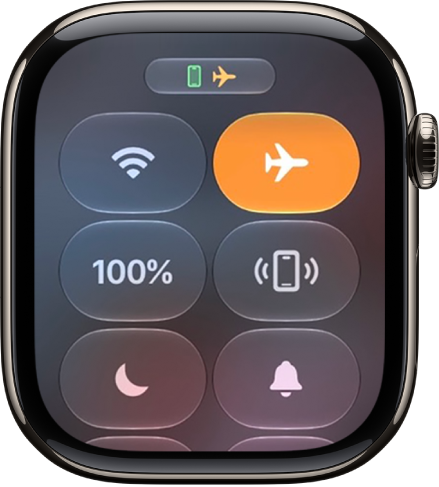
  2. Tap the Airplane Mode button.

    Control Center with the Airplane Mode button highlighted to show that Airplane Mode is on.

Turn on Airplane Mode for both Apple Watch and iPhone

When you set Apple Watch to mirror your iPhone, switching to Airplane Mode on one device switches the other device to match. For this to work, iPhone and Apple Watch need to be within normal Bluetooth range of each other, that’s about 33 feet or 10 meters.

  1. Open the Apple Watch app on your iPhone.
  2. Tap My Watch and tap General. Then tap Airplane Mode.
  3. Turn on Mirror iPhone.

Change the default settings for Airplane Mode

By default, turning on Airplane Mode turns off Wi-Fi and cellular (on Apple Watch models with cellular) and keeps Bluetooth turned on. To change the default settings for Wi-Fi and Bluetooth, do the following:

  1. Open the Settings app on your Apple Watch.
  2. Tap Airplane Mode and turn Wi-Fi and Bluetooth on or off.

See also

You can manage the medications, vitamins, and supplements you take in the Health app on your iPhone or iPad. In the Medications app on your Apple Watch, you can keep track of your medications and log them with reminders.

You set up a medication schedule on your iPhone or iPad first. You can also turn on Follow Up Reminders and Critical Alerts.

Here’s how to track your medications on Apple Watch.
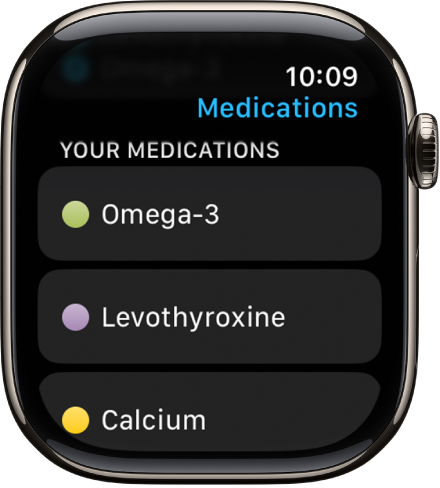
The Medications app showing a list of all medications.

Note: The Medications feature should not be used as a substitute for professional medical judgment. Additional information is available on the labels of your medications, but please consult your healthcare provider prior to making any decisions related to your health.

Set up a medication schedule on iPhone or iPad

  1. Go to the Health app on your iPhone or iPad.
  2. Do one of the following:

    • On iPhone: Tap Browse and tap Medications.
    • On iPad: Tap the sidebar, then tap Medications.
  3. Tap Add a Medication (to start your list) or Add Medication (to add to your list).
  4. To identify the medication, do one of the following:

    • Type the name: Tap the search field, enter the name, and then tap Add.

      In the U.S. only, suggestions appear as you begin typing. You can select a suggestion, or finish typing the name, then tap Add.

    • Use the camera: (U.S. only; on iPhone SE (2nd generation and later), iPhone XS, iPhone XR, and later) Tap the Camera button next to the search field. Follow the onscreen instructions.

      If a match isn’t found, tap Search by Name, then type the name (as described above).

  5. Do the following:

    • Choose the medication type: Tap an option and tap Next.
    • Choose the medication strength: Tap an option and tap Next.
    • Set a schedule: Follow the onscreen instructions to set the frequency and duration of your scheduled medication. Then tap Next.

      Tap Change under “When will you take this?” to choose a different schedule type, like On a Cyclical Schedule, or Every Few Days.

    • Choose the shape (optional): Tap an option and tap Next.
    • Choose the colors (optional): Tap an option and tap Next.
  6. When you’re finished, tap Done.

Log your medications

By default, your Apple Watch reminds you when it’s time to log your medications based on the schedule you’ve created in the Health app on iPhone or iPad. To log your medications, follow these steps.

Note: Health app data only syncs across devices that are signed in to the same Apple Account, have internet access, and run the latest OS version.

  1. If you’ve received a notification to log your medications, tap the notification. Otherwise, open the Medications app on your Apple Watch.
  2. Tap the current medications schedule—the medications you take in the morning, for example.
  3. Tap Log All as Taken.

    Apple Watch records the dosage, the number of units taken, and the time you took the medication.

  4. To log individual medications, scroll down, tap Taken below a medication, and tap the Done button.

    The medication’s name and time logged appears below Logged.

  5. To change the status of a logged medication, tap it and tap Taken or Skipped. Then tap the Done button.
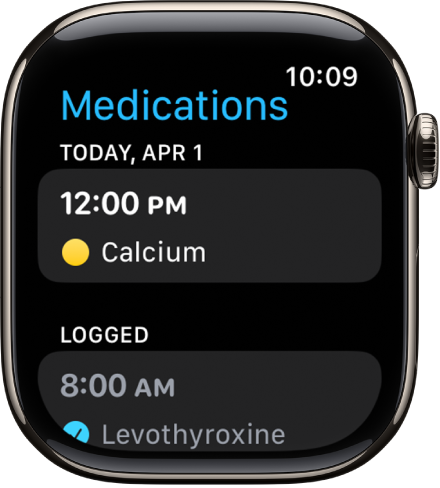
The Medications app showing logged medications.

To view the log and your medication history on your iPhone, open the Health app, tap Browse, then tap Medications. On iPad, open the Health app, tap the sidebar, then tap Medications.

Turn on Follow Up Reminders and Critical Alerts

If you set a medication schedule, the Health app sends notifications reminding you to log the medication. You can also get follow-up reminders when a medication hasn’t been logged 30 minutes after the scheduled time.

  1. Go to the Health app on your iPhone or iPad.
  2. Do one of the following:

    • On iPhone: Tap Browse and tap Medications.
    • On iPad: Tap the sidebar, then tap Medications.
  3. Tap Options at the bottom of the screen and turn on Follow Up Reminders.

    When you turn on Follow Up Reminders, you can also turn on Critical Alerts for each of your medications. Critical Alerts appear on the Lock Screen and play a sound (even if a Focus is on or your iPhone is muted).

  4. To receive critical alerts, tap Critical Alerts and tap the button next to a medication. Tap Allow.

To turn off all critical alerts, go to the Settings app on your iPhone or iPad, tap Apps, tap Health, tap Notifications, then tap the button next to Critical Alerts.

See also

Tag: Health

On supported models, Apple Watch can detect when you start washing your hands and encourage you to keep going for 20 seconds, the time recommended by global health organizations.

It starts a 20-second timer when it detects handwashing, and if you stop early, you’re encouraged to finish.

Turn on Handwashing

  1. Start the Settings app on your Apple Watch.
  2. Tap Handwashing and turn on Handwashing Timer.

Apple Watch starts a 20-second timer as soon as it detects that you’ve started washing your hands. Stop washing in less than 20 seconds, and your watch encourages you to finish the job.

To see a report of your average handwashing times, go to the Health app on your iPhone, tap Browse, tap Other Data, then tap Handwashing.

See also

Tag: Health