Got a tip for us?

You can personalize the Magnifier app to show your most frequently used controls for easy access. You can also create custom activities for recurring tasks and customize settings of live scene descriptions.

Up to two of your controls can be primary controls, which appear on the main screen when Magnifier opens. You can also set your preferred controls for an activity.

Here’s how to customize controls in Magnifier on iPhone.

Add or remove controls

  1. Open the Magnifier app on your iPhone.
  2. Tap the Settings button and then do any of the following: Show or hide Ask Magnifier, Capture, or Detection Mode: Tap Ask Magnifier, Capture, or Detect, then turn Show in Control Panel on or off.

    • Add or remove other controls: Tap the Insert button or the Remove button next to a control.

    You can choose up to two primary controls.

    Primary controls appear on the main screen when you open Magnifier.

    If you add more than two controls, you can swipe up on the control panel at the bottom of the screen to access secondary controls.

    Reorder other controls: Drag the Reorder button next to a control to move it up or down.

Control Description
Brightness Adjust the brightness.
Contrast Adjust the contrast.
Filters Apply a color filter. When you add the Filters control, you can select just the filters you use most often.
Flashlight Turn on the flashlight.
Focus Lock Lock the magnifier focus.
Cameras Switch between the front and rear cameras, or choose Close-up when you need to see something very small that’s very close to the camera. Note: Close-up is available on iPhone 13 Pro and iPhone 13 Pro Max or later.
Capture Mode Switch between modes for taking single photos, multiple photos, or for taking photos of documents.

Set your preferred controls for an activity

For recurring tasks or situations, you can save the controls you use as activities, then switch between different activities as needed.

An activity for reading a menu at a restaurant is one example.

  1. Open the Magnifier app on your iPhone.
  2. Tap the Activities button. Tap Save Current Settings As New Activity to create a new activity using the current controls.
  3. Enter a name for the activity and then tap the Done button.

Customize settings for Ask Magnifier

Ask Magnifier isn’t available on devices without Apple Intelligence.

Note: Apple Intelligence on iOS 27 or later is available on an Apple Intelligence-enabled iPhone 15 Pro, iPhone 15 Pro Max, or iPhone 16 model or later.

Apple Intelligence is not available in all languages or regions, Apple says.

Usage limits may apply.* Go to the Magnifier app on your iPhone.

  1. Tap the Settings button and tap Ask Magnifier.

    Do one of the following: Input: Choose whether to speak or type your questions by default.

    Default Question: Turn on to ask the same question automatically each time you open Ask Magnifier.

    You can use the default question (“What is this?”) or enter your own.

Customize settings for live scene descriptions

  1. Open the Magnifier app on your iPhone.
  2. Tap the Settings button and then tap Detect.
  3. Tap Scenes and then turn on any combination of Labels or Speech feedback.
  4. To return to the live Magnifier lens, tap the Back button, tap it again, and then tap the Done button.

    *Apple Intelligence is available with Siri and device language set to Chinese (Simplified), Chinese (Traditional), Danish, Dutch, English, French, German, Italian, Japanese, Korean, Norwegian, Portuguese, Spanish, Swedish, Turkish, or Vietnamese.

    Some features may not be available in all regions or languages.

    Some devices may not be available in all regions.

    Siri AI is available in beta in iOS 27, iPadOS 27, macOS 27, watchOS 27, and visionOS 27 and requires an Apple Intelligence–enabled device set to a supported language.

    Available in English to start.

    Siri AI will not be initially available in the EU on iOS, iPadOS, and watchOS.

    Certain Apple Intelligence features that rely on server-side models are subject to daily usage limits, including but not limited to Siri AI, Intelligent Photo Editing Tools, Image Playground, and AFM 3 Cloud models in Shortcuts.

    Daily limits may vary by feature, request complexity, system demand, system policies, and other factors.

    Expanded access to such features will be available for a fee in the future.

  5. Use of these features is subject to the Apple Intelligence Terms and Conditions.
You can choose a default calling option for audio calls on your iPhone. You can also choose whether to use your phone number or your Apple Account to make and receive FaceTime calls.

With your Apple Account, you choose whether people can reach you by email address, phone number, or both. Or you can skip signing in and use FaceTime with just your phone number.

Here’s how to set up FaceTime on iPhone.

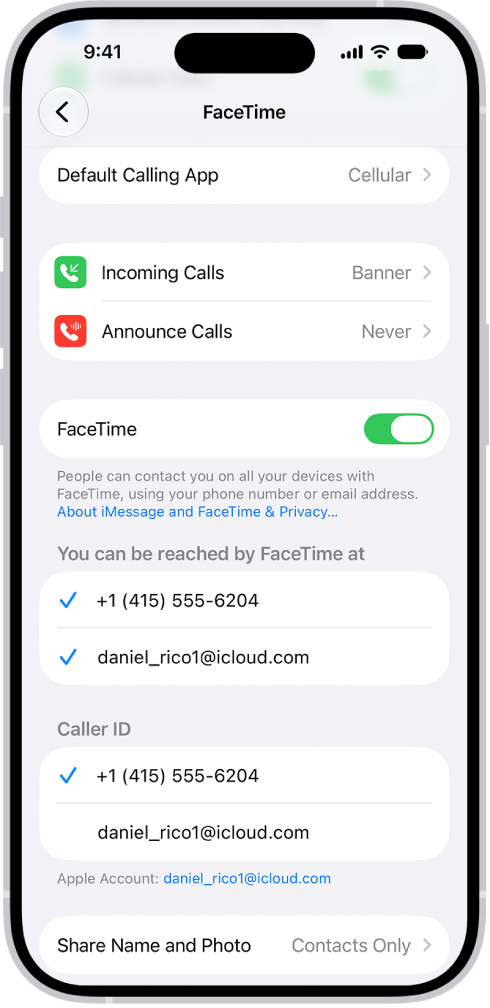
The FaceTime Settings screen, showing the Default Calling App option, the control to turn FaceTime on or off, and the phone number and email address where you can be reached.

Set up FaceTime

  1. Open the Settings app on your iPhone.
  2. Tap Apps, then tap FaceTime.
  3. If FaceTime is turned off, turn it on.
  4. Choose how you want to use FaceTime:

    • With your Apple Account: If you see a sign-in screen, sign in to your Apple Account and enter your password.

      Below “You can be reached by FaceTime at,” choose whether people can reach you through your email address, your phone number, or both. Below Caller ID, choose whether your email address or phone number appears on Caller ID for outgoing calls.

    • With just your phone number: You can skip signing in and use FaceTime with only your phone number as your contact method.
  5. Optionally, tap Default Calling App and then choose a default calling option for audio calls.

To stop using FaceTime, go to the Settings app , tap Apps, then tap FaceTime. Turn off FaceTime (or if you’re signed in to your Apple Account, tap your Apple Account, then tap Sign Out).

In the Find My app on your iPhone, you can create a temporary webpage to share the location of a lost AirTag or other item. For example, you can share the webpage with an airline to help them track your mishandled bag.

You can view and manage the shared item location, and stop sharing location updates when you’re done.

Here’s how to share location of a lost item in Find My on iPhone.

Note: When an item is within proximity of the device sharing your location, you can’t share its location.

Create and share a webpage for location updates

  1. Start the Find My app on your iPhone.
  2. Tap Items, tap the item that you want to share location updates for, and then tap the More button.
  3. Tap Share Item Location.
  4. Follow the onscreen instructions to create and share a temporary webpage.

    Note: To provide updated locations, at least one of your Apple devices where you’re signed in to your Apple Account needs to be online.

  5. Tap Done.

View and manage the shared item location

  1. Start the Find My app on your iPhone.
  2. Tap Items, tap the item with the shared webpage, and tap the More button. Share Item Location.
  3. Tap Share Item Location, then do any of the following:
    • Copy the URL: Tap the field at the top.
    • View the details: View the Visited By and Expiration rows.
    • Share the webpage with additional people: Tap Share Location Link and choose a sharing option (such as AirDrop or Mail).

Stop sharing location updates

Sharing ends after 7 days, when you reunite with the item, or when you stop it manually.

  1. Start the Find My app on your iPhone.
  2. Tap Items and tap the item with the shared webpage. Then tap the More button.
  3. Tap Stop Sharing Item Location.
Tag: Find My

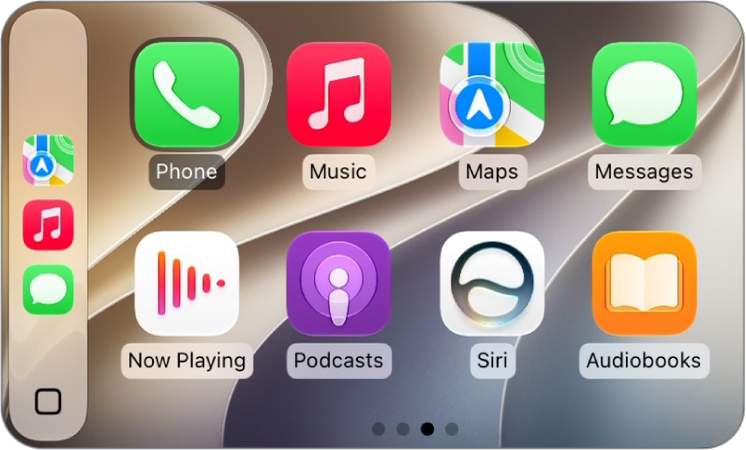
When you’re not driving, you can rearrange the icons on CarPlay Home from the Settings app on your iPhone. You can move an icon, remove one, or add an icon back, and your changes appear the next time you connect to CarPlay.

  1. When you’re not driving, open the Settings app on your iPhone.
  2. Tap General and then tap CarPlay.
  3. Select your vehicle, then tap Customize.
  4. Do one of the following:

    • Move an icon: Drag the Reorder button up or down in the list.
    • Remove an icon: Tap the Delete button next to the icon and then tap Remove.

      Only icons that have the Delete button next to them can be removed.

    • Add an icon back to CarPlay: Below More Apps at the bottom of the page, tap the Insert button next to the icon.

    The CarPlay Home Screen showing Maps, Music, and Messages in the sidebar. To the right is a collection of other app icons.

The next time you connect to CarPlay, you’ll see your icon changes on CarPlay Home.

Tag: carplay

With Music Haptics, you can experience music on iPhone with taps, textures, and refined vibrations that are synchronized with a song’s audio. It’s one switch in Accessibility settings, and you can start or stop Music Haptics as a song plays from Control Center.

Note: Music Haptics is available with supported iPhone models for millions of songs in Apple Music, Music Classical, Shazam, and compatible third-party apps when your iPhone is connected to Wi-Fi or cellular.

  1. Open Settings, tap Accessibility, and then tap Music Haptics.
  2. Turn Music Haptics on.

    To start or stop Music Haptics as a song plays, open Control Center, tap the audio card, then tap the Music Haptics icon. If you see the Music Haptics unavailable icon, Music Haptics isn’t available for the song.

  3. Doing any of the following to customize haptics:

    • Customize: Select Full Mix to play haptics to match the rhythm, beat, and energy of the song. Select Vocals Only to play haptics for vocals or vocal-like melodies.
    • Intensity: Select Light, Medium, or Strong haptic feedback.

Quick tip: The click of a button or another shortcut can control Music Haptics, too.

Tag: Music

In the Home app, you can run automations based on the time of day, your location, the activation of a sensor, or the action of an accessory. You can use preconfigured automations included with the Home app, or create automations of your own.

An automation can run when people arrive at or leave a location, or at a time of day, like sunrise or sunset. You can also manage and edit automations, and add a Siri shortcut.

Thread-based accessories require a Thread-enabled home hub such as Apple TV 4K, HomePod (2nd generation), HomePod mini, or a compatible third-party Thread border router for you to run automations, receive notifications, and control accessories while away.

Use a preconfigured automation

  1. Start the Home app on your iPhone.
  2. On the Home tab, touch and hold an accessory and then tap Accessory Settings.
  3. Turn on an automation.

To disable an automation, return to the accessory’s setting screen, then turn it off.

Create an automation

  1. Start the Home app on your iPhone.
  2. On the Home tab, tap the Add button.
  3. Tap Add Automation and choose one of the following automation triggers:

    • When arriving at or leaving a location: Tap People Arrive or People Leave. Choose when the automation is activated by people arriving or leaving, the location, and the time the automation works.
    • At a time of day: Tap A Time of Day Occurs. Choose when you want this automation to run.

      If you choose Sunset or Sunrise, times vary as the season changes.

      You can also set an automation to only occur after sunset, which is useful for turning on lights just when they’re needed.

    • When an accessory changes: Tap An Accessory is Controlled, select an accessory and tap Next. Follow the onscreen instructions.

      You might use this, for example, to run a scene when you unlock the front door.

    • A sensor detects something: If you’ve added a sensor to Home, tap A Sensor Detects Something, select an accessory, tap Next, and follow the onscreen instructions.

      You might use this, for example, to turn on lights in a stairway when motion is detected nearby.

Manage and edit automations

  1. Start the Home app on your iPhone.
  2. Tap Automation.
  3. Tap an automation and then do any of the following:
    • Enable or disable the automation
    • Choose when the automation happens
    • Add or remove accessories
    • Test the automation
    • Delete the automation

Add a Siri shortcut

Adding a Siri Shortcut to your automation makes it even more efficient.

  1. When choosing accessories to control with an automation, swipe up and tap Convert To Shortcut.
  2. Tap Next, name the automation (optional), then tap Done.
Tag: Home

You can view your health and fitness information in one place. For example, you can check whether your metrics change over time, and see how well you’re meeting goals for activity, sleep, mindfulness, and more.

Your most important health categories, like Medications, Heart Rate, and Steps, can be pinned to the Summary screen, and you can view your highlights and health trends. You can also view trends, highlights, and details for a specific health category.

Customize your pinned health categories on the Summary screen

You can pin the health categories that matter most to you, like Steps, Heart Rate, Medications, and more, and arrange them however you like.

  1. Start the Health app on your iPhone.
  2. Tap Summary, then tap Edit next to Pinned.
  3. Do any of the following:
    • Pin a health category: Tap the Pin button next to a category.
    • Unpin a health category: Tap the Delete button next to a category.
    • Reorder the health categories in your Pinned list: Drag the Reorder button next to an category up or down.
  4. When you’re finished, tap the Done button.

View your highlights

  1. Start the Health app on your iPhone.
  2. Tap Summary and scroll down to Highlights to see highlights of your recent health and fitness data.
  3. Do the following:
    • View more data about a highlight: Tap its graph.
    • View all highlights: Tap Show All Highlights.

View your health trends

Health can alert you to significant changes in data like your resting heart rate, number of steps, and amount of sleep, which helps you keep track of your health data over time. Trend lines show how much these metrics have changed, and for how long.

  1. Start the Health app on your iPhone.
  2. Tap Summary. Scroll down to Trends to view any recent trends.
  3. If Health has detected trends, you can do the following:
    • View more data about a trend: Tap its graph.
    • View all trends: Tap Show All Health Trends.

To receive notifications about your health trends, tap Summary, tap your picture or initials, tap Notifications, then turn on Trends.

View trends, highlights, and details for a specific health category

  1. Start the Health app on your iPhone.
  2. Tap Browse to display the Health Categories screen, then do one of the following:
    • Tap a category. (To see all categories, scroll up and down.)
    • Tap the search field, then type the name of a category (such as Mobility) or a specific type of data (such as Walking Speed).
  3. Depending on the data type, you may be able to do the following:
    • View details about any of the data: Tap the Details button.
    • See weekly, monthly, and yearly views of the data: Tap the tabs at the top of the screen.
    • Manually enter data: Tap Add Data.
    • Pin to the Summary screen: Tap Pin to Summary. (You may need to scroll down.)
    • View which apps and devices are allowed to share the data: Below Options, tap Data Sources & Access. (You may need to scroll down.)
    • Delete data: Tap Show All Data below Options, swipe left on a data record, and then tap Delete. To delete all data, tap Edit and tap Delete All.
    • Change the measurement unit: Tap Unit below Options, then select a unit.

Learn more about health and fitness

  1. Start the Health app on your iPhone.
  2. Tap Summary, then scroll down to Get More From Health or Articles.
  3. Tap an item to learn more.

In many health categories, the details include recommended apps alongside your data.

Tag: Health

With Apple Intelligence, you can use Visual Intelligence to quickly learn more about what’s around you with the iPhone camera. When you activate Visual Intelligence, you can search for visually similar images online, look up details about a restaurant or business, translate or summarize text, identify plants and animals, and more.

You can choose how to activate it, too, and you can even use Visual Intelligence to ask ChatGPT for information.

Here’s how to learn about what’s around you with Visual Intelligence on iPhone.

Note: Siri AI is available in beta on iOS 27 or later on an Apple Intelligence-enabled iPhone 15 Pro, iPhone 15 Pro Max, or iPhone 16 model or later with Siri and device language set to a supported language. Available in English to start. Siri AI will not initially be available in the EU on iOS. Usage limits may apply.

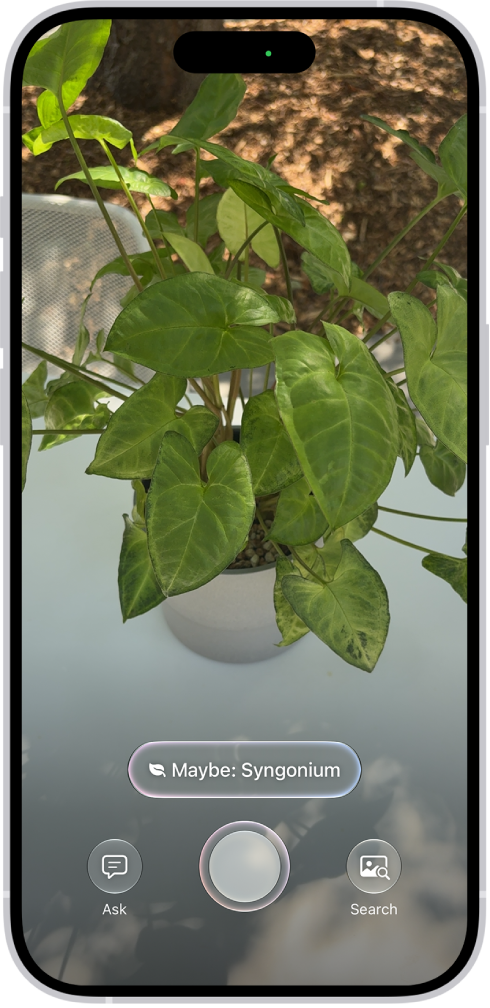
An iPhone in Visual Intelligence showing a plant.

Note: Apple Intelligence on iOS 27 or later is available on an Apple Intelligence-enabled iPhone 15 Pro, iPhone 15 Pro Max, or iPhone 16 model or later. Apple Intelligence is not available in all languages or regions. Usage limits may apply.*

Choose how to activate Visual Intelligence

  • Camera app: If you have Siri AI, open Camera , then tap Siri.
  • Camera Control: On supported models, click and hold the Camera Control.
  • Action button: Customize the Action button on the left side of your iPhone to use Visual Intelligence.
  • Lock Screen: You can add the Visual Intelligence control to the bottom of your Lock Screen to use visual intelligence.
  • Control Center: Swipe down from the top-right corner of the screen to open Control Center, then tap the Visual Intelligence button to use Visual Intelligence. If you don’t see the Visual Intelligence icon , you may need to add it to Control Center.

Use your iPhone to learn about what’s in front of you

When you activate Visual Intelligence, your iPhone camera can help you learn more about your physical surroundings.

  1. Activate Visual Intelligence.
  2. Point your iPhone camera at what’s in front of you. Do any of the following:
    • Get information about a place: Click the Camera Control or tap the name of the business at the bottom of the screen. Tap an option to view hours of operation, place an order for delivery, view the menu or services offered, and more.
    • Identify plants and animals: Tap the result at the bottom of the screen.
    • Create a calendar event: Tap Add to Calendar, then tap Create Event.
    • Interact with text: Depending on the text, choose an option at the bottom of the screen.

Search for visually similar images online

To find items similar to those around you, use Visual Intelligence to search.

  1. Activate Visual Intelligence.
  2. Point your iPhone camera at an object in front of you.
  3. Tap the Search button to search for similar images.
  4. Tap the Close button to close the search results and swipe up from the bottom of the screen to close Visual Intelligence.

Note: Subject to your search provider’s terms of use and data privacy policies.

Use Visual Intelligence to ask ChatGPT for information

With the ChatGPT extension turned on, you can ask ChatGPT about things around you through Visual Intelligence.

  1. Activate Visual Intelligence.
  2. Point your iPhone camera at an object in front of you.
  3. Tap the Ask button to ask ChatGPT about the object. After you tap the Ask button, you can type or dictate a follow-up question in the text field at the bottom of the screen.
  4. Tap the Close button to close the ChatGPT results and swipe up from the bottom of the screen to close Visual Intelligence.

*Apple Intelligence is available with Siri and device language set to Chinese (Simplified), Chinese (Traditional), Danish, Dutch, English, French, German, Italian, Japanese, Korean, Norwegian, Portuguese, Spanish, Swedish, Turkish, or Vietnamese. Some features may not be available in all regions or languages. Some devices may not be available in all regions. Siri AI is available in beta in iOS 27, iPadOS 27, macOS 27, watchOS 27, and visionOS 27 and requires an Apple Intelligence–enabled device set to a supported language. Available in English to start. Siri AI will not be initially available in the EU on iOS, iPadOS, and watchOS. Certain Apple Intelligence features that rely on server-side models are subject to daily usage limits, including but not limited to Siri AI, Intelligent Photo Editing Tools, Image Playground, and AFM 3 Cloud models in Shortcuts. Daily limits may vary by feature, request complexity, system demand, system policies, and other factors. Expanded access to such features will be available for a fee in the future. Use of these features is subject to the Apple Intelligence Terms and Conditions.
In case of emergency, use your iPhone to quickly and easily call for help, share your Medical ID, and alert your emergency contacts, provided that cellular service is available.

If your carrier’s cellular network is unavailable, iPhone displays the SOS only icon and attempts to route any emergency calls through other networks, if available. You can also text emergency services, and dial the emergency number when your iPhone is locked.

On supported models, you may also be able to contact emergency services via satellite if cellular networks are unavailable. Emergency SOS via satellite isn’t available in all countries or regions.

Important: If an emergency call has been made and you don’t need emergency services, don’t hang up. Wait until a responder answers, then explain that you don’t need help.

Quickly call emergency services (all countries or regions except India)

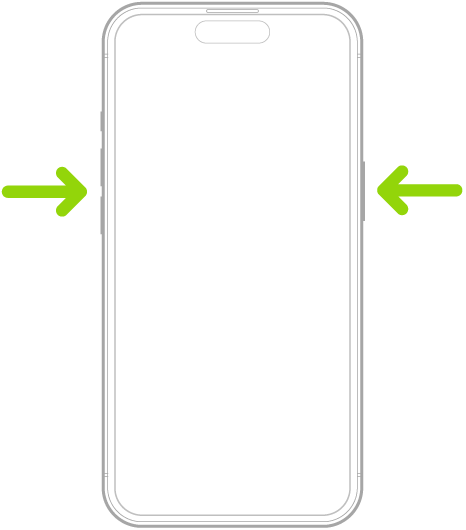
  • Simultaneously press and hold the side button and either volume button until the sliders appear and the countdown on Emergency SOS ends, then release the buttons.

Or, you can enable iPhone to start Emergency SOS when you quickly press the side button five times. Go to Settings > Emergency SOS, then turn on Call with 5 Presses.

An outline of an iPhone with arrows pointing to the side button and either volume button.

Once an emergency call ends, your iPhone sends your emergency contacts a text message alert, unless you choose to cancel. Your iPhone also shares your current location (if available), and your emergency contacts get updates when your location changes for a period of time after you enter SOS mode.

Quickly call emergency services (India)

  • Quickly press the side button three times until the sliders appear and the countdown on Emergency SOS ends.
  • If you’ve turned on Accessibility Shortcut, simultaneously press and hold the side button and either volume button until the sliders appear and the countdown on Emergency SOS ends, then release the buttons.

By default, iPhone plays a warning sound, starts a countdown, then calls the emergency services.

When an emergency call is over, your iPhone alerts your emergency contacts by text message unless you choose to cancel. For a period of time after you enter SOS mode, they receive updates each time your location changes, and your iPhone sends your current location (if available), too.

Dial the emergency number when your iPhone is locked

  1. On the Passcode screen, tap Emergency.
  2. Dial the emergency number (for example, 911 in the U.S.). Tap the Call button.

Text Emergency Services (not available in all countries or regions)

  1. Start the Messages app on your iPhone.
  2. In the To field, type 911 or your local emergency services number.
  3. Type your emergency.
  4. Tap the Send button.

Share live video or existing photos with emergency services (not available in all countries or regions)

If emergency services request it, Emergency SOS Live Video gives you a way to upload existing photos and videos or stream live video to emergency services.

Note: Emergency services can retain a copy of the live video you stream and keep any videos or photos you share.

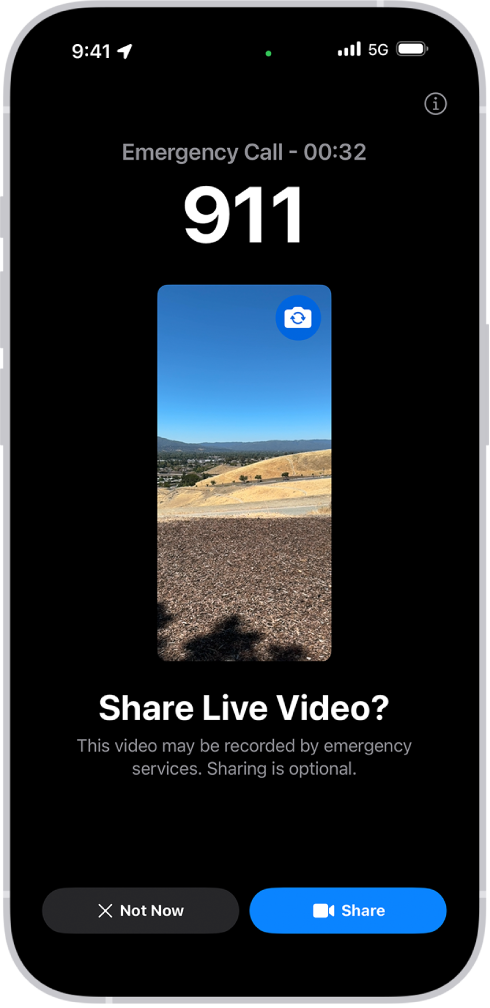
An Emergency SOS Live Video screen showing a 911 phone emergency call with a video preview in the middle. At the bottom are buttons for Not Now and Share Video.

  • If you get a request to share video or photos while on an emergency services call, do any of the following:
    • Share live video: Tap Share when prompted to begin streaming live video to emergency services. You can pause or restart sharing at any time by tapping the Camera button. You can stop sharing at any time by tapping the End Call button, and then tapping Stop Sharing Camera or End Call.
    • Share existing photos or videos: Tap Choose when prompted. Select the photos or videos you want to send to emergency services.
    • Decline: Tap Not Now when prompted if you don’t want to share videos or photos with emergency services.

Note: Emergency SOS Live Video is available on iPhone 14 or later, is subject to device limitations, and may not be available in all situations.

Change your Emergency SOS settings

  1. Open Settings and then tap Emergency SOS on your iPhone.
  2. Do any of the following:
    • Turn “Call with Hold and Release” on or off: Hold and release the side and volume buttons to start a countdown to call emergency services.
    • Turn “Call with 5 presses” on or off: Rapidly press the side button five times to start a countdown to call emergency services.
    • Manage your emergency contacts: In Health, tap Set Up Emergency Contacts or Edit Emergency Contacts.

Important information about emergency calls on iPhone

  • Some cellular networks may not accept an emergency call from iPhone if iPhone isn’t activated, if iPhone isn’t compatible with or configured to operate on a particular cellular network, or (when applicable) if iPhone doesn’t have a SIM card or the SIM card is PIN-locked.
  • In certain countries or regions, your location information (if determinable) may be accessed by emergency service providers when you make an emergency call.
  • Review your carrier’s emergency calling information to understand the limits of emergency calling over Wi-Fi.
  • With CDMA, when an emergency call ends, iPhone enters emergency call mode for a few minutes to allow a callback from emergency services. During this time, data transmission and text messages are blocked.
  • After making an emergency call, certain call features that block or silence incoming calls may be disabled for a short period of time to allow a callback from emergency services. These features include Do Not Disturb, Silence Unknown Callers, and Screen Time.
  • On an iPhone with Dual SIM, if you don’t turn on Wi-Fi Calling for a line, any incoming phone calls on that line (including calls from emergency services) go directly to voicemail (if available from your carrier) when the other line is in use; you won’t receive missed call notifications.

    If you set up conditional call forwarding (if available from your carrier) from one line to another when a line is busy or not in service, the calls don’t go to voicemail; contact your carrier for setup information.

  • When using an iPhone with a USB-C connector and compatible accessory, data transfer over USB 3 and DisplayPort connections is unavailable after an emergency session (call or text) has been initiated, and remains unavailable for up to 5 minutes from the end of the session. This time varies by country or region. To continue using your accessory, disconnect and reconnect your device after this period. Charging is not affected and will continue to function.

There are multiple ways to transfer photos, videos, and other files between your iPhone and other devices like an iPad, Mac, or Windows device.

You can transfer files wirelessly with features like AirDrop or apps like Mail and Messages, or you can connect your iPhone to a computer or an external storage device with a cable, and then transfer or sync files. You can also use iCloud to store your files, photos, videos, and more, and keep everything up to date on all your devices where you’re signed in to the same Apple Account.

Important: Transferring, sharing, or syncing may be restricted for some types of data, such as files saved in an app’s proprietary format, files saved in older software versions, and files protected by copyrights.

Transfer files from your iPhone wirelessly

You can use AirDrop to quickly share a file, photo, or other item from your iPhone with a nearby Apple device.

Another way to transfer files from your iPhone to another device is to send the file as an attachment in the Mail or Messages app.

Transfer files by connecting your iPhone with a cable

With a cable, you can connect your iPhone to your Mac or Windows device to transfer files to a file server, an external storage device, or your computer. To transfer files to your Mac or Windows device, you’ll use the Finder, Apple Devices, or iTunes, depending on your computer’s model and operating system.

Note: You can only transfer files from iPhone apps that support file sharing.

Sync your iPhone with other devices

Connecting your iPhone to your Mac or Windows device also lets you sync supported content, such as music, movies, TV shows, and more. Say you add a movie to your iPhone. When you sync, that movie appears on your computer, too.

Syncing files to your Mac or Windows device works through the Finder, Apple Devices, or iTunes. The one you need depends on the model and operating system of your computer.

  • Sync content with your Mac (macOS 10.15 or later): Use the Finder.
  • Sync content with your Windows device (Windows 10 or later): Use Apple Devices for Windows.
  • Sync content with your Mac (macOS 10.14 or earlier) or Windows device (Windows 7 or earlier): Use iTunes.

Automatically keep your files in sync with iCloud

When you store your files, photos, videos, and more in iCloud, you can access them on all your devices and supported web browsers and keep them in sync. Change a file on a device signed in to your Apple Account, and that change shows up on every device signed in to the same Apple Account.

Note: You’ll need OS X 10.10 (or later) or Windows 7 (or later). Your iPhone, your computer, and any supported web browsers you might be using also need to be signed in to the same Apple Account.

Tags: Files, iCloud