Got a tip for us?

You can connect a compatible game controller to your iPhone through Bluetooth® or a wired connection. You can customize the buttons, add a second controller to get help from a friend, and use your controller to navigate the Apple Games app on iPhone.

With Buddy Controller, two controllers work together to control the same player character. A wired controller may need an adapter, depending on your iPhone model. You can also customize controls for a specific game in the Apple Games app.

Pair a Bluetooth game controller

  1. Follow the instructions that came with the controller to put it in discovery mode.
  2. Start the Settings app on your iPhone.
  3. Tap Bluetooth and turn on Bluetooth. Tap the name of the device.

Connect a wired game controller

Along with wireless ones, you can also connect a compatible wired game controller to your iPhone. Depending on the controller and your iPhone model, you might need an adapter, sold separately, so follow the instructions that came with your controller.

Customize the game controller buttons

Once a compatible game controller is paired or connected, you can customize the buttons for supported games in the Apple Games app.

  1. Start the Settings app on your iPhone.
  2. Tap General and then tap Game Controller.
  3. Select the controller you want to customize. Then do any of the following
    • Customize default controls: Tap Default.
    • Customize controls for a specific game: Tap Add Game and select the game. Tap Default for the selected game.
  4. Select the actions and gestures you want to use with your controller.

Add a second game controller and get help from a friend

Need a friend to help you navigate through a challenging part of a game? With Buddy Controller, iPhone lets you both control the same player character with two controllers. It’s compatible with any game that supports game controllers.

  1. Connect two compatible game controllers to iPhone through Bluetooth or a wired connection.
  2. Start the Settings app on your iPhone.
  3. Tap General and then tap Game Controller.
  4. Tap Buddy Controller.
  5. Choose the primary controller and choose the secondary controller.
Before you can use the Find My app to share your location with friends, you need to set up location sharing.

Once it’s set up, you can share your location with a friend, set a label for your location, and stop or pause sharing whenever you want. You can also respond to a location sharing request, or stop receiving new location sharing requests.

Here’s how to share your location in Find My on iPhone.

Note: When others still can’t see your location after you set up location sharing, check that Location Services is turned on in Settings > Privacy & Security > Location Services > Find My.

Set up location sharing

  1. Start the Find My app on your iPhone.
  2. Tap Me, then turn on Share My Location.

    The device sharing your location appears next to Sharing From.

  3. If your iPhone isn’t currently sharing your location, you can tap Use This iPhone as My Location.

    Note: To share your location from another device, open Find My on the device and change your location to that device. If you share your location from an iPhone that’s paired with Apple Watch (GPS + Cellular models), your location is shared from your Apple Watch when you’re out of range of your iPhone and Apple Watch is on your wrist.

You can also change your location sharing settings in Settings > [your name] > Find My.

Set a label for your location

You can set a label for your current location to make it more meaningful (like Home or Work). When you tap Me, you see the label in addition to your location.

  1. Start the Find My app on your iPhone.
  2. Tap Me and then tap Location Label.
  3. Select a label.

To add a new label, tap Add Custom Label, enter a name, then tap Done.

Share your location with a friend

  1. Start the Find My app on your iPhone.
  2. Tap People, tap the Add button, and choose Share My Location.

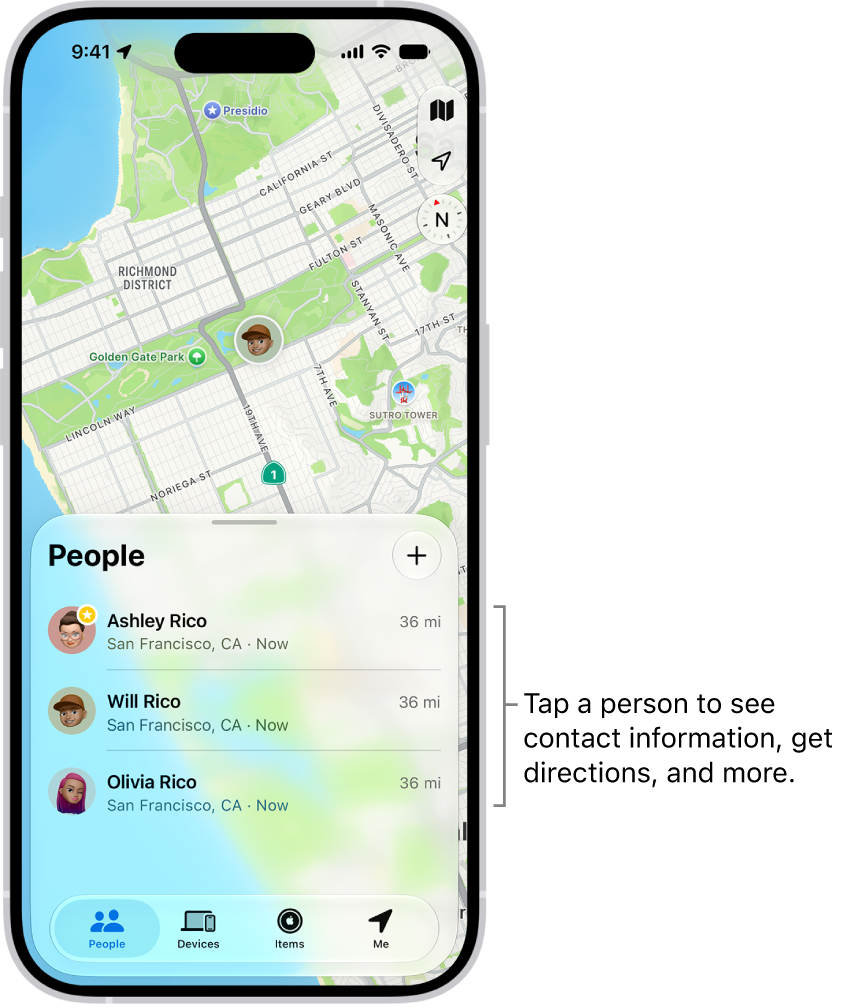
    The Find My People list, with the Add button at the top. Tapping a person in the list shows their contact information, directions, and more.

  3. In the With field, enter the name of a friend you want to share your location with (or tap the Add Contact button, then select a contact).
  4. Tap the Done button. Then choose how long you want to share your location.

Quick tip: Choose Custom and adjust the fields to set a duration or an end time for your location sharing.

You can also notify a friend or family member when your location changes.

Stop or pause sharing your location

Hide your location from everyone, or stop or pause sharing it with a specific friend.

  • Stop sharing with a friend: Tap People , then tap the name of the person you don’t want to share your location with. Tap Stop Sharing My Location, then tap Stop Sharing Location.
  • Pause sharing with a friend: Tap People , then tap the name of the person you want to pause sharing your location with. Tap the More button. then tap Hide Location.
  • Hide your location from everyone: Tap Me , then turn off Share My Location.

Respond to a location sharing request

  1. Start the Find My app on your iPhone.
  2. Tap People.
  3. Tap Share below the name of the friend who sent the request and choose how long you want to share your location.

If you don’t want to share your location, tap Cancel.

Stop receiving new location sharing requests

  1. Start the Find My app on your iPhone.
  2. Tap Me, then turn off Allow Friend Requests.
Tag: Find My

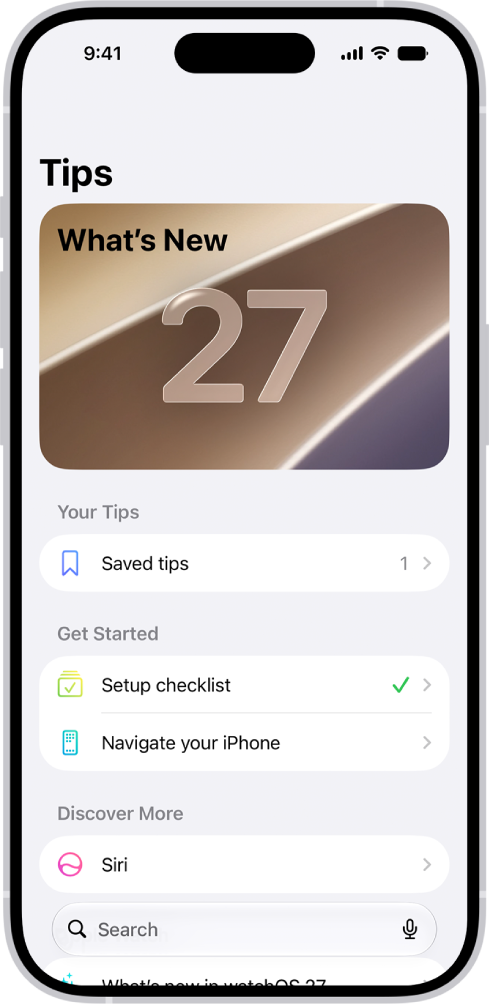
View collections of tips in the Tips app that help you get the most from your iPhone. You can also get notifications every once in a while so you can keep learning new things over time.

In the Tips app, you can learn things like how to access your passwords. New tips are added regularly, and if you’d like, you can get notified when they arrive, save tips to your Saved tips collection, or share a tip.

A screen showing a collection of tips with arrows indicating that you can tap a collection to view the tips in it.

Get tips

The Tips app can teach you how to navigate your iPhone, edit your photos, and much more, and new tips are added regularly.

To start learning, go to the Tips app, tap a collection, then tap a tip.

Get notified when new tips arrive

  1. Go to Settings app on your iPhone.
  2. Tap Notifications, tap Tips below Notification Style, and turn on Allow Notifications.
  3. Choose options for the style of notifications you want to receive, how they should appear, and more.

Save tips

To quickly find tips later, add them to your personal Saved tips collection.

  1. Open the Tips app on your iPhone.
  2. Tap a tip. Tap the Save button to add it to your collection. To remove the tip from your Saved tips collection, tap the Save button again.

To view all the tips you saved, tap “Saved tips.”

Share a tip

To share a tip, send it to a friend over Messages or Mail, or use AirDrop for someone nearby. Tips can also go into apps like Notes and Freeform.

  1. Open the Tips app on your iPhone.
  2. Open the tip you want to share.
  3. Tap the Share button and then choose how to send the tip.
Tag: Tips

When you sign up for services on websites and in apps, you can let iPhone create strong passwords for many of your accounts. iPhone stores the passwords in the Passwords app or your chosen password manager, and fills them in for you automatically. You can also edit a suggested password or ask for a different one.

Note: If you use a third-party password manager, you can accept the strong passwords suggested by the password manager or enter your own. Your passwords are saved in the password manager.

Instead of requiring you to sign in with passwords, participating websites and apps support these alternatives:

  • Sign in with Apple: Lets you use your Apple Account to sign in, and limits the information shared about you.
  • A passkey: Lets you use Face ID or Touch ID to securely sign in without using a password.

Create a strong password for a new account

In most cases, creating a strong password and saving it to the Passwords app consists of steps similar to these, depending on the website or app.

  1. On the new account screen for the website or app, enter a new account name. For supported websites and apps, iPhone suggests a unique, complex password.
  2. Do one of the following:
    • Choose the suggested password: Tap Use Strong Password.
    • Edit the suggested password: Tap Other Options, tap Edit Strong Password, tap the password text field, and make your changes.
    • Get a different strong password: Tap Other Options and tap Edit Strong Password. Tap the suggested password.
    • Get a strong password consisting of only numbers and letters: Tap Other Options and tap No Special Characters.
    • Get a strong password that’s easy to type: Tap Other Options and tap Easy to Type.
    • Make up your own password: Tap Other Options and then tap Choose My Own Password.
  3. To copy the password so you can paste it into a Confirm Password field if asked, tap Other Options. Tap Copy Strong Password.
  4. To securely add and keep notes about recovery key information, security questions, PIN numbers, and similar details, enter them in the Notes field. To view the notes later, open the Passwords app on your iPhone, tap All, and then tap the account.
  5. To later allow iPhone to automatically fill in the password for you, tap Yes when you’re asked if you want to save the password.

Automatically fill in a saved password

The steps for signing in with your saved password usually look like these, depending on the website or app.

  1. On the sign-in screen for the website or app, tap the account name field.
  2. Do one of the following:
    • Tap the account suggested at the bottom of the screen or near the top of the keyboard.
    • Tap the Password AutoFill button, tap Other Passwords, then tap an account.

The password is filled in. To see the password, tap the Show Password Text button. To enter an account or password that isn’t saved, tap the Keyboard button on the sign-in screen.

Turn Password AutoFill on or off

Go to Settings > General > AutoFill & Passwords, then turn on or off AutoFill Passwords and Passkeys. You can automatically fill passwords from up to three passwords apps.

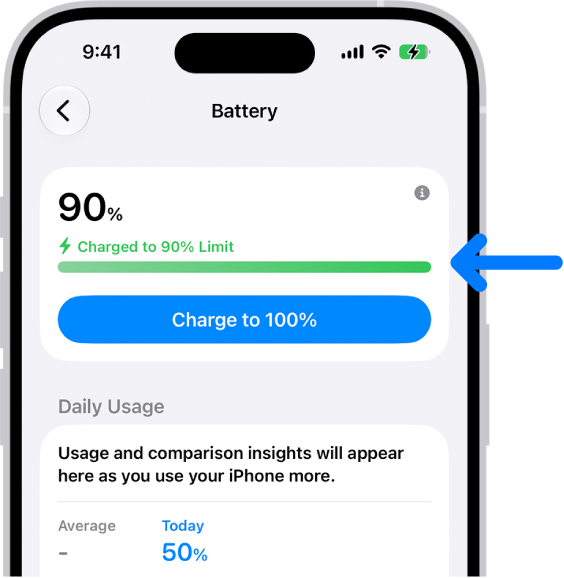
On iPhone 15 and later, you can set a maximum battery level, like 80%, to help reduce battery wear, especially if you charge your iPhone frequently or keep it connected for long periods. iPhone may also recommend a charge limit based on your charging patterns.

When Charge Limit is on, iPhone stops charging when it reaches your selected percentage. But it will occasionally charge to 100%, even with a lower limit set.

The charging information card in iPhone Battery settings. The card shows the battery at 90% with the message “Charged to 90% Limit.” A button provides the option to “Charge to 100%.

What to expect

  • Your iPhone will occasionally charge to 100%—even with a lower limit set—to keep the battery percentage display accurate. This may happen more often if your iPhone isn’t regularly able to complete a full charge.

Set a Charge Limit

  1. Start the Settings app on your iPhone.
  2. Tap Battery and then tap Charging.
  3. Choose the charge percentage that works best for you. You can change or remove the limit anytime.

Change the Charge Limit

  1. Start the Settings app on your iPhone.
  2. Tap Battery and then tap Charging.
  3. Choose the charge percentage that works best for you. If you choose 100%, do any of the following:
    • Temporarily override charge limit: Tap Allow Until Tomorrow. The charge limit will return to your set percentage at 6:00 a.m.
    • Set a new charge limit: Tap Set Limit to 100%. The charge limit will remain at 100% until you change it again.

If you need to temporarily override your charge limit and charge your iPhone to full sooner than scheduled, go to the Settings app, tap Battery, then tap Charge to 100%.

Tag: Battery

With Family Sharing, the organizer can set up Purchase Sharing to share App Store, Apple TV, and Apple Books purchases.

To share purchases, the family organizer must turn on Purchase Sharing and add a payment method. Family members can then opt in to Purchase Sharing, so they can share purchases and view shared purchases. When a family member makes a purchase, the organizer is billed, unless that family member adds a payment method to pay for their own purchases.

When a family member buys something, it’s added to their account, and eligible purchases are shared with the rest of the family. The organizer can also turn off purchase sharing later.

Turn on Purchase Sharing

When the family organizer turns on purchase sharing, they’re the one paying for family members’ purchases, so they need a valid payment method on file. Family members can add their own payment methods, too.

  1. Go to Settings app on your iPhone.
  2. Tap Family, tap Purchase Sharing, and follow the onscreen instructions.

Access shared content

Once purchase sharing is on and you’ve opted in, you can grab eligible apps and content your family members buy.

Turn off Purchase Sharing

You can switch off purchase sharing if you’re the family organizer. Family Sharing members then stop seeing your purchases, but you’ll still see items other members have shared with you.

Note: Even though your items aren’t shared, any purchases you make still use the shared family payment method.

  1. Go to Settings app on your iPhone.
  2. Tap Family, then tap Purchase Sharing.
  3. Tap your name and turn off Share Purchases.
  4. If the organizer wants to turn off purchase sharing entirely, they can tap Stop Purchase Sharing.

As you type, you can use the iPhone keyboard to enter emoji, Memoji, and stickers to express yourself in messages and documents. As you enter text, suggested emoji appear above the keyboard, and you can replace typed text with a suggested emoji.

While entering text in supported apps, you can also make a new sticker from images in your photo library, or create a Memoji. Use a Live Photo, and the sticker even moves.

Add an emoji, Memoji, or sticker

  1. Tap a text field. Then tap the Emoji button or the Next Keyboard key to switch to the emoji keyboard.

    • Swipe left or right to browse emoji, Memoji, and stickers, or do one of the following:
      • Jump to a category: Tap a symbol below the emoji keyboard.
      • See Emoji, Memoji, and stickers you recently used: Tap the Recent Stickers button below the keyboard below the emoji keyboard.
  2. Tap an image to add it to your text field.

    To see variations of an emoji—such as different skin tones—touch and hold the emoji, then drag your finger and release it on the variation you like.

  3. Tap ABC to return to the regular keyboard.

Quick tip: Suggested emoji appear above the keyboard as you enter text. Just tap one to replace your typed text with that emoji.

Make a sticker

Supported apps let you make a new sticker from images in your photo library while you’re entering text.

  1. Tap a text field. Then tap the Emoji button or the Next Keyboard key to switch to the emoji keyboard.
  2. Tap the Stickers button. Then tap the Add Stickers button.

    To search your photo library, enter a term in the search field at the top of screen, or tap a category such as People or Animals.

    Tip: To create a Live Sticker that moves, use a Live Photo.

  3. Tap the photo you want to use. Tap Add Sticker.

Your sticker collection gets the new sticker automatically.

Make or edit Memoji

In supported apps, you can create a Memoji as you enter text, plus edit, delete, or duplicate one that you already created.

  1. Tap a text field. Then tap the Emoji button or the Next Keyboard key to switch to the emoji keyboard.
  2. Tap the Memoji button. Tap the Add button to make your first Memoji or tap the More button to edit, delete, duplicate, or make additional Memoji.
  3. Follow the onscreen instructions to make your Memoji. Then tap the Done button.

Your new Memoji is automatically added to your Memoji collection.

Use the Find My app to locate and play a sound on a missing iPhone, iPad, iPod touch, Mac, Apple Watch, AirPods, or Beats headphones (supported models).

There’s a catch, though: in order to locate a device, you must turn on Find My [device] before it’s lost. Once it’s on, you can see the device’s location on a map, get directions to it, and even locate or play a sound on a friend’s device.

Note: Turn on Precise Location for the Find My app, and you’ll be able to see how far away your devices are from you.

No access to the Find My app after losing your iPhone? You can still locate it or play a sound on it with Find Devices on iCloud.com.

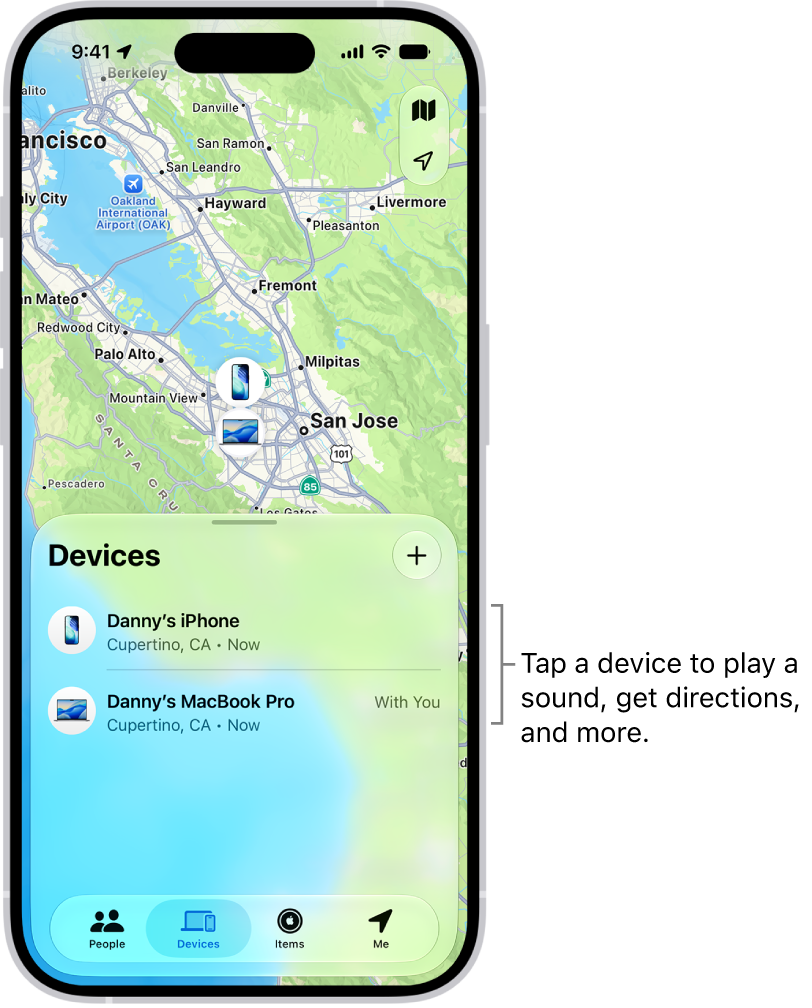
The Find My screen open to the Devices list. There are two devices in the Devices list: Danny’s iPhone and Danny’s iPad. Their locations are shown on a map.

About locating a device

  • You can use Find My on your iPhone to see the location of your device on a map. If the device is online, you see its location, and it plays a sound to help you find it. If the device is offline, you see its location, but it doesn’t play a sound.
  • For AirPods and supported Beats headphones, you can locate them when they’re near your device and connected to Bluetooth®. For supported AirPods, you can also see their location via the Find My network for up to 24 hours after they last connected to your device, even if they’re not nearby.
  • For iPhone Wallet with MagSafe and Find My support, you can see its location when it’s attached to your iPhone and its last known location if it detaches from your iPhone.

See the location of your device on a map

The Find My app shows your device’s current or last known location.

Tap Devices , then tap the name of the device you want to locate.

  • If the device can be located: It appears on the map so you can see where it is.
  • If the device can’t be located: You see “No location found” below the device’s name. Below Notifications, turn on Notify When Found. You receive a notification when it’s located.

Important: Make sure you allow notifications for the Find My app.

Play a sound on your device

  1. Start the Find My app on your iPhone.
  2. Tap Devices. Then tap the name of the device you want to play a sound on.
  3. Tap Play.

    • If the device is online: A sound starts after a short delay and gradually increases in volume. Then plays for about two minutes. If applicable, a Find My [device] alert appears on the device’s screen.

      A confirmation email is also sent to your Apple Account email address.

    • If the device is offline: You see Sound Pending. The sound plays the next time the device connects to a Wi-Fi or cellular network. For AirPods and Beats headphones, you receive a notification the next time your device is in range of your iPhone or iPad.

With separated AirPods, you have additional options to play a sound.

Stop playing a sound on a device

When you find your device, you may want to turn off the sound before it stops automatically. To do that, use one of the following:

  • iPhone, iPad, or iPod touch: Press the power button or a volume button, or flip the Ring/Silent switch. If the device is locked, you can also unlock it, or swipe to dismiss the Find My [device] alert. If the device is unlocked, you can also tap OK in the Find My [device] alert.
  • Apple Watch: Tap Dismiss in the Find My Watch alert, or press the Digital Crown or side button.
  • Mac: Click OK in the Find My Mac alert.
  • AirPods or Beats headphones: Tap Stop in Find My.

Get directions to a device

If you see your device’s location on the map, you can get turn-by-turn directions to it.

  1. Start the Find My app on your iPhone.
  2. Tap Devices. Then tap the name of the device you want to get directions to.
  3. Tap Directions to open the Maps app.

If you’re near your supported AirPods, you can tap Find for additional directions.

Locate or play a sound on a friend’s device

A friend who loses a device can sign in to their Apple Account on Find Devices on iCloud.com to locate it or play a sound on it.

With Family Sharing set up, Find My can locate a family member’s missing device.

Tag: Find My

You can set the Photos app to show certain people, days, and holidays less frequently or not at all in your memories, featured photos, and the Photos widget. You can also turn off memories and featured photos in the Photos app and the widget on your iPhone Home Screen.

For a person, you can choose Feature This Person Less or Never Feature This Person, and you can feature them again later.

Show a person less frequently or not at all

  1. Start the Photos app on your iPhone.
  2. Open a photo of the person you want to show less often.
  3. Tap the More button, then tap Don’t Feature a Person.

    If there’s more than one person in the photo, tap the person you want to feature less, then tap Next.

  4. Choose Feature This Person Less or Never Feature This Person.
  5. Tap Confirm.

To feature someone again, tap Collections , tap your account in the top-right corner, then tap Reset People & Pets Suggestions.

Turn off memories, holidays, and other featured content

In the Photos app, you can turn off memories or featured photos, and keep holiday events in your home country or region out of memories and featured content.

  1. Start the Photos app on your iPhone.
  2. Tap Collections.
  3. Tap your account in the top-right corner.
  4. Do any of the following:
    • Hide featured content and memories: Turn off Show Featured Content to prevent Photos from automatically generating featured photos and memories.
    • Turn off holiday events: Turn off Show Holiday Events to prevent Photos from creating memories and featured content about holidays.
Tag: Photos

On supported models, you can change the pressure required to lightly press the Camera Control or the speed required to lightly double-press it. You can also change the gesture you use to access controls like Zoom or Depth, disable that gesture, or disable the Camera Control entirely.

If you’re not sure how firm a light press should be, you can practice the gesture first to test the pressure. All of these options are in Accessibility settings, under Camera Control.

  1. Open Settings, tap Accessibility, and then tap Camera Control.
  2. Do any of the following:
    • Disable the Camera Control entirely: Turn off Camera Control.
    • Use a light press gesture to access controls: Turn Light-Press on. Turn it off to disable the gesture.
    • Use a swipe gesture to access controls: Turn on Swipe. Turn it off to disable the gesture.
    • Adjust the pressure required to lightly press the Camera Control: Choose a firmness option below Light-Press Force. You can practice the gesture to try out the pressure you set.
    • Adjust the speed required to lightly double-press the Camera Control: Below Double Light-Press Speed, choose how fast you need to press for iPhone to recognize a light double press.

You can also customize the Camera Control to open the Magnifier app.