Got a tip for us?

You can browse the web, view websites, preview website links, translate webpages, and add the Safari app back to your Home Screen if it gets removed. Sign in to iCloud with the same Apple Account on multiple devices to keep your open tabs, bookmarks, history, and Reading List up to date across all your devices.

A few small tricks make browsing easier, too. You can jump back to the top of a long page in one move, or preview a link without opening the page.

Go to a webpage

  1. Start the Safari app on your iPhone.
  2. Enter the name or web address (URL) of the webpage in the search field.

View websites with Safari

  1. Start the Safari app on your iPhone.
  2. Do any of the following:

    • Get back to the top: Tap the top edge of the screen. Then tap it again to quickly return to the top of a long page.
    • See more of the page: Turn iPhone to landscape orientation.
    • Refresh the page: Pull down from the top of the page
    • Share links: At the bottom of the page, tap the Page Menu button, then tap Share.

      If your Tabs layout is Bottom or Top, tap the Share button.

Preview website links

  1. Start the Safari app on your iPhone.
  2. Touch and hold a link in Safari to see a preview of the link without opening the page.

To open the link, tap the preview, or choose Open. To close the preview and stay on the current page, tap anywhere outside the preview.
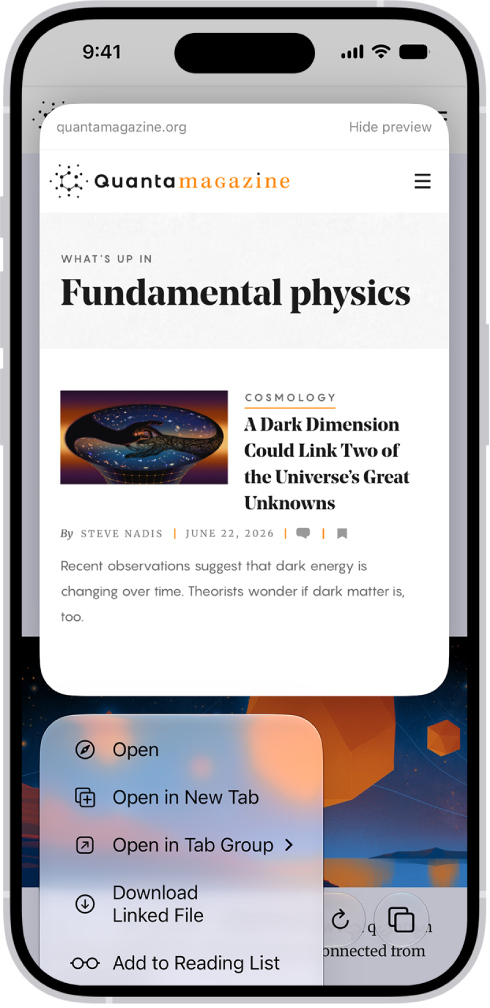
A preview of a website followed by a list of possible actions: Open, Open in New Tab, Open in Tab Group, Download Linked File, and Add to Reading List.

Translate a webpage or image

Safari can translate the text of a webpage or image that’s in another language when you view it, though this isn’t available in all languages or regions.

  1. Start the Safari app on your iPhone.
  2. Go to a webpage.
  3. Tap the Page Menu button and tap Translate to [language] (if translation is available).

Use Apple Intelligence to summarize a webpage

The Safari app can generate summaries of webpages with Apple Intelligence.

Note: Apple Intelligence on iOS 27 or later is available on an Apple Intelligence-enabled iPhone 15 Pro, iPhone 15 Pro Max, or iPhone 16 model or later. Apple Intelligence is not available in all languages or regions. Usage limits may apply.*

  1. Go to a website in the Safari app on your iPhone.
  2. Go to a webpage.
  3. Tap the Page Menu button, then tap Summarize.

The Summarize menu item only appears when the website supports it, but Writing Tools can also summarize webpages.

Get notified when a website changes

Safari can use Apple Intelligence to let you know when a website updates content you’re interested in, like a price or item change.

Note: Apple Intelligence on iOS 27 or later is available on an Apple Intelligence-enabled iPhone 15 Pro, iPhone 15 Pro Max, or iPhone 16 model or later. Apple Intelligence is not available in all languages or regions. Usage limits may apply.*

  1. Start the Safari app on your iPhone.
  2. Go to a webpage.
  3. Tap the Page Menu button, then tap Notify Me.
  4. Enter details about what Safari should look for.
  5. If necessary, tap Edit to adjust how often Safari should check for updates and tap the checkmark button.

If Safari detects that a website has been updated, a notification appears on your iPhone at the time interval you set.

Add Safari back to your Home Screen

Safari missing from your Home Screen? Find it in App Library and add it back.

  1. On the Home Screen, swipe left until you see the App Library.
  2. Enter “Safari” in the search field.
  3. Touch and hold the Safari app icon. Then tap Add to Home Screen.

*Apple Intelligence is available with Siri and device language set to Chinese (Simplified), Chinese (Traditional), Danish, Dutch, English, French, German, Italian, Japanese, Korean, Norwegian, Portuguese, Spanish, Swedish, Turkish, or Vietnamese. Some features may not be available in all regions or languages. Some devices may not be available in all regions. Siri AI is available in beta in iOS 27, iPadOS 27, macOS 27, watchOS 27, and visionOS 27 and requires an Apple Intelligence–enabled device set to a supported language. Available in English to start. Siri AI will not be initially available in the EU on iOS, iPadOS, and watchOS. Certain Apple Intelligence features that rely on server-side models are subject to daily usage limits, including but not limited to Siri AI, Intelligent Photo Editing Tools, Image Playground, and AFM 3 Cloud models in Shortcuts. Daily limits may vary by feature, request complexity, system demand, system policies, and other factors. Expanded access to such features will be available for a fee in the future. Use of these features is subject to the Apple Intelligence Terms and Conditions.
Tag: Safari

Use the Notes app to jot down quick thoughts or organize detailed information with checklists, images, web links, scanned documents, handwritten notes, and sketches. You can even organize your note with sections and headings.

The first line of a note becomes its title. From there, you can format text with styles like headings, bold, and highlights, make a checklist, or add a table or divider line.

Here’s how to create and format notes on iPhone.

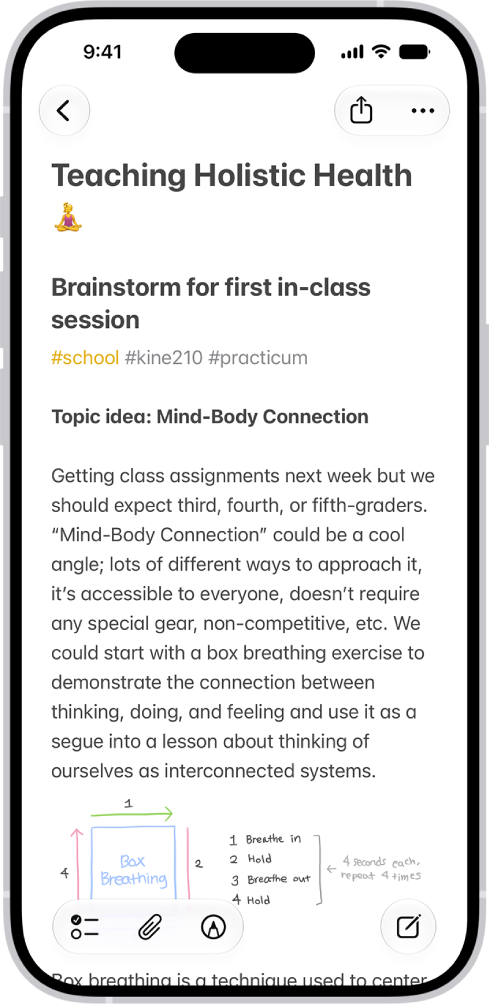
A note for a class brainstorm with tags such as #school and #kine210. The note features a hand-drawn diagram of a box breathing exercise, which illustrates a four-step breathing cycle.

Create a new note

  1. Start the Notes app on your iPhone.
  2. Tap the New Note button, then enter your text.
  3. The first line of the note becomes the note’s title.
  4. To save the note, tap the Done button.

Add formatting, checklists, tables, and divider lines

  1. Start the Notes app on your iPhone.
  2. When writing a note, do any of the following:
    • Format text: Tap the Format button and choose a style such as Heading, bold or italic font, highlight, and more. You can also swipe over the format bar options to quickly access commonly used styles.
    • Make a checklist: Tap the Checklist button.
    • Add a table: Tap the Add Table button.
    • Add a divider line: Tap to place the insertion point and tap the Expand button. Then choose Insert Divider Line.

Organize a note with sections and headings

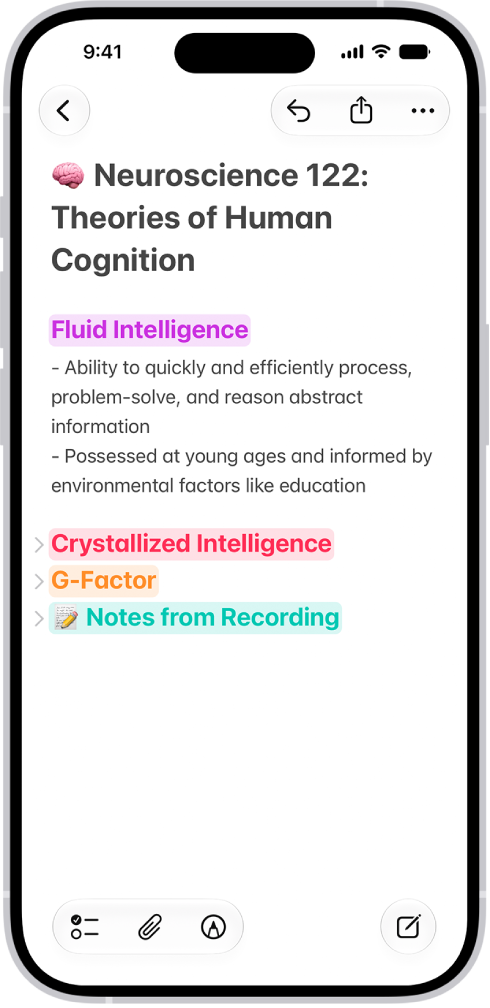
Long notes are easy to manage and outline when you collapse and expand sections.

A note in the Notes app, with collapsible headings at the top of the screen.

  1. Start the Notes app on your iPhone.
  2. In a note, select the text for the heading.
  3. Tap the Format button and then tap Heading or Subheading.
  4. Add content to the section and then do any of the following:
    • Collapse a section: Tap the Collapse button.
    • Expand a section: Tap the Expand button.

Use Writing Tools in Notes

With Apple Intelligence, you can use Writing Tools to summarize selected text with a tap, proofread your work, and create different versions of the same text to help you find the right wording and tone. Note: Apple Intelligence on iOS 27 or later is available on an Apple Intelligence-enabled iPhone 15 Pro, iPhone 15 Pro Max, or iPhone 16 model or later. Apple Intelligence is not available in all languages or regions. Usage limits may apply.* *Apple Intelligence is available with Siri and device language set to Chinese (Simplified), Chinese (Traditional), Danish, Dutch, English, French, German, Italian, Japanese, Korean, Norwegian, Portuguese, Spanish, Swedish, Turkish, or Vietnamese. Some features may not be available in all regions or languages. Some devices may not be available in all regions. Siri AI is available in beta in iOS 27, iPadOS 27, macOS 27, watchOS 27, and visionOS 27 and requires an Apple Intelligence–enabled device set to a supported language. Available in English to start. Siri AI will not be initially available in the EU on iOS, iPadOS, and watchOS. Certain Apple Intelligence features that rely on server-side models are subject to daily usage limits, including but not limited to Siri AI, Intelligent Photo Editing Tools, Image Playground, and AFM 3 Cloud models in Shortcuts. Daily limits may vary by feature, request complexity, system demand, system policies, and other factors. Expanded access to such features will be available for a fee in the future. Use of these features is subject to the Apple Intelligence Terms and Conditions.
Tag: Notes

You can use a feature called Universal Clipboard to copy content from one of your Apple devices and paste it on another. For example, you can copy text on your iPad and paste it into a note on your iPhone, or copy an image from a Safari webpage on your iPhone and paste it into an email message on your Mac.

It works with your iPhone, iPad, and Mac, as long as both devices have Wi-Fi, Bluetooth®, and Handoff turned on and you’re signed in to the same Apple Account on both.

Before you begin

For this to work, both devices need to meet these conditions:

  • Both devices have Wi-Fi, Bluetooth®, and Handoff turned on.
  • You’re signed in to the same Apple Account on both devices.
  • Both devices meet minimum system requirements for Universal Clipboard.

A VPN configuration that prevents local networking may interfere with some Continuity features, so if you’re using a VPN, make sure its configuration doesn’t.

Copy and paste between your iPhone and other devices

There’s nothing to see with Universal Clipboard: It behaves just like copy and paste on your iPhone, except that you can paste to one of your other Apple devices, such as a Mac or an iPad.

  1. Select the text or image on your iPhone and then tap Copy.
  2. On your other device, either tap (on another iPhone or an iPad) or click (on a Mac) where you want to paste the text or image. Tap or click Paste. You can also use keyboard shortcuts.

Note: Content you copy is only available on your Clipboard for a short amount of time.

How to copy and paste on an iPhone or iPad

  • Select and copy text: Double-tap with one finger to select a word or triple-tap with one finger to select a paragraph. (You can also move the grab points to adjust your selection.) Then tap Copy.
  • Select and copy an image: Touch and hold to select an image, then tap Copy.
  • Paste text or an image: Tap where you want to paste the text or image, then tap Paste.

How to copy and paste on a Mac

  • Select text or an image: With your pointer, select the text or image you want to copy.
  • Copy text or an image: Press Command-C or choose Edit > Copy from the menu bar.
  • Paste text or an image: Move your pointer where you want to paste the text or image and click, then press Command-V or choose Edit > Paste from the menu bar.

If Universal Clipboard isn’t working

  • Make sure that you’re signed in to the same Apple Account on both devices.
  • Make sure that your iPhone and Mac have Wi-Fi, Bluetooth, and Handoff turned on.
  • Your devices must be within 30 feet (10 meters) of one another.
  • If you’re having difficulty getting Universal Clipboard to work, restart your devices and try again.

For sharing small selections of text or copied images between devices, Universal Clipboard works best.

In some countries and regions, you can record a phone call when you’re talking to one other person. In select regions and languages, you can view the transcript of the call in the Notes app. And with Apple Intelligence,* you can read a summary of the phone call in the Notes app.

It’s all saved for you. iPhone automatically saves call recordings in a Call Recordings folder in the Notes app, where you can play a recorded call or delete it, and you can turn off Audio Call Recording entirely.

Note: Call recording isn’t currently available in Azerbaijan, Bahrain, Egypt, the European Union, Iran, Iraq, Jordan, Kuwait, Morocco, Nigeria, Oman, Pakistan, Qatar, Russia, Saudi Arabia, South Africa, Turkey, United Arab Emirates, and Yemen. Apple Intelligence on iOS 27 or later is available on an Apple Intelligence-enabled iPhone 15 Pro, iPhone 15 Pro Max, or iPhone 16 model or later. Apple Intelligence is not available in all languages or regions. Usage limits may apply.*

Record a call

Before you begin, check the iOS and iPadOS Feature Availability website to see if call recording is available in your language and region, and make sure the other call participant is willing to be recorded.

  1. Open the Phone app on your iPhone.
  2. Make a call.
  3. During the call, tap the More button and then tap Call Recording.
  4. Both call participants hear an audio notice that the call is being recorded.
  5. To stop recording, tap the Stop button or just hang up.

iPhone automatically saves call recordings to a Call Recordings folder in the Notes app. To see the call in the Notes app, tap View Saved Call.

Play a recorded call

  1. Open the Notes app on your iPhone.
  2. Tap a note in the Call Recordings folder and tap the Play button.

View a call transcript

In select regions and languages, the transcript of a recorded call appears in the Notes app. It may not be available right away, though, and you may see a message that the transcription is in progress.

Note: A transcription might not be a perfect representation of the conversation, so verify its accuracy before relying on it.

  1. Open the Notes app on your iPhone.
  2. In the Call Recordings folder, tap a note. Tap the recording. Note: Spoken words in supported languages are automatically transcribed. If you don’t see a transcript, your iPhone doesn’t meet the minimum requirements or detect a supported language. In the transcript, the speaker of each statement is identified.
  3. While viewing the transcript, you can do any of the following:
    • Play the audio from a specific point: Select the text you want to hear.
    • Search the transcript: Tap the More button and then tap Find in Transcript.
    • Copy the transcript: Tap the More button and choose Add Transcript to Note or Copy Transcript.
    • Save the audio recording: Tap the More button and tap Save Audio Files. Then select where you want to save the recording.
    • Share the audio recording: Tap the More button, tap Share Audio, and select how you want to share the recording.
    • Delete the audio recording: Tap the More button and then tap Delete. Note: Deleting the audio recording also deletes the transcript.
    • View the waveform of the recording: Tap the Hide Transcript button.
    • View a summary of the voicemail: If your iPhone supports Apple Intelligence,* tap Summary. Tip: To copy or share a summary, tap the More button at the top of the summary.

Delete a recorded call

  1. Open the Notes app on your iPhone.
  2. Tap a note in the Call Recordings folder, tap the More button, and then tap Delete.

Note: Deleting the audio recording also deletes the transcript.

Turn off Audio Call Recording

You can turn off Call Recording, which is on by default.

  1. Open the Settings app on your iPhone.
  2. Tap Apps, then tap Phone.
  3. Tap Audio Call Recording, then turn it off.

*Apple Intelligence is available with Siri and device language set to Chinese (Simplified), Chinese (Traditional), Danish, Dutch, English, French, German, Italian, Japanese, Korean, Norwegian, Portuguese, Spanish, Swedish, Turkish, or Vietnamese. Some features may not be available in all regions or languages. Some devices may not be available in all regions. Siri AI is available in beta in iOS 27, iPadOS 27, macOS 27, watchOS 27, and visionOS 27 and requires an Apple Intelligence–enabled device set to a supported language. Available in English to start. Siri AI will not be initially available in the EU on iOS, iPadOS, and watchOS. Certain Apple Intelligence features that rely on server-side models are subject to daily usage limits, including but not limited to Siri AI, Intelligent Photo Editing Tools, Image Playground, and AFM 3 Cloud models in Shortcuts. Daily limits may vary by feature, request complexity, system demand, system policies, and other factors. Expanded access to such features will be available for a fee in the future. Use of these features is subject to the Apple Intelligence Terms and Conditions.
Your iPhone includes one of two charging cables: a USB-C Cable or a USB-C to Lightning Cable. With either one, you can plug iPhone into a power outlet using a compatible power adapter (sold separately), and your computer’s USB-C port works for charging, transferring files, and more.

Depending on the model, your iPhone comes with one of these charging cables:

USB-C Cable

With a compatible power adapter (sold separately) and the included cable, iPhone connects to a power outlet. The included cable also connects to your computer’s USB-C port for transferring files, charging, and more.

USB-C to Lightning Cable

Plug iPhone into a power outlet with the included cable and a compatible power adapter, sold separately. You can also use the included cable with your computer’s USB-C port to charge, transfer files, and more.

Tag: Battery

Widgets show you information from an app at a glance, like today’s headlines, weather, reminders, and battery levels. You can add them to your Home Screen, and turn an app icon into a widget. A Smart Stack, a widget with dots next to it, shows the most relevant widget based on the time and your location.

What are widgets?

With widgets, current information from an app is easy to view at a glance, whether it’s today’s headlines, the weather, reminders, or battery levels. You’ll find them in Today View, and you can add them to your Home Screen or Lock Screen to keep that information at your fingertips.

Quick tip: A widget with dots next to it is a Smart Stack. It’s a combined set of widgets that automatically shows the most relevant one at the appropriate time in your day, based on information such as the time, your location, and activity. You can add a Smart Stack to the Home Screen from the widget gallery, then swipe up and down through it to see the widgets inside.

Add a widget to your Home Screen

  1. Go to the Home Screen and then find the Home Screen page where you want to add the widget.
  2. Touch and hold the background until the apps begin to jiggle, tap the Edit button, and then tap Add Widget.
  3. Scroll or search to find the widget you want, tap it, and then swipe through the size and style options.
  4. When you see the size you want, tap Add Widget.
  5. While the apps are still jiggling, move the widget where you want it. Then tap the Done button.

Turn an app icon into a widget

An app icon can quickly become a widget.

  1. Touch and hold the app icon on your Home screen.
  2. To choose the size of the widget, tap one of the icons at the bottom of the pop-up menu.

To change the widget back to an app icon, touch and hold it, then tap the App Icon button.

Interact with widgets

You can perform tasks by tapping widgets on your Home Screen, Lock Screen, or StandBy. Tap an item in the Reminders widget to check it off, tap the Play button in the Podcasts widget to play an episode, or tap the Home widget to turn on your living room lights—all without opening an app.

Edit a widget on your Home Screen

You can adjust most widgets right from your Home Screen so they display the information you want to see. For example, for a Mail widget, you can tap the mailbox shown in the widget, then choose a different mailbox so the messages in that mailbox are displayed in the widget.

  1. Touch and hold the widget.
  2. Tap Edit Widget (or Edit Stack, if it’s a Smart Stack). Choose options.

    For a Smart Stack, you can reorder widgets by dragging them within the stack, drag a widget from the Smart Stack to the Home Screen, or remove a widget by tapping the Remove button in its upper-left corner.

  3. Tap Done.

View widgets in Today View

To view widgets in Today View, swipe right from the left edge of the Home Screen, then scroll up and down.

View widgets in Today View when iPhone is locked

  1. Open the Settings app on your iPhone.
  2. Tap Face ID & Passcode (on an iPhone with Face ID) or Touch ID & Passcode (on other iPhone models).
  3. Make sure Today View and Search is turned on (below Allow Access When Locked).

iPhone uses your Apple Account to create your contact card, called My Card, in the Contacts app. You can also add or edit details, including your name, address, phone number, and birthday, as well as the Contact Poster, which you can share with people when you call or send a message to them.

Keeping My Card current pays off elsewhere, too. When you edit it, your AutoFill information in Safari updates automatically.

Complete or edit My Card

  1. Open the Contacts app on your iPhone.
  2. Tap My Card at the top, then tap Edit.

    If you don’t see My Card, tap the Add button and enter your information, then return to the contact list, touch and hold your contact, and tap Make this My Card.

  3. Enter your contact information.

To help you, Contacts suggests addresses and phone numbers as you go.

Add or edit your home address

  1. Open the Contacts app on your iPhone.
  2. Tap My Card at the top, then tap Edit.
  3. Tap Add Address and then add your address.
  4. Tap the label that appears to the left of the address and select Home.

AutoFill in Safari can fill in your address automatically for things like online shopping or online forms. Any edits to your My Card update your AutoFill information automatically, too.

Add or edit your avatar and poster

An avatar and poster you set can appear automatically when you call or send a message to others.

  1. Open the Contacts app on your iPhone.
  2. Tap My Card at the top, then tap Edit.
  3. Tap your contact photo and choose a style.
  4. Tap Customize to edit your avatar and poster.

Share your name and contact image

People in your contacts can automatically get your updated name, photo, and poster, if you choose.

  1. Open the Contacts app on your iPhone.
  2. Tap My Card at the top, tap Edit, and then tap your contact photo.
  3. Turn on Name & Photo Sharing to start sharing your contact photo and poster with others. (You may need to scroll down.)

Select Always Ask if you want a prompt before your name, photo, and poster are shared with anyone. Otherwise, you can share automatically with Contacts Only.

Add or edit contact pronouns

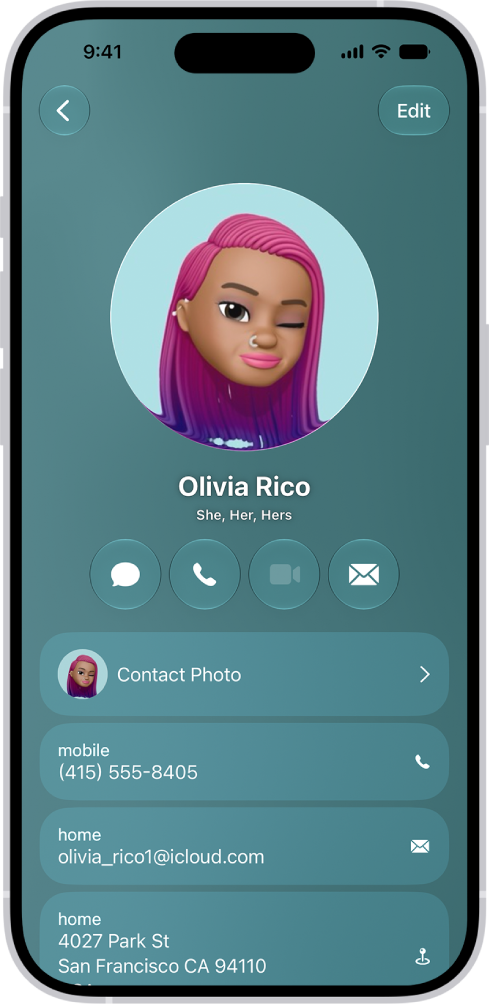
A contact named Olivia Rico with She, Her, and Hers pronouns below the contact photo. Below her name are buttons to send a message, call, mail, and use Apple Pay. At the bottom of the screen are the contact’s mobile number and email address.

In the Contacts app, you can add or edit your own pronouns or another contact’s.

  1. Open the Contacts app on your iPhone.
  2. Tap My Card at the top to add your pronouns, or select another contact to add theirs.
  3. Tap Edit and tap add pronouns.
  4. Select your language, then add the correct pronouns.

    You can also add pronouns in other languages by tapping Add Pronouns again.

  5. Tap Add.

Note: Sharing your contact information through Contacts or NameDrop doesn’t share your pronouns by default. And when you share another contact’s information, their pronouns are never included.

Create or edit your Medical ID

In an emergency, a Medical ID provides information about you that may be important, like allergies, medical conditions, and your emergency contacts.

  1. Open the Contacts app on your iPhone.
  2. Tap My Card at the top of your contacts list. Then tap Edit.
  3. Scroll down. Then tap Create Medical ID or Edit Medical ID.
Tag: Photos

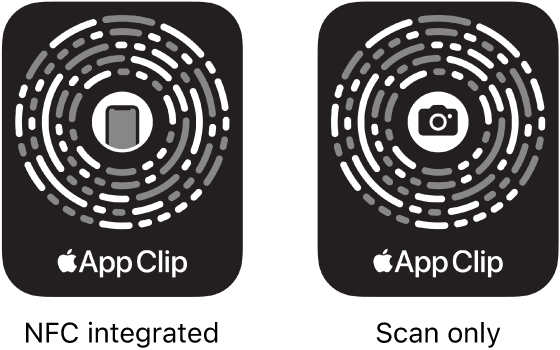
You can do a task quickly with an app clip, a small part of an app, like rent a bike, pay for parking, or order food. Discover App Clips in Safari, Maps, and Messages, or in the real world through NFC tags, QR codes, and App Clip Codes, unique markers that take you to specific App Clips.

You can also find App Clips you used on iPhone, and remove them.

On the left, an NFC-integrated App Clip Code with an iPhone icon in the center. On the right, a scan-only App Clip Code with a camera icon in the center.

Get and use App Clips

  1. Get App Clips from any of the following:
    • App Clip Code or QR code: Scan the code using the iPhone camera or Code Scanner in Control Center.
    • NFC-integrated App Clip Code or NFC tag: Hold your iPhone near the NFC tag.
    • Maps: Tap the app clip link on the information card (for supported locations).
    • Safari or Messages: Tap the app clip link.
  2. When the app clip appears on the screen, tap Open or Play.

Some App Clips support Sign in with Apple, and you can then use Apple Pay for purchases online and in apps.

With some App Clips, you can tap the banner at the top of the screen to see the full app.

Find App Clips you used on iPhone

Go to App Library, tap the search field at the top of the screen, then scroll down to the end of the alphabetical list.

Remove App Clips

  1. Go to App Library and tap the search field at the top of the screen.
  2. Enter the name of the app clip, or scroll down to the App Clips at the bottom.
  3. Touch and hold the app clip you want to delete, then tap Remove App Clip.

With Shared Albums, you can create albums to share with just the people you choose, and they can add their own photos, videos, and comments for everyone to see. If you set up a shared album, you can also rename or delete it.

Before you start, Shared Albums needs to be turned on in your iCloud settings for Photos, and you need to be signed in to your Apple Account on every device you want to use with it.

Before you begin

Check that you’re signed in to your Apple Account on your iPhone and on any other devices you want to use with Shared Albums.

  1. Open the Settings app on your iPhone.
  2. Tap your name and tap iCloud. Tap Photos.
  3. Turn on Shared Albums.

Create a shared album

  1. Open the Photos app on your iPhone.
  2. Tap Collections, then tap Shared Albums.
  3. Tap the Add button, then do the following:

    • Add photos and videos to the album: Tap Add Photos, select the items you want to add, and then tap the Done button.
    • Name the album: Type a name in the Shared Album Name text field.
    • Set sharing permissions: Tap Sharing Options. Then select People You Choose or Anyone with the Link.

      Note: If you select People You Choose and the link is shared with someone you didn’t invite, they can request access to the album. You can grant or deny the request.

    • Allow the album to expire: Turn on Make Album Temporary to set the album to expire after 30 days.
  4. Tap the Done button to create the album.

Note: Whoever organizes a shared album provides the iCloud storage space for its content, but albums set to expire don’t use any iCloud storage.

Join a shared album

After selecting the link you received, select Join. You might need to sign in to your Apple Account, ask for access, or provide your email.

To save the album to your account after joining by email, select Join, then sign in to your Apple Account.

To view pending invitations, tap Collections, then tap your Apple Account profile.

View shared albums

There’s one place where you can view all of your shared albums.

  1. Open the Photos app on your iPhone.
  2. Tap Collections.
  3. Tap Shared Albums to see all of your shared albums and tap an album to view it.

Quick tip: Tap Activity to view what’s new in your shared albums, such as photos, reactions, and comments.

Rename a shared album

Whoever creates a shared album can change its name.

  1. Open the Photos app on your iPhone.
  2. Tap Collections.
  3. Tap Shared Albums and tap an album.
  4. Tap the More button. Tap the current album name.
  5. Enter a new name in the text field and then tap the Done button.

Delete or remove yourself from a shared album

  1. Open the Photos app on your iPhone.
  2. Tap Collections.
  3. Tap Shared Albums and tap an album.
  4. Tap the More button. Tap Delete Shared Album if you created the album, or tap Leave Shared Album if you’re a participant.

Even if a shared album is deleted, or the person who created it stops sharing it, photos you saved or downloaded from it to your photo library stay in your library.

Tag: Photos

You can erase your browsing history and data to clear the cache on your iPhone. This action removes the history of websites you visited and recent searches from your iPhone. This process also removes the cookies and permissions you granted to websites to use your location or send you notifications.

You don’t have to clear everything, either. Below Clear Timeframe, you choose how much of your browsing history to clear.

Note: Clearing your browsing history in Safari doesn’t clear any browsing histories kept independently by websites you visited, or your browsing history in other apps.

The Clear History menu. Below Clear Timeframe, Last hour is selected. All Profiles is selected below Clear For Profile. The Clear History button is at the bottom of the screen.

  1. Open the Safari app on your iPhone.
  2. Do either of the following:

    • Go to your start page (or tap the Tabs button, then tap the Add button to open one), then tap the Show Bookmarks button.
    • If your Tabs layout is Bottom or Top, tap the Show Bookmarks button.
  3. Tap the History button.
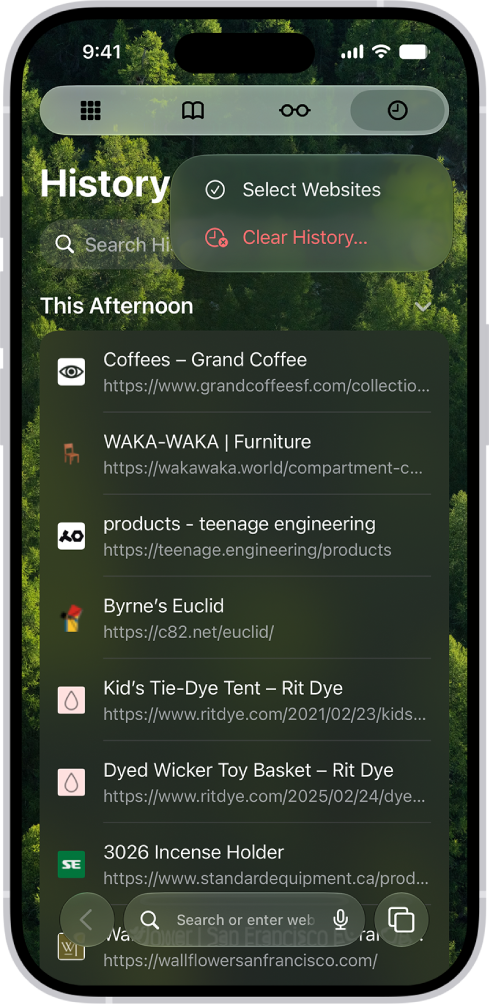
  4. Tap the More button, then tap Clear History.
  5. Below Clear Timeframe, choose how much of your browsing history to clear.

    Note: If you have Safari profiles set up, select a profile to clear only the history of that profile, or select All Profiles.

  6. Tap Clear History.
Tag: Safari