Got a tip for us?

So, in today’s article i’d like to look at how to spot a fake iPhone SE 2020. The last thing you want is to be buying a new device
only to end up with an iPhone SE 2020 clone in your pocket. Hopefully if you read this piece beforehand or early enough you can
avoid becoming a victim and get a refund or get your cash back. But lets hope this will never happen.iPhone SE 2 is just as fast as the iPhone 11, has a great battery life, and, well, it still has the home button. The iPhone SE 2 is still a great pick for
the majority. Keep in mind the Fake or clone iPhone SE 2 looks very similar to the real iPhone but if you look out for a few key characteristics, you can easily
distinguish between iPhone SE 2 real or fake. Please keep in mind, there are numerous fakes and they don’t usually subscribe to the same design philosophy.
The wise thing to do is to read each point carefully.

See also: How to Spot a Fake iPhone 12

How To Spot a Fake iPhone SE 2

To spot fake iPhone SE 2, simply look for the following:

Sign 1: Packaging

Look out for irregularities such as Chinese language on the back of the box. Also, Apple products are recognized for their dedication to detail so
Look out for distorted writings or other signs that shows a rushed product.Apple would never do that as everything is meticulously put together and designed. Moreover,
if you spot unofficial color of box ard then in all likelihood, you have a fake iPhone SE 2020.

See also: How to Spot a Fake iPhone 12 Pro or iPhone 12 Pro Max

Sign 2: Accessories

The accessories should look like Apple accessories in shape and design. If you there are malfunctioning accessories such as EarPods or charger, then you have
a clone iPhone SE 2. Also, the unboxing experience should be similar to all other unboxings you have seen on sites such as YouTube. 

Sign 3: Check the welcome screen

If you notice some Chinese prints or Android logos while booting up your new device , that’s a clone iPhone SE 2. Also, don’t be fooled by Apple logos during startup
since the fakes usually include those Apple logo convincing effect.

Sign 4: Font type

Fake iPhones have a very different font. if you can get hold of a real iPhone SE 2 and compare it directly that would go a long way in spotting a fake iPhone SE 2. Moreover, icons are labeled differently at times.

Sign 5: Check out for the home button

The home buttons snaps as it’s a real button on a fake. The iPhone SE 2 does not bear a physical or pressable home button.

Sign 6: Watch out for Preloaded Apps

There should be no preloaded third-party Apps such as Youtube,Facebook or Twitter on a brand new iPhone. Moreover, in case your device skips the setup
Process and boots right up when you first power it on, its certainly a fake.

Sign 7: Check the fingerprint scanner

The fingerprint sensor is usually a fake. you can register a finger and then try using a different finger to unlock. Fake iPhone SE 2020 will be unlocked with any finger and only pretend to scan your fingerprint.

Sign 8: Check the display quality

fake iPhones have a very poor display. When compared to the real iPhone SE 2, there is a big difference in terms of quality. The display should be totally
black when a real iPhone is off as well as bezel around the home button.In some fakes it’s somehow white in color.

Sign 9: Check out for the speed

Fakes are usually slow especially in transition animation and overall performance. The genuine iPhone SE 2 has no such issues.

Sign 10: Pricing

Just as we saw in
Fake iPhone 11 Pro
round up, if the deal or prices you see are too good to be true then its almost certainly a fake.

iPhones have a high price point. As such, scammers don’t attempt to pass off a fake by selling it close to the real price, but you understand what
I mean. It’s always advisable to purchase an iPhone from a trustworthy source such as Apple or Amazon.

Sign 11: Camera Quality

Original iPhones have superior camera quality while the fake ones take low quality photos and videos. A physically convincing iPhone with poor camera, irrespective
Of the lighting conditions, is a fake iPhone. Try recording a video and find out how bad does a fake iPhone SE 2020 take photos and videos.

Sign 12: Look for the serial number

You can dial the code “*#06#” on your keypad to check your iPhone’s serial number. Alternatively, you can simply head over to setting > tap general > select
about.
This will show you the serial number. Now, you can head over to the Apple website, where you can
enter your iPhone serial number to find out if it is a genuine iPhone.
On the website, type in your iPhone serial number. If the site says that the code is invalid, you have a fake iPhone.

Sign 13: Check the storage capacity

Original iPhones have a fixed memory capacity and its not expandable. Fake iPhones require a micro SD card to increase their storage capacity. In case you spot
a Micro SD card slot either on the back or the side of the device, then start backing out because it a fake iPhone.

Sign 14: Check for Siri

Siri can only work on an original iPhone. It does not work whatsoever on a fake iPhone.

Sign 15: Try to check the operating system.

If you see any operating system other than iOS, it is certainly fake. Apple uses proprietary iOS as its official operating system.

Sign 16: Try to connect to iTunes.

Connect your device to a Mac or windows PC using a USB cable then try to run it with iTunes. If you get an error, then it means iTunes
does not recognize your device; So
it is undetectable and fake.

Your iPhone is connected to Wi-Fi, but there is no internet access but you don’t know why. There’s even a Wi-Fi icon at the top of your screen, indicating everything is okay. However, when you launch the Settings app and tap Wi-Fi, you might see ‘No Internet Connection’. Sometimes, you may not even get this error message. Still, Wi-Fi won’t work on iPhone. So, whether it’s an iOS 17, iOS 16, iPhone 15, iPhone 14, iPhone 13, iPhone 12, iPhone 11, iPhone X, iPhone 8, iPhone 7, iPhone 6S, iPhone SE, connected to wifi but no internet, then this article is for you. In this troubleshooting guide, I’ll explain why iPhone is connected to wifi but no internet and show you how to fix the issue for good.

How to fix iPhone Connected to Wi-Fi But No Internet

Follow these steps to fix iPhone Connected to Wi-Fi But No Internet issue:

#1. Turn OFF/ON Wi-Fi on iPhone

The first thing you need to do when your iPhone is connected to wifi but no internet access is to turn off Wi-Fi and turn it back on. We suggest that you do this from the Settings instead of control Center.
Go to Settings > Wi-Fi and then Turn Off the switch for Wi-Fi.

After a minute, tap the same switch to reconnect your iPhone to the Wi-Fi network.

Next, launch your favorite web browser and try to visit a site like geeksmodo.com. If it doesn’t load, try the next solutions.

#2. Enable Airplane Mode and Disable it on iPhone

Just like the previous solution, here comes another simple fix when iPhone is connected to wifi but no internet. For this, you can use the Control Centre or open the Settings app and tap on Airplane Mode switch to turn it on. Wait for about 30 seconds and then tap it again to disable Airplane mode.

Once your iPhone reconnects to Wi-Fi, launch your browser and visit a website of your choice and see if it loads or not.

#3. Restart Your iPhone and Wi-Fi Router

To restart your iPhone, simply start the Settings app and go to General, and then tap Shut Down.

Next, use the physical button on your router or use the main wall switch to turn off your Wi-Fi router.

Wait a minute and turn on your iPhone and router. this is most likely to resolve Wi-Fi issues on your iPhone. If iPhone connects to wifi but no internet still, try the next solution.

#4. Forget Wi-Fi and Reconnect It

Before you forget your WiFi Network, make sure you know the Wi-Fi password. If you do not know it, then skip this fix for the moment and try the other solutions.

  1. Start the Settings app on your iPhone.
  2. Now, tap Wi-Fi.
  3. Next, tap (i) next to the Wi-Fi name.
  4. Next on, tap Forget This Network and confirm.
  5. Finally, tap the Wi-Fi name from the list of NETWORKS, type in the password and reconnect it.

Check if your iPhone can connect to Internet. If iPhone is connected to wifi but no internet, try the next solution.

#5. Switch Off Wi-Fi Assist

Wi-Fi Assistautomatically uses cellular data when Wi-Fi connectivity is poor. Sometimes, this may interfere with proper working of Wi-Fi. In such a case, you need to switch off this feature. Simply follow these steps:

  1. Start the Settings app on your iPhone and tap on Cellular.
  2. Scroll down and disable Wi-Fi Assist.

If iPhone is connected to wifi but no internet access, try the next solution.

#6. Check Location Services

Sometimes, your iPhone needs Location Access for wi-Fi to work properly. You need to make sure the appropriate location setting is enabled for Wi-Fi.

  1. Start the Settings app on your iPhone and tap Privacy.
  2. Now, tapn Location Services.
  3. Next, tap System Services.
  4. Finally, ensure the toggle for Networking & Wireless is enabled.

#7. Disable VPN

At times, a VPN may cause issues with the Wi-Fi connection on your iPhone. If a VPN is enabled on your iPhone, open the VPN app and turn it off. Alternatively, just launch the Settings app and tap on the VPN toggle.

In addition, if you have installed many unnecessary VPN apps on your iPhone, try uninstalling a few. This will also delete their VPN profiles.

#8. Reset All Network Settings

Simply follow these steps to restart the network settings on your iPhone:

  1. Start the Settings app and tap on General.
  2. Now, scroll down and tap Transfer or Reset iPhone.
  3. Tap Reset.
  4. Next, tap Reset Network Settings.
  5. Finally, type in your iPhone’s passcode and confirm.

After the process ends, reconnect to Wi-Fi, and it will most likely fix iPhone not connecting to internet issue.

#9. Force Restart your iPhone

simply follow these steps to force restart your iPhone:

  1. Quickly press and release the volume up button.
  2. Quickly press and release the volume down button.
  3. Press and hold down on the side button for about ten seconds. The iPhone will force restart.

Check to see if your iPhone can connect to the Internet. if your iPhone is connected to Wi-Fi but no Internet access still, try the next solution.

#10. Reset your iPhone

Simply follow these steps to reset your iPhone to factory default:

  1. Start the settings app on your iPhone
  2. Tap General
  3. Scroll down and tap on Transfer or Reset iPhone
  4. Now, select “Erase all content and settings” and follow the onscreen prompts to reset your iPhone

#11. Check date and time settings

Make sure that the date and time on your iPhone are set correctly for your time zone. Here’s how:

Launch the Settings app and tap on General, then tap Date & Time.

If the date and time are incorrect, update them or turn on the option to set date and time automatically.

Conclusion

We trust one or a combination of these fixes worked for you and your iPhone is no longer connected to Wi-Fi but no Internet. Which trick worked for you? Let us know in the comments section below.

Are you trying to find and track a lost or stolen iPhone? If you need to find and track a lost iPhone, using Find My app to locate your iPhone is the easiest. Thankfully, Apple has made it really easy to track a lost iPhone with
Find My app
Find My iPad app
If your iPhone is lost or stolen,you can use “Find My” feature to wipe the iPhone and lock it down so
that your data is protected.

Here are step-by-step instructions for how to track a lost iPhone with Find My on iPhone and iPad.
(Actually, you can also use the
Find My app to locate your
Apple Watch,
AirPods
or
Mac.)

By the same token, we shall show you how you can track the location of your iPhone even if the battery has died or it is no longer connecting to the internet. Thanks to a new feature in iOS 13, it’s now possible
To find a lost iPhone that is turned off, more on that below.

Finally, in the event that your iPhone has been stolen and cannot be recovered, we’ll show you how to lock the iPhone, wipe your data and make sure that
services like Apple Pay can’t be used.

Here is the step-by-step guide that will show you how to find a lost iPhone, iPad, or Mac by using the FindMy app from an iPhone or iPad.
Before we dive into how to use Find My, however, you’ll need to set it up.

How to Enable “Find My” on Mac, iPhone, iPad

If you don’t have access to this feature or you have no devices showing up, there is a likelihood you don’t have the Find My feature enabled on the other device with the same Apple ID, whether that’s a Mac, iPhone, or iPad.

For you to use Find My to track a lost iPhone, iPad, or Mac, you need to have your device set up to use the service. That may appear obvious after the fact, however, ensure you
have this setting in place on your Apple device in advance so that you can use the Find My app in case you lose it.

Enabling “Find My Mac”

Follow these steps to enable Find My Mac

  1. Open “System Preferences”on your Mac.
  2. Click your Apple ID in the upper right and then click “iCloud.”
  3. Check the box beside “Find My Mac” To turn it on
  4. Confirm that you want to enable Find My Mac.
    You are all set. When you sign into
    iCloud.com
    on another computer or use the Find My app on your iPhone or iPad, you’ll be able to locate and erase your lost or stolen Mac, provided that it’s turned on and
    connected to the internet. Remember to sign in with the same Apple ID that’s in use on your missing Mac.

    Enabling “Find My iPhone” or “Find My iPad”

    Follow these steps to enable Find My iPhone or Find My iPad on iOS or ipadOS:

    1. Start the Settings app on your iPhone or iPad.
    2. Now, tap your name located at the top of the screen.
    3. Tap “Find My.”
    4. Slide the switch next to “Find My iPhone” to ”On” position.

    You are all set! When you sign into
    iCloud.com
    on another computer or use the Find My app on another iPhone or iPad, you’ll be able to track and erase your lost device, provided that it’s turned on and
    connected to the internet. Keep in mind to sign in with the same Apple ID that’s in use on your missing iPhone or iPad.

    How to track a stolen iPhone, iPad or Mac with Find My

    Its easy to track a lost Apple Device from iPhone or iPad with Find My.
    Every iPhone or iPad comes with the Find My app pre-installed, so you don’t have to download any app to track lost iPhone, iPad or Mac.

    The app works the same way both on iPhone and iPad, with the steps similar between both devices. The only difference is that the iPad has a larger display. Simply follow these steps to track a stolen or lost iPhone, iPad, or Mac using Find My app on iOS or iPadOS.

    1. Start the “Find My” appp on your iPhone or iPad.
    2. Now, log in with your Apple ID and password if you are not yet already
    3. Next, tap your iPhone, iPad or MacBook in the list of devices.
    4. If a location is displayed on the map, it’s found your device.
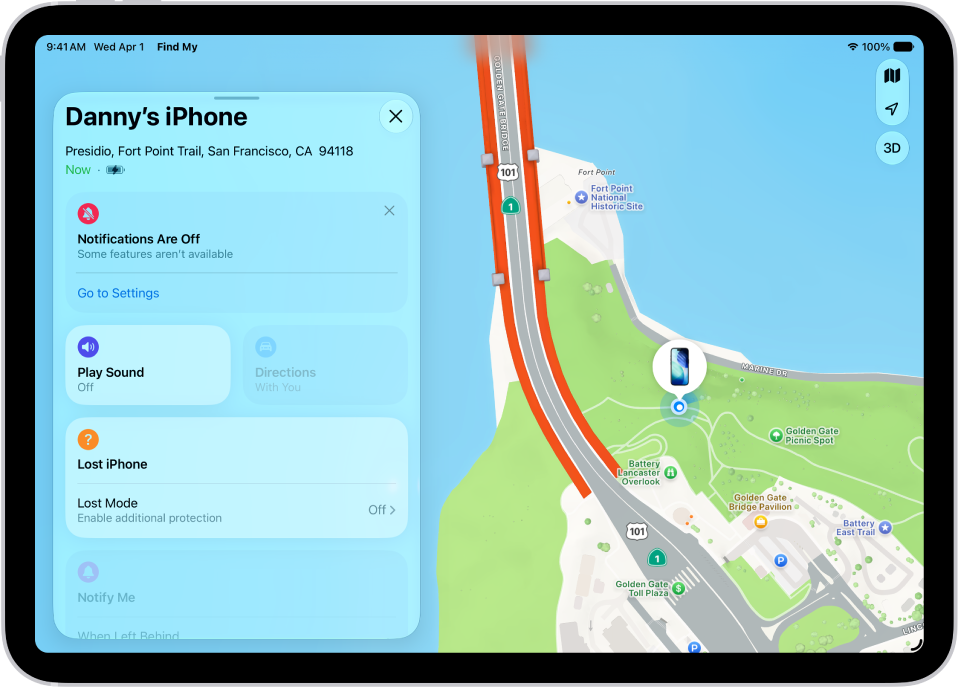
    5. Next on, Tap your iPhone, iPad or MacBook in the centre of the screen. A couple of options will appear on this screen.
  • Play Sound – This forces your device to play an audible sound. This is useful in case you think the device is nearby, as you’ll be able to hear it.
  • Directions – This gives directions from your current location to the last place the device appeared
    online.
  • Mark as Lost – This marks a device as lost. The device will be locked and you can provide contact information that will be displayed when the device
    is found.
  • Erase this Device – This will completely wipe the entire content on a lost device. This should only be done as a last resort when you are pretty sure you will not recover it.
  • Notifications – You can have Find My notify you when a lost iPhone has been found.

How to lock and erase your iPhone, iPad or MacBook if it’s stolen

As we’ve mentioned above, provided you’ve enabled Find My iPhone, Find My iPad or Find My Mac and your device is connected to the internet after it’s stolen, you can log into Find My app on an iPhone or iPad,
and use the Erase or Lock buttons to remotely erase data or lock the thief out of your iPhone, iPad or MacBook.

How do I track my iPhone or iPad if it’s offline?

If your iPhone is offline, then the Find My app will locate the iPhone’s current position using nearby Apple devices.
Here is how
Apple
describes it:
“Locate a missing device even if it’s not connected to WiFi or cellular using crowdsourced location. When you mark your device as missing and another
Apple user’s device is nearby, it can detect your device’s Bluetooth signal and report its location to you. It’s completely anonymous and encrypted endtoend,
so everyone’s privacy is protected.”
If you are running iOS 13 for iPhone or iPadOS 13, just follow these steps to enable the feature:

  1. Start the Settings app and tap your name on top of the screen.
  2. Next, tap “Find My.”
  3. Tap “Find My iPhone.” ,
  4. Toggle on “Enable Offline Finding”.

As you can see there are multiple options available to find the lost device; you can play a sound, find directions to the last known location of the device,
mark it as lost, erase it (do this only when you are pretty sure you will never locate the device), and set some other options too.

If you choose to mark your device as lost, the device will automatically activate the lock once it receives the lock command. if you opted to display a message, that message will appear on the screen of your lost iPhone . The device will then ask you to enter the passcode to unlock it. Once you’ve entered the correct passcode, the iPhone will unlock normally.

The final option is Erase this device. As you might expect, this feature lets you completely erase—securely—all data and settings from your iPhone, iPad or Mac.
You should only use the Erase this device option when you are sure you will never recover it.

An email will be sent to the address on file for your Apple ID when you perform any of these actions.

No one would be happy when they lose their device however, if you have Find My set up on the
iPhone,
iPad,
or
Mac
that got lost there are higher chances that you will be able to locate it, which is why this is such a nifty feature and service.

The steps outline above covers the iPhone and iPad, however, you could still perform
the same process on Mac,
as well.

How to track lost iPhone, iPad, or Mac? Now you know.

Now you know how to find lost iPhone, iPad or Mac but hopefully you’ll never need to use that feature. If you do, or you’ve previously used Find My,
Share your experiences with us in the comments section below. We’ve heard interesting stories!

It’s worth noting here that the Find My app arrived with the launch of
iOS 13
and
iPadOS,
so in case you can’t see the Find My app on your device it’s probably because you either deleted it, or have not upgraded your device to the latest iOS or iPadOS version.
Have you used Find My from iOS or ipadOS to find a lost iPhone, iPad, or Mac before? How did it go? We’d love to know your experiences with this feature in the
Comment section below!

We think you might also likewhat to do if you find a lost or stolen iPhone

If you’ve lost your iPhone or iPad, how can you find your device? This is about how https://callmyphone.org/ website works, which allows you to make a call to a missing phone from your computer or tablet.

If you had the forethought to activate Find My iPhone, you should be able to find your
Device effortlessly. Though, after logging in, you bump into a problem: Find My iPhone is offline.

What does “Offline” mean on Find My iPhone? How can you still trace your device? And if it’s been stolen, how do you prevent a thief from accessing your personal
data? Well, simply read on to find the answers.

How to Activate Find My iPhone

So what exactly is Find My iPhone? As you may already know, it’s a feature that helps you find your device if it goes missing. Whether
you’ve lost it while out and about, or you’ve misplaced it somewhere at home, activating Find My iPhone means you can log into your Apple ID on a computer
or tablet and locate your device on a map. (Find My iPhone is part of the
Find My app starting with iOS 13.)

You can also use Find My iPhone to remotely lock your phone, erase all content (in case you think it’s irrecoverable), or play a sound to lead you to it.

Simply start the Settings app on your iPhone, then tap your profile at the top of the screen. Next, head over to iCloud > Find My iPhone. (Later, we’ll explain why this screen is
Important if your phone reads Offline.)

Ensure this setting is enabled. It cannot be turned on remotely, so it’s better to be safe than sorry. It’s a good idea to take
Precaution but hope you never need it.

What Does “Offline” Mean on Find My iPhone?

To locate your device with Find My iPhone, you should sign into your
iCloud account
from another smartphone, computer or tablet. There are many iterations of the Find My app, including Find My iPad and Find My Mac. All of these use iCloud.

If it’s working correctly, you should see an icon on a map showing where your device is. In some situations, though, it reads “Offline”. It may also
say “No location available” or “Location Services Off”.

So, what does it mean when find my iPhone says offline?
There are a couple of reasons for this, however, they all mean the same: your iPhone cannot check in to Find My iPhone. It doesn’t have access to Wi-Fi or
Mobile data.

what does it mean when find my iPhone is offline? The most obvious reason is that it’s out of battery. You might also have left it powered off. In any case, if your phone has
no power, Find My iPhone won’t show you its location.

Find my iPhone can only function if your device is connected to iCloud, of course, and signed into your Apple ID. That means, for you to activate the feature, you’ll
have already signed into these. Though, it’s possible to disable both, severing the connection to Find My iPhone.

Again, your iPhone may have Airplane Mode turned on.

If your iPhone has been stolen, the burglar may have ejected its SIM card. This disconnects it from the internet, making it more difficult—but not
impossible—to locate.

There’s also a slim likelihood that your iPhone has been lost in a location without Find My iPhone. This is because the feature needs to access maps
and Apple unfortunately doesn’t have that capability in some areas.

How to Find an iPhone That Is Offline

When you launch Find My iPhone, you’ll be presented with 3 options. Though it may seem useless, start by tapping on Play Sound. It’s not likely this will work, particularly when
your iPhone shows as Offline. However, you’ll be pleasingly amazed if you do find your iPhone this way. (We’ll come back to the other two options on
this screen. You need to explore other methods before using those two.)

The main way to locate your iPhone is, again, by preparing in advance. When setting up your device, you need to go to Settings, tap on your profile,
then head over to iCloud > Find My iPhone > Send Last Location. This sends the location data of your device to Apple when the battery is significantly low.

This is your best bet to retrieve your lost iPhone, however, it may not help if a thief moved it to a different location, or if the function is disabled.

If you use Google Maps on your iPhone, it may be possible to track its location through the
Maps Timeline.
You can see which apps access your geographical data by heading over to Settings > Privacy > Location Services.

It’s also a good idea to contact your mobile service provider. If you have the serial number or International Mobile Equipment Identity (IMEI) number for your iPhone, your carrier
may be able to trace its location.

You can visit the place where you’ve been recently and hope you find your iPhone without having to use technology. If not, you need to wait and keep
your fingers crossed that someone finds and charges it. Keep signing into Find My iPhone every now and then in case this does happen.

How to Protect Your Data If Your iPhone Is Offline

Suppose you still can’t find your iPhone. You think that someone has stolen it, or that whoever finds it may access your private data.
What can you do to prevent this from happening?

Even when Find My iPhone says “Offline”, you can still use some of its features. Most notably, Activation Lock comes in handy when using Find My iPhone.
The best thing about this feature is that nobody can turn off Find My iPhone or erase your phone’s data without your Apple ID.

Two more options are useful:

  • Lost Mode: This allows you to remotely lock your device and display a custom message on the screen. You should include a way of contacting you in case someone finds your
    iPhone. As an additional layer of security, this disables Apple Pay. Moreover, notifications won’t be displayed, so no one can access your activities. Once you
    recover your device, you can unlock it by simply using your passcode.
  • Erase iPhone: This should only be done as a final resort —it wipes the entire data on your iPhone. It’s a last bullet, not to be taken frivolously. Try everything
    Possible to find it again. If you do take this avenue, you’ll be required to
    restore your iPhone from a backup
    or will unfortunately lose all your data.

These modes only gets enabled once your iPhone switches on and reconnects to the internet.

Should You Choose to Erase Your iPhone?

At this point, we hope these tips helped you find your iPhone, even if it says it’s offline. However, you may need to erase your device if you really can’t
find it.

Choosing this option means you’ve completely lost hope. However, we recommend that you use Lost Mode. It doesn’t matter if you lost your iPhone
a few hours ago or one year ago. If someone finds it and power it on, they will notice your message and with a bit of luck return it to you. You may consider
offering a reward too.

The main
Advice for anyone who has lost their iPhone
is simply not to lose hope. With today’s always-on world, someone will hopefully find it and get it back online. With that in mind, make sure you know
what to do if you find a lost iPhone.

Found a Lost or Stolen iPhone? Here’s What to Do. Found a lost or stolen iPhone? Here’s how you can try to unlock a lost iPhone and return it to its rightful
owner.Read More

What do you get when you combine Find My iPhone with Find My Friends? According to Apple, you get a handy feature with an funny title: the new Find
My app in iOS 14 features a simple UI that allows users to locate friends, family members, and Apple devices.

It divides this information into 3 tabs with options to play a sound from missing devices, load directions in the Maps app, or set up notifications
to sound when your spouse leaves work. And all of this from a single app!

How to use the Find My app for iPhones in iOS 14

Let’s get started and learn how to use the Find My app for iPhones in iOS 14.

How to Find Your Apple Devices

Tap the Devices tab located at the bottom of the Find My app to reveal a map of your compatible Apple devices. Find My puts a pin on the map at the location of any iPhone, iPad, Mac, Apple Watch, or AirPod associated with your Apple ID. It also displays your family members’ devices too.

Swipe up from the bottom of the screen to bring up more devices, each with its exact location and distance from you.
If Find My can’t locate a device,
a black screen icon will be displayed instead, along with the last known location.

What It Means When Find My iPhone Is Offline and How to Find It Any. wayWhat does it mean when Find My iPhone says “offline”? How do you find an iPhone that’s
offline? Here are the answers you need.Read More

Get More Details About Each Device

Tap a particular device to view its present address and battery percentage, along with a series of controls to help you retrieve it. If you think you’re close enough, tap Play Sound to make your device ring. Otherwise, tap Directions to launch a route in the Maps app.

Get Notifications for Missing Devices

Starting with iOS 13, you can locate Apple devices even when they aren’t connected to the internet.
Apple makes this possible by creating an encrypted and anonymous Bluetooth network
that connects nearby Apple devices.

Having said that, Find My is still unable to locate your device if it doesn’t have internet connection and Bluetooth isn’t turned on, which could mean
it’s turned off. In this case, enable Notify When Found to receive a notification with its location as soon as Find My detects it.

Mark as Lost to Protect Your Data

If any of your Apple devices is lost or stolen, it’s a good idea to enable Mark As Lost to protect your data and make it easier for people to return your device to you. You
can also provide a phone number with a custom message asking whoever finds it to call you.

When you activate Mark As Lost, Find My will disable sensitive services such Apple Pay on your device and locks it with your passcode. If you haven’t used
a passcode before, you can take this opportunity to create one.

Only Erase Your Device as a Last Resort

Below the other options, there’s also a button to Erase This Device. I suggest you consider this as a last resort, if you believe you’ll never retrieve your device, because after erasing it you cannot track its location any longer.

Having said that,
an erased device is still protected by Apple’sActivation Lock,
preventing anyone who finds it from using it as their own. If you have enabled Mark As Lost, it also still displays your custom message telling people how
to contact you.

How to Find Your Friends and Family

Tap the People tab located at the bottom-left hand corner of Find My in iOS 13 to reveal a map of all the peple who follow your location or share their location with
you.

Just like in the Devices tab, you can then tap each person to get additional information about where they are located. This also provides options to view their details
in the Contacts app or get directions with Maps.

Start Sharing Your Location

In case you haven’t yet shared your location with anyone, tap the button to Start Sharing Location. Otherwise, swipe up to bring up the full list of people you’re
following and tap on Share My Location button located at the bottom.

Search for the contact you want to share your location with by typing in their name, phone number, or Apple ID email address in the search bar. When you tap
Send you can select how long you want to share your location for:

  • Share for One Hour
  • Share Until End of Day
  • or Share Indefinitely.

Ask to Follow Someone Else’s Location

It’s not possible to follow someone else’s location using Find My unless they choose to share it with you. The best way to initiate this is by offering to share
your location first. When you do so, a notification prompts your contact to share their location back.

Alternatively, you can directly ask to follow anyone who is already following you. Tap on their name from the People tab and use the option to Ask to Follow Location.
When they accept, you’ll receive a notification from Find My letting you know they accepted your friend request.

Set Up Notifications When Someone Changes Location

You can opt to send or receive notifications in the Find My app whenever you, or any of your contacts, change location. This can come in handy if you want to
Notify a family member you’re on the way home or if you want to know when your friends arrive at the meeting point.

On the People tab in Find My, tap on the name of the person you want to set up notifications for. Tap Add under the Notifications heading and choose whether
you want to send or receive the notifications, then set the location you plan to leave or arrive at. You can set the location radius to anything from 300
feet to 150 miles.

If you choose to send notifications to someone else, you’ll see an option at the bottom of the screen which allows you to repeat the notifications. This way you can alert
your partner you’re on your way home every time you leave work, without having to do anything.

How to Change Your Find My Settings

In the bottom-right corner of the Find My app is the Me tab. This lets you choose which device you want to share your location from along with deciding whether
to allow friend requests or location updates.

On the Me tab, you can also reclaim your privacy with the Share My Location switch. Turn this off to temporarily hide your location from anyone you previously
shared it with. This is a great way to remember if you’re on your way to a surprise party or a secret vacation!

Change Your Location to a Different Device

If you have several Apple devices, you can use the Me tab to choose from where to share your location. You can only change your location from
the device you’re currently using, so be sure to launch the Find My app from that specific device, then tap Use This [Device] as My Location.

Help a Friend Find Their Device

If you look at the very bottom of the Me tab, you’ll see a small button that says, Help a Friend. Use this if a friend or family member has lost their Apple device. When you tap
it, a page on the iCloud website will load for your friend to sign in to. On this page, your friend can play sounds, mark their device as lost, or erase it remotely.

You may have heard your insurance company or law enforcement encourage you to record your IMEI. You may have even noticed it in your iPhone’s settings or
device box. What you might not be aware is what the IMEI number is actually for.

In this article, I’ll explain what an IMEI number is, and how you can find yours.
Let’s roll:

What Is an IMEI Number?

The International Mobile Equipment Identity—or IMEI—is a unique numerical identifier for every mobile device.

This number helps to distinguish each device. If you return your iPhone for repair, they will track it using the IMEI to differentiate
it from the other tons of iPhones, for example.

A standard IMEI number is a 14 digit string, with an additional 15th check digit for verifying the entire string. There is also a 16 digit variant that
Contains information about the software version of the device known as IMEISV.
Since 2004, the IMEI appears in the format AA-BBBBBB-CCCCCC-D. The sections labeled A and B are called the Type Allocation Code (TAC). The TAC portion
of the IMEI identifies the manufacturer and model of the device. For example, the Google Pixel TAC code is 35-161508, while the iPhone 6s Plus is 35-332907.

Some models have several TACs depending on revision, production locationand other factors. For instance, the iPhone 5C contained five different TAC codes.

The six C digits represent the unique serial number of your device and the handset manufacturer defines it. The D portion of the IMEI is a check digit that
ensures that the IMEI complies with the Guidelines for Allocation and Approval. The check digit is displayed on the packaging to prevent incorrect IMEI recording, but it’s not part of the documented IMEI.

While the IMEI number is absolutely important, it is not the only legal requirement for your iPhone. Manufacturers must comply with regulations
for each region in which they plan to sell their devices. The IMEI doesn’t demonstrate that the equipment meets any of those other safety and regulatory requirements.

Finding Your IMEI

There are a number of ways you can find your device’s IMEI. The most universal approach is to go to your device’s phone app. Type in *#06#
and the IMEI will be displayed on the screen.

If you own an Android or iOS device, you can also find the IMEI under Settings. On iOS, simply start the Settings app and head over to General > About and the IMEI will be displayed.
If you want to copy the IMEI, simply tap and hold on the number. Android devices may vary, but generally going to Settings > About Phone should display
the IMEI.

If you don’t have access to your device, there are other ways to find your IMEI as well. The retail packaging must have a label that shows the IMEI. If your
device has a removable battery, the IMEI is often listed under the battery. Most devices have the IMEI written on the rear. Others, like
the iPhone 6s and newer, have the IMEI engraved on the SIM tray.

However, in case you are planning to buy a new device, especially a second-hand one, you’ll want to confirm it’s status with the IMEI. To do this,
Go to
IMEI.info
and type in the iPhone’s IMEI number.

This free tool will tell you a bit about the device, and provide additional services, such as simple blacklist check. If you want to get additional
clarity, IMEI.info offers premium services such as a distinct blacklist check for each major US carrier and a SIM-lock status tool.

What Is an IMEI Number Used For?

The main purpose of IMEI’s is to equip your device with a unique ID number. In practice, therefore, the IMEI is very much like the Vehicle Identification Number
(VIN) used in the automotive industry. Although sometimes confused, the IMEI number is completely separate from your SIM number and cannot be changed.

When you connect to a cellular network, the provider records both numbers to enable their service. The
SIM number identifies your subscriber account,
while the IMEI just identifies the device.

If your iPhone is lost or stolen, you can contact your carrier who may be able to block the IMEI number from being used to connect
to the network. Your provider may also be able to contact and ask other networks to block the device. After doing so, you can then use built-in
tools to
find your iPhone’s location.

Usually, law enforcement keep records of lost and recovered phones, identified by their IMEI. Because there is no good reason to change the device’s IMEI, the
practice is considered illegal in most regions.

While it might be illegal to change the IMEI of a device, it does happen. Thieves, specifically, will try to take non-blacklisted numbers and apply
them to their stolen devices to make them usable again. As such, we suggest you never share or post your IMEI number online, otherwise you
might find your device cloned.

Have You Recorded Your IMEI?

The IMEI number is one of the most significant and distinctive ways of identifying your iPhone. If you haven’t already, you should locate it and take note of
it immediately.

Keep a record of your IMEI in a safe place, so it’s readily available in case you ever need it. If you are looking for a digital safe, then apassword manager might even
do the work.

Having said that, if you’ve found or recovered someone else’s iPhone, you may be wondering how to get it back to them. As such, you’ll want to know
what to do if you find a lost or stolen iPhone.

Found a Lost or Stolen iPhone? Here’s What to Do

iPhone Keyboard offers all the basic features like Memoji Stickers, auto correction, auto capitalization, text prediction, and much more. However, there are still some hidden features like text replacement etc. that are buried under thesettings and can take your typing experience to the next level.
if you’re not aware about all the iPhone keyboard features, don’t worry. In this article, you will find top 10 iPhone Keyboard tips and tricks you can use to make your life easier. These iPhone keyboard tricks will help you to use your iPhone in a most efficient way possible in 2020.

Let’s get started.

Best iPhone keyboard tricks and tips

Here is a list of useful iPhone keyboard tricks you should know:

1. Use 3D Touch to turn the keyboard into a trackpad

Moving the cursor around, on the iPhone keyboard can be a bit tricky and that’s where this awesome trick comes in handy. 3D Touch, introduced with the iPhone 6s brings some great features and you can easily turn the iPhone keyboard into a trackpad, so that you can control the cursor with ease. Simply perform 3D Touch anywhere on the keyboard and it will turn into a trackpad. You can then move around your finger to move the cursor around. You can also lighten your touch and press firmly to select text.

In addition, you can use 3D Touch on the delete key to delete text faster. These 3D Touch tricks on the iOS keyboard obviously only work with iPhones that support 3D Touch.

2. Shake to Undo

If you want to quickly undo a text you typed or pasted, you will love this iPhone keyboard trick. You can shake your iPhone to undo a typed text and more. Sounds good,right? The “Shake to Undo” feature works to undo a typed, copied, cut or pasted text. To enable this feature, simply head over to Settings > General->Accessibility->Shake to Undo.

3. Create Text Replacement Shortcuts

Apple makes it easy to create text replacement shortcuts for the keyboard. For example, you can create a shortcut for “sounds good” as “sg”, so whenever you type “sg”, it will be automatically replaced with “sounds good”. Cool, right?

To add these shortcuts, simply head over two Settings->General->Keyboard. Here, tap on “Text Replacements” and tap on the plus icon on the top-right hand corner of the screen. Then, type in the phrase and the shortcut of your choice. You can add as many shortcuts as you like and you can also edit any existing shortcuts.

4. Add Numbers or Symbols Quickly

When you are typing a long text, switching between the numbers & symbols page in the keyboard to write a single number or symbol can slow things down. Thankfully, you can swiftly add a number of letter on the iOS keyboard without slowing down. To do this, simply swipe from the “123” button to the letter, which corresponds to the number of symbol in the punctuation page you want to type. It’s simple yet useful iPhone keyboard trick.

5. Capitalize Individual Letters

One more thing that slows down our typing speed while typing a long piece of texts is capitalizing individual letters. There is a high possibility that you press the Caps Lock button to type in capitals but iOS offers a better and faster way. You can simply swipe to the letter you want to capitalize from the Caps Lock button. Easy, right?

6. Dictation

Well, not a trick per say but not everyone knows about the dictation feature in the iPhone keyboard. You can simply press the mic button in the iPhone keyboard to start dictating a text and it works pretty well, thanks to Siri’s speech recognition. Dictating a text can come in handy when you are driving or in situations where you can’t use your hands. Also, The feature works perfectly, as you can also add punctuation, line & paragraph breaks, type in all Caps Lock and more.

7. Get more keys in the landscape mode

Most people might not be aware of this iPhone keyboard trick. Well, when you use the iPhone keyboard in the landscape mode, you get additional keys and you can always type better with more keys at your disposal. If you are using a Plus iPhone model, you will get extra keys to edit text, format, arrow keys, symbols and more. On the non plus version of iPhone’s, you should get the arrow keys, the comma and period key, a key to minimize keyboard and an extra backspace key.

It’s worth noting that the extra keys in the landscape mode are only available for iPhone 6, 6 Plus, 6s, 6s Plus, 7 and 7 Plus.

8. Change Keyboards or Enable/Disable Predictive Text

There are people who use multiple keyboards at a time. For example, I like to use both “Hinglish” as well as the “English” keyboard for different purposes. As such, I need to quickly jump between these keyboards. The good news is that there is an easy way to do that in the iPhone keyboard.

To start off, you need to add multiple keyboards in Settings->General->Keyboard->Keyboards page. After doing so, you can simply open up the keyboard and press hold on the emoji or the globe icon and choose your preferred language. In addition, you can enable or disable predictive text from the same menu, which is also very useful.

9. Type in the Domain Address Faster

It’s pretty easy to make a mistake while typing in the address of a website when we are in a hurry to open it. If you make such mistakes while entering the domain address, the iPhone keyboard has a solution for that. You can simply press hold the “.” button while typing in a webpage in the browser to quickly enter the domain address. This is a nifty way to speed things up for you while making sure you don’t make any typos.

10. Easily copy and paste text

“If you’re typing something and you accidentally delete it, you can use three fingers to swipe to the left, and it will undo!”
in the same token, if you’d like to copy text, you can use three fingers again, but what you need to do is pinch the screen.

Then, to paste, use three fingers again, and pinch outwards!

This is a delightful and simple, yet useful iPhone keyboard trick.

This keyboard trick makes it much easier to copy and paste text.

We think you might also likethese amazing iPhone tips and tricks.

So if you have been looking for iPhone keyboard tricks, there you have it.
Now that you know the best iPhone Keyboard tips and tricks, it’s time to make the best of them. After following these tips and using the keyboard exhaustively, you will figure out the features you need in a keyboard. We hope you’ll use these iOS Keyboard Tricks to improve your typing skills

Well, those were some useful iPhone keyboard tricks you can use. Sure, not all of them are tricks in real sense, but we are sure not everyone knows all of them. So, try them out on your iPhone and do let us know your favorite keyboard trick on iOS. Also, if you know of any other cool tricks on iOS keyboard, sound off in the comments section below.

In this article, I’ll explain how to move photos from camera roll to album on iPhone.

Camera Roll in the Photos app contains all the pictures and videos in one place. It is sorted by date. However, to keep your photos organized, you might need to add them to respective albums. For this, you can move photos from Camera Roll to an album on iPhone. Once you do that, you will have all images and videos of an event in one place. So, if you want to put photos into albums on iPhone, there are simple steps which you need to follow.
Here are step-by-step instructions for how to move pictures from camera roll to album on iPhone in iOS 15.

How to Move photos from Camera Roll to Album on iPhone in iOS 15

Before we dive into it, it’s worth noting that In iOS 15, you will not see an album named Camera Roll. If you use iCloud Photos, it is called ‘All Photos.’ If you do not use iCloud Photos, then you will see ‘Recents’ where Camera Roll used to be before iOS 15.
with that in mind, here are the steps for adding photos to albums on iphone:

  1. Start the Photos app on your iPhone or iPad.
  2. Now, select the Albums tab at the bottom of the screen
  3. Next, tap on either See All or Recents.
  4. Next on, tap on Select and choose the photos you wish to move to an album.
  5. Tap the share button.
  6. Tap on Add to Album.
    To add to an existing album: Tap on an album under My Albums.
    To create and add to a new album: Tap New Album > give it a name > Save.

You have successfully moved Photos from Camera Roll to album on iPhone.

Now, tap twice on Albums from the bottom row. Swipe right to left or tap See All to reveal all albums and photos inside them.

To remove photos from an album: Open the album, select the photos, tap the delete icon in the bottom right and finally tap Remove from Album. Read also: How to Delete Photo Albums on iPhone & iPad? Know Steps
And that covers everything about how to move photos from your iPhone camera roll to albums. If you have any other questions, please let us know in the comments section below.

Now take time to share this article with a friend or family member to teach them how to put photos into albums on iPhone.
We think you might also like: How to select multiple photos on iPhone: the fastest way

Tag: Photos

iPhone not showing contact pictures in full screen when you get an incoming call? Does the image appears in full screen for the first time and automatically turns into a thumbnail image later on? Perhaps, if you are experiencing these problems on your iPhone XR, iPhone 11, or older iPhone models running iOS 13 or earlier then this article is for you. In this guide, I’ll explainhow to make caller picture full screen on iPhone running iOS 13 or higher.
While assigning a photo to contact is quite easy, there could be some accompanying issues. For instance, instead of a fullscreen view, the photo is shown in a small circle. There are some tricks to make contact picture full screen on your iPhone in iOS 13. So, if you want to get a full-screen iPhone caller photo, there are a few simple steps which you need to follow.
Here are step-by-step instructions for how to make caller picture full screen on iPhone.

How to Make iPhone Caller Photo Full Screen in iOS 13

Follow these steps to make caller picture full screen on iPhone running iOS 13 or higher.

  1. Launch theContacts app on your iPhone and select the contact.
  2. In the contact’s information, tap on Edit button located at the top-right corner of the screen.
  3. Now, tap on Add Photo or Edit Photo
    Tap on the Camera icon to take a picture or All Photos to choose a picture from the library.
  4. Choose the Album, search, and tap on the image.
  5. Move and scale the photo to fit the circle and hit Choose.
  6. Select the filter of your choice and hit Done.

There you have it. Next time the contact calls you, iPhone will show a fullscreen image of the contact instead of a small circle at the top corner. It appears both in the locked and unlocked state when a particular person calls you.

For the best result, you should select an image with a portrait orientation. While some people suggest cropping the image or a screenshot, in most cases, these tricks are a hit or miss.

To Make Existing Contact Picture Full Screen on iPhone, simply follow these steps:

  1. Launch Contacts app, tap on Contact and then Edit.
  2. Now, tap on the picture and then hit Edit.
  3. Next, select the Edit option.
  4. Next on, move or scale the photo and hit Choose.
    It’s worth noting that you need to change the position of the image enough for the phone to register the change.
  5. Choose a filter and hit Done.

And that’s pretty much it. The only problem with this trick is that you may need to do this a couple of times to achieve the desired result.
In addition, you will need to repeat the process for every contact that does not show a fullscreen image for incoming calls. Therefore, that can be quite cumbersome.
This mix-up started way back with the iOS 8 update. And apparently Apple hasn’t found a permanent or feasible solution. So, yes, as painful as it might be, these are the only ways to get full-screen pictures for iPhone calls.
Now take time to share this tip with friends and family on social media to teach them how to make caller picture full screen on iPhone.
We think you might also likethese amazing iPhone tips and tricks We also have plenty of other articles that I suggest you check right now.

You can easily clean your iPhone’s speakers with household items such as toothbrush, compressed air, and painter’s tape.
Smartphones are some of the most-used devices today. As such, they can easily get dirty. In this article, I’ll explain how to clean an iPhone’s speakers without damaging them using a toothbrush, compressed air, and painter’s tape.
The iPhone is a great Device that lets you do more things than just staying connected. It also lets you record and listen to music, and record and play videos. It allows you to be creative.

Just like any other smartphone out there, however, the iPhone can get dirty as well – especially because it is one of the most-used Devices today. Apple itself released guidelines onhow to clean and disinfect your iPhone especially considering how the coronavirus spreads. Users shouldclean and disinfect their iPhones frequently.

One of the parts of the iPhone that needs cleaning are the speakers. These parts have grilles covering them and shielding them from elements that could damage them. With time, dirt could accumulate around the grilles,, which eventually affects the iPhone’s sound quality. They need to be cleaned carefully so they will be able to work properly.

With that in mind, the following are a few ways to clean an iPhone’s speakers without damaging them.

How to properly clean your iPhone’s speakers without damaging them

How to clean iPhone’s speakers with painter’s tape

Painter’s tape, also called masking tape, is a pressure-sensitive tape made of paper, which makes it easy to tear off. Plus, it uses some sort of adhesive that can peel off cleanly, without leaving any residue. This can be used to clean the iPhone’s speakers.

To start, tear off a piece of tape, then roll it around while keeping the adhesive side out. Now, press it around the iPhone’s speakers, keeping an eye on dust and dirt. Repeat the process until the tape does not capture any dirt anymore.

How to clean iPhone’s speakers with a toothbrush

Dry, soft toothbrushes can be used to get rid of dirt that may have entered the grilles. Users should brush them slowly against the speakers so that the dirt will be removed without damaging the speakers themselves.

Users can also moisten the tip of the toothbrush with a little alcohol before brushing it against the speaker. Alcohol dries faster than water, making it a better and safer cleaning agent for the Smart phone. It also disinfects, helping for a cleaner iPhone. Take care not to soak the iPhone with alcohol, though.

How to clean iPhone’s speakers with compressed Air

Compressed air can be used to blow dirt away from the iPhone’s speakers. Similarlythey can be used to blow away dirt from computer and laptop keyboards. These should be used applied from the iPhone as too much air pressure can ruin the speakers.

Signing off
Periodically cleaning iPhone speakers is a good idea even if you aren’t experiencing reduced sound quality, as any bits of dust, gag, skin cells, or other whatnot that find their way into the small speaker holes at the bottom of the phone or the grill atop its front can get jammed deeply into the speaker and become even difficult to remove.

Just keep in mind that if you’re experiencing audio issues with an iPhone, the problem is probably the software, not the hardware — turn it off and on again and you’ll usually be all set.
We think you might also likeCoronavirus,How to clean and disinfect your iPhone and other smart phones